





Tips Index
Online or web content is composed of various things like documents, presentations, videos, movies, streamings and of course music and songs.
Listening to audio files makes people feel different emotions, remember varied things and think different thoughts. Listening to songs and music provides positive vibes most of the time. Therefore, most of the users wanted to save them and sometimes make it a ringtone so that they can hear it often even when someone calls them. Others make it as background music to their presentations, streamings, commentaries and many more.
In line with this, the song or music that users should use as a supplement for these kinds of things should possess such catching impact to gain listeners’ attention. Users can insert silence, add or mix sound clips, cut unnecessary parts and etc.
To make this possible, a third-party tool called VideoPower YELLOW would be best suited for this kind of matter as this app is amazing, hassle-free, trusted and has various professional features that can support users’ needs.
Steps:
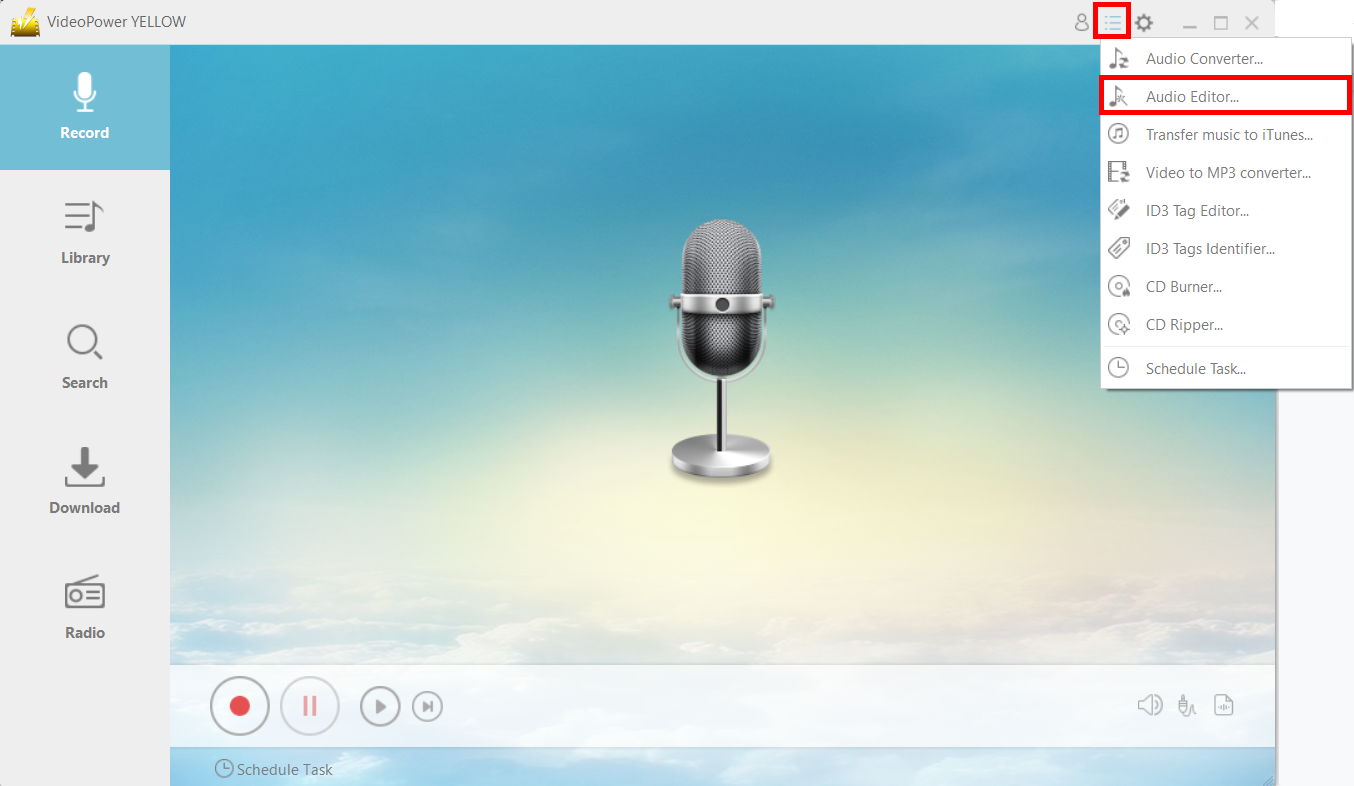
1. Run the program and click on the menu icon to open click “Audio Editor.”
2. Add the audio file. Click on the “Please load an audio file” to import the audio.

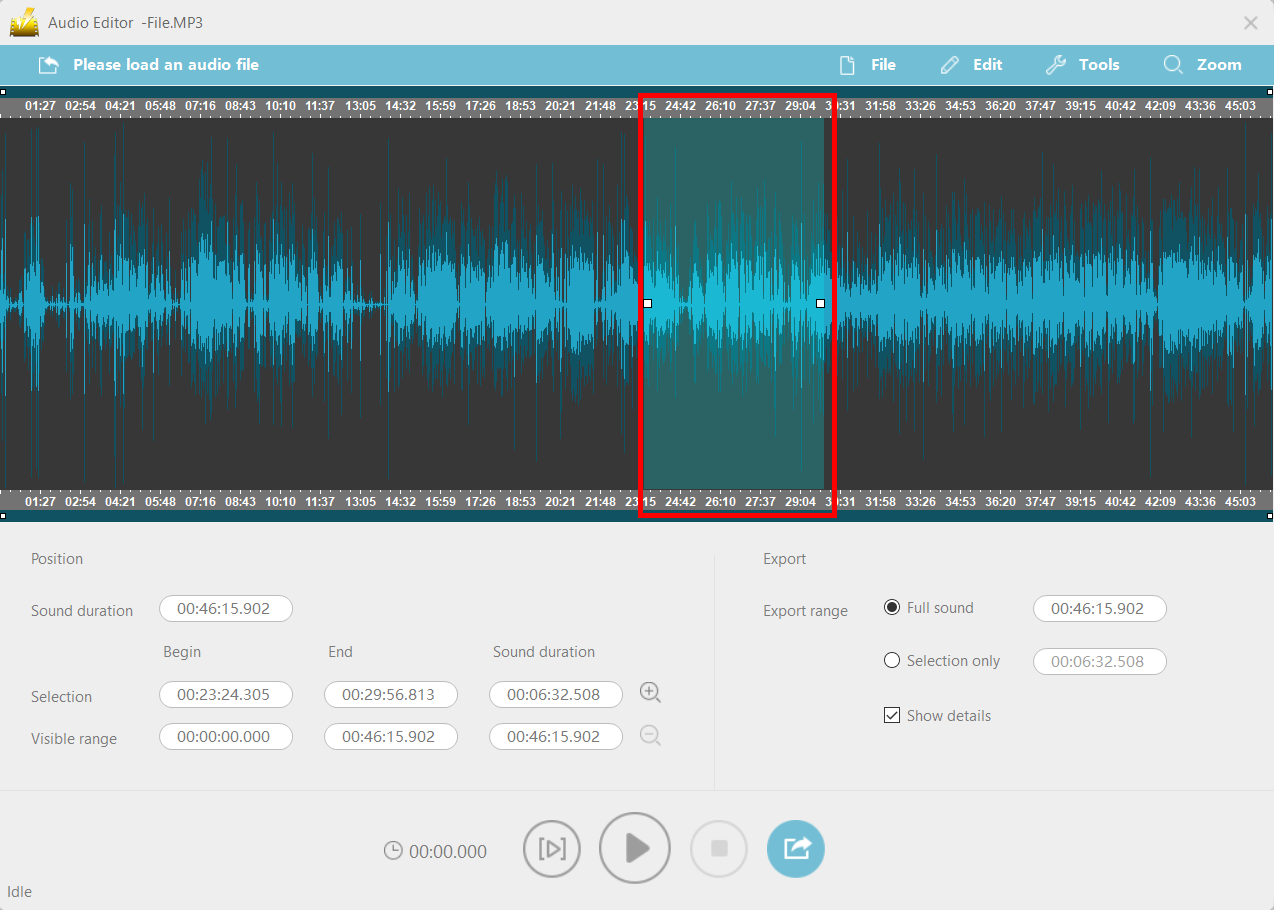
3. Select region. Cut editing cannot be performed without a waveform selected in the audio file. Click on the beginning of the region and drag the mouse cursor to the position you want. The selected region should be highlighted.
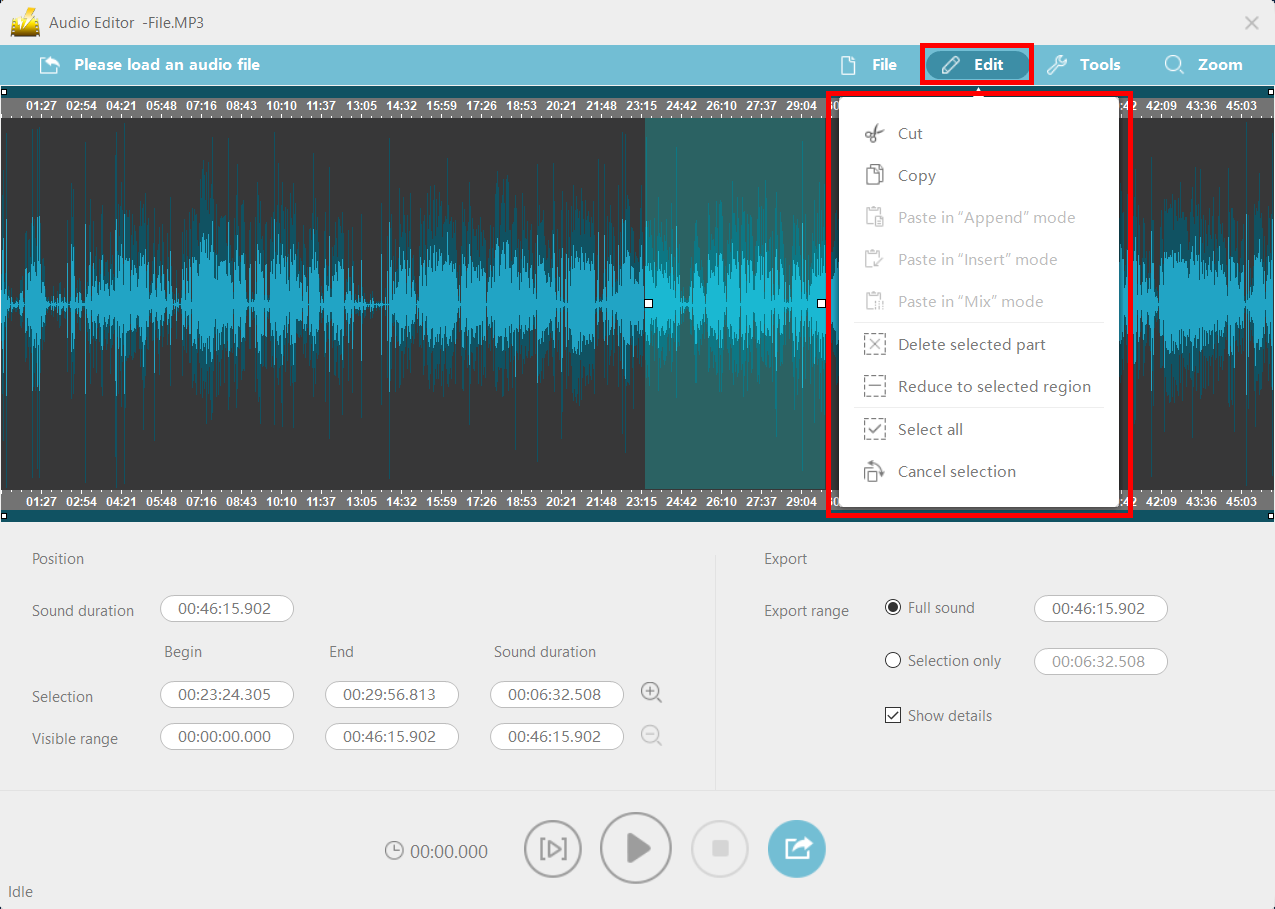
4. Edit operations. In the “Edit” menu, you can perform cut, copy, paste, and delete.
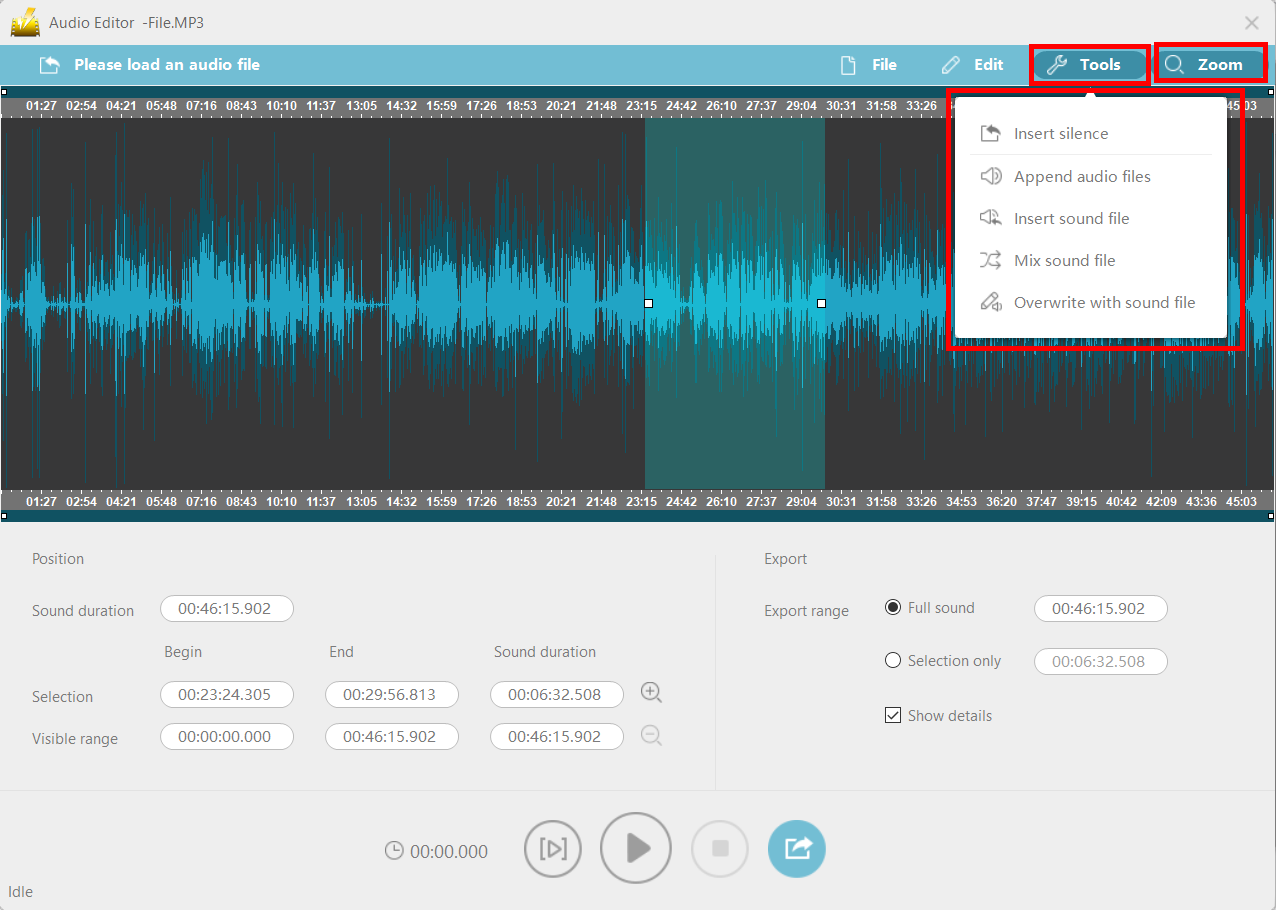
5. Tools operations. In the “Tools” menu, you can perform:
- Insert silence – Click the place where you want to insert silence. The following yellow line will show up. After that, set the duration of silence by heading to “Tool – Insert silence” and click “OK.” The silence will be inserted after the yellow line.
- Append sound file – Add a new audio file to the end of the current audio file.
- Insert sound file – Insert a new audio file behind the selected location.
- Mix sound file – Click on the place where you want to mix, the following yellow line is displayed. The new audio will be added after the yellow line and mixed with the original audio file.
- Overwrite with sound file – Replace the currently selected region with a new audio file.
You can also zoom in on the file by clicking on “Zoom.”
6. Save the audio file.
When you’re done editing, click the save button.
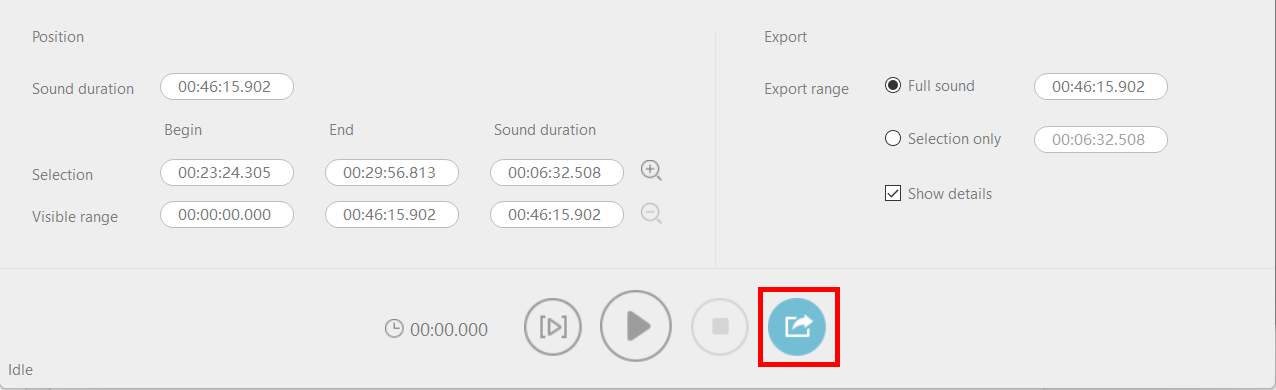
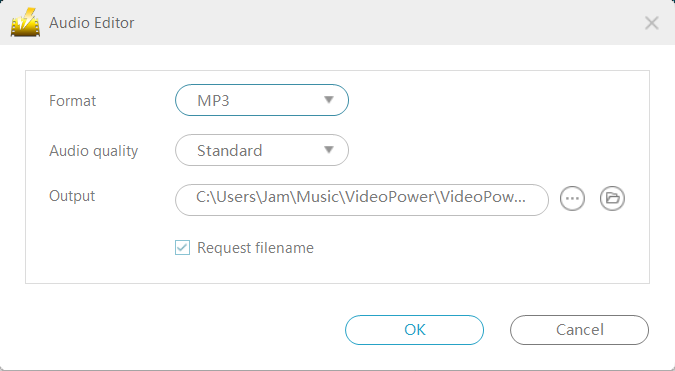
Another window will appear. In this window, you can modify the format settings, sound quality, etc. Click “OK” to start exporting the audio.
Conclusion:
Listening to sounds and music are in sync in human’s life nowadays. It transmits different emotions and feelings to the listeners that make them use those audios as ringtones and background music to their presentations and etc. For this reason, users ought to download and edit the audio file to make it presentable, catchy, and match their files.
Therefore, to make it possible, VideoPower YELLOW is best suited for this kind of matter as this app is amazing, hassle-free, trusted and has various professional features that can support users’ needs and wants.


