





Tips Index
Microsoft Lync is a popular platform for online meetings, instant messaging, audio and video calls. Lync is primarily a personal chat service that transcends personal needs and allows visual conferencing and workflow communication.
It’s not surprising that the Microsoft Lync has won a large number of white-collar users. On the other side, some users want to record Lync meetings for later viewing purposes.
In this case, we highly recommend using the best and easy to use screen recording software called VideoPower GREEN. Now, you can record on-screen activities on your computer in your own way with professional results.
You can try to use the software for free by downloading its trial version below.
Step 1: Record Lync screen activities.
Run VideoPower GREEN if you have installed it on your PC.
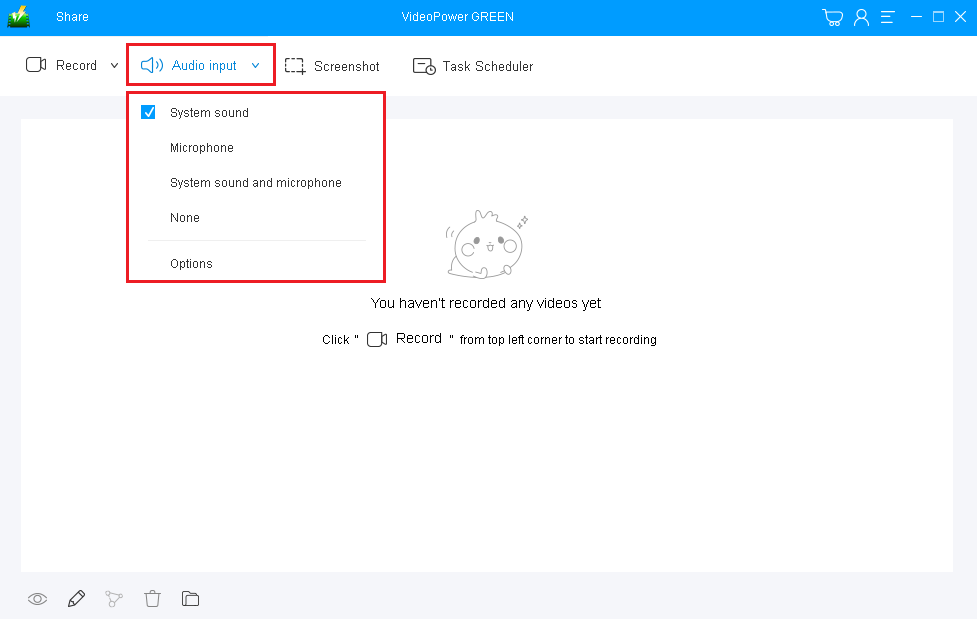
1) Choose a sound source.
You can choose “System sound, Microphone, System sound and microphone or None.” In recording Lync screen activities, you ca either use “System sound” or “System sound and microphone”.
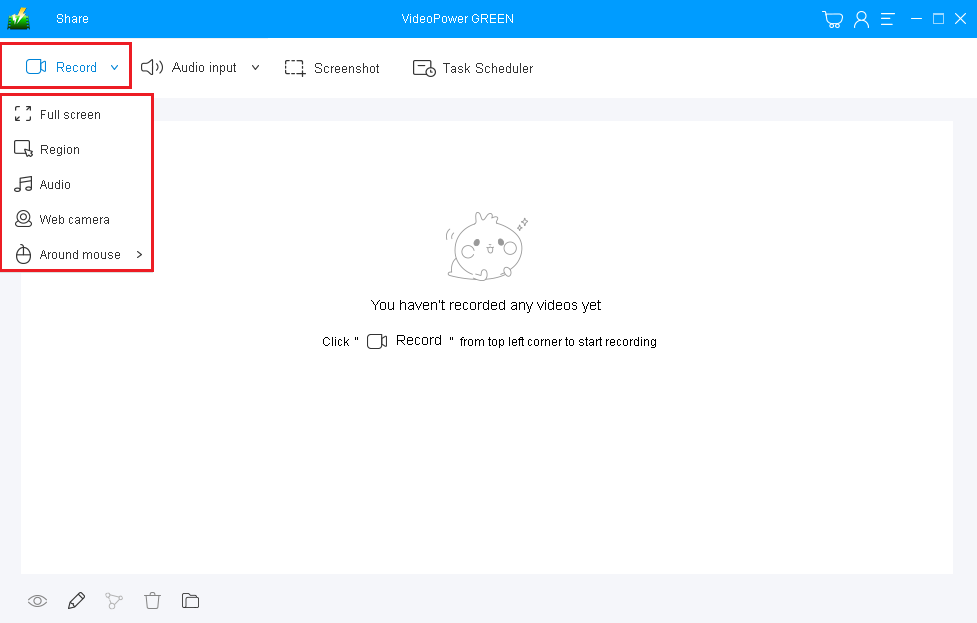
2) Select a recording area.
Click on the “Record” button to choose the recording mode from “Full screen, Region, Audio, Web camera, Around mouse”. Select the area you are going to record.
Step 2: Start to record Lync activities.
The pop-up window will ask whether you are ready to start recording, click “OK” to confirm when you are ready to record.

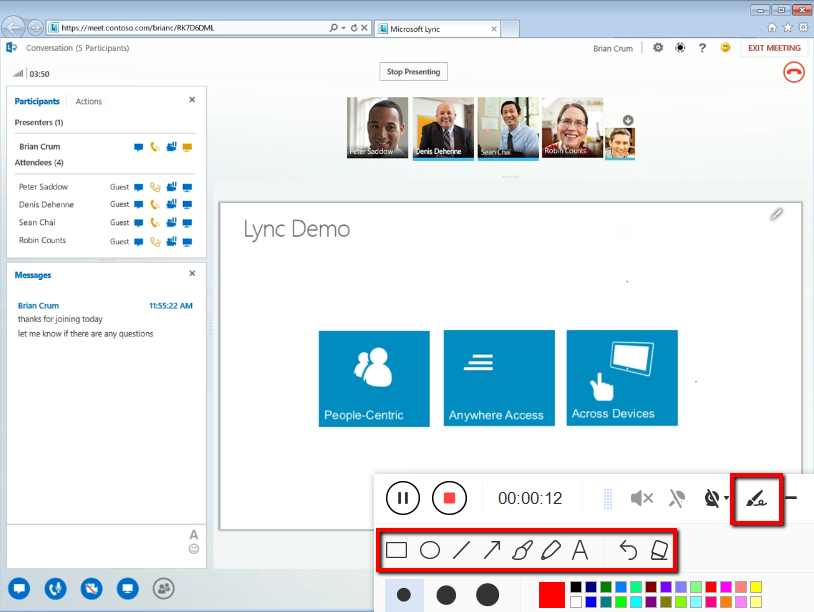
Annotate video while recording:
While recording you can add lines, arrows, shapes, texts, highlight, blur, etc. by clicking the edit button.
Step 3: End the recording.
Click the “Stop” button to stop recording.

After that, the recorded file will be saved in the output folder.
1) Your recorded file will be seen in the main interface. You can right-click the file and do more operations if you like.
2) Click the folder icon to view it in the output folder.

Conclusion:
Online communication is now prominent since the birth of digital technologies and applications. This development became a bridge of connection between people especially for those who have someone away from them.
One of the software people can use for online communication is Microsoft Lync. It is a popular platform for online meetings, instant messaging, audio and video calls.
Nowadays, people also record their online communication activities but some of them don’t know what would be the exact and suited software to be used. Thus, VideoPower GREEN is the answer.


