





Tips Index
In today’s generation where technology is a part of human life most especially in line with work and studies, screen capturing and recording runs best in saving related concerns. It allows you to obtain information quickly in its rawest form. Jing would be one of those screen recording software that would be best suited for computers.
However, this software has some weak points. It can record screen only in SWF format and it is unable to convert SWF to MOV, MP4, AVI or any other formats.
In such a case, VideoPower Green is a comprehensive software that allows users to record screen in various modes and capture screen in seconds. It is easy to use and trusted software that is the best alternative for Jing software as it can record and capture anything from your computer screen and can convert to any of your desired formats.
Take a look at the guide below on how to record the screen using VideoPower GREEN and click the link below to download and install the software.
You can try to use the software for free by downloading its trial version below.
Step 1: Record or capture screen activities.
Run VideoPower GREEN if you have installed it on your PC.
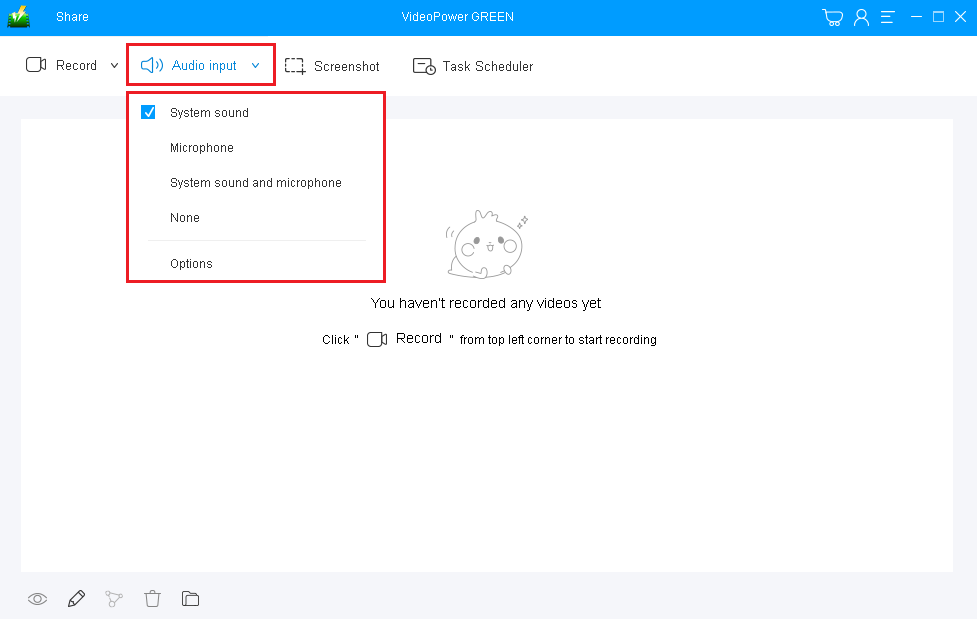
1) Choose a sound source
You can choose “System sound, Microphone, System sound and microphone or None.” To record streaming video, you can select “System sound”.
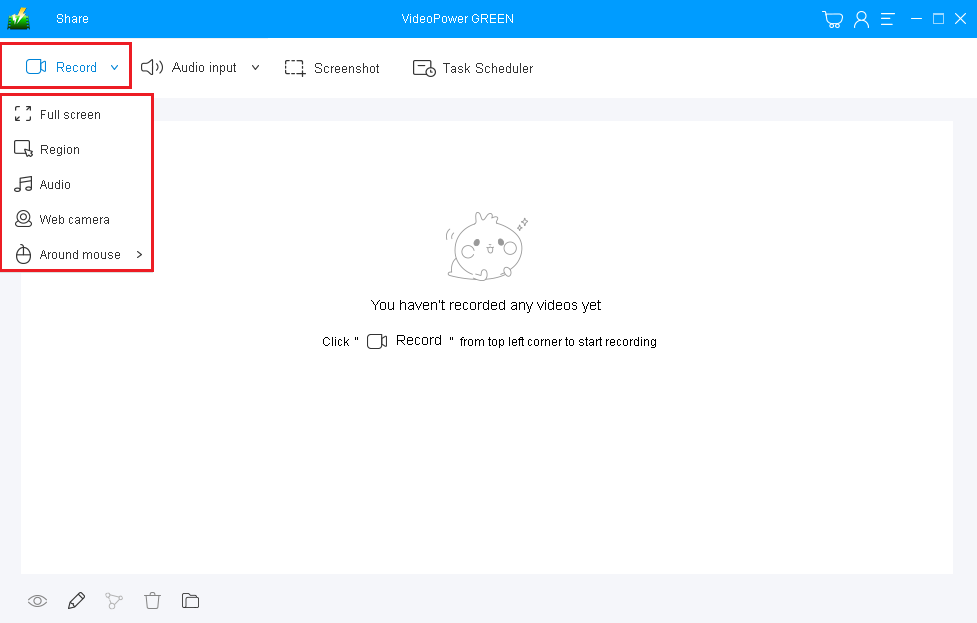
2) Select a recording area
Click on the “Record” button to choose the recording mode from “Full screen, Region, Audio, Web camera, Around mouse”. Select the area you are going to record.
Step 2: Start to record.
The pop-up window will ask whether you are ready to start recording, click “OK” to confirm when you are ready to record.

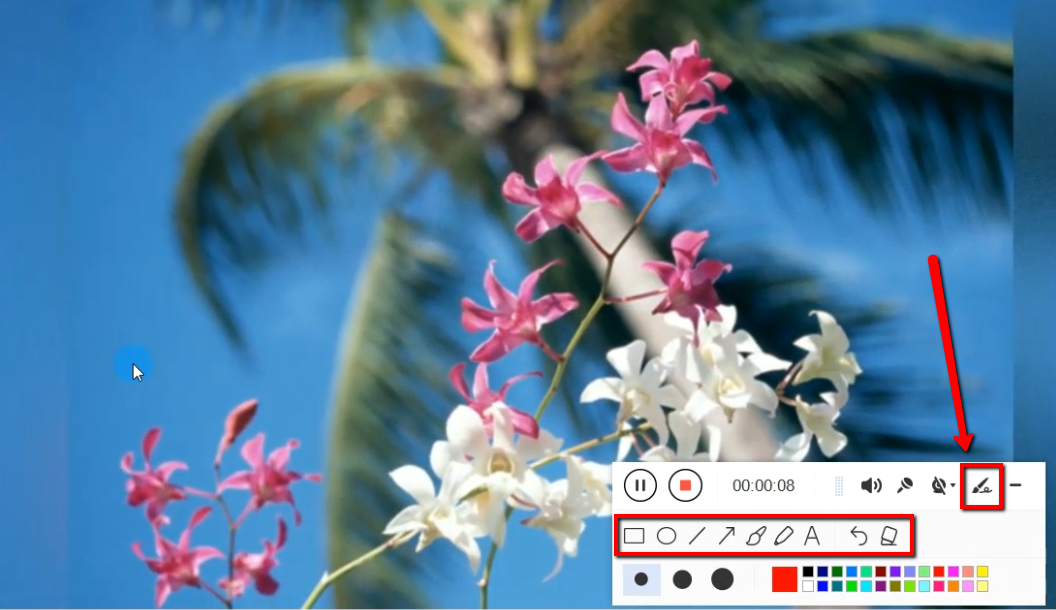
Edit video while recording
While recording you can add lines, arrows, shapes, texts, highlight, blur, etc. by clicking the edit button.
Step 3: End the recording.
Click the “Stop” button to stop recording.

After that, the recorded file is already saved in the pointed output folder.
1) Your recorded file can be seen in the main interface. You can right-click the file and do more operations if you like.
2) Click the folder icon to view it in the pointed output folder.

Conclusion:
VideoPower GREEN, an easy to use, hassle-free and trusted recording application software is best suited for capturing and recording desired screen activities. Moreover, it has an editing feature that can empathize with the content of the recorded screen activities and also has a task scheduler feature that can help save time and effort.


