





Tips Index
VideoPower GREEN has a special feature before the recording starts- countdown. This allows users to anticipate that the recording will start at the end of the countdown. This article will serve a guide on how to how to adjust, enable and disable the VideoPower GREEN’s countdown feature by going through the product settings.
VideoPower GREEN is an impressive application software for screen capturing and screen recording and is trusted in hiding unnecessary icons and taskbars during the process of recording through the tips discussed below.
Step 1: Launch VideoPower GREEN and open settings.
1) Click the menu on the upper right corner of the interface.
2) Choose “Settings” from the drop-down menu.

Step 2: Change the settings.
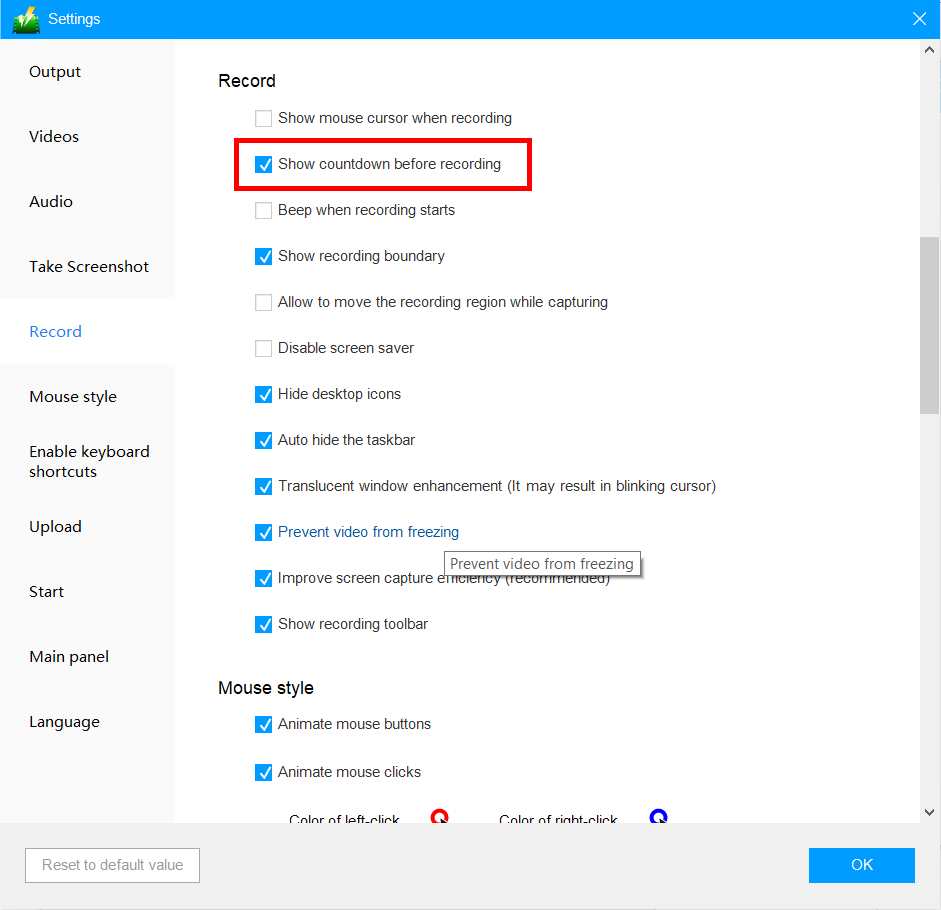
1) Click the “Record” tab on the left side of the interface.
2) Check “Show countdown before recording” to display the countdown and spare 3 seconds waiting time.
When you uncheck this option, the countdown will be disabled and the recording will start immediately.
3) After changing the settings, click the “OK” button to save and close the advance setting screen.
If the countdown is enabled, the following clapperboard will display before recording starts.

Conclusion:
VideoPower GREEN has features unlike any other software when it comes to screen recording. Set the countdown to start recording on a specific time or set the time and date to automatically start the screen recording and its duration using the task scheduler tool.
Shooting area can be specified to a full screen, a specific window or area. Freely add text, arrows, highlights, comments, etc. while recording or taking a screenshot.


