





Tips Index
Nowadays, many computer users are fond of playing online games on their PCs. As time goes by, they become also fond of recording gameplay to show others how skillful they are.
Some of the gamers often use Fraps to record their full-screen gameplay until they found out that this application lagged their PC and makes recording complicated to handle.
Fraps is popular among gamers who like recording gameplay videos to show others how amazing skills they have in playing. However, this software can cause computer lag. Therefore, gamers should need to find a different kind of software to continue recording gameplay.
Amazing application software such as VideoPower Green would be best suited for recording gameplay in a full-screen PC. Check out the guide below to know more about this product.
VideoPower GREEN is a powerful screen recorder that can record videos, audio, webcam, and it also supports schedule recording tasks that enable you to record live streaming movies without sitting in front of your computer.
You can try to use the software for free by downloading its trial version below.
Step 1: Record full screen games.
Choose a sound source
You can choose “System sound, Microphone, System sound and microphone or None.” In recording full screen games, either “System sound” and “System sound and microphone” is recommended.
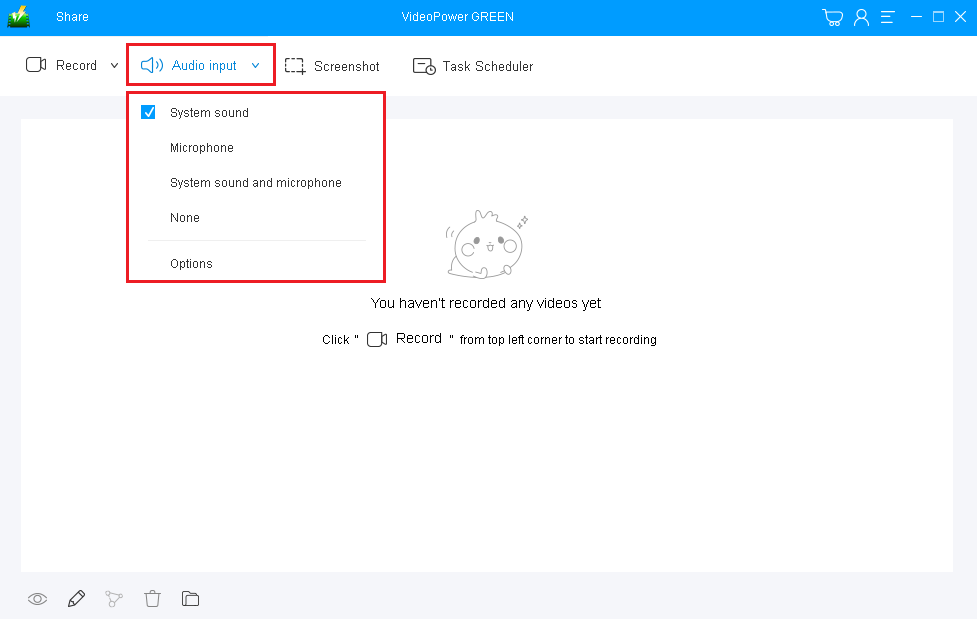
Select a recording area
Click on the “Record” button to choose the recording mode from “Full screen, Region, Audio, Web camera, Around mouse”. If you are going to record both webcam and screen, you need to select the screen and then open the webcam after starting the recording.
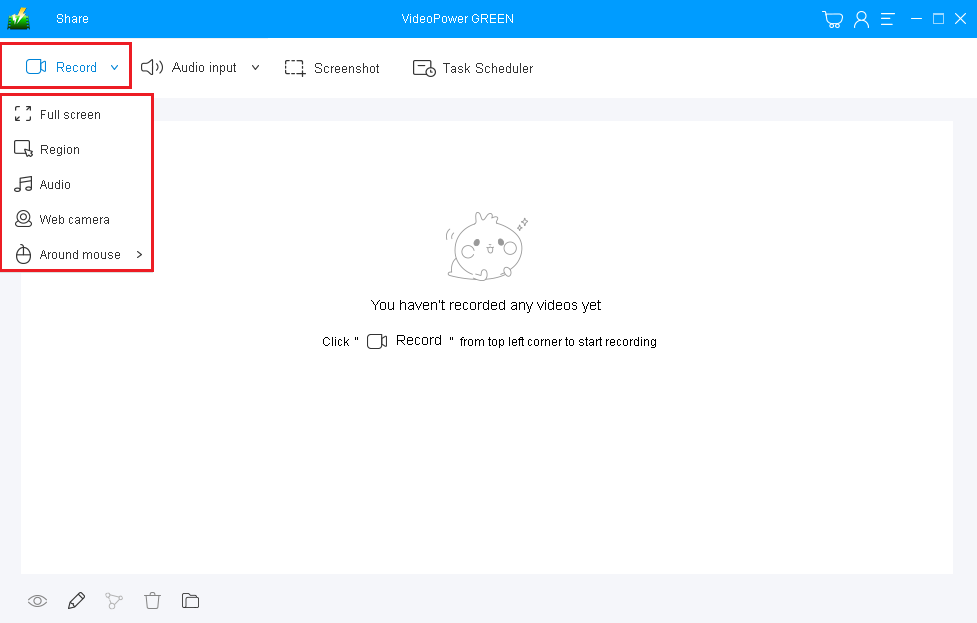
Step 2: Start recording full screen games.
The pop-up window will ask whether you are ready to start recording, click “OK” to confirm when you are ready to record.

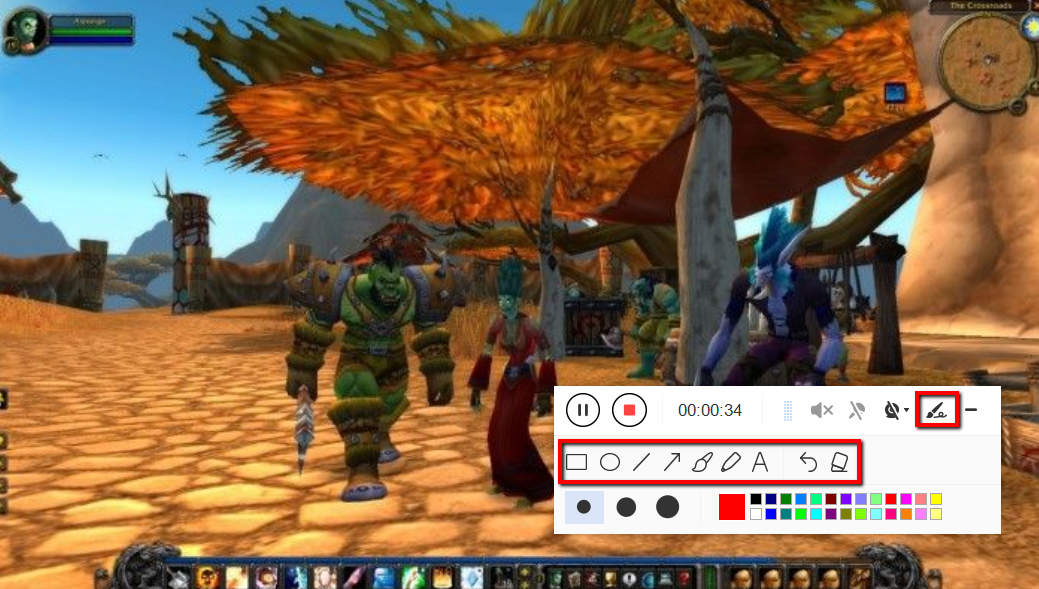
Annotate video while recording
While recording you can add lines, arrows, shapes, texts, highlight, blur, etc. by clicking the edit button.
Step 3: End the recording.
Click the “Stop” button to stop recording.

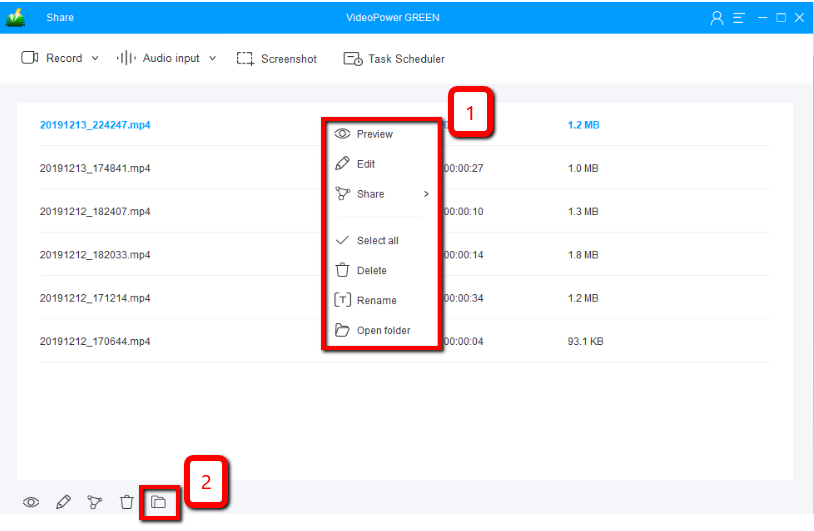
After that, the recorded file willo be saved in the output folder.
1) Your recorded file will be seen in the main interface. You can right-click the file and do more operations if you like.
2) Click the folder icon to view it in the exact output folder.
Conclusion:
In today’s generation, many computer users are fond of playing online games and now, they are also fond of recording gameplay for many different reasons and purposes. Some of the gamers use different kinds of recorders until they found out that these applications lagged their PCs and make recording complicated to handle. Since then, they don’t really know what to use in recording their full-screen gameplay.
Thus, VideoPower GREEN, an easy to use, hassle-free, trusted and has a professional features recording application software would be best suited for this job. This software helps gamers record gameplay anyway they want on any PC they have. Moreover, this app helps users improve their videos by using its editing feature and it can also help users save time and effort by using its task scheduler feature.


