





Tips Index
Tired of the chaotic screen while recording? Afraid to interrupt recording while wiping unnecessary windows on screen? Worry no more, VideoPower Green can hide Windows’ taskbars, desktop background and icons that can interfere with the recording.
In this article, we will show you the easiest step on how to hide the desktop icons when using VideoPower GREEN.
VideoPower GREEN is an impressive application software for screen capturing and screen recording and is trusted in hiding unnecessary icons and taskbars during the process of recording through the tips discussed below.
Download the software through this link and follow the instructions.
Step 1: Launch VideoPower GREEN
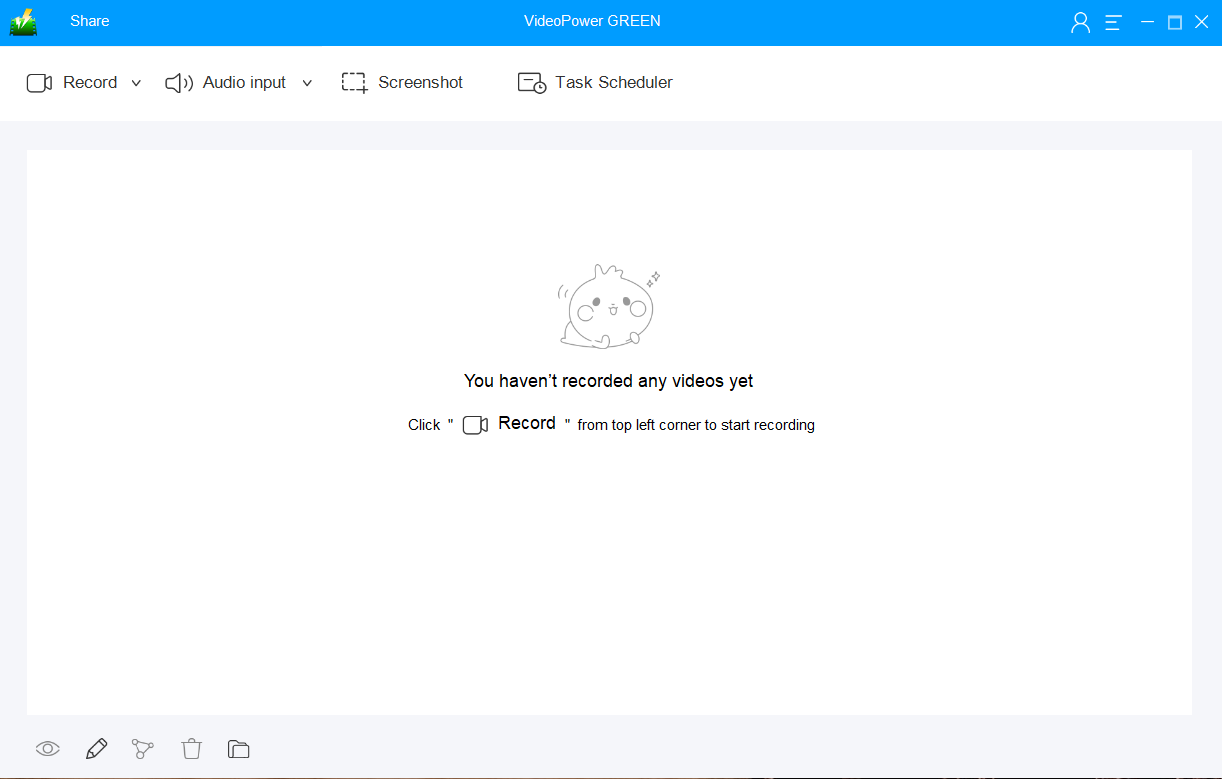
Launch VideoPower GREEN if you have installed it successfully on your PC. The main interface of the software should look like this:
Step 2: Modify settings to hide the desktop background, icons, and taskbar
2.1 Open Settings
1) Click the menu on the upper right corner of the interface.
2) Choose “Settings” from the drop-down menu.

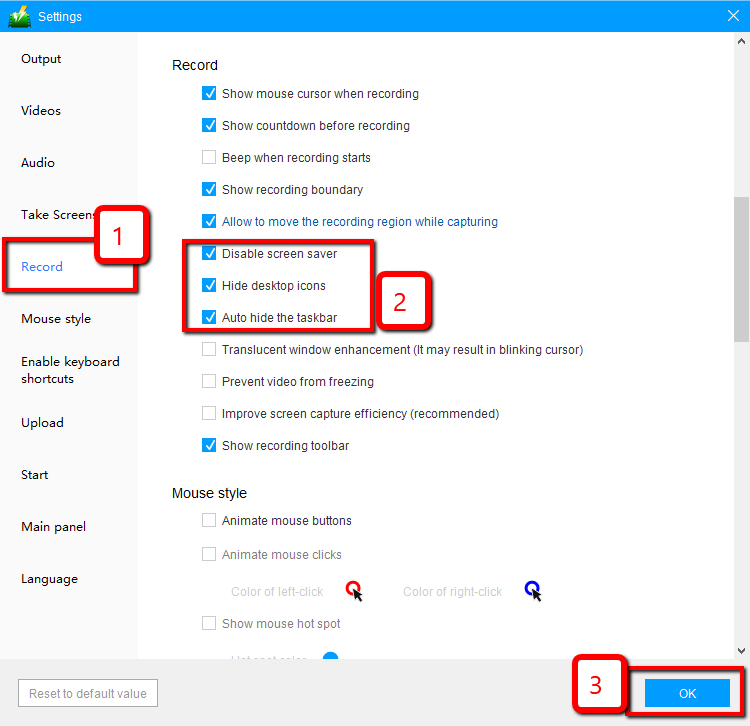
2.2 Change Record settings
1) Click the “Record” tab on the left side of the interface.
2) Then select “Disable screen saver, Hide desktop icons, Auto-hide the taskbar”.
3) Click “OK” to save settings.
Step 3: Start recording screen activities
3.1 Choose an audio source
You can choose:
1) System sound
2) Microphone
3) System sound and microphone
4) None
Note: To record streaming video, you can select “System sound”.

3.2 Select a recording area
Click on the “Record” button to choose the recording mode.
1) Fullscreen
2) Region
3) Audio
4) Web camera
5) Around mouse (select the area you are going to record)

3.3 Start to record
The pop-up window will ask whether you are ready to start recording, click “OK” to confirm when you are ready to record.

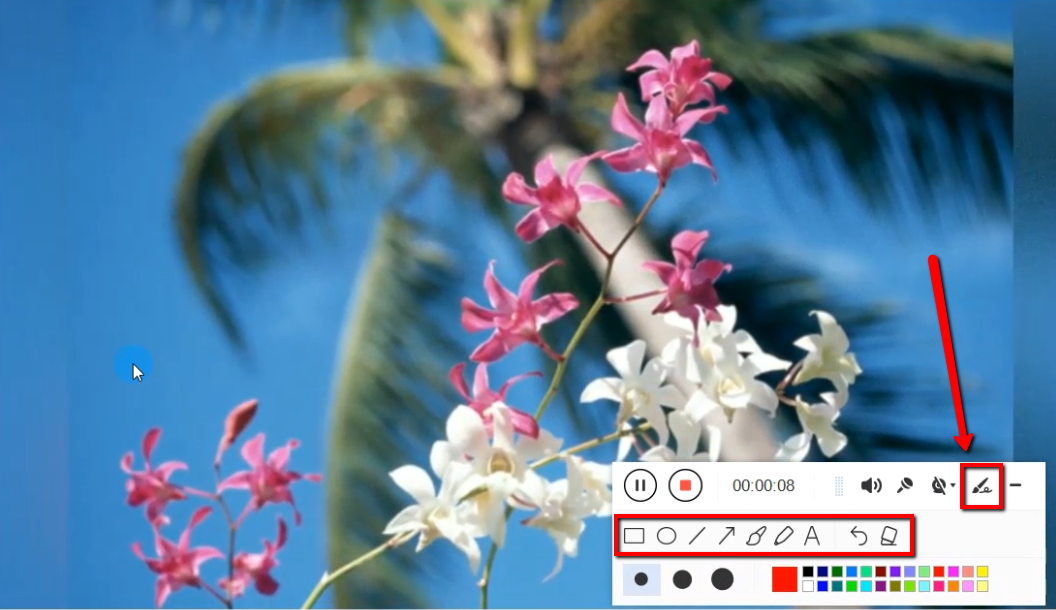
3.4 Annotations
While recording you can add lines, arrows, shapes, texts, highlight, blur, etc. by clicking the edit button.
3.5 End the recording
Click the “Stop” button to stop recording.

Step 4: Manage your recorded video
1) Your recorded file can be seen in the main interface. You can right-click the file and do more operations if you like.
2) Click the folder icon to view it in the pointed output folder.

Conclusion:
Editing footage of screen activity is a bit of a hassle especially when you want to hide that messy screen background. Well, now that you’ve found the solution with VideoPower GREEN its easier. More features are packed in this software like taking screenshots in full screen, a specific window or area.
Users can also record what’s going in the desktop screen may it be live streaming videos, webinars, web cameras, etc. You have the option to enable or disable system sounds or the microphone.


