





Tips Index
Fraps is an application that can use DirectX or OpenGL graphics technology to record games and perform many tasks. The video recorded by Fraps is AVI format of lossless compression, with high quality and no frame loss.
But the problem is, you can’t change the length or limit of the Fraps recording caps. Its large amount of file comes out to be its disadvantage. Therefore, if you want to reduce the file, you have to use a video editing software for format conversion, resolution reduction, and other operations to compress your recorded file.
Awesome Alternative to Fraps
However, there’s an amazing Fraps alternative tool that can record gameplay but performs better in recording and has other awesome functions that Fraps doesn’t have.
VideoPower GREEN software can record various games, YouTube videos, online chat windows, PPT and so on.
This product has a low requirement of the user’s computer configuration which allows synchronization compared to other products. This makes as an amazing alternative tool for Fraps which also can record gameplay and performs better in recording and has other awesome functions that Fraps doesn’t have. Try it for free!
You can try to use the software for free by downloading its trial version below.
Step 1: Record screen activities
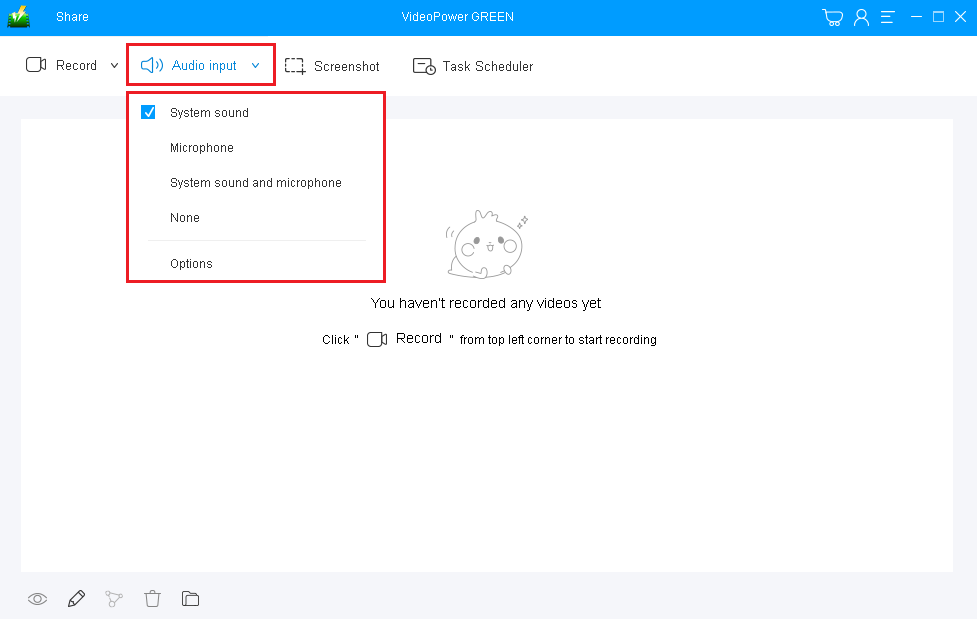
Choose a sound source
You can choose “System sound, Microphone, System sound and microphone or None.” To record streaming video, you can select “System sound”.
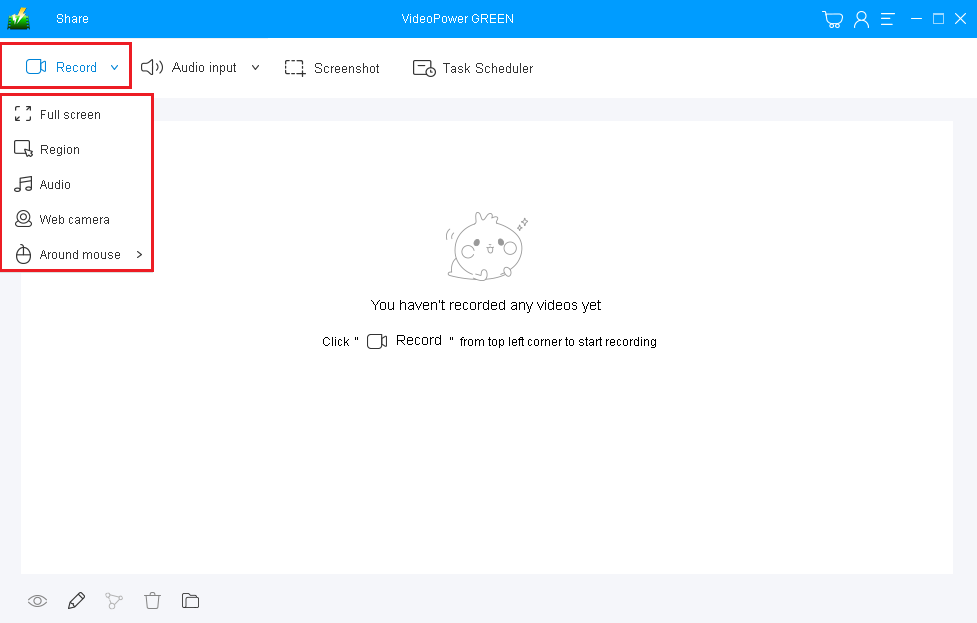
Select a recording area
Click on the “Record” button to choose the recording mode from “Full screen, Region, Audio, Web camera, Around mouse”. Select the area you are going to record.
Step 2: Start recording screen activity
The pop-up window will ask whether you are ready to start recording, click “OK” to confirm when you are ready to record.

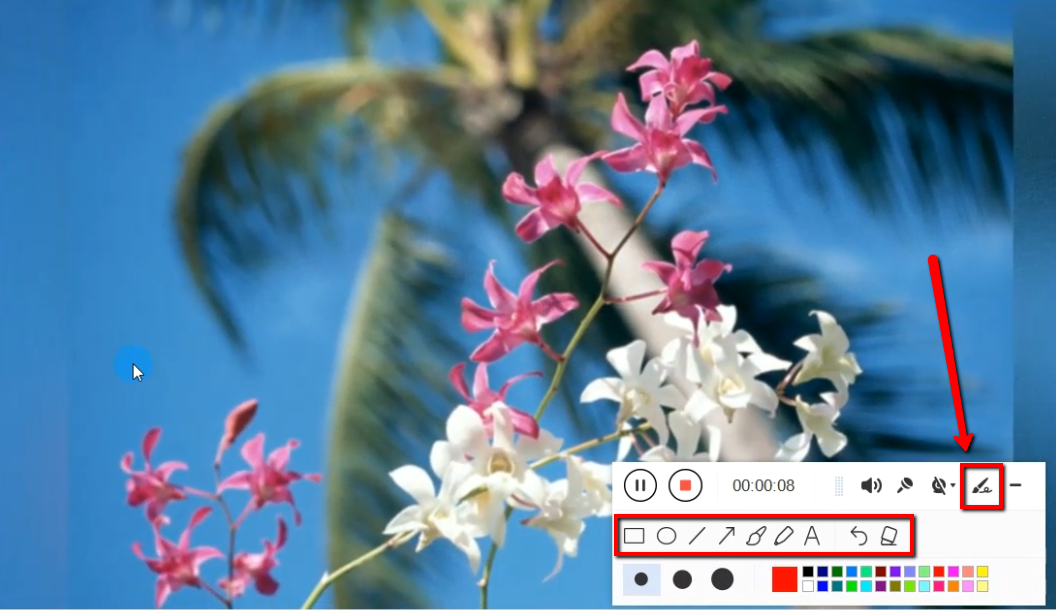
Edit video while recording
While recording you can add lines, arrows, shapes, texts, highlight, blur, etc. by clicking the edit button.
Step 3: End the recording
Click the “Stop” button to stop recording.

After that, the recorded file is already saved in the pointed output folder.
1) Your recorded file can be seen in the main interface. You can right-click the file and do more operations if you like.
2) Click the folder icon to view it in the pointed output folder.

Conclusion:
Screen capture and screen recording software don’t always go with users’ desired content and format quality. Some may have the problem in size or length that are heavy for the device like Fraps. Thus, simple, hassle-free and suitable video editing software that is good in cutting video length is now users are looking for.
VideoPower GREEN, a powerful and trusted application software is best suited for video editing most especially for format conversion, resolution reduction, and other operations to compress the recorded files.
Moreover, this product also good at recording screen activities for later viewing and also excellent in beautifying recorded files by using its editing feature. It can also help you save some time and effort by setting its task scheduler feature.


