





Tips Index
In daily life, while operating a computer, you will sometimes encounter the need of recording something from it for some purpose. However, there are still questions on how to successfully record the best videos from your computer and what would be the excellent and trusted recording software that can offer you the functions you’ll need and desired.
This would be an application software that can answer your questions on what would be the best software that you can use in Windows 8 OS, what would be the best tool to record the whole operating process running on your computer and many more.
To take your worries away, only VideoPower GREEN, the best and trusted screen capture and recorder software can get all these things done for you.
Since screen recording is now commonly used in our daily activities, it now also has various features that can support your needs.
This is a software that ables to record anything active on a PC screen in a high-quality resolution, even 4K resolution, can customize recording area, has instant editing while recording. Also, it can operate webcam recording, animate mouse clicks, and is easy to use with professional quality results.
Step 1: Customize the video setting on your windows 8 recorder
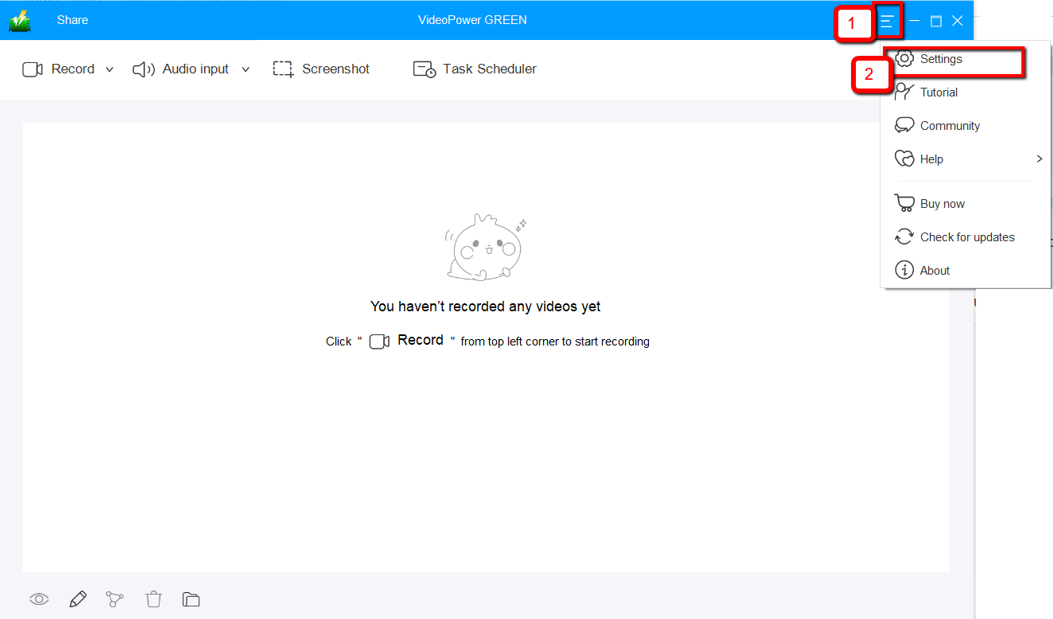
1.1 Open Settings
1) Click the menu on the upper right corner of the interface.
2) Choose “Settings” from the drop-down menu.
1.2 Change video settings
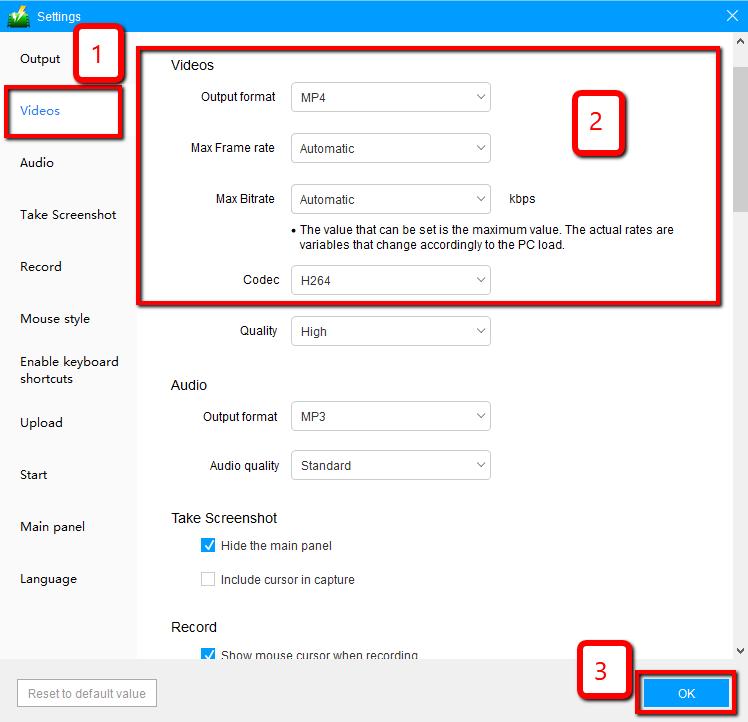
1) Click the “Video” tab on the left side of the interface.
2) You are now able to customize the Output format, Codec, Bitrate, and Frame rate of the recording video as per need.
3) Click “OK” to save settings。
Step 2: Record screen activities on your windows 8
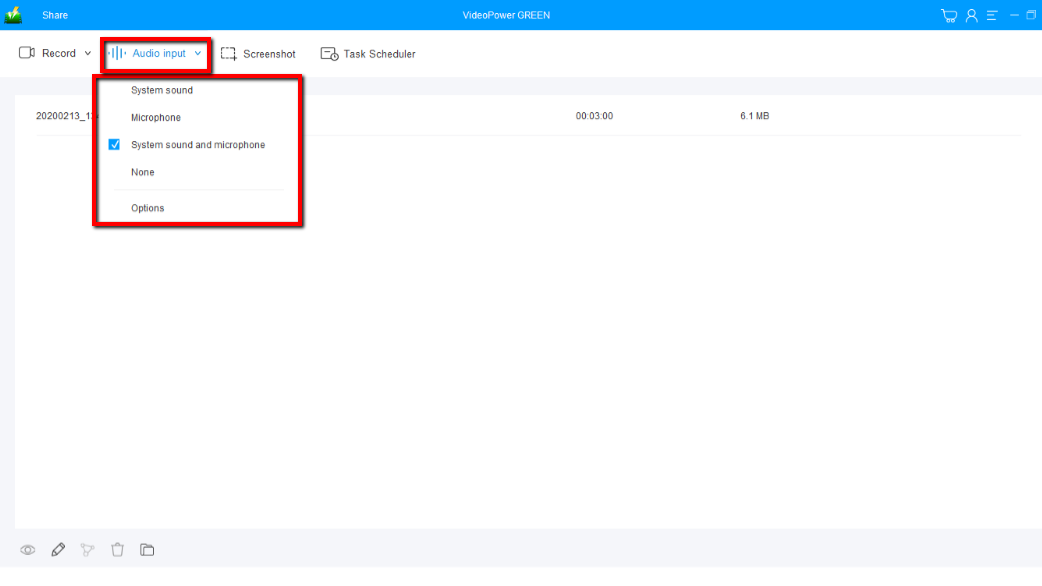
2.1 Choose a sound source
You can choose “System sound, Microphone, System sound and microphone or None.” To record streaming video, you can select “System sound”.
2.2 Select a recording area
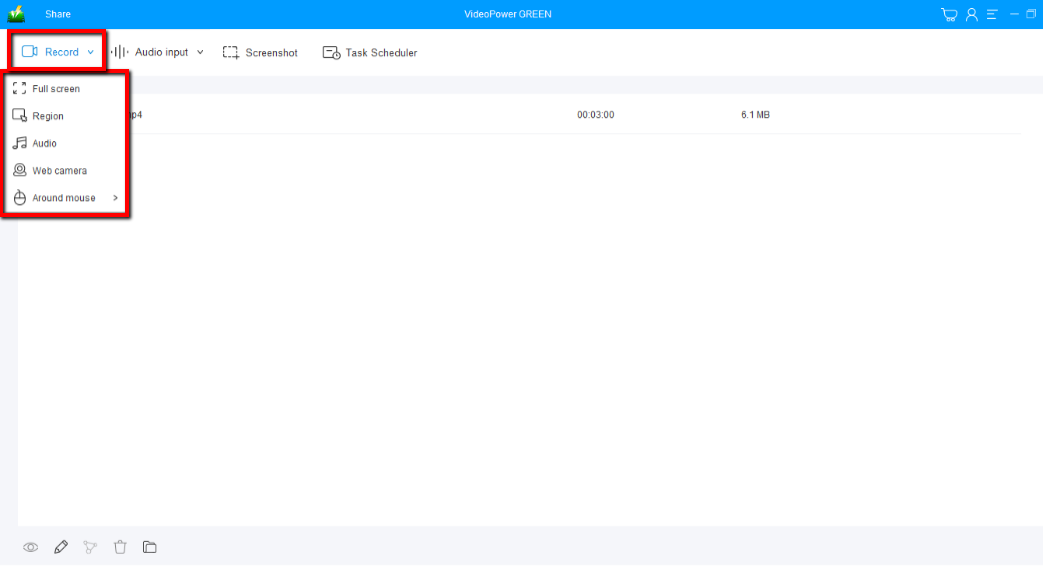
Click on the “Record” button to choose the recording mode from “Full screen, Region, Audio, Web camera, Around mouse”. Select the area you are going to record.
2.3 Start to record
The pop-up window will ask whether you are ready to start recording, click “OK” to confirm when you are ready to record.

2.4 Edit video while recording
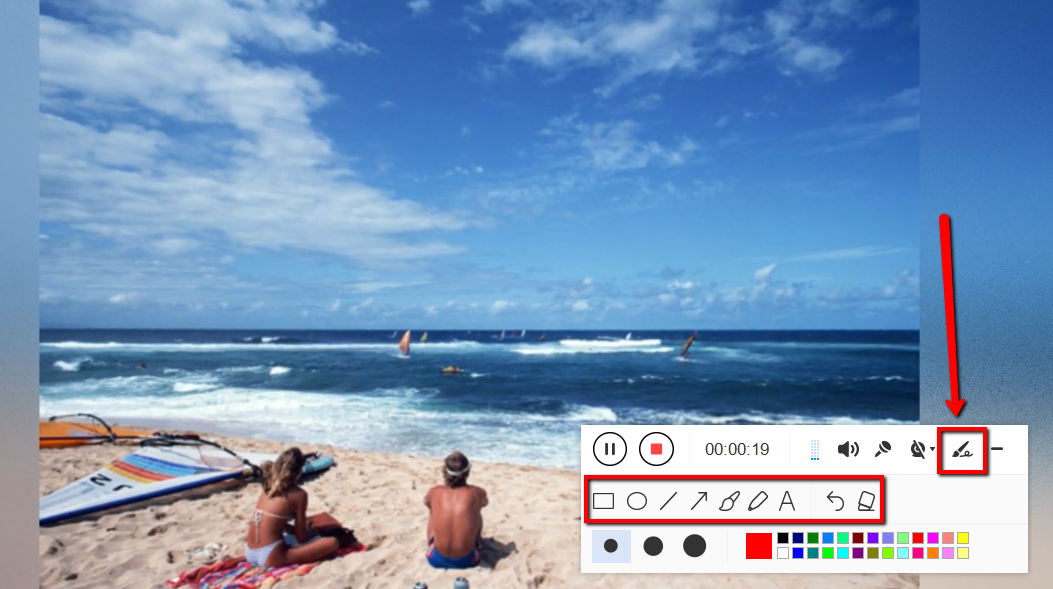
While recording you can add lines, arrows, shapes, texts, highlight, blur, etc. by clicking the edit button.
2.5 End the recording
Click the “Stop” button to stop recording.

Step 3: Manage your recorded video on windows 8
After that, the recorded file is already saved in the pointed output folder.
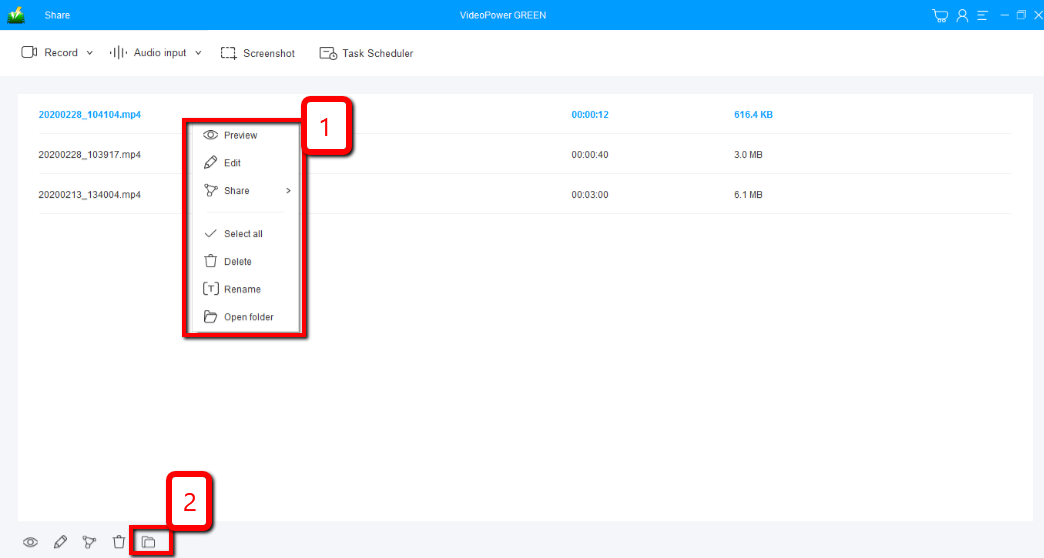
1) Your recorded file can be seen in the main interface. You can right-click the file and do more operations if you like.
2) Click the folder icon to view it in the pointed output folder.
Conclusion:
There are lots of online software that offers screen recording. The problem is that recording quality is easily affected by the network status. With VideoPower GREEN, screen recording is smooth and easy. It has a user-friendly interface full of features like the extension video editor tool which includes trimming, rotating, adjusting the resolution, speed, volume, brightness, adding subtitles, and a lot more. Batch conversion, basic video editing, and quality modification are as well.


