





Tips Index
Digital technologies are now a common way of entertainment. Users make use of it most of the time, anywhere and on any occasion.
Sometimes, when taking the bus or subway to depart to and from places, many users can be observed manipulating social media and of course playing games. As time goes by with the popularity of computers and computer games, playing with these has become a major hobby in one’s life.
Online games can make people grasp entertainment and pleasure, can sense accomplishment and can satisfy the desire of a conquer. Playing alone wasn’t enough for most of the users now, they also make streamings and commentary videos of computer games to share online.
But the question is, how can users record gameplay videos? Or, how to record other people’s streamed gameplay videos?
Well, lucky for you we are here to introduce to you the best and easiest screencast software of all time called the VideoPower GREEN. Now capturing your gameplay can just be a piece of cake since you have come to the right place. Just click the link below to download this free app.
Just click the link below to download this free app.
Step 1: Customize video settings before recording your gameplay
1.1 Open Settings
1) Click the menu on the upper right corner of the interface.
2) Choose “Settings” from the drop-down menu.
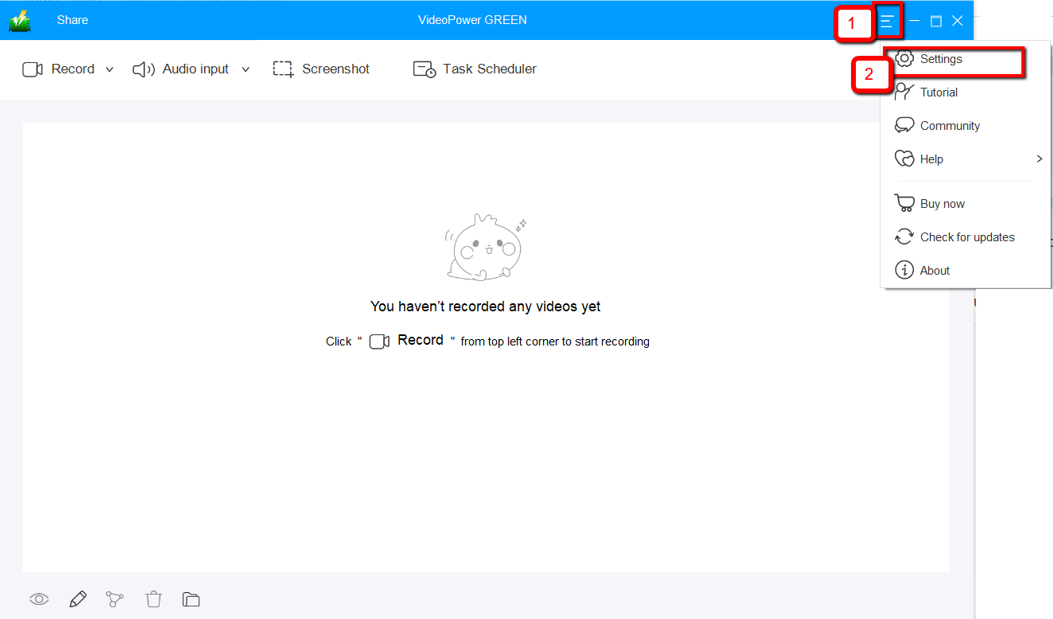
1.2 Change video settings
1) Click the “Video” tab on the left side of the interface.
2) You are now able to customize the Output format, Codec, Bitrate, and Frame rate of the recording video as per need.
3) Click “OK” to save settings.
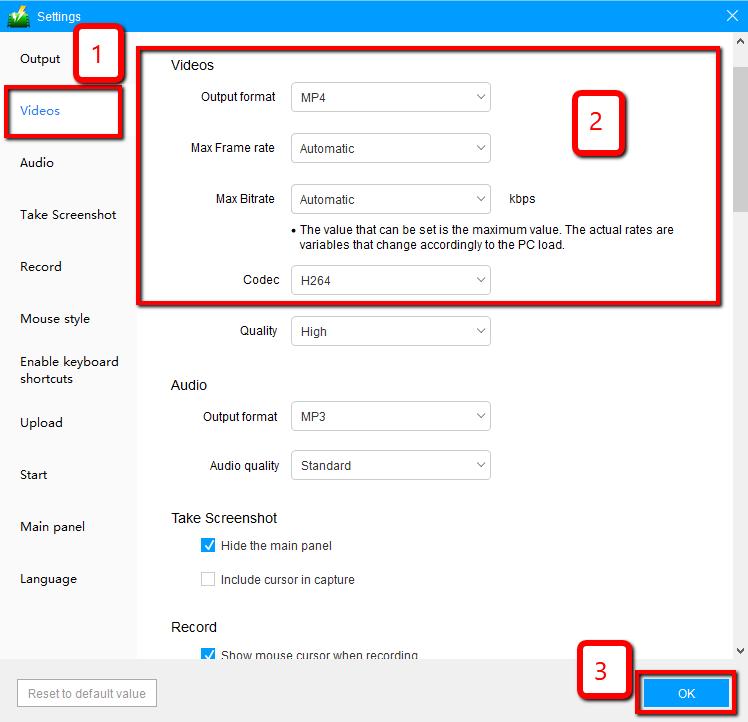
Step 2: Record gameplay on PC
2.1 Choose a sound source
You can choose “System sound, Microphone, System sound and microphone or None.” To record gameplay, you can select “System sound and microphone”.
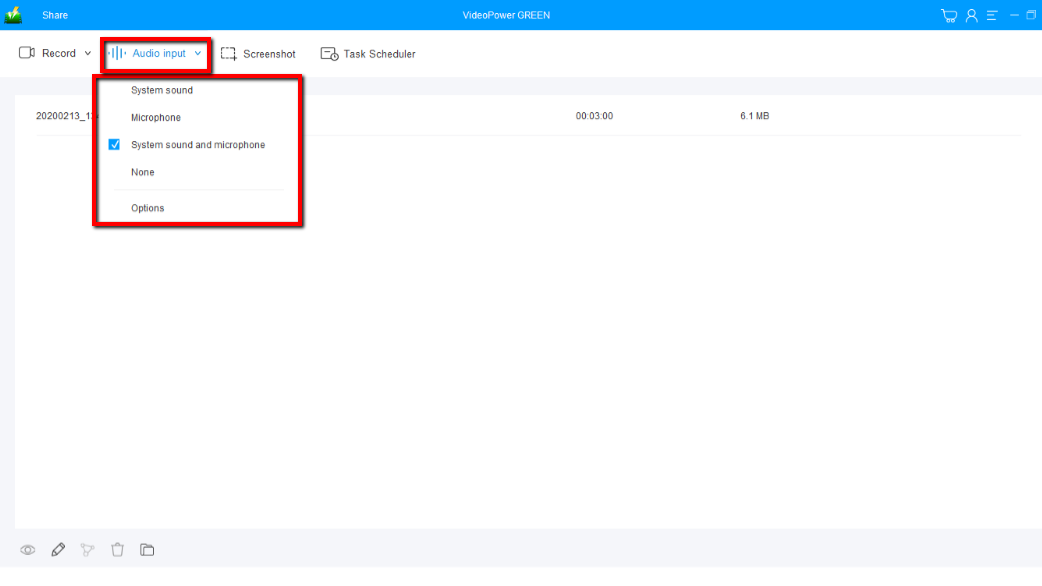
2.2 Select a recording area
Click on the “Record” button to choose the recording mode from “Full screen, Region, Audio, Web camera, Around mouse”. Select the area you are going to record.
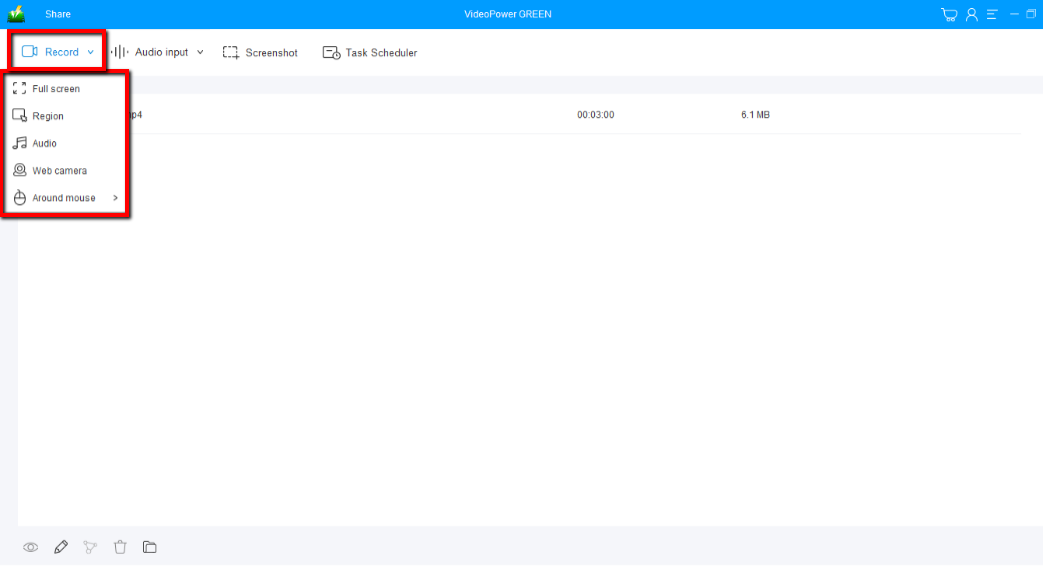
2.3 Start to record
The pop-up window will ask whether you are ready to start recording, click “OK” to confirm when you are ready to record.

2.4 Edit video while recording
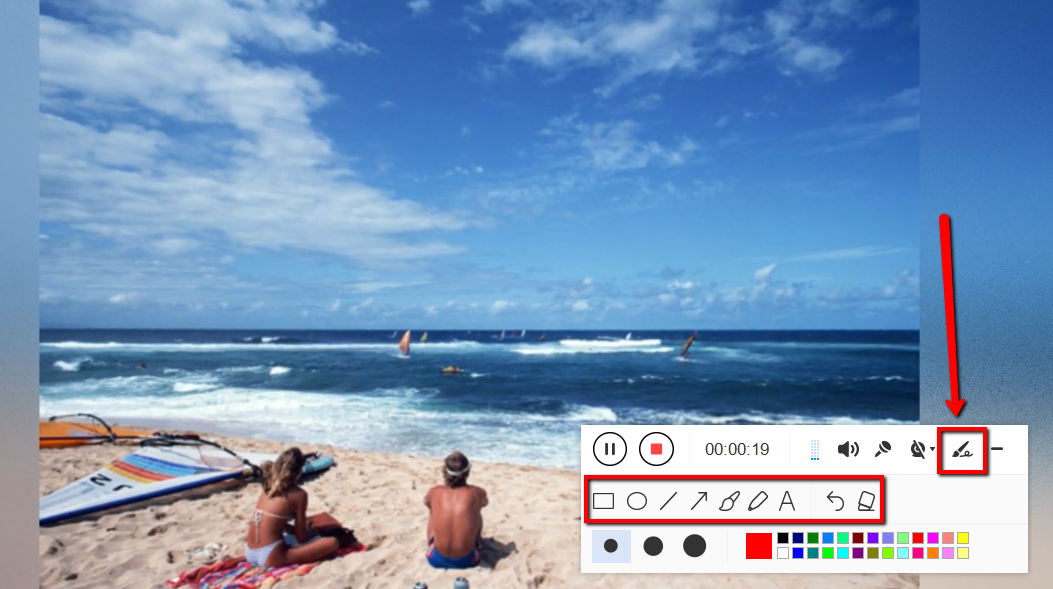
While recording you can add lines, arrows, shapes, texts, highlight, blur, etc. by clicking the edit button.
2.5 End the recording
Click the “Stop” button to stop recording.

Step 3: Manage your recorded gameplay
After that, the recorded file is already saved in the pointed output folder.
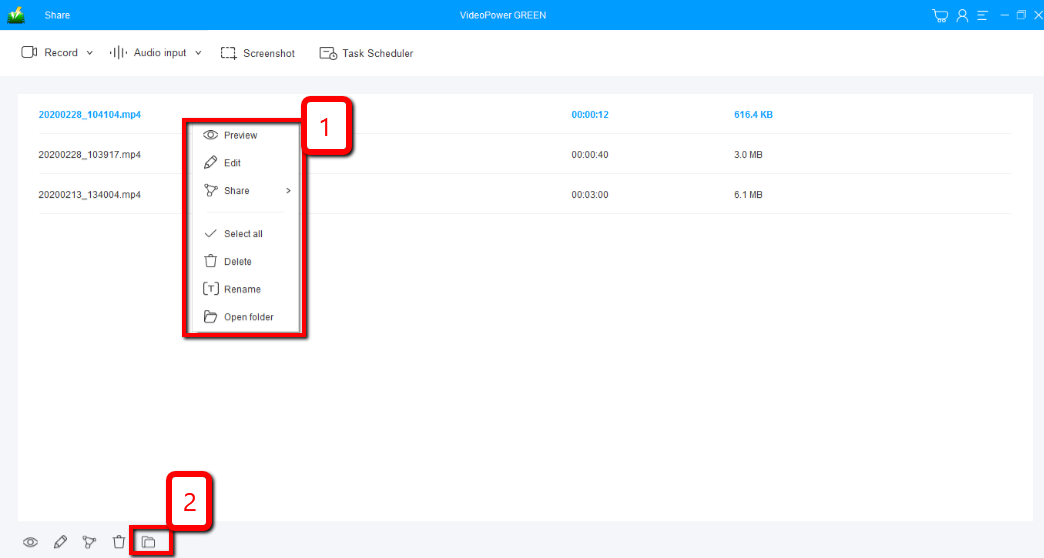
1) Your recorded file can be seen in the main interface. You can right-click the file and do more operations if you like.
2) Click the folder icon to view it in the pointed output folder.
Conclusion:
VideoPower GREEN enables you to record your screen & audio, or automatically whenever you want to even if you are not in front of your computer. Record it in full screen, a specific window or a specific area. A task scheduler tool is helpful if you want to record your screen on a specific time and date, it will automatically record what’s going on in your screen may it be streaming videos, webinars, web cameras, etc. The video editor lets you apply watermarks, effects, and other basic video editing options such as trimming or cropping. Adjust the speed, volume, contrast, brightness and saturation of a video.
VideoPower GREEN takes screenshots in high quality as well.


