





Tips Index
Facebook is a social networking site that easily and simply connects people around the globe. Most of the users find it handy as it helps them to communicate with their friends and family from a faraway land face to face via camera.
Also, with Facebook, users can be updated on what other people are up to. They would also be notified of whatever updates around the world. Users can also reach people they didn’t have contact and communications without any hassle.
As technologies continuously developing nowadays, users grow unsatisfied by only accessing someone with a social media site. Users also ought to keep a record of their Facebook activities for later and offline purposes. There are times that users may want to record Facebook video clips, video calls and etc. to keep the precious moments.
Facebook is indeed an amazing and easy to access and manage site, however, there are many things that users are looking for that does not include in this site like a tool for saving video clips and saving contents from it. Thus, a Facebook screen recorder third-party tool is needed.
Therefore, VideoPower GREEN, an amazing, hassle-free and trusted screen recorder application software is highly recommended. By using this best and easy to access a screen recording app, users can record any on-screen activities with professional results and can help users access recorded content anywhere they are and anytime they need and want.
This app exactly answers users’ questions on how to record Facebook Videos.
Just click the link below to download this free app. Try to use the software for free by downloading its trial version below.
Step 1: Choose a sound source
If audio is needed in recording, choose the desired sound source among “System sound, Microphone or System sound and microphone” on the “Audio Input” menu. If audio isn’t needed, just choose “None”.
To record streaming videos like videos on Netflix, select “System sound”.

Step 2: Choose a recording area
Click on the “Record” button to choose the recording mode among “Full screen, Region, Audio, Web camera, and Around mouse” and then select the area you are going to record.

Step 3: Record screen activities
After choosing a recording area, a prompt pop-up will appear. Click “Ok” to start the recording.

While recording, adding annotations like lines, arrows, shapes, texts, highlight, blur, etc. is possible. Just click the edit button to show the editing toolbox.
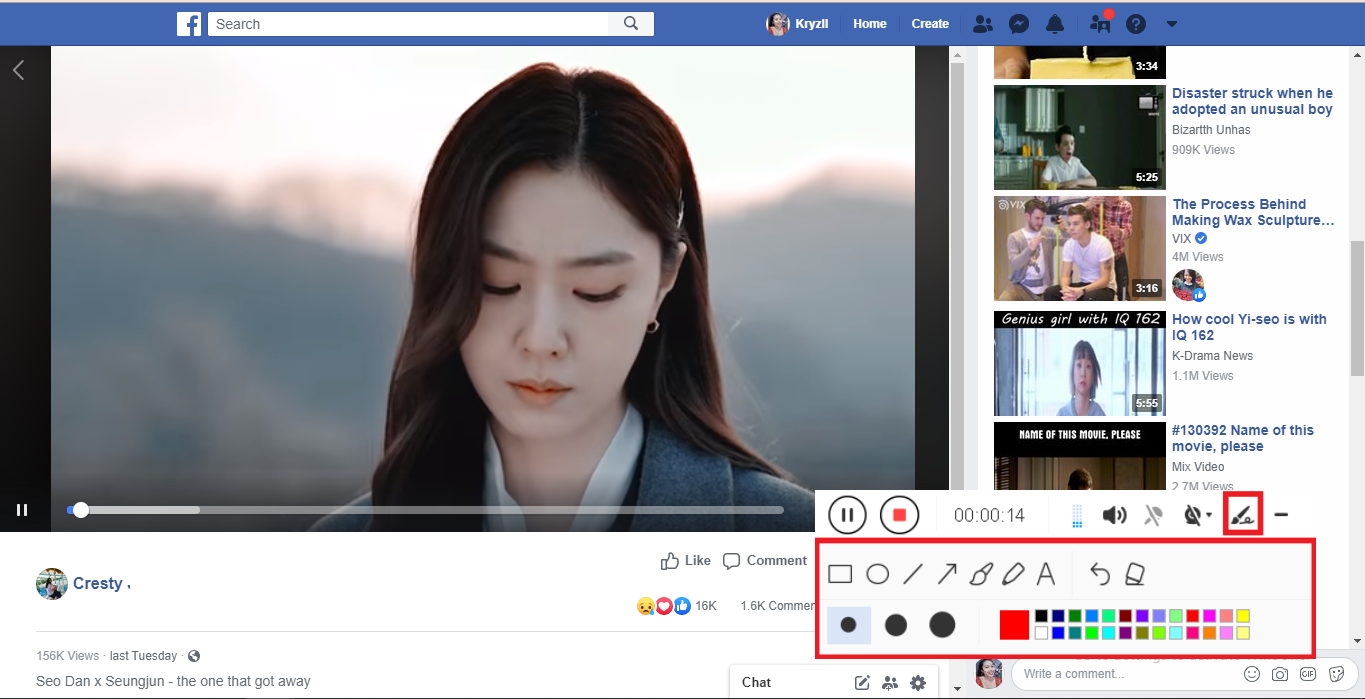
Step 4: End the recording
Click the “Stop” button to stop recording.

After recording, the screen will automatically redirect to the recorded file list on the main interface window. Right-click the file and do more operations if necessary, like open the storage folder where the file is saved or playback the recorded video.

Conclusion:
As time passes by, a growing number of social media sites are constantly developing and making a name online and one of those is Facebook. It is a social networking site that stands as a bridge to connect people living away from each other. However, despite its amazing performance, there are some things that users wanted to do with Facebook like saving online video, calls, and other files locally for later offline viewing purposes. But then, the site can’t offer it alone.
Thus, an amazing and useful third-party recorder application software called VideoPower GREEN is best suited for this kind of matter. Also, this product doesn’t only record screen activities but also allows users to set high-quality profile and output format they desired for their recorded video. Moreover, this app doesn’t only offer a screen recording feature but it also offers other various useful professional features such as screenshot for capturing images and task scheduler for scheduling a task to be continued most especially in the absence of users.


