





Tips Index
ChatRandom is one of the free and amazing webcam-based chat sites that aid users to talk with other people from different places without going out of their rooms. It is a safer and simpler platform that allows users to perform the multi-dimensional format of communication such as audio chat, video chat, or text chat with random people. This site helps users most especially lonely and introverted ones to meet interesting and cool people and get a chance to build a relationship, find romance, and earn exceptional experiences. Moreover, ChatRandom shutdowns illegal activities appeared in communication.
However, ChatRandom doesn’t have downloader software that lets users save recent online activities to use for later and offline purposes. Therefore, a third-party tool known as the best ChatRandom alternative recorder called VideoPower GREEN is highly recommended. By using this best and easy to access screen recording application software, users can record any on-screen activities with professional results and can now access recorded content anywhere they are and anytime they need and want. This app exactly answers users’ questions on how to record ChatRandom – ChatRandom Alternative Recorder.
Just click the link below to download this free app.
Step 1: Choose a sound source.
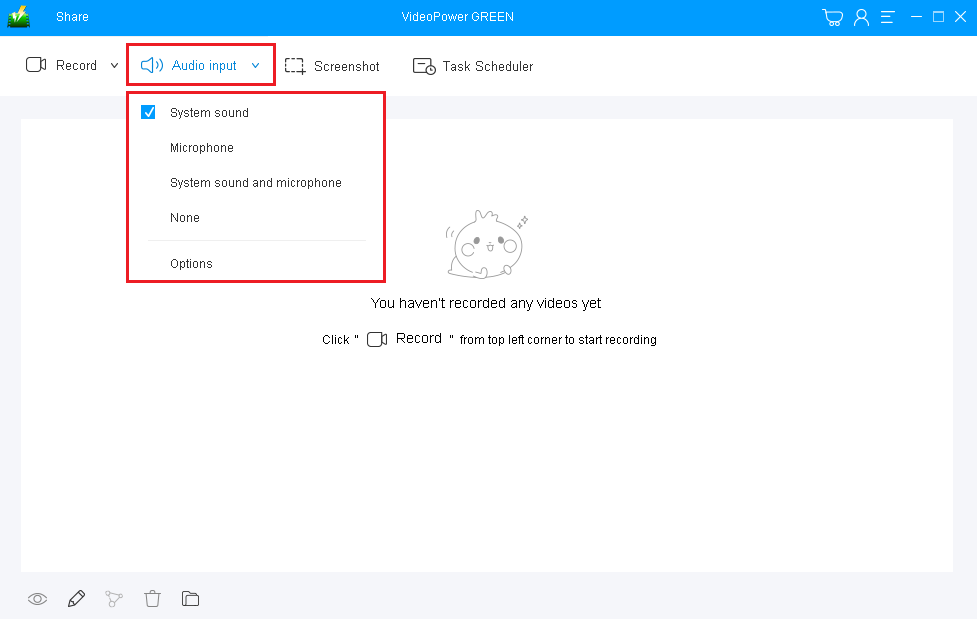
If audio is needed in recording, choose the desired sound source among “System sound, Microphone or System sound and microphone” on the “Audio Input” menu. If audio isn’t needed, just choose “None”. In recording streaming videos, select “System sound”.
Step 2: Select a recording area.
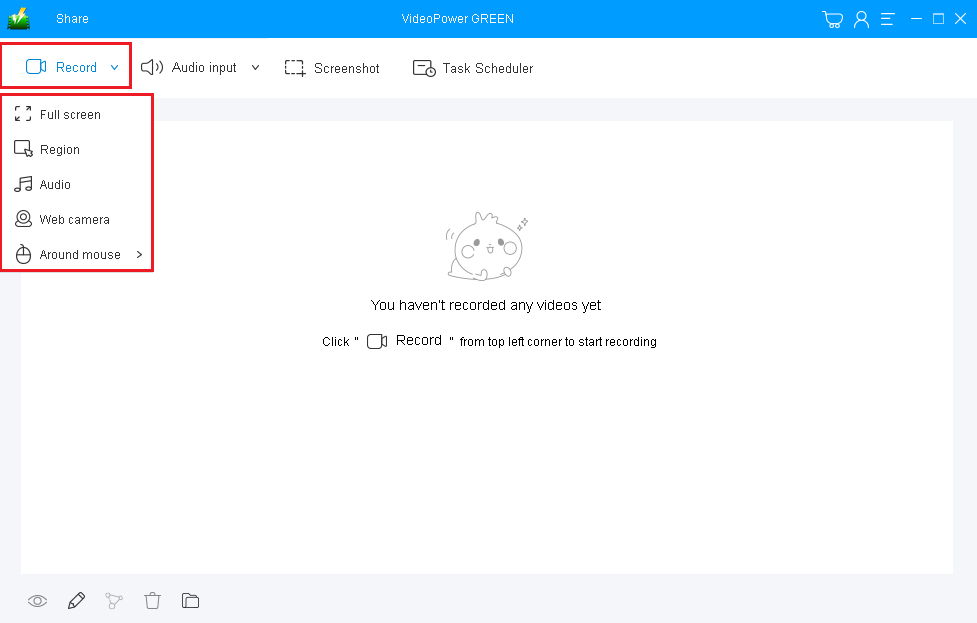
Click on the “Record” button to choose the recording mode among “Full screen, Region, Audio, Web camera, and Around mouse” and then select the area you are going to record.
Step 3: Record ChatRandom screen activities.
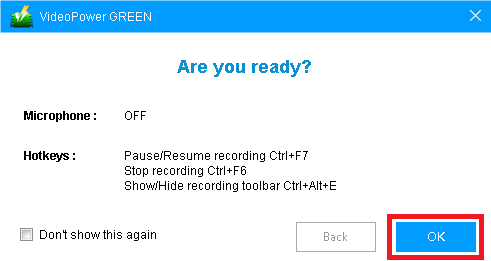
A pop-up window will show to confirm whether to start the recording or not. Click “OK” to start the recording.
Step 4: Edit video while recording.
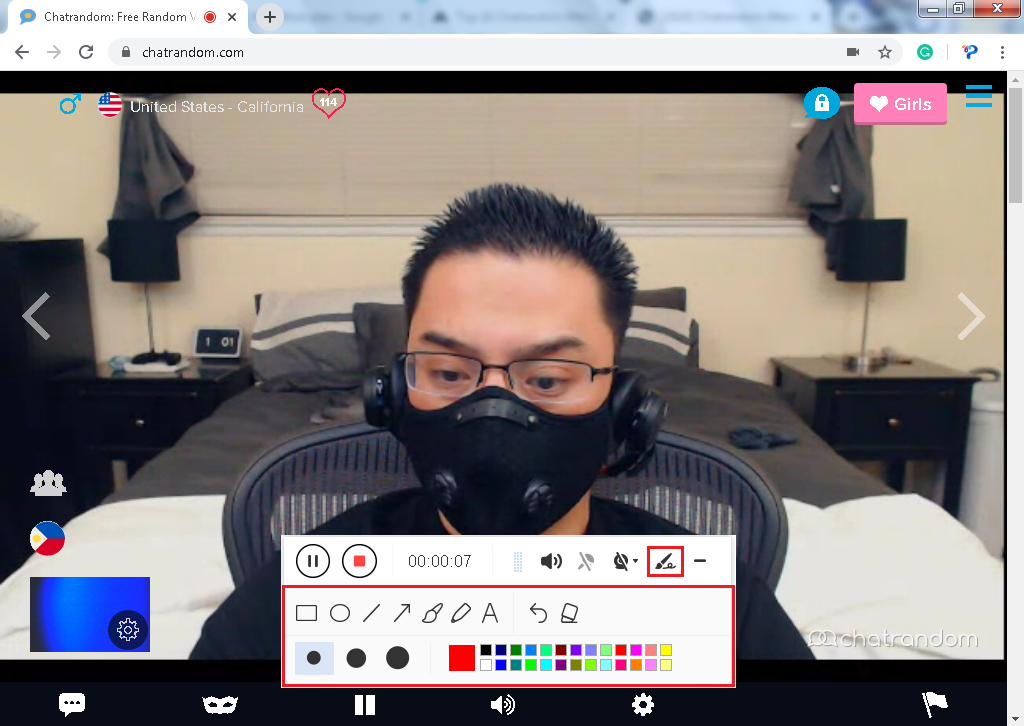
While recording, adding lines, arrows, shapes, texts, highlight, blur, etc. is possible. Just click the edit button to show the editing toolbox.
Step 5: End the recording.
Click the “Stop” button to stop recording.

Step 6: Redirect to Recorded File List.
After recording, the screen will automatically redirect to the recorded file list on the main interface window. Right-click the file and do more operations if necessary. Double click the file to play or view it.

Conclusion:
As digital technologies and applications started to develop as a part of human’s life, web communication sites like ChatRandom were born and became famous. Because of the online application development, many things in people’s lives become simpler, easier, and more fun than before even without going outside. Complete strangers can be easily reached despite the distant location.
But then, there are users who wish to access and use ChatRandom online chat activity contents offline and locally for some purposes most especially because of the reason for sharing. A successful sharing with nearby friends would only be possible with the help of an amazing and trusted third-party screen recording application software called VideoPower GREEN.
Moreover, this app doesn’t only offer a screen recording feature but it also offers other various useful features such as screenshot for capturing images and task scheduler for scheduling a task to be continued most especially in the absence of users.


