





Tips Index
Have you ever had those friends replying to you with Spongebob GIFs and you replied too with another one? Or had those funny moments when people comment through GIFs and some responses are spectacular? People nowadays are having so much fun using GIFs in expressing thoughts and opinions, especially through social media GIFs. We commonly encounter GIFs in the comment sections or in private messengers. GIFs add so much story and fun to conversations that without it threads can be a little bland and boring. Even a single GIF can make u laugh, sad, or excited. What is GIF? GIF or short for “Graphic Interchange Format” is a lossless format for image files that supports both animated and static images. These are like short video clippings that have been compressed for quick frames. One must need a gif recorder download software to experience this new format.
VideoPower GREEN, powerful software that could generate fun GIFs in a snap ready for sharing with your friends and family, be updated with the social media world, get hippy, young and vibrant. It is a gif recorder windows
You can try to use the software for free by downloading its trial version below.
Method 1: Screen Record
Step 1: Choose a Sound Source
If audio is needed in recording, choose the desired sound source among “System sound, Microphone or System sound and microphone” on the “Audio Input” menu. If audio isn’t needed, just choose “None”. In recording streaming videos, select “System sound”.

Step 2: Select a Record Area
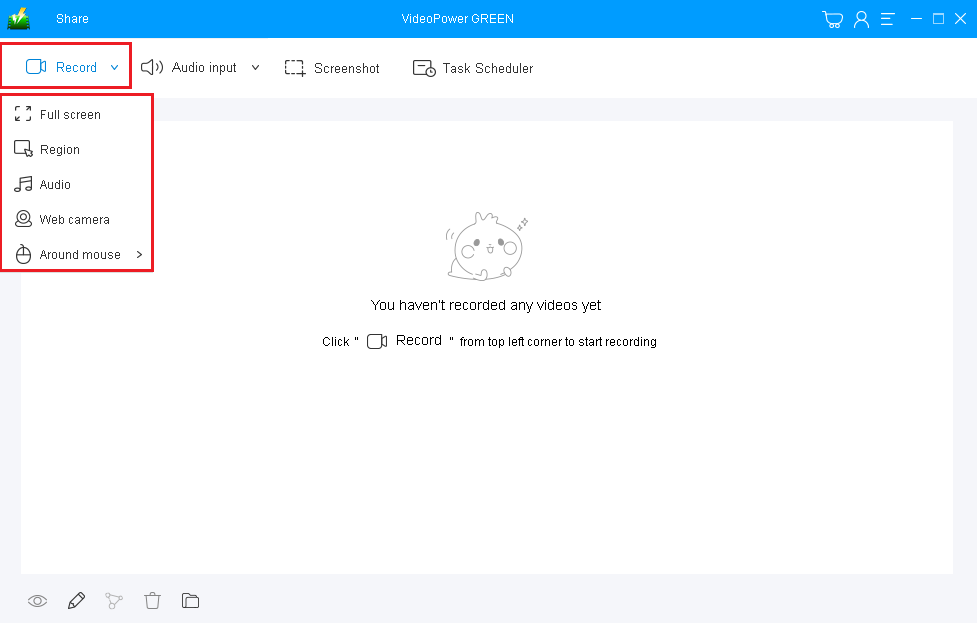
Click on the “Record” button to choose the recording mode among “Full screen, Region, Audio, Web camera, and Around mouse” and then select the area you are going to record.
Step 3: Start the recording
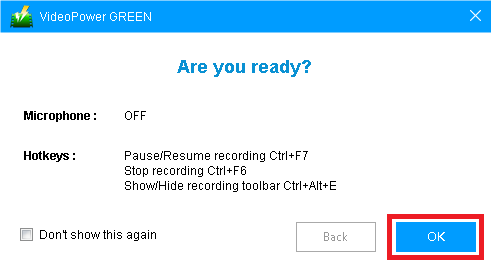
A pop-up window will show to confirm whether to start the recording or not. Click “OK” to start the recording.
Step 4: Annotate video while recording.
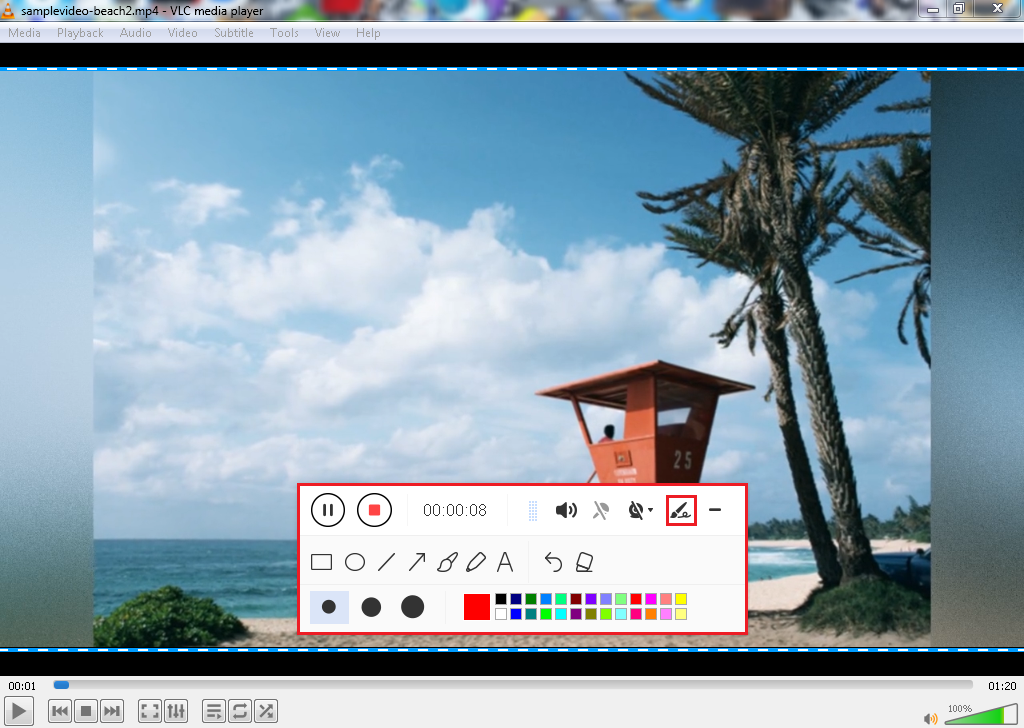
While recording, adding lines, arrows, shapes, texts, highlight, blur, etc. is possible. Just click the edit button to show the editing toolbox.
Step 4: End the recording.
Click the “Stop” button to stop recording.

Method 2: Convert to GIF
Step 1: Open Editing window
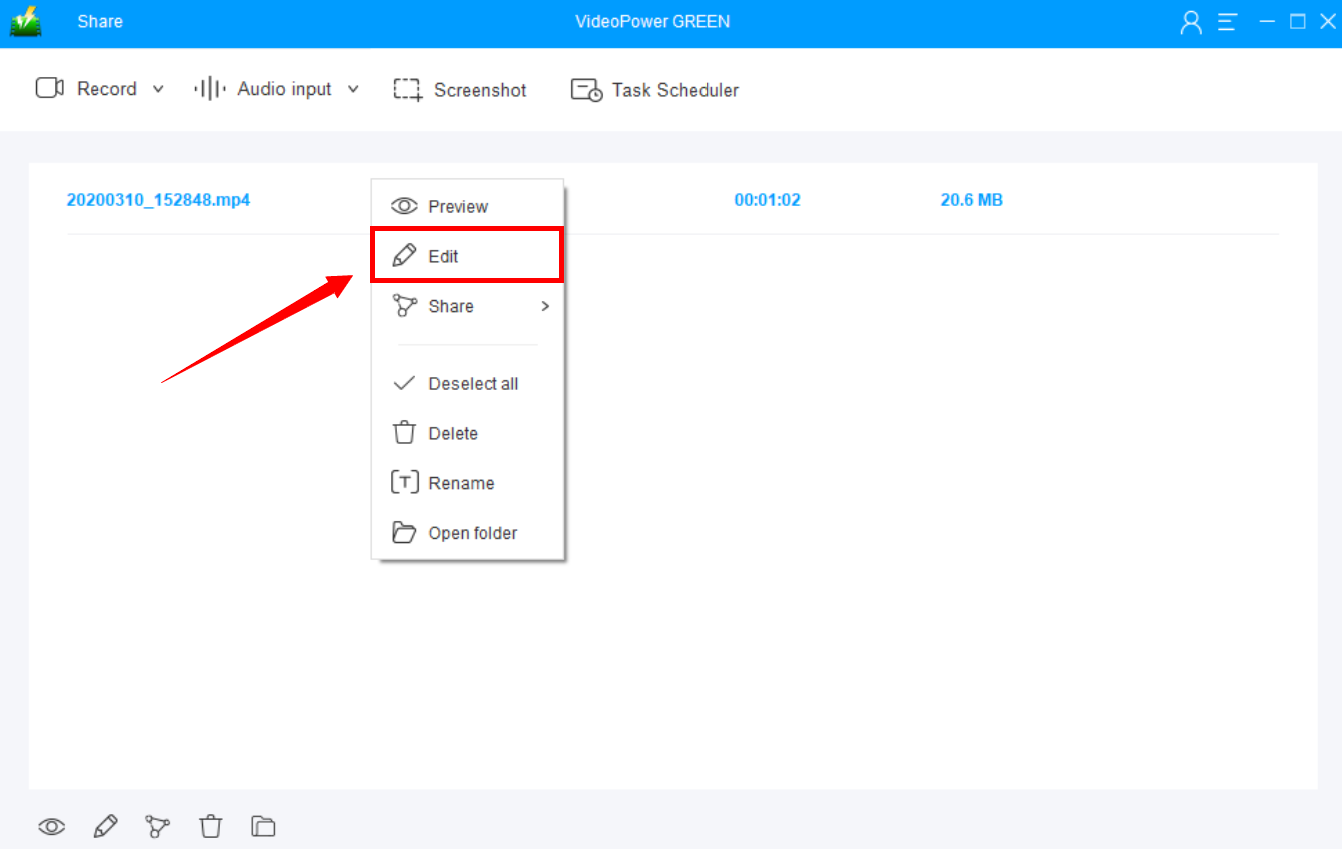
After recording, the screen will automatically redirect to the recorded file list on the main interface window. Right-click the file and click “Edit” to be directed on the Video Editor.
Step 2: Set Output Format
Before converting your video to GIF, set first the output format.

Step 3: Start Converting
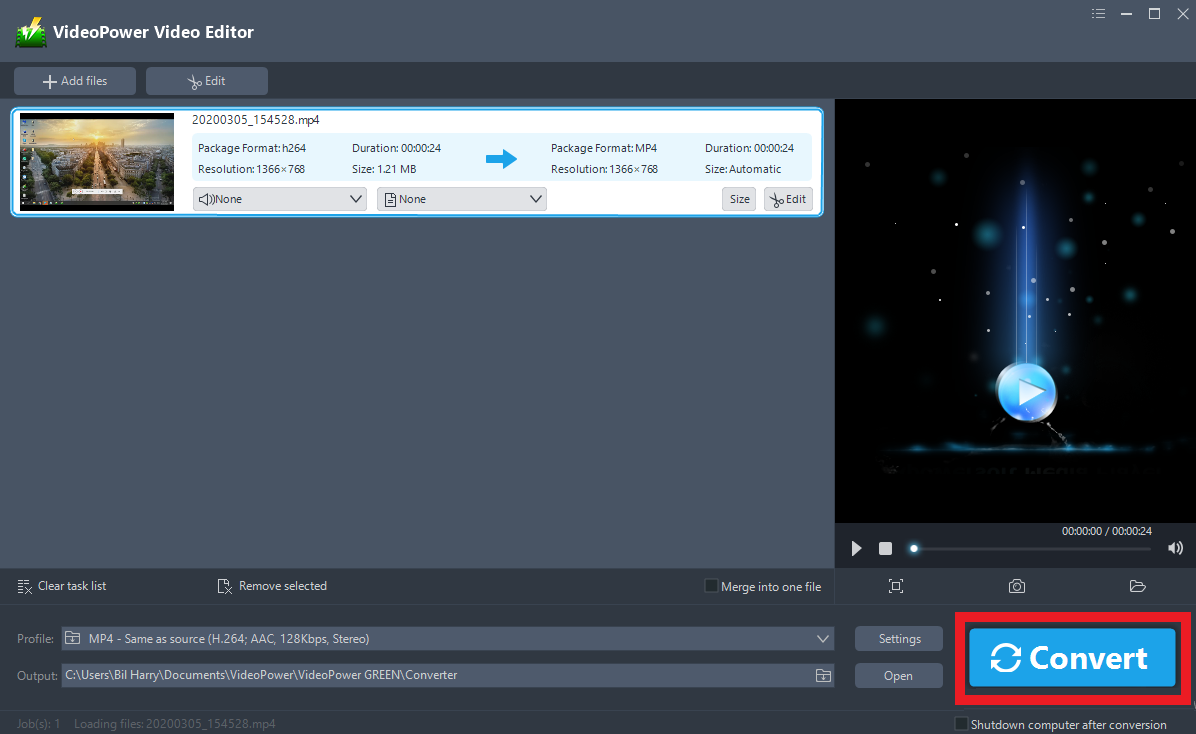
When the edits are done, click the “Convert” button. The software will start to convert and save the edited video in GIF format.
Step 3: Find the Converted file
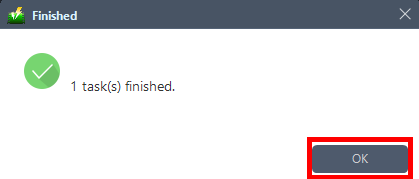
A pop-up window from the program will appear informing you that the conversion is complete. Click “OK” to open the folder of your saved converted files.
Conclusion:
No more wondering how to make GIF, tell your friends about this, improve conversations by using a GIF maker like VideoPower GREEN. It generates fun GIFs in a snap ready for sharing with your friends and family, be updated with the social media world, get hippy, young and vibrant. It is a gif recorder window. This app also converts another video format from MP4 to VOB and even audio formats like MP3 to FLAC. This versatile software is all you need for your entertainment and project purposes.


