Tips Index
Tidal is a high fidelity music streaming platform that was launched by JayZ, a well-known American rapper.
Tidal calls itself “the artist’s exclusive streaming Media Company” and has received investments from Kanye West, Beyoncé, and Madonna. Tidal currently provides services in more than 50 countries around the world.
Like most offline music streaming platforms, Tidal does not provide a download feature for offline listening – which can be problematic for people that want to avail of the service but don’t have a steady connection. Using VideoPower YELLOW, you can record Tidal music for offline listening.
In this article, we will focus on how to record music from Tidal using VideoPower YELLOW.
To install the program, you must first download the software by clicking the link below.
Step 1: Make Settings
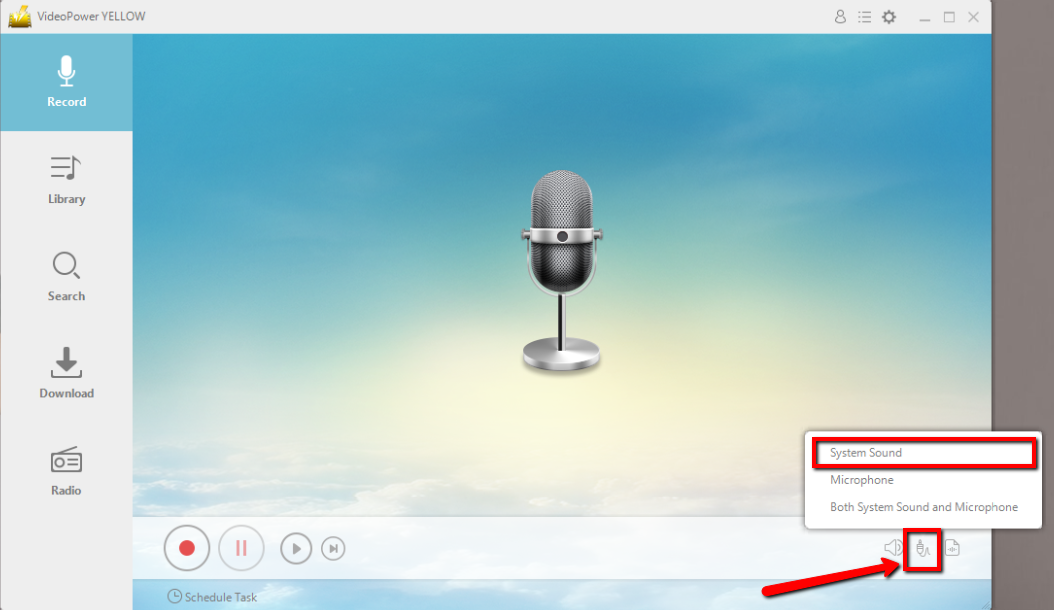
1.1 Set the sound source.
After you run the program, you will automatically be directed to the recording interface.
Before recording the Tidal track, make sure that the sound source is set to “System Sound.”
1.2 Set the file format.
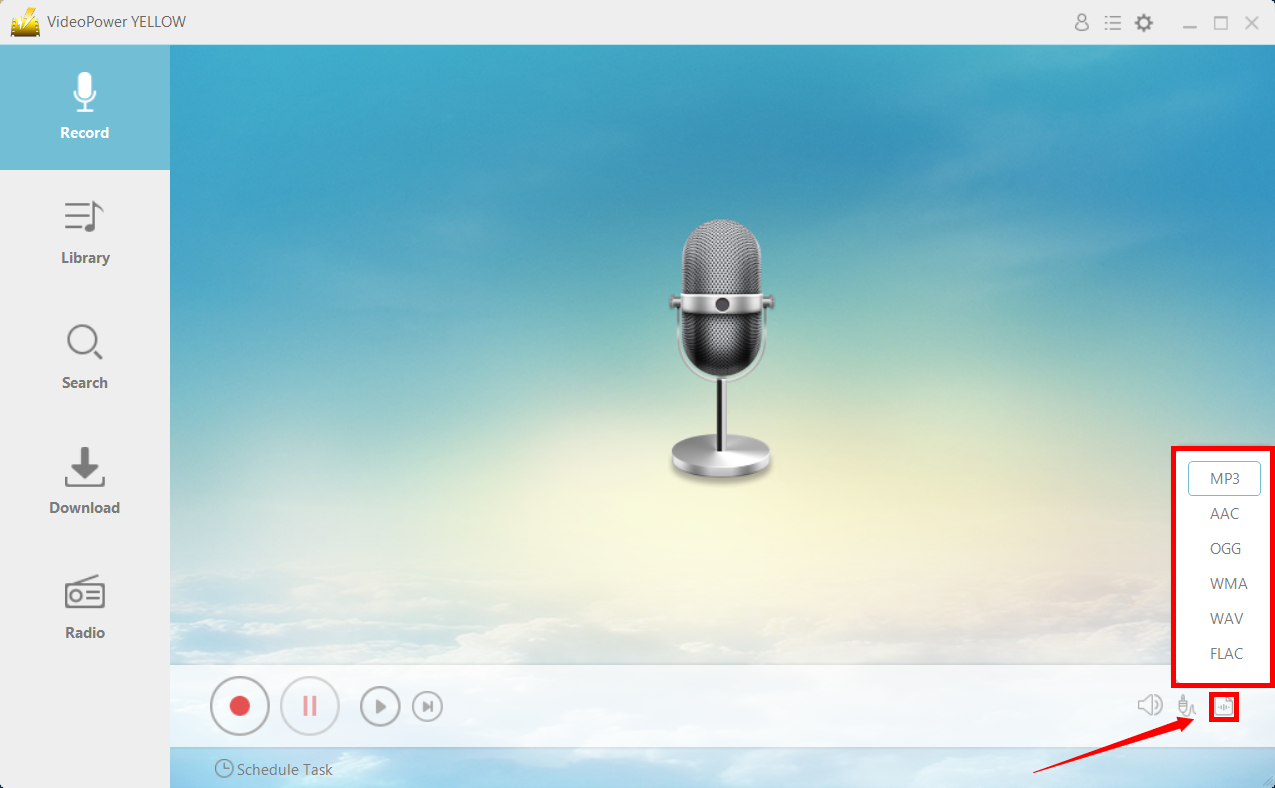
Make sure that the recording is set in the format of “MP3.” – or whatever format you deem appropriate.
Step 2: Record
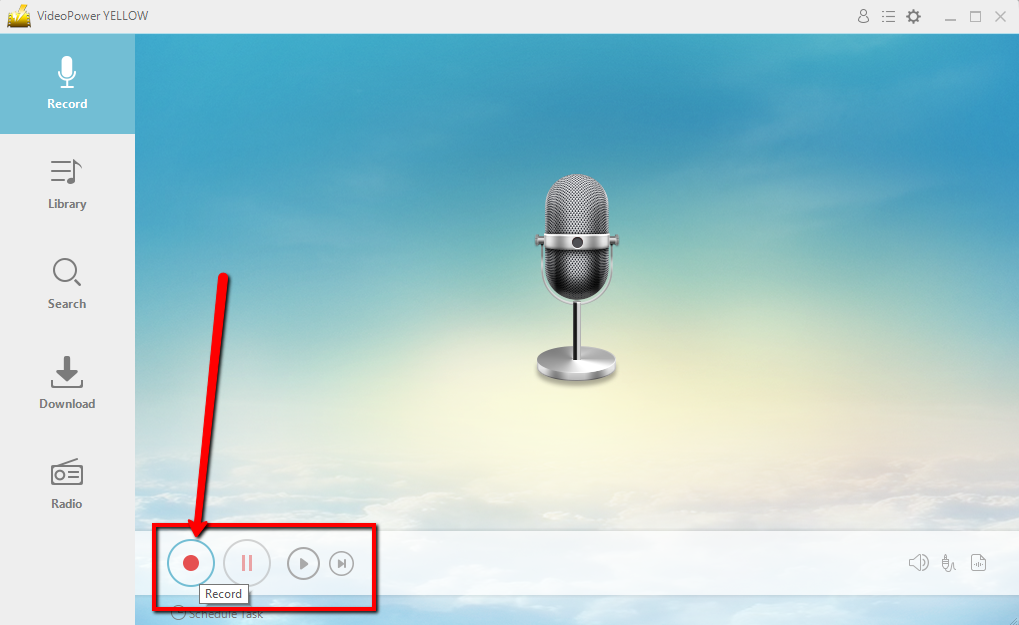
Click the “Record” button to start recording.
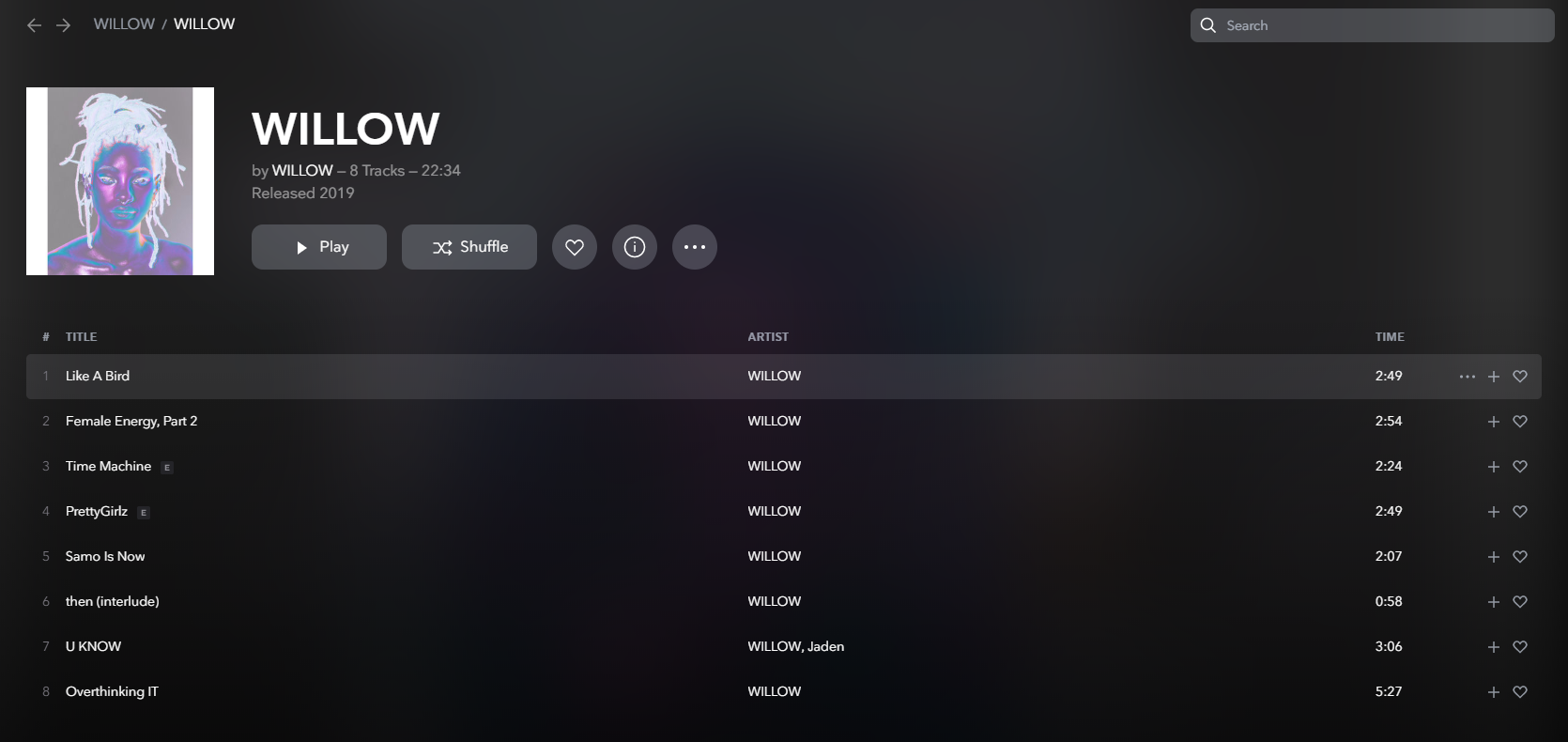
Go to the Tidal track that you want to download and play it.
Step 3: End recording and find the file location
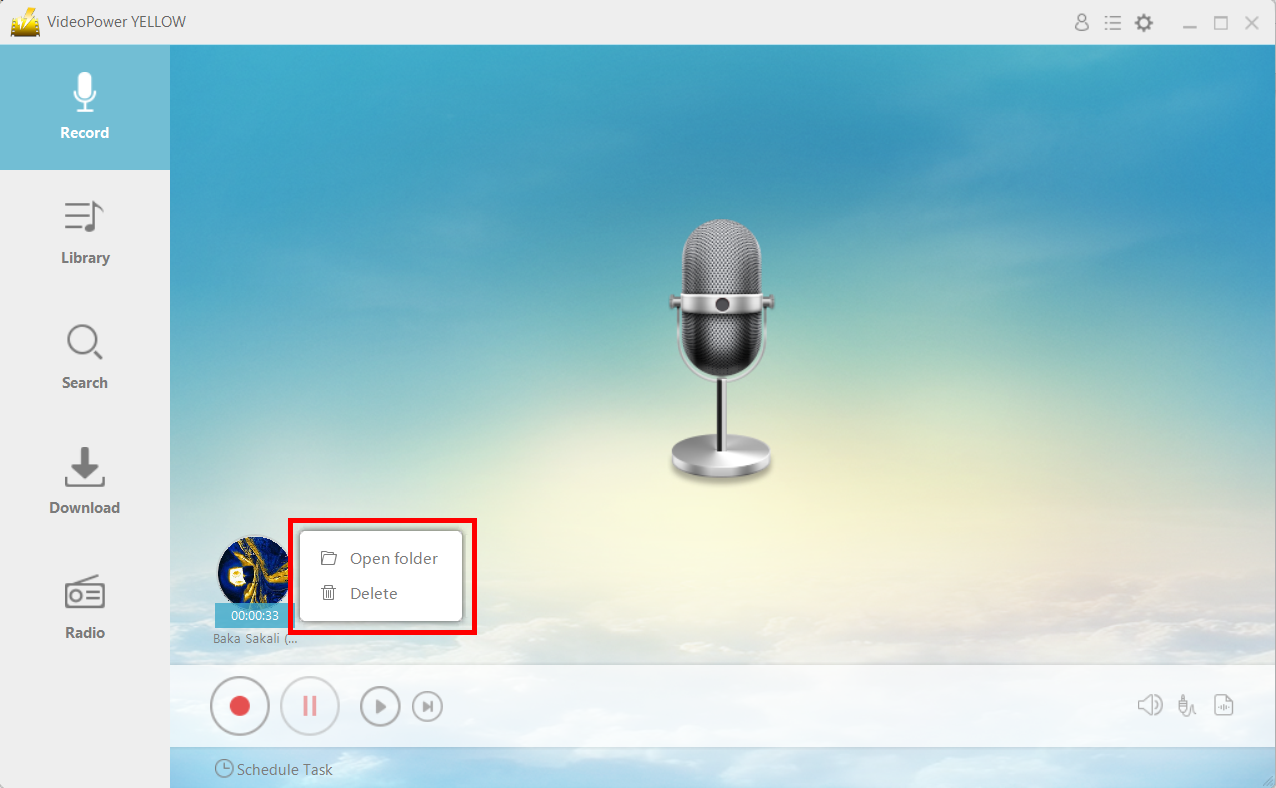
Click the same button to stop recording. Right-click the recorded track icon and click “Open folder” to open the storage location of the recorded audio file or click “Delete” if you want to delete the file and record it again.
Conclusion:
The emergence of online music streaming was the beginning of the end for offline listening – CDs or physical copies of music declined rather quickly. Tidal, an online music streaming site comes with a variety of perks but not offline listening or storing. Using VideoPower YELLOW, you can record your favorite Tidal tracks and save them on your computer for offline consumption.