




Tips Index
Brief Introduction of M4R
M4R is an audio format for the iPhone ringtone. At present, the iPhone system brings about 25 ringtones, including Malinbach, Buzz (spring), Tremolo, Playing Ball, Piano Repetition, Dog Bark, Guitar Sweeping.
M4R format is a high-quality compressed audio format that uses Advanced Audio Coding (AAC) as its default compression scheme.
AAC is famous for its amazing sound quality while reducing file size.
How to Play M4R File
All iOS devices can open the M4R files including the iPad, iPod, iPhone, and MacBook, which are equipped with iTunes.
Solution for M4R format conversion
Since most of the devices and players cannot play M4R and it’s hard to find an application on Windows computer that can run this format file, it’s better to convert this format to make it more compatible.
Below is the step-by-step guide on how to convert M4R files to MP3 format, the most compatible audio format.
Download the VideoPower BLUE software first, a format converter that can convert video/audio to a different format with no hassle. What’s more, it allows users to import STR subtitles to MP4 or other format videos, merge several video clips, and so on.
You can try to use the software for free by downloading its trial version below.
Step 1: Add the M4R file to the product interface.
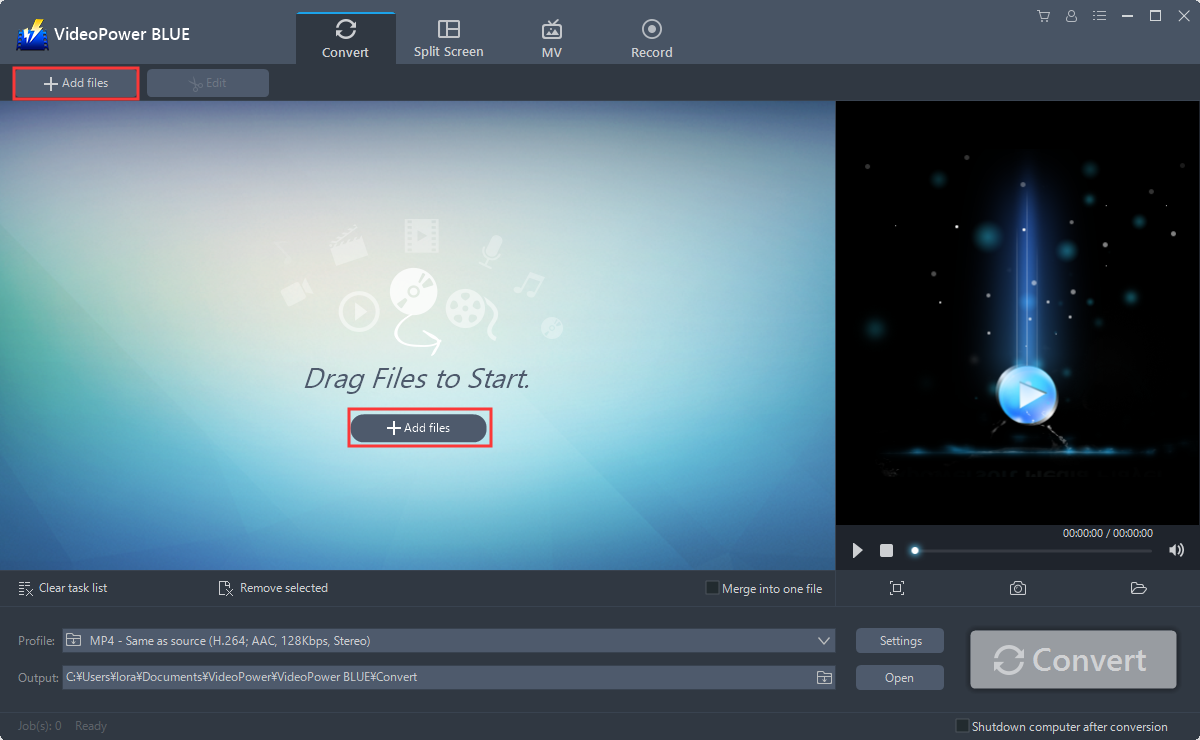
Run the program if you have installed the Video Converter software successfully on your PC. You can directly import your M4R video files into the program that you want to convert. Click the “Add files” button to select files from your PC, or directly drag-and-drop the files to the interface.
Step 2: Edit the M4R audio.
If you need to edit the video first before converting, just follow the instructions below.
2.1 Open Editing Window
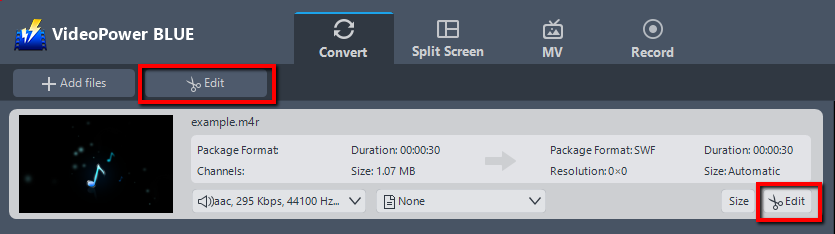
The imported M4R file is displayed in the list. Click the “Edit” button on the right side of the file.
2.2 Start Editing
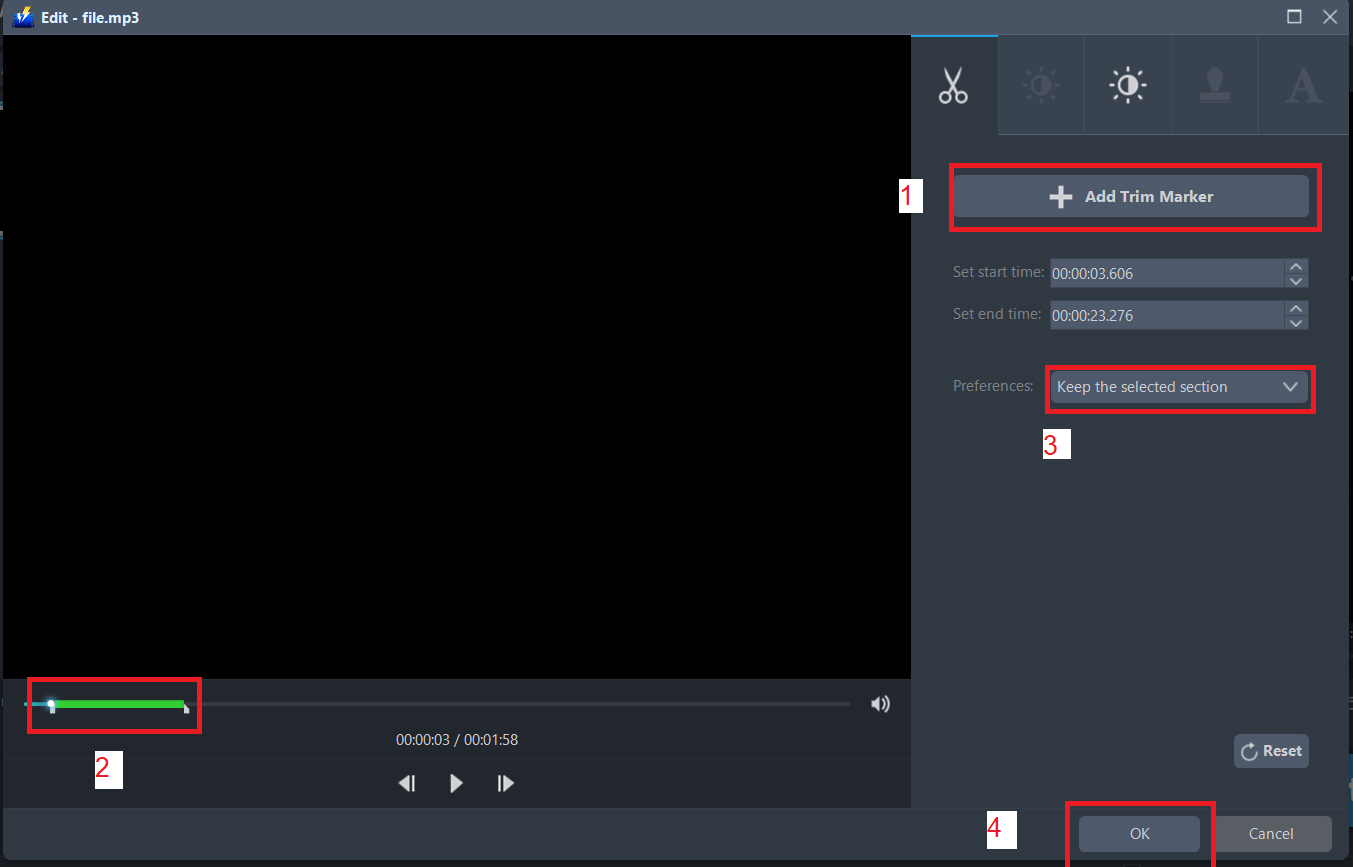
The built-in audio editor will pop up. Adjust speed and volume, or add a trim. For example, you can trim your audio as shown below:
1) Click “Add Trim Marker”.
2) Drag the mark as shown below to select the part you want to cut.
If you want to select multi-sections, please repeat 1 and 2.
3) Choose “Keep the selected section” or “Delete the selected section” from “Preferences”.
4) Click “OK” to save the setting.
Step 3: Convert M4R to MP3 format.
3.1 Set the output format.
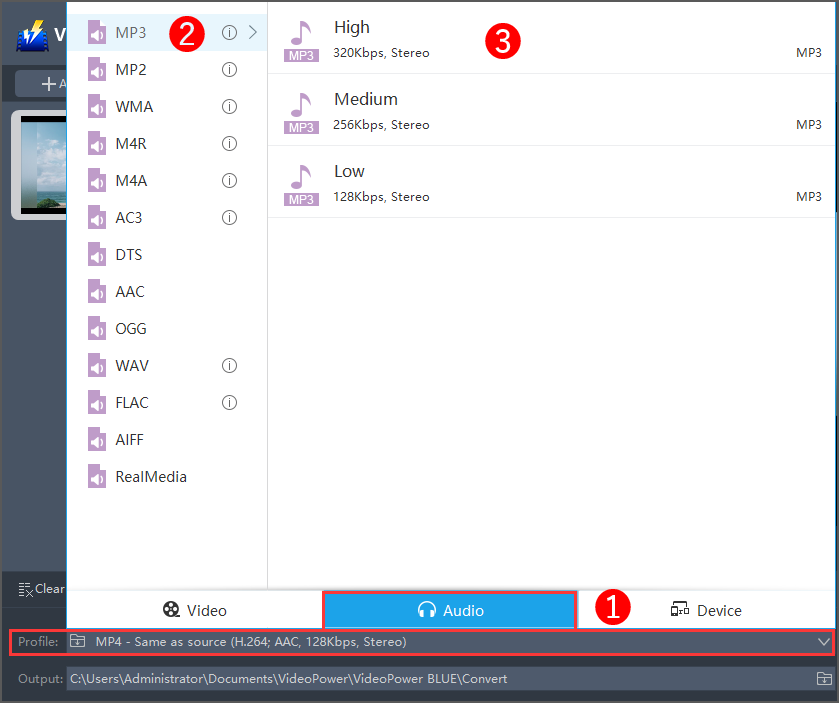
1) Click to open the “Profile” drop-down menu, then choose the format you want from the profile list.
2) Here you can click “Audio” and then “MP3”.
3) Choose the quality “High, Medium or Low” as per your need.
3.2 Start Conversion
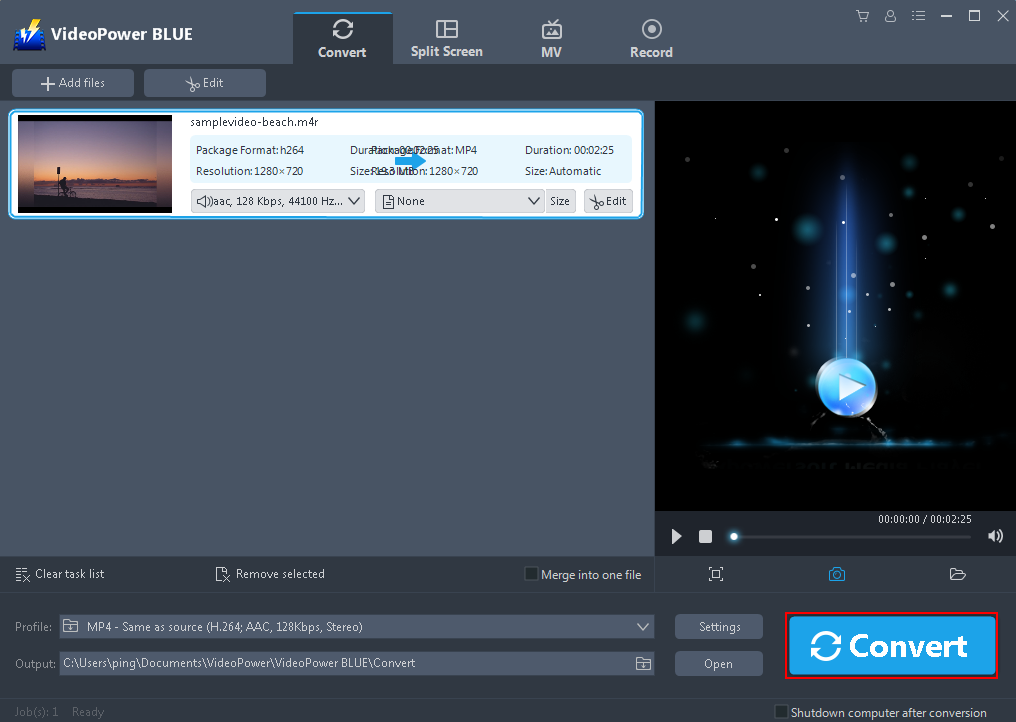
Return to the file list and click the “Convert” button, then the converted file will be saved in the default output folder.
3.3 Find the Converted file
The program will pop up a window to inform you once the conversion is completed. Click “OK” to open the folder of your saved converted files.