





Tips Index
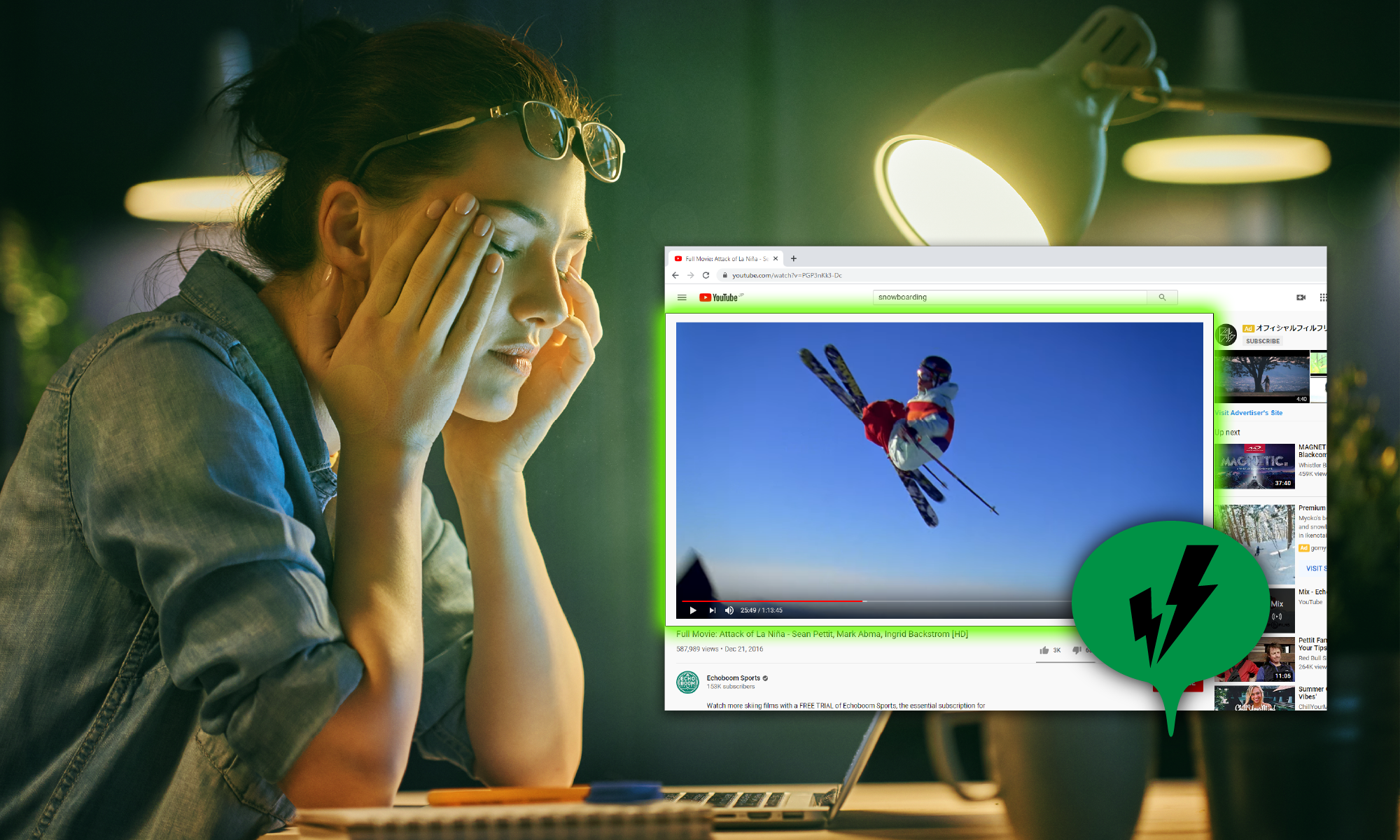
If you wish to capture a screen recording as part of a personal video for a loved one, a record of your webinar, videos to be part of your vlog or even a tutorial guide, this article aims to help users record screen automatically.
With the internet flooded with so many great streaming video and audio online, we don’t have time for each one of them. If there is an interesting live stream or an internet radio program that you don’t have time to sit by the computer all day and wait, why not schedule a recording for later viewing or listening?
Well here in this article is the answer. You can automatically start a screen recording and go out or sleep without having to wait up next to the computer to stop the recording. Simply set the timer to automatically start the record and stop the recording.
Introducing a screen recorder with screen capture timer through its Task Scheduler tool, VideoPower GREEN which allows you to schedule screen recording on your specific time, date and duration.
You can use VideoPower GREEN to schedule a screen record for videos from popular video streaming sites like Netflix, Hulu, Amazon Video, Facebook Live, YouTube and streaming audio from internet radio stations and more using your PC.
Although there are many desirable ways to screen record your PC activities, nothing beats a packed and reliable software like VideoPower GREEN. An amazing auto-scheduling screen recorder that performs the tasks you specify, on its own, without you having to manually begin the process.
Follow the guide below to automatically record your screen activities, even if you are sleeping or going out with this versatile timer screen recording by downloading for free the trial version below.
How to Schedule Screen Recording to Record Automatically
Great news for you, you can record your favorite website or anything on your Windows desktop at the time you specify with customizations such as sound source, area of the screen to record, usage of a webcam, etc.
Here is how you can schedule a screen recording to start automatically at a specified time.
Step 1: Open Task Scheduler
Click the “Task scheduler” on the main interface to set up the software to automatically record the screen.
The Task Scheduler tool gives you the ability to choose not just the time and duration, but any weekday or combination of days to start automatic recording.

Step 2: Set-Up the Task Scheduler
1) Create a task by setting up a screen record trigger including the start time specifying the date and exact time, duration of the recording, click “repeat recording” to do so and how many times.
Set up the “Stop time” specifying the date and time to end the recording if you did not set up a duration time for the recording.
2) Set up the action for the recording by choosing either “Record full screen” to record the whole PC screen, “Record custom area” to choose a specific region, “Record webcam” if you wish to use the webcam during the recording or “Record only audio” to record the sound alone.
3) Optional: You can also click “Shutdown computer when task completed” if you wish to turn off your computer automatically when the recording is done.
4) Click “Create” to save the task schedule.

5. When the scheduled recording task is created, the Task Name will be displayed in the Task List. If all is well and suited to your liking, click “Ok”.
Now, let the software run in the background and it will record the screen automatically according to your requirement.

*Note:
-Users can create the name of the task to be scheduled otherwise the program will name it “Task 1”, the number depending on the count of how many scheduled recording tasks you’ve set up.
-To make sure the recording can start automatically, do not shut down or lock the computer, or put the computer in sleep mode on the scheduled date and time.
Step 3: Check the Recorded File
When the recording task is done and complete, the recorded file will be displayed on the recorded list in the interface.
If you wish to do more operations like playback or edit, right-click on the file name and choose on the list the next thing you want to do.

Conclusion:
With this easy-to-use screen recorder, capture any area of your screen with many options to customize the recording setting like add narration from your microphone, use a webcam, use both microphone and system sounds, and many more.
While recording, you can make real-time annotations and when the recording is done you can use the built-in video editor to add effects, apply watermarks, trim or crop the video, etc. Isn’t that convenient?
VideoPower GREEN records your PC screen to various formats such as AVI, WMV, MP4, and many other formats of your choice. You can professionally manage your recordings with the use of hotkeys, customized settings like highlight mouse movements and mouse clicks to help viewers follow the action, draw on the screen with different colors and shapes during recording to make a more visual presentation with its dependable annotations.
I could list everything in here what VideoPower GREEN could do, but I’ll leave the rest for you to explore. Try it now!


