Tips Index
Garage Band has been transforming the music Arena with its creative features. It is an instrument and a music application that allows its users to create music or podcasts. The app is developed especially for iOS devices.
It is the best app for music professionals and is loaded with plenty of innovative features to make the best music for various purposes. It is absolutely effortless to use.
Anyhow, you must have given a thought on downloading quality music to import it to Garage Band for effects or any other purposes. Well, VideoPower YELLOW, is exactly what you’re looking for.
With its comprehensive and multi-functional tool which allows you to record and edit audio that produces High-quality results, it’s the best bet for getting audio source before importing to Garage Band.
With this application, you’ll be able to record any sound streaming on your PC including your system sound and microphone sound. Besides, it comes with an embedded converter that allows you to perform format conversion. It supports various audio formats including MP3, MP2, M4A, AAC, AC3, OGG, WMA, WAV, and FLAC.
Download the software now by clicking the download button below!
Step 1: Set up to record audio or music
Choose sound source
Before recording the audio, make sure that the sound source is set to “System sound.”

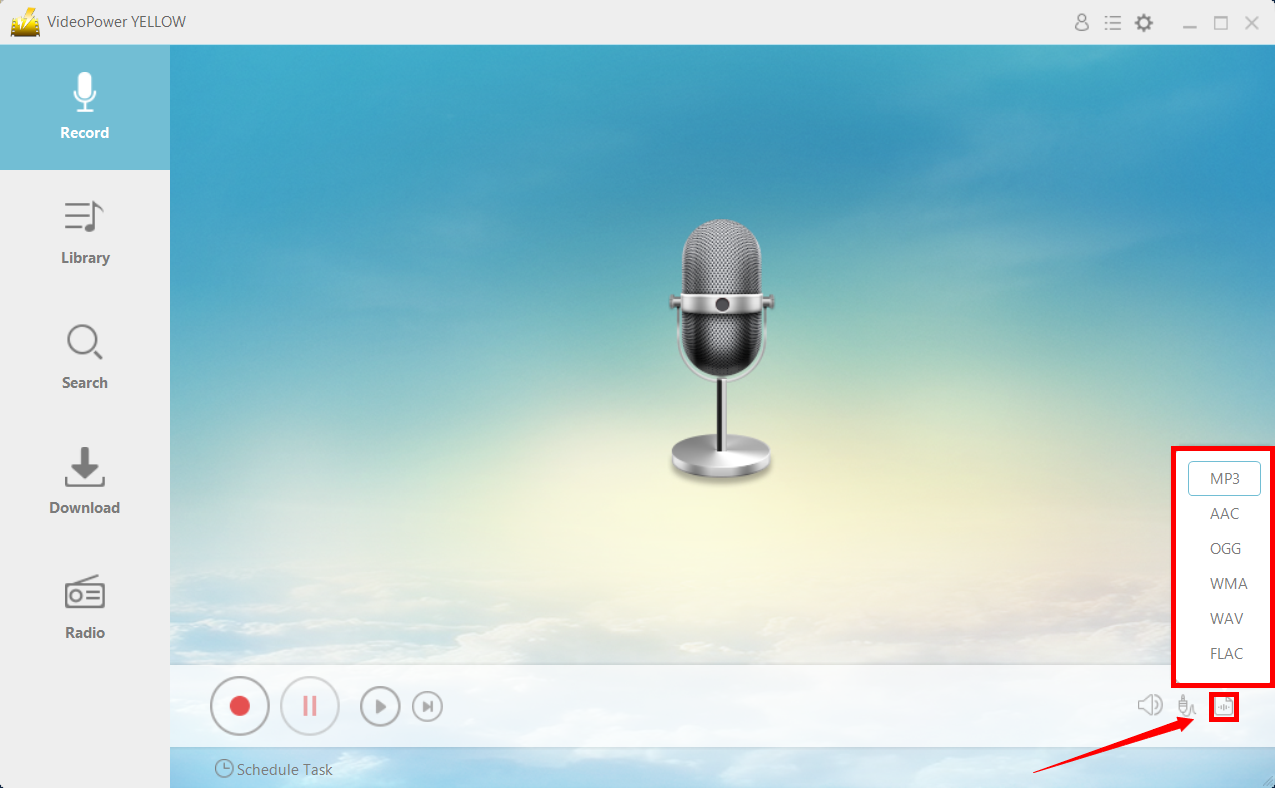
Set the file format
Make sure that the recording is set in the format of “MP3.” – or whatever format you deem appropriate.
Record
Click the “Record” button to start recording.

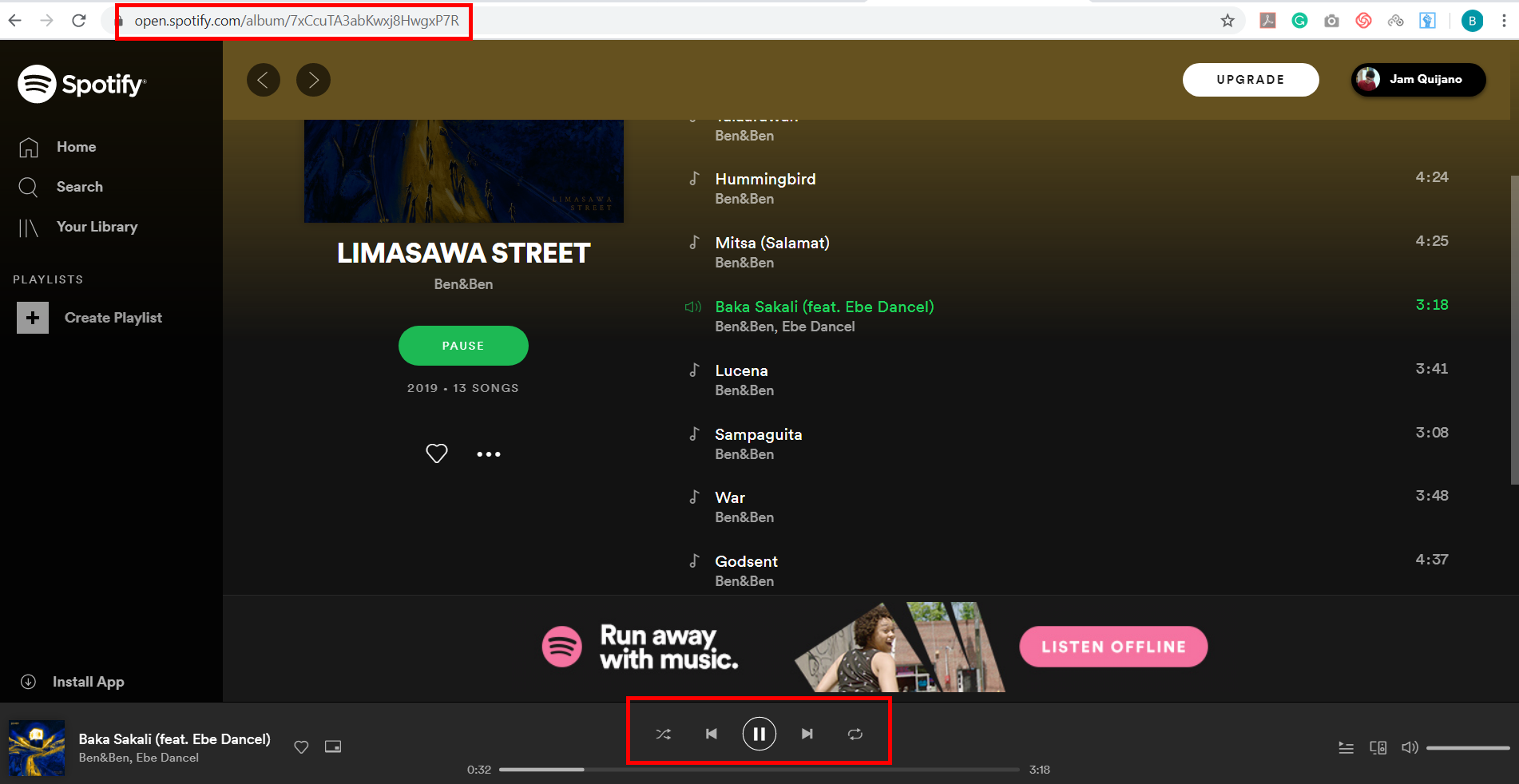
Play the sound
Go to track that you want to record. For this example, we’ll use a Spotify track.
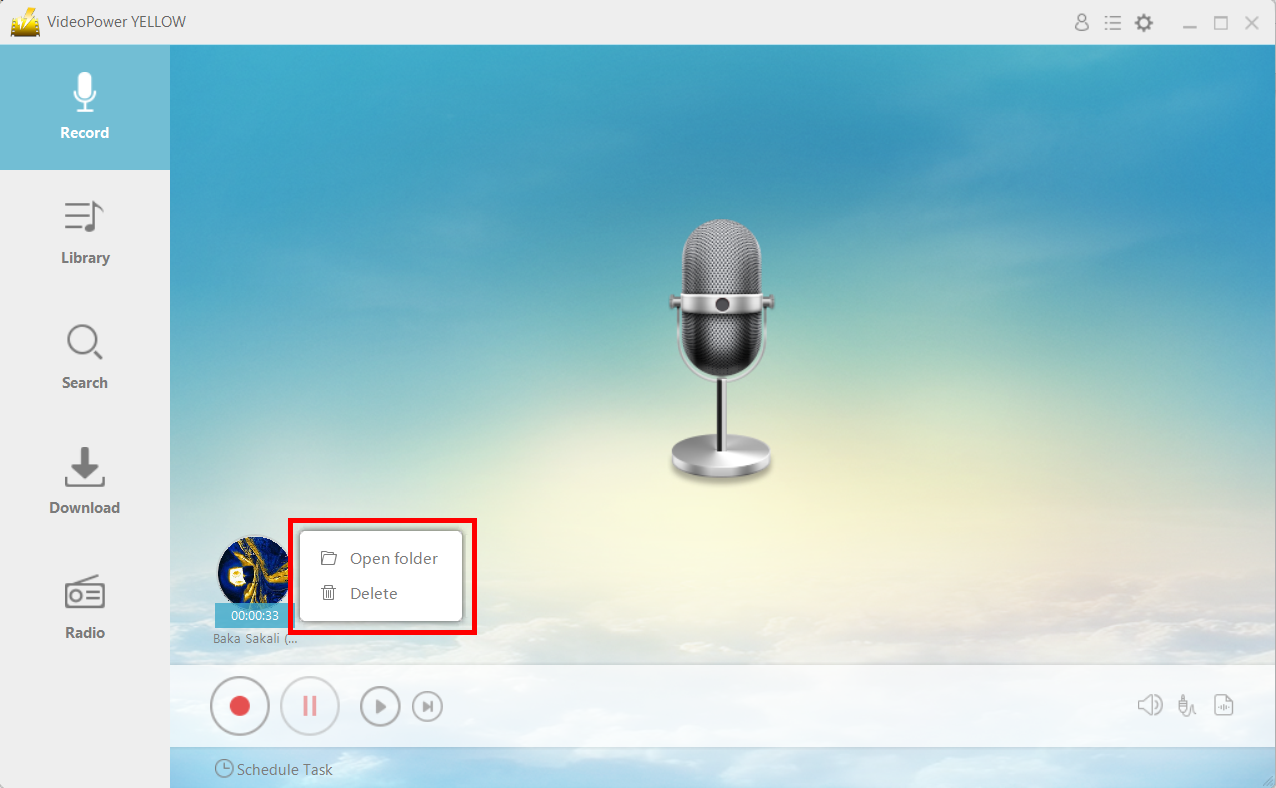
File location
After recording, right-click the recorded track icon and click “Open folder” to open the storage location of the recorded audio file or click “Delete” if you want to delete the file and record again.
Step 2: Edit Audio
Find the recorded audio.
In the recording list, find the recorded audio that you want to edit. Right-click the audio and choose “Edit” from the menu.
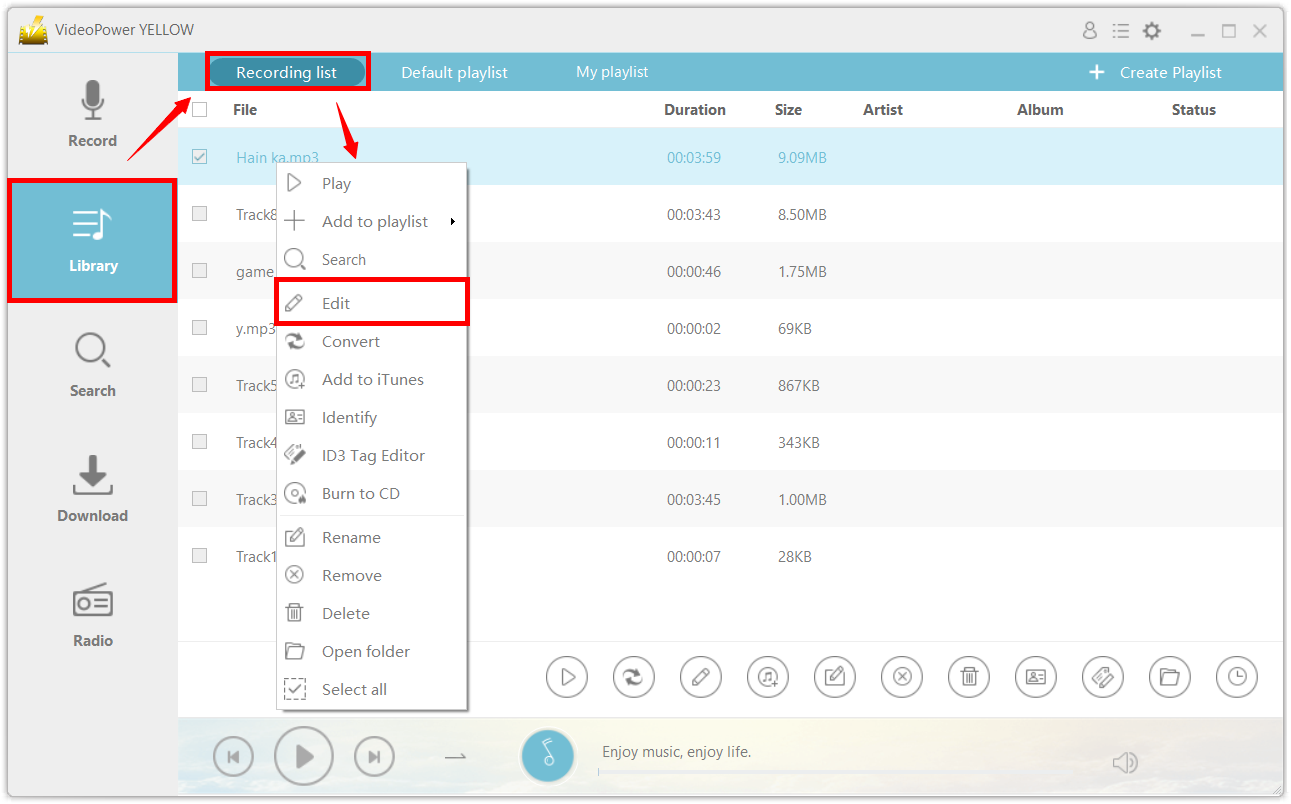
Audio editor
The audio editor will pop-up and you can edit the file here.
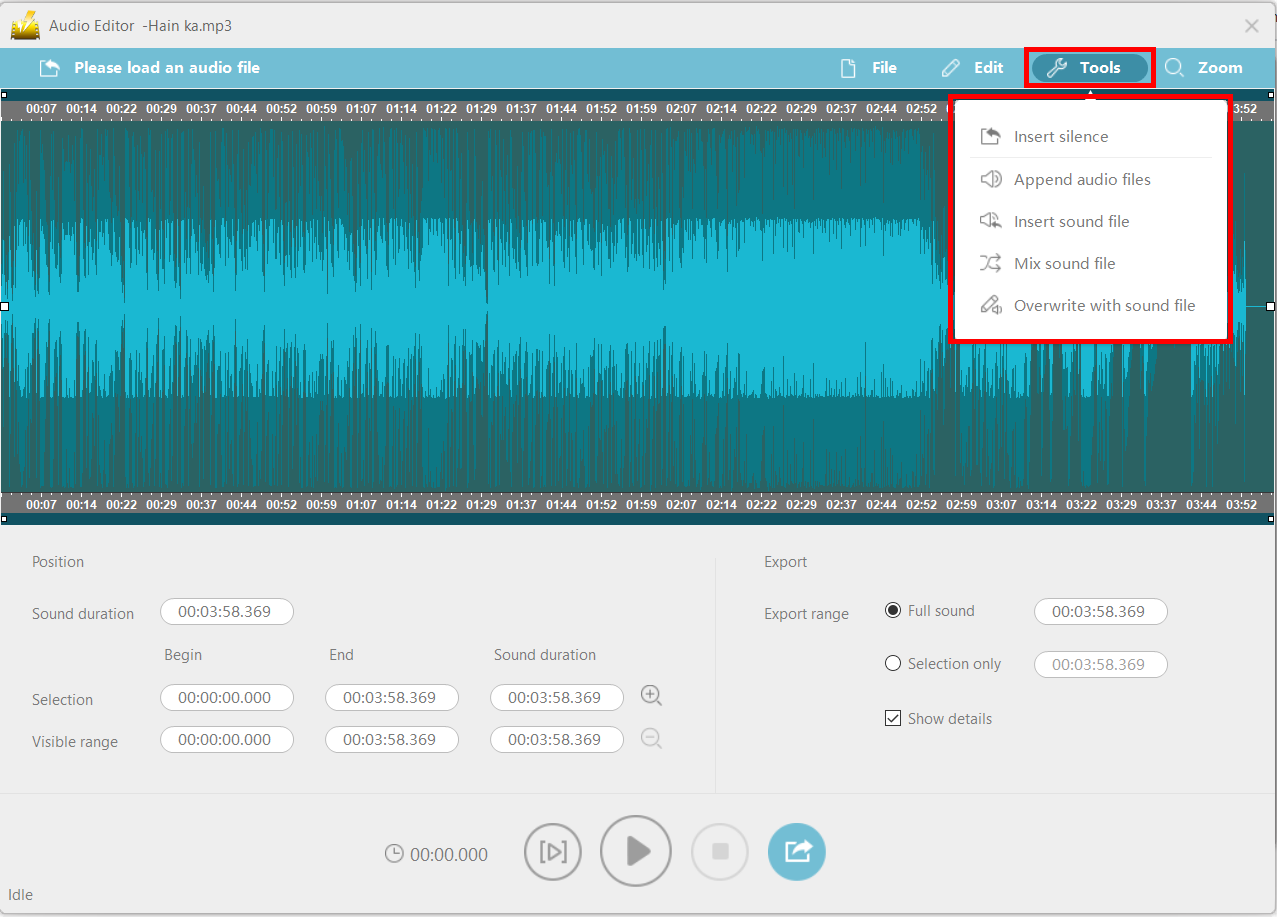
You can perform cut, copy, paste, delete from the “Edit” menu and insert silence, append sound file, insert the sound file, mix sound file, and overwrite with sound file from the “Tools” menu.
Tips:
- Insert silence: Click the place where you want to insert silence, the following yellow line will show up. After that, set the duration of silence by heading to “Tool – Insert silence” and click “OK”.
- Silence will be inserted after the yellow line.
- Append audio files: Add a new audio file to the end of the current audio file.
- Insert sound file: Insert a new audio file behind the selected location.
- Mix sound file: Click on the place where you want to mix, the following yellow line is displayed. The new audio will be added after the yellow line and mixed with the original audio file.
- Overwrite with a sound file: Replace the currently selected region with a new audio file.
Save the edited audio file.
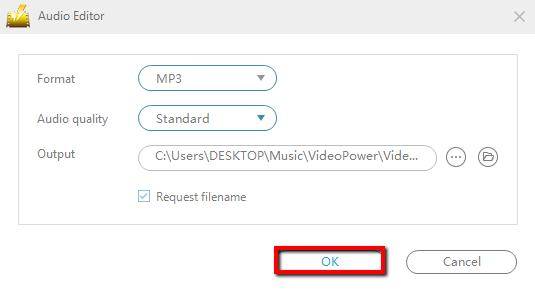
When finished editing, click the export icon at the bottom of the window to export the edited file.
After you have made settings for format, sound quality, output directory, etc., click “OK” to start exporting audio.
Conclusion:
When listening to music in MP3 format, some important data has been lost, which is caused by lossy compression. High-quality audio contains all the sounds made by artists when recording content. Therefore, we developed VideoPower YELLOW, which allows users to record or download music with the best sound quality.