





Tips Index
Lenovo is one of the most famous computer brands in China and it’s ever-growing. Lenovo’s flagship products are laptops but it’s also infamous for its high-quality mobile phones.
Lenovo is also known to have high-spec gaming laptops that are used by video editors and photographers. In connection, screenshots are very important.
People who use Lenovo laptops and desktops often ask how to take a snapshot on the screen.
This article provides a step-by-step guide on how to take a screenshot using a third-party tool such as VideoPower GREEN.
VideoPower GREEN is a powerful software that has multiple functions and features such as screen capturing, audio recording, and task scheduler. This software can do screenshots on Lenovo as easy as a breeze.
Download the software through this link and follow the instructions.
Step 1: Manage settings.
1) Click the menu on the upper right corner of the interface.
2) Choose “Settings” from the drop-down menu.
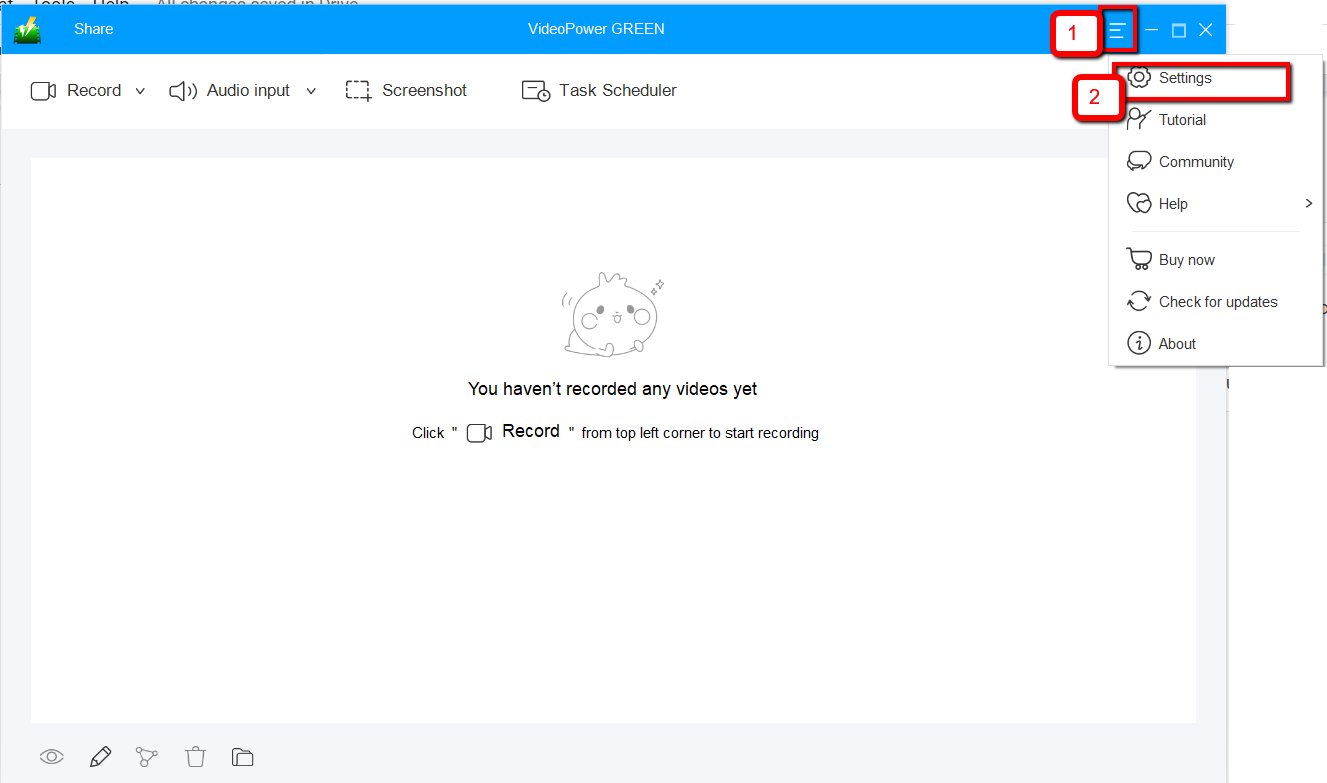
3) Navigate to the “Take Screenshot” section. Make changes accordingly then click “OK.”
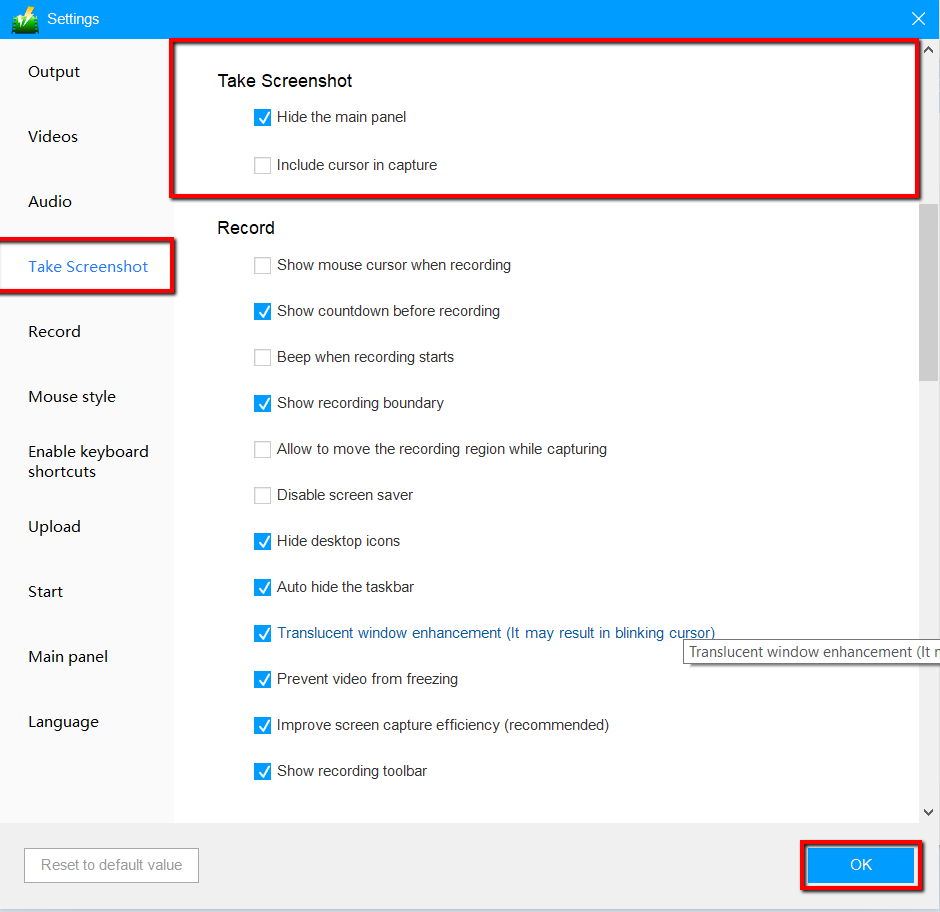
Step 2: Take a screenshot on Lenovo.
1) Click on the “Screenshot” tab.
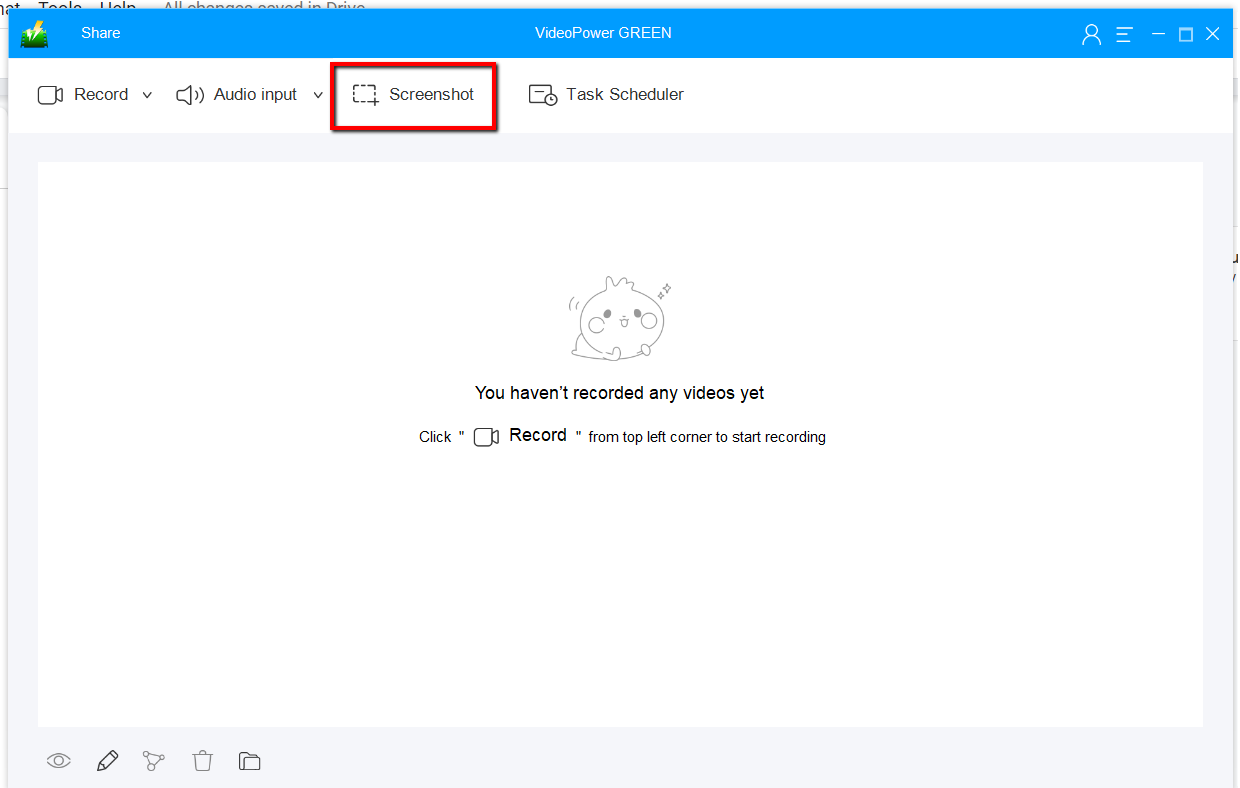
2) Select the region on the screen that you want to take a screenshot of. By moving the mouse around the screen, you’ll be able to see what types of screenshots you can do.
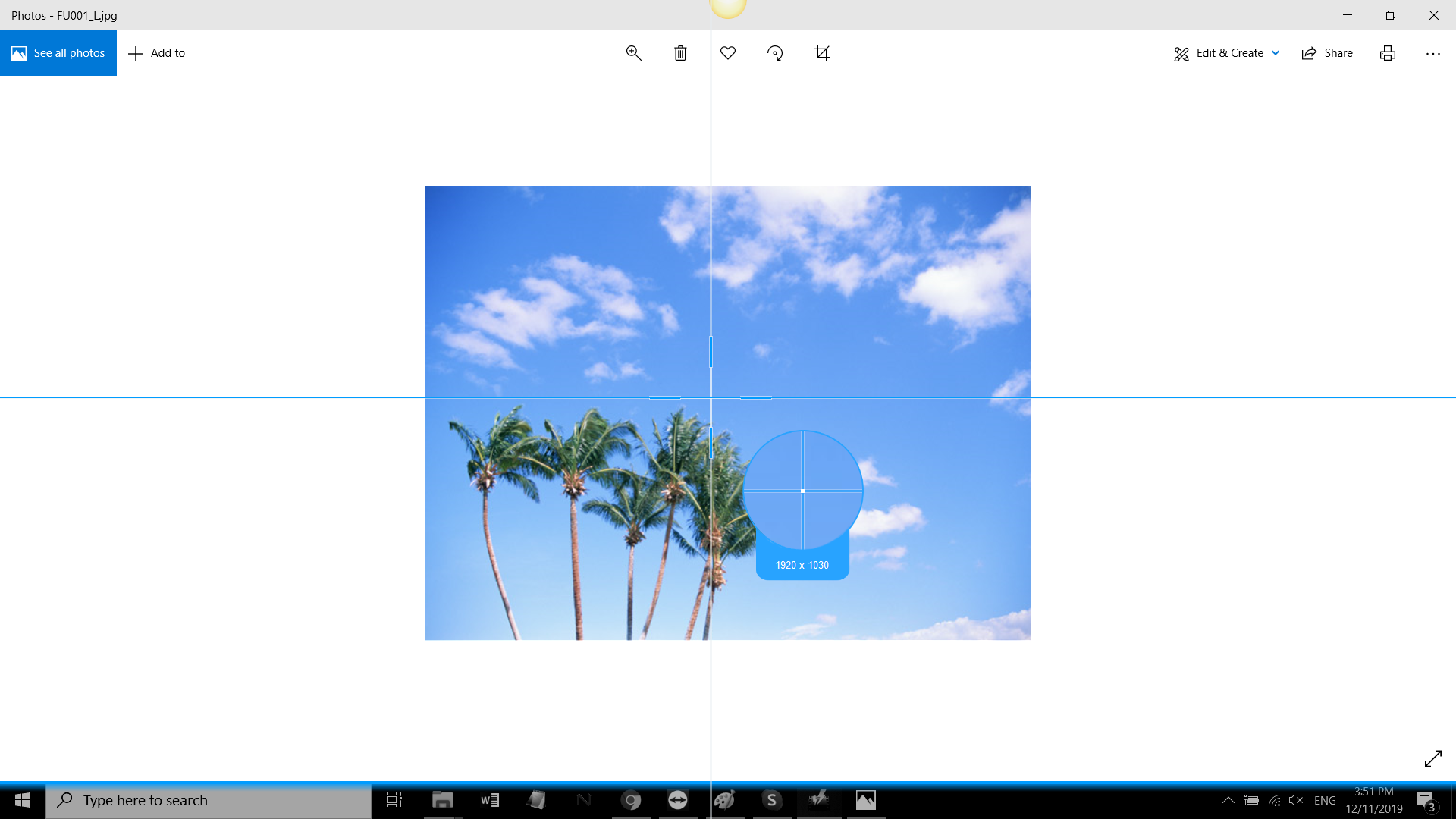
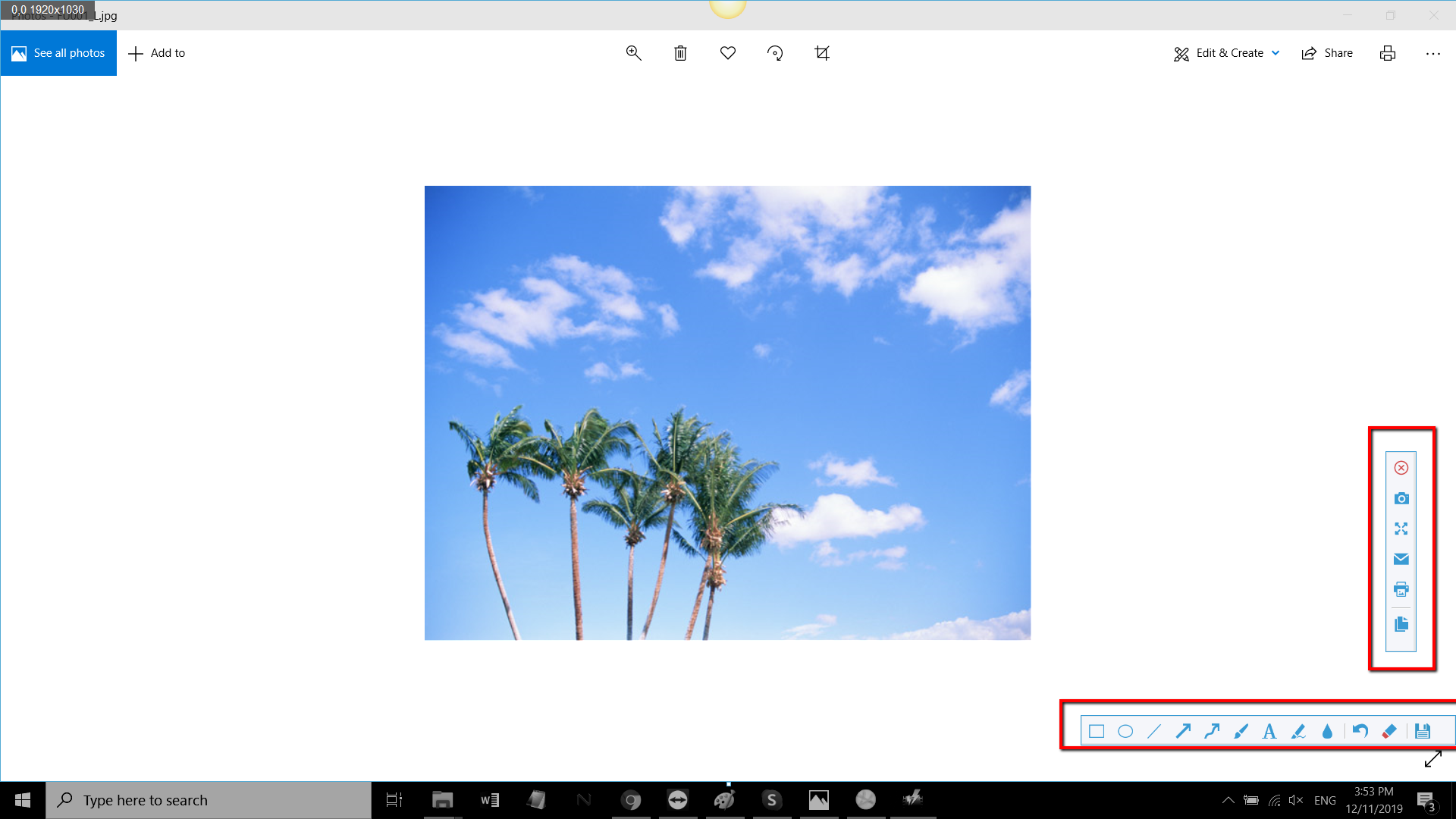
3) After clicking, you will get a snapshot of the selected region. You can make changes to it accordingly by exploring the menu (highlighted in red) before saving the screenshot.
Conclusion:
With the spread of Lenovo’s popularity, the number of users is getting higher. Thus, the need of the users are also increasing and getting complicated. But software like VideoPower GREEN is getting ahead of its time, so worry no more. The default way of screen capture in an Acer laptop is only capable of taking a full-screen screenshot. Unlike VideoPower Green, it offers various range of options for its screenshot tool. VideoPower GREEN does not only support screen capturing but it has multiple functions and features such as screen recording, audio recording, and task scheduler.


