





Tips Index
Skype is an instant messaging software, which has the features required by IM, such as video chat, multi-person voice conferences, multi-person chat, file transfer, text chat and more.
With this, you can dial with other users in high-definition voice quality and you can also make domestic and international calls. Skype can directly dial whatever devices you are using even if it is a home telephone, mobile phone or PHS. It is also known as the world’s free voice communication software with more than 663 million registered users and more than 30 million online.
In some cases, you may want to take screenshots while having a video call on Skype with someone on PC, or take a photo of the screen in order to share it with others afterward. Of course, you can screenshot Skype by pressing the “PrntScn” button on your keyboard, but it is a full-screen snapshot. If you want a specific area only, then you’ll need the help of a third-party tool.
We strongly recommended using VideoPower GREEN; an amazing software that can take a snapshot on a specific area depending on your needs.
You can try it for free. Let’s take a look at it.
Step 1: Launch VideoPower GREEN on your PC
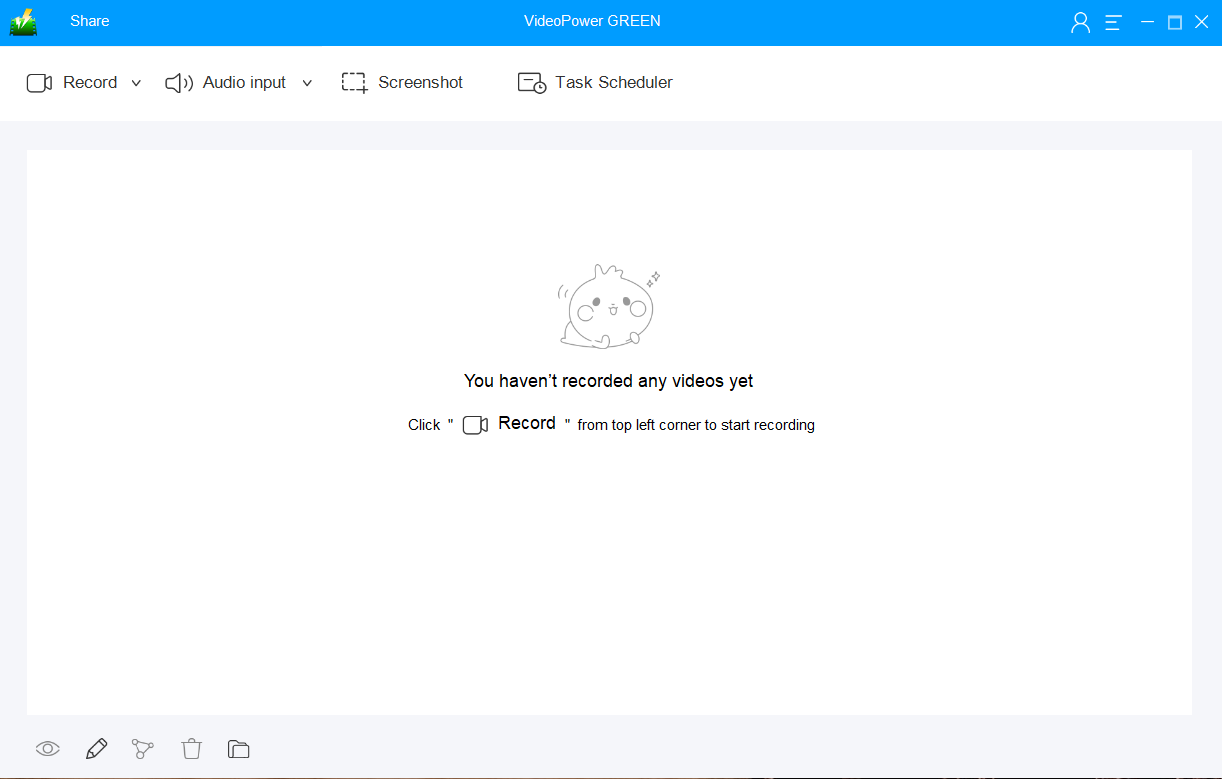
Run VideoPower GREEN if you have installed it successfully on your PC. The main interface of the software should look like this:
Step 2: Manage settings
2.1 Settings
1) Click the menu on the upper right corner of the interface.
2) Choose “Settings” from the drop-down menu.

2.2 Changes
Navigate to the “Take Screenshot” section. Make changes accordingly then click “OK.”

Step 3: Take a screenshot of Skype
3.1 Screenshot
Click on the “Screenshot” tab.

3.2 Take a Screenshot
Select the region on the screen that you want to take a screenshot of. By moving the mouse around the screen, you’ll be able to see what types of screenshots you can do.

3.3 Annotations
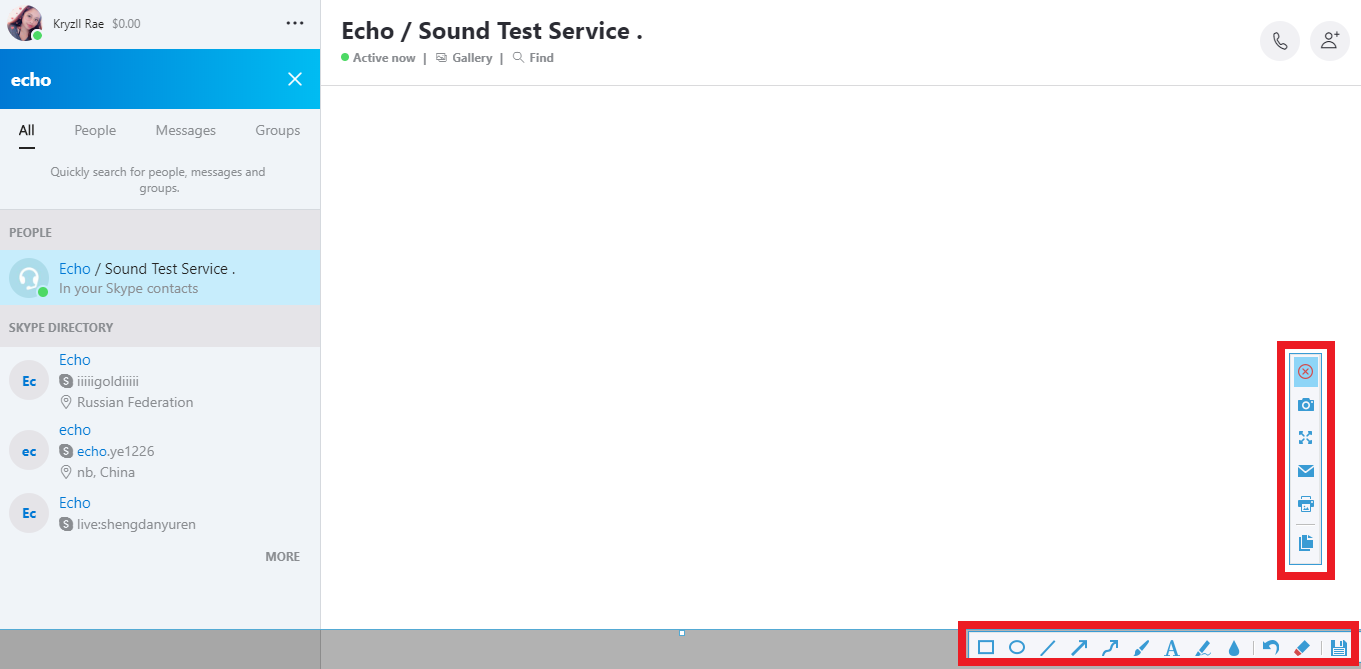
After clicking, you will get a snapshot of the selected region. You can make changes to it accordingly by exploring the menu (highlighted in red) before saving the screenshot.
Conclusion:
Some conversations and details on Skype might need to be taken a screenshot of. VideoPower GREEN is the ultimate tool for taking screenshots because it provides high-quality captures and you take screenshots in many different ways.
You can also record your voice calls and video calls with the option of recording audio in the microphone or the system sounds. Task Scheduler tool will let you set a time and date to automatically record screen activities.


