





Tips Index
Technological advances have broken down location barriers in communication like video conferencing. People from different countries can communicate with each other without having to meet personally in one location because this can be achieved through computers and smartphones connected to the Internet.
This can also save travel expenses for company tasks purposes. Most importantly, because of video conferencing, a meeting can be recorded for later viewing purposes.
You can review the content of the meeting when you think of something important you need to clarify or if you need someone to look at it for you. Well, in this case, you may need a screen recording tool to help you out with your problem.
In this article, we highly recommend using the best and easy to use screen recording software called VideoPower GREEN, a simple, hassle-free, and trusted recording application software.
Now, you can record on-screen activities on your computer in your own way with professional results. Just click the link below to download this free app.
You can try to use the software for free by downloading its trial version below.
Step 1: Record Video Conference.
Run VideoPower GREEN if you have installed it on your PC.
1) Choose a sound source.
You can choose “System sound, Microphone, System sound and microphone or None.” In recording video conference, you can use either “System sound” or “System sound and microphone”.
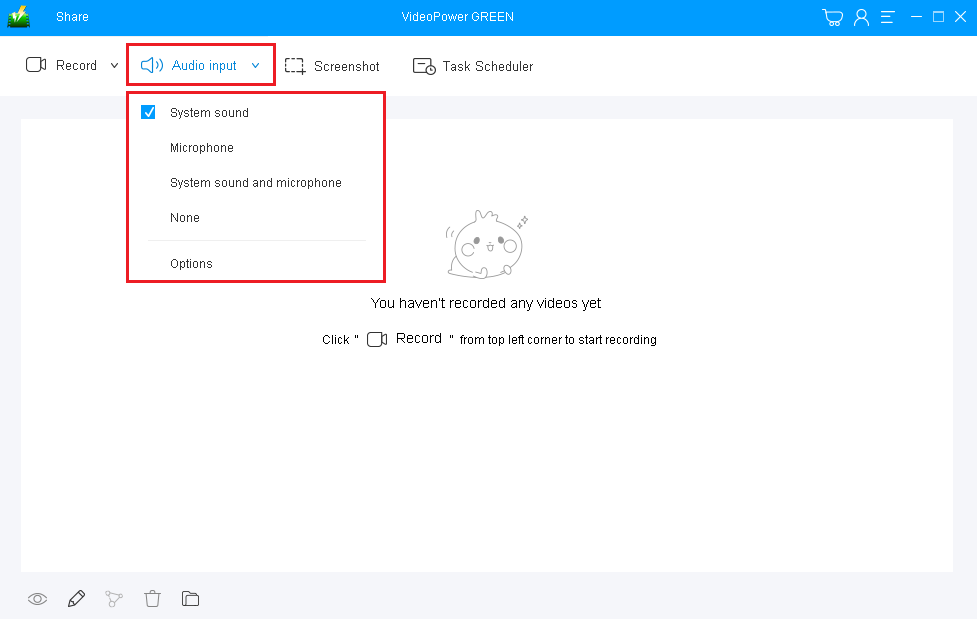
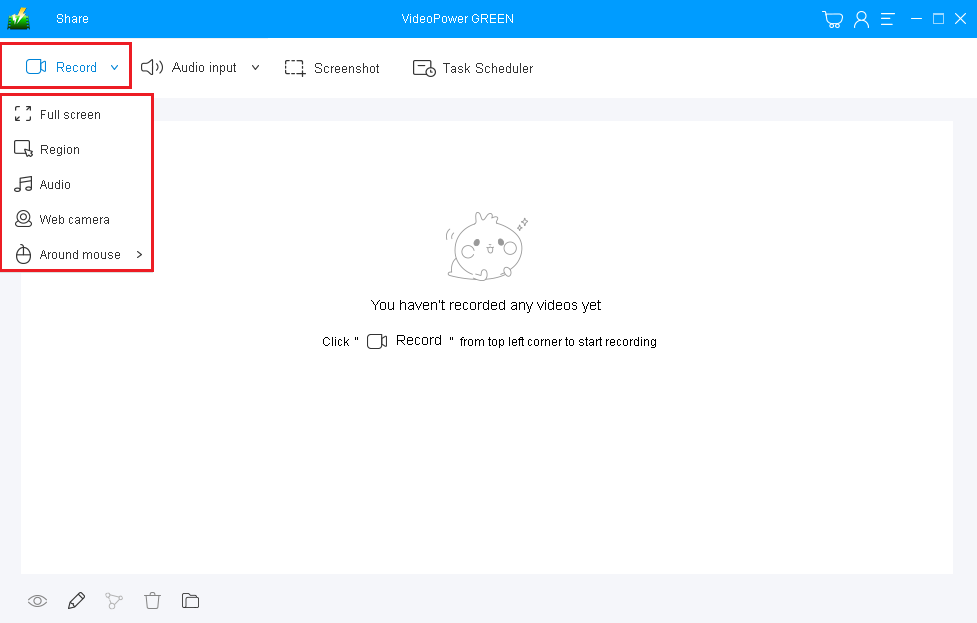
2) Select a recording area.
Click on the “Record” button to choose the recording mode from “Full screen, Region, Audio, Web camera, Around mouse”. Select the area you are going to record. If you are going to record both a webcam and screen, you need to select the screen mode first and then open the webcam after starting the recording.
Step 2: Start recording video conference.
1) The pop-up window will ask whether you are ready to start recording, click “OK” to confirm when you are ready to record.

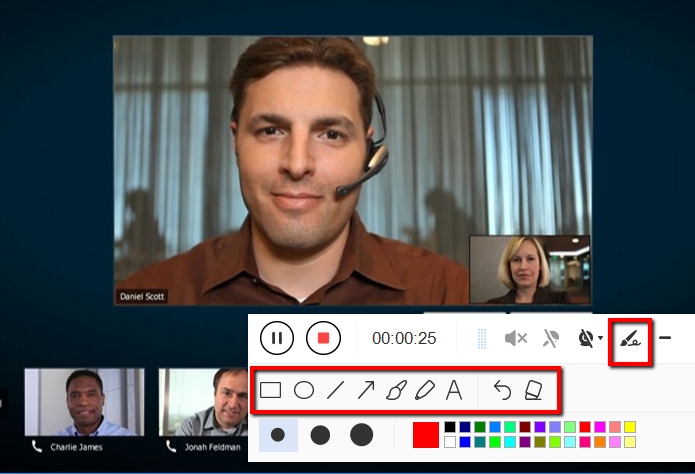
2) Click the webcam icon on the toolbar to open a webcam window in the recording area.

3) Annotate video while recording. You can add lines, arrows, shapes, texts, highlight, blur, etc. by clicking the edit button.
Step 3: End the recording.
Click the “Stop” button to stop recording.

After that, the recorded file will be saved in the output folder.
1) Your recorded file will be seen in the main interface. You can right-click the file and do more operations if you like.
2) Click the folder icon to view it in the output folder.

Conclusion:
Online communication is now prominent since the birth of digital technologies and applications. This development became a bridge of communication between people who are residing in different places or separate locations.
Most people use online communication for video conferencing. A transmission of static images and text between two locations. It is mostly done because of work and leisure. Thus, you can do more than that with VideoPower GREEN.


