Tips Index
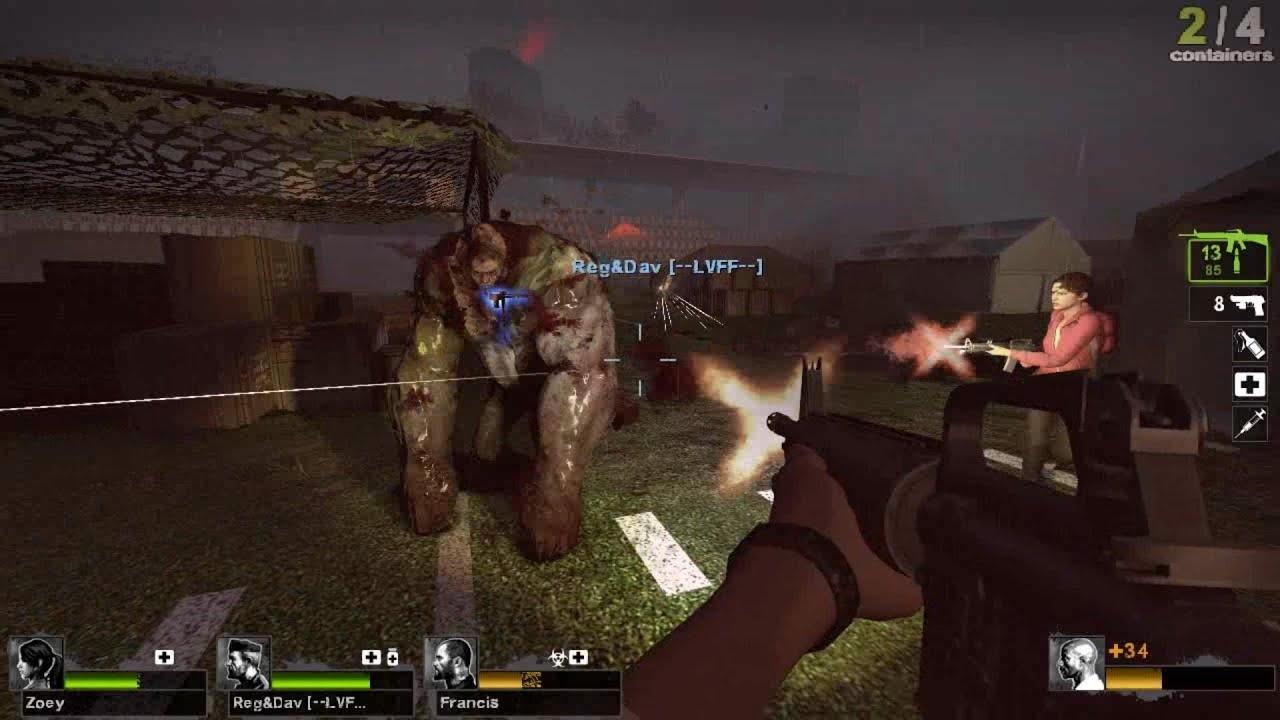
The emergence of online video-sharing platforms such as YouTube paved the way for gaming content creators – people that make living playing games live, capturing their reactions and uploading it to the content-sharing sites.
However, if you only want to record the audio of the game because you can’t find its particular OST online, you may opt to use VideoPower YELLOW. With this software, you can record game audio.
It has an intuitive interface and a rich variety of features. It supports to record any audio from the computer sound card, microphone or both.
So recording game audio and voice is no exception. Better yet, its built-in ID3 tag identifier will help to tag the recordings with title, album, artist and year automatically.
To install the program, you must first download the software by clicking the link below.
Steps:
1. Run the program
After you run the program, you will automatically be directed to the recording interface. It should look like this:

2. Set the sound source
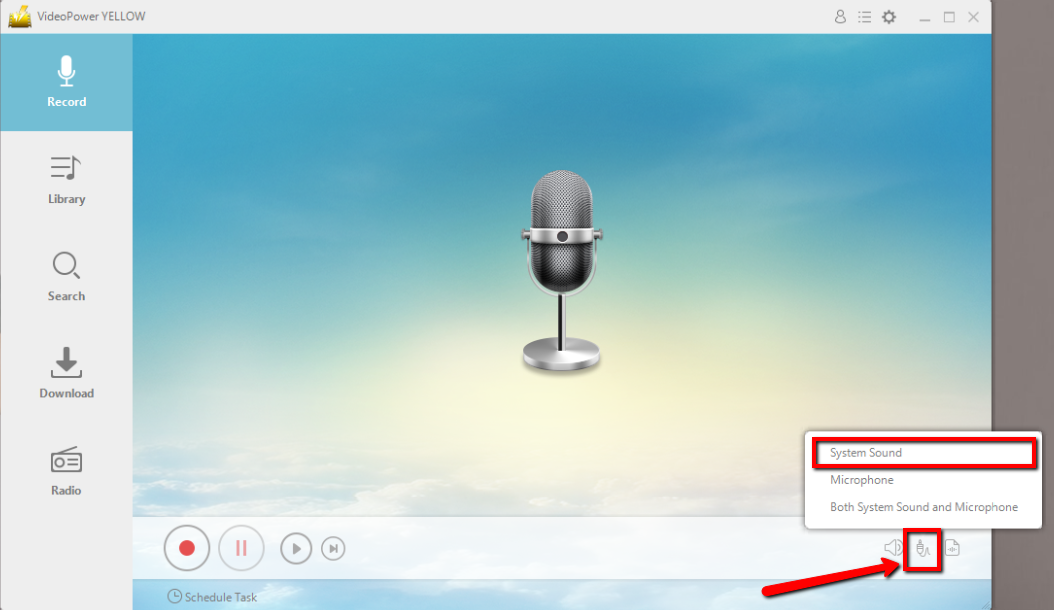
Before recording the Gaana track, make sure that the sound source is set to “System sound.” This is to ensure that the recorder will detect the internal sound from the computer.
3. Set the file format
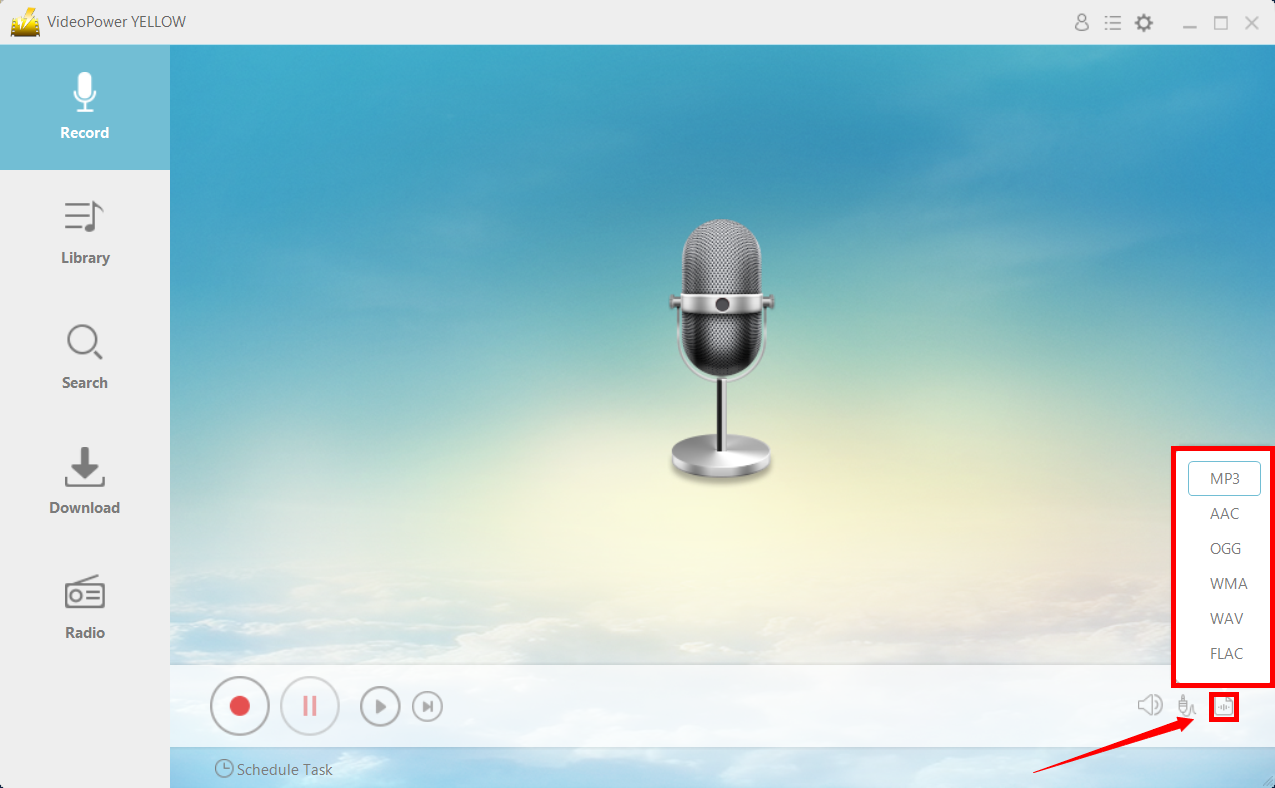
Make sure that the recording is set in the format of “MP3.” – or whatever format you deem appropriate.
4. Record
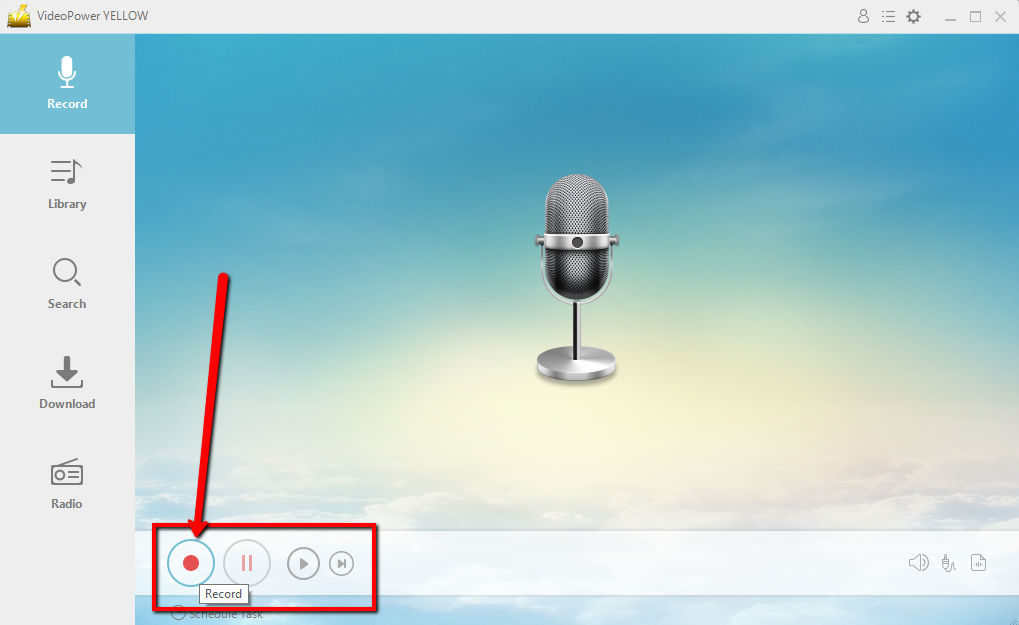
Click the “Record” button to start recording.
5. Play the Game
Play the particular part of the game’s audio you want to be recorded.
6. File location
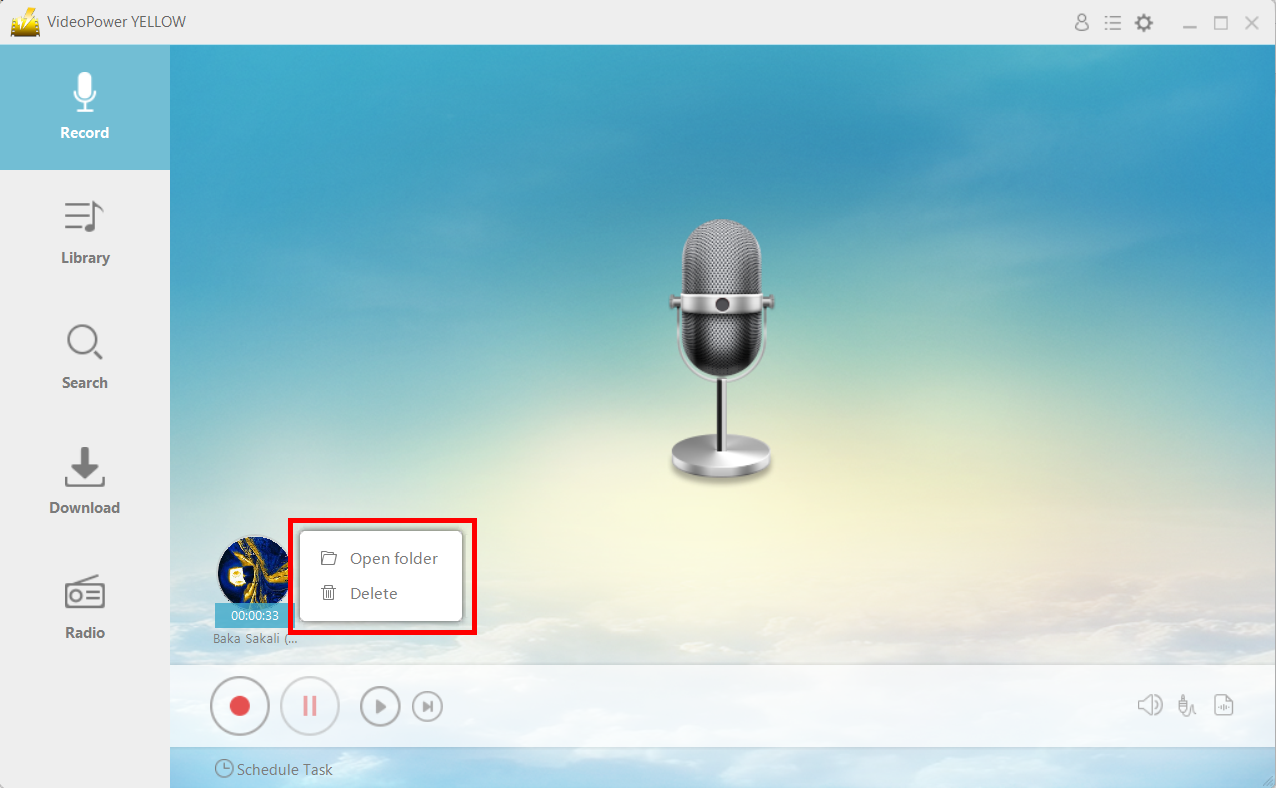
After recording, right-click the recorded track icon and click “Open folder” to open the storage location of the recorded audio file or click “Delete” if you want to delete the file and record again.
Conclusion:
Recording your favorite OST from a game that you enjoy now becomes easier with VideoPower YELLOW.
Once recorded, you can check the quality of the music by listening to it with the built-in player before the next step. If you are satisfied with the result, simply save it to your hard drive, or you may start with a new recording over again.
It is simple to check the file or open the destination folder to locate the audio on the PC instantly. You are also allowed to listen to the audio and delete the unwanted files at will.