





Tips Index
ScreenFlow is one of the best screen recording tools for Mac. It supports the entire process of screen recording, video editing, video export, and sharing.
The software supports high-quality video recording and most importantly has powerful video editing functions, such as display mouse cursor and keyboard, add text and so on. However, ScreenFlow only works on Mac.
In this case, we would like to provide you with a “ScreenFlow for Windows” which is called VideoPower GREEN.
The best and easiest screencast software as powerful as ScreenFlow, a one-stop screen recording tool. Now there is no need for you to bother about finding an alternative ScreenFlow for windows anymore since you have come to the right place. Just click the link below to download this free app.
You can try to use the software for free by downloading its trial version below.
Step 1: Launch VideoPower GREEN to start recording PC screen activity.
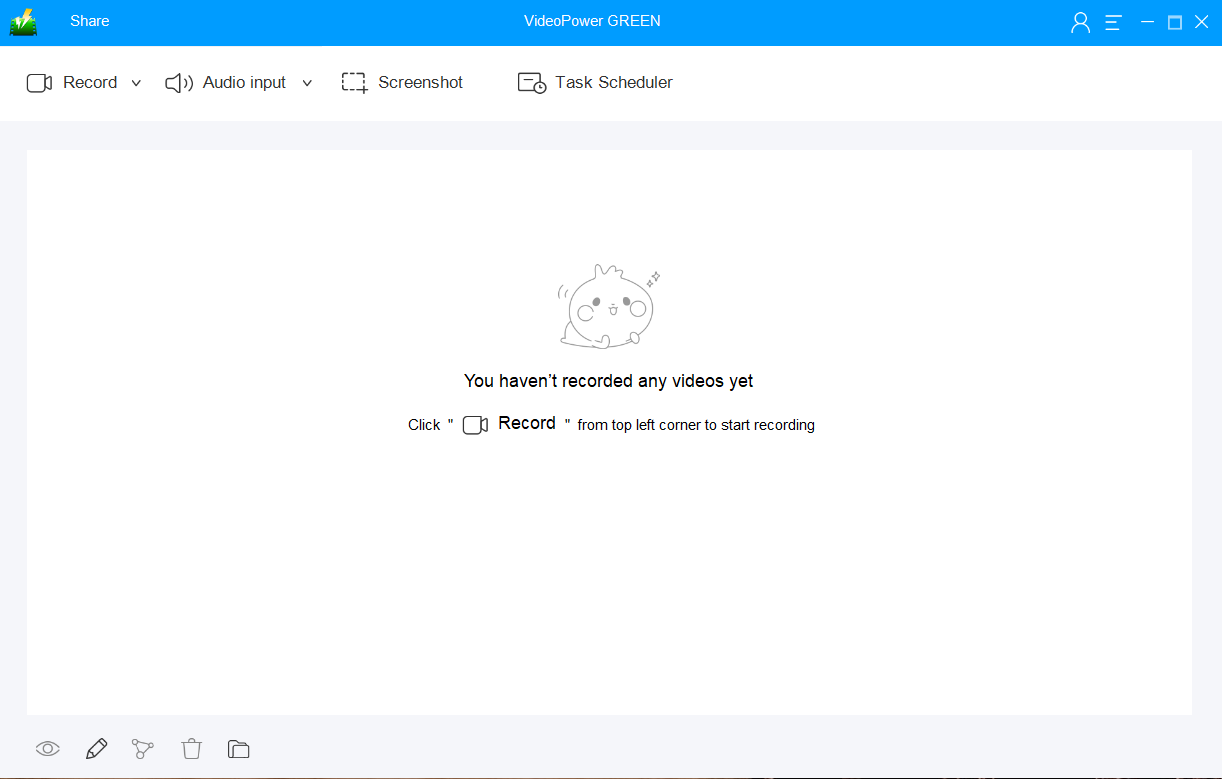
Run VideoPower GREEN if you have installed it successfully on your PC. The main interface of the software should look like this:
After that, the recorded file is already saved in the pointed output folder.
Step 2: Start Recording
2.1 Choose an audio source.
You can choose:
1) System sound
2) Microphone
3) System sound and microphone
4) None
Note: To record streaming video, you can select “System sound”.

2.2 Select a recording area.
Click on the “Record” button to choose the recording mode.
1) Fullscreen
2) Region
3) Audio
4) Web camera
5) Around mouse (select the area you are going to record)

After that, the recorded file is already saved in the pointed output folder.
2.3 Start to record.
The pop-up window will ask whether you are ready to start recording, click “OK” to confirm when you are ready to record.

2.4 Annotations
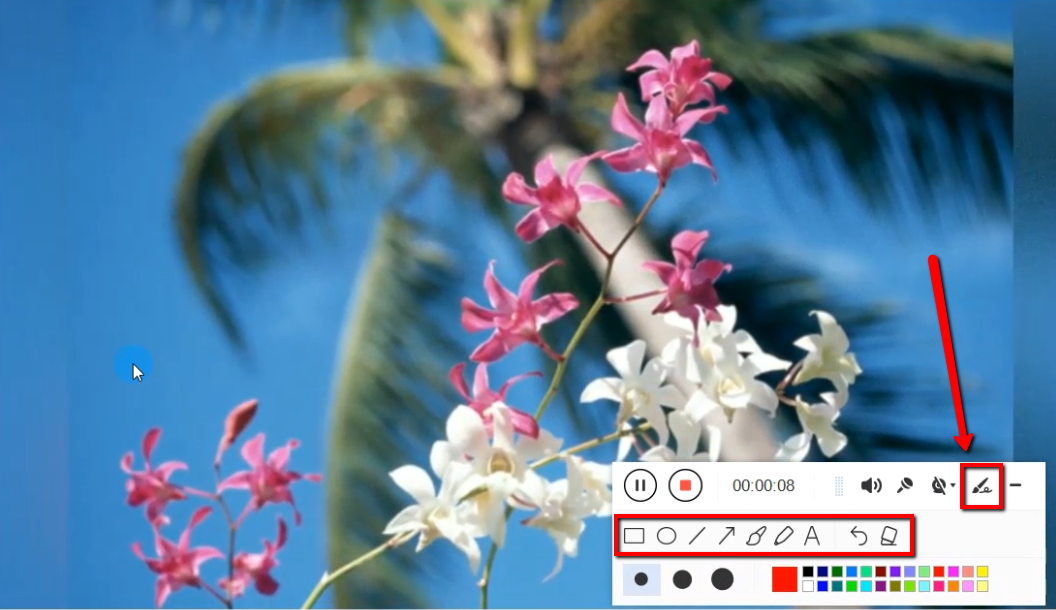
While recording you can add lines, arrows, shapes, texts, highlight, blur, etc. by clicking the edit button.
2.5 End the recording.
Click the “Stop” button to stop recording.

Step 3: Manage the recorded video
1) Your recorded file can be seen in the main interface. You can right-click the file and do more operations if you like.
2) Click the folder icon to view it in the pointed output folder.

Conclusion:
Mix and match screen recordings, imported videos, and audios from your computer using VideoPower GREEN‘s video editor.
Add your own themes, overlay shapes and images from your computer. With this easy-to-use screen recorder, you can capture any area of your screen with the option to add narration from your microphone and video from your webcam. Sharing your ideas has never been easier!


