





Tips Index
World of Warcraft is the first online game produced by Blizzard Entertainment, a famous game company. It belongs to a large-scale multiplayer online role-playing game.
This game takes the plot of the real-time strategy game “Warcraft” produced by the company as the historical background. Relying on historical events and heroes of Warcraft, World of Warcraft has a complete historical background timeline.
Players of the World of Warcraft Adventure play to, complete tasks, new adventures, explore the unknown world, conquer monsters and so on.
In order to facilitate the exchange of experience among game players and to review recent games to improve and get better results on the next game, it’s a smart idea to record WoW gameplay with the help of a good Screen Recorder application.
In this case, it’ll be a piece of cake if you’ll use a recommended third-party application software called VideoPower GREEN.
This app is highly suitable for recording the WoW game. Now, you cannot only record on-screen activities on your computer but also webcam activities through your own way with professional results. Just click the link below to download this free app.
You can try to use the software for free by downloading its trial version below.
Step 1: Screen record World of Warcraft.
1) Choose a sound source
You can choose “System sound, Microphone, System sound and microphone or None.” In recording World of Warcraft, you can use either “Sound source” or “Sound source and microphone”.
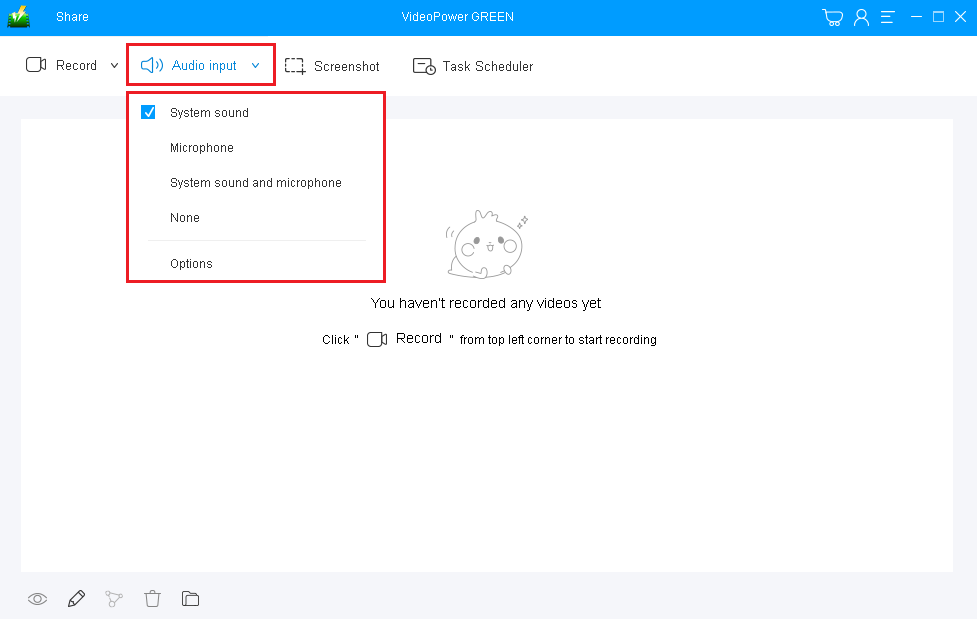
2) Select a recording area
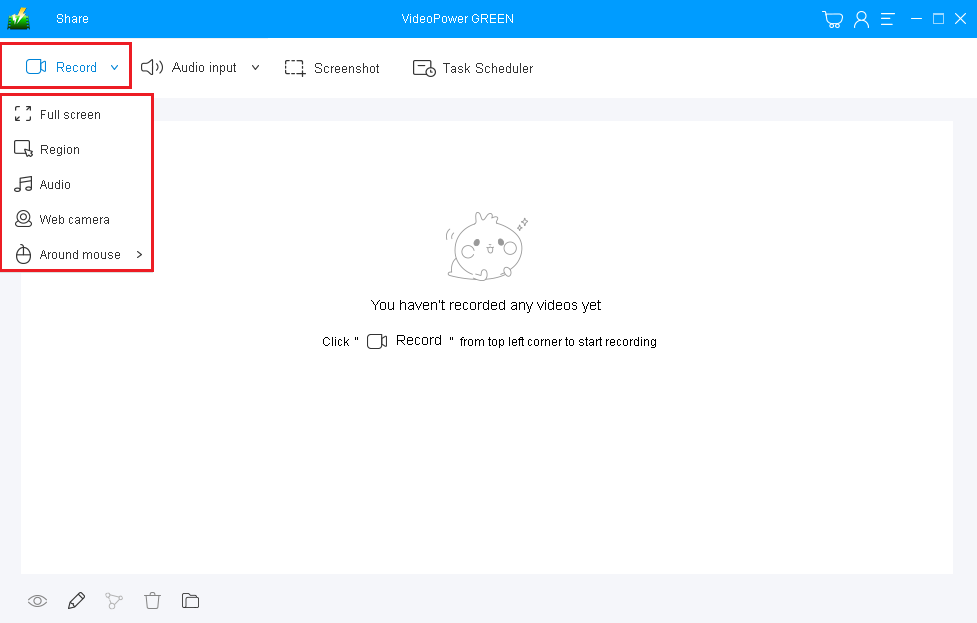
Click on the “Record” button to choose the recording mode from “Full screen, Region, Audio, Web camera, Around mouse”. If you are going to record both a webcam and screen, you need to select a screen. And then open a webcam after starting recording.
Step 2: Start recording World of Warcraft.
The pop-up window will ask whether you are ready to start recording, click “OK” to confirm when you are ready to record.

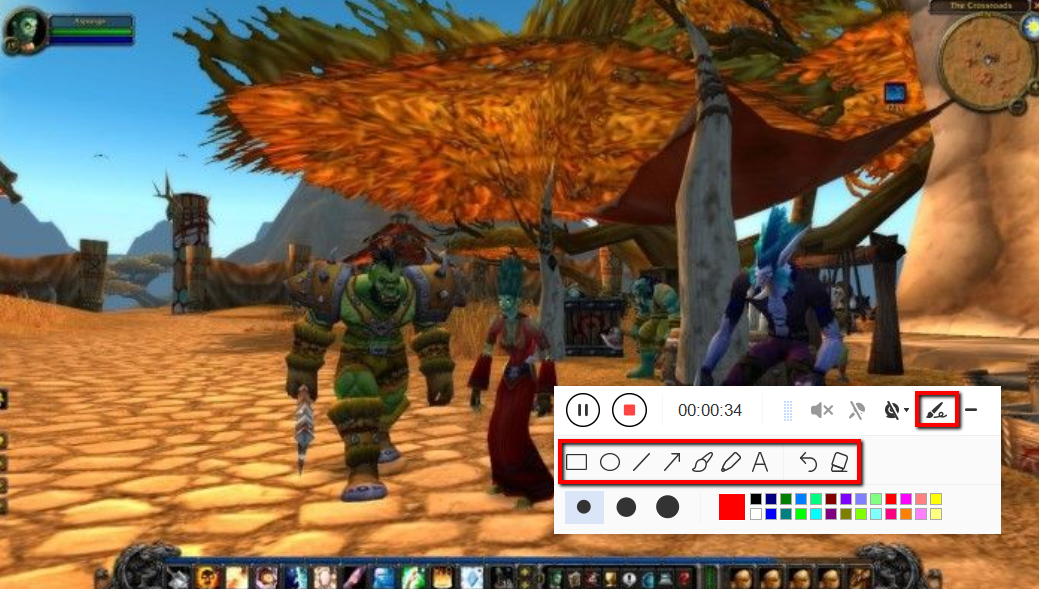
Edit video while recording
While recording you can add lines, arrows, shapes, texts, highlight, blur, etc. by clicking the edit button.
Step 3: End the recording.
Click the “Stop” button to stop recording.

After that, the recorded file will be saved in the output folder.
1) Your recorded file will be seen in the main interface. You can right-click the file and do more operations if you like.
2) Click the folder icon to view it in the output folder.

Conclusion:
Playing WoW or World of Warcraft is one of the ways to help many people be entertained and have fun. But then, playing alone isn’t enough for most of the gamers anymore. They now started to record their game to share with other people how skillful they are and to earn money by posting it online.
To capture with ease and produce good and professional quality videos of your game, an amazing, hassle-free and trusted recording application software with various professional features called VideoPower GREEN. is best for this kind of job.
Moreover, this application also offers editing features to improve and beautify your video and emphasize important details on it. Also, it has a task scheduler feature that can help you save time and effort.


