





Tips Index
OBS (Open Broadcaster Software) is free and open-source software for video recording and live streaming on Windows, Mac or Linux.
It helps users record high-definition MP4 format videos without re-compression. Many gamers use this software to record gameplay videos, but for beginners, it can be tricky.
So, worry no more beginners. Here is a simpler and more practical way of recording PC screen activities.
Introducing VideoPower GREEN. the best and easiest screen recording application software as the finest OBS alternative in recording any screen activities. It provides more functions such as recording area customization, instant editing, webcam recording, animate mouse clicks, scheduled recording and more.
Just check this guide out and click the link below to download this free app. Try it now!
Step 1: Customize video settings
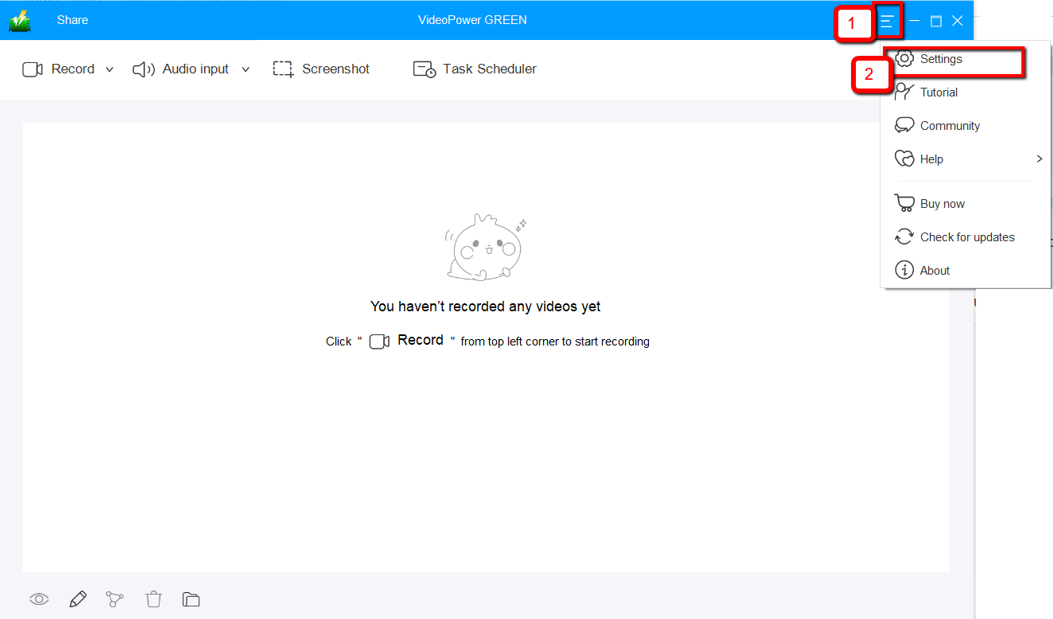
1.1 Open Settings
1) Click the menu on the upper right corner of the interface.
2) Choose “Settings” from the drop-down menu.
1.2 Change video settings
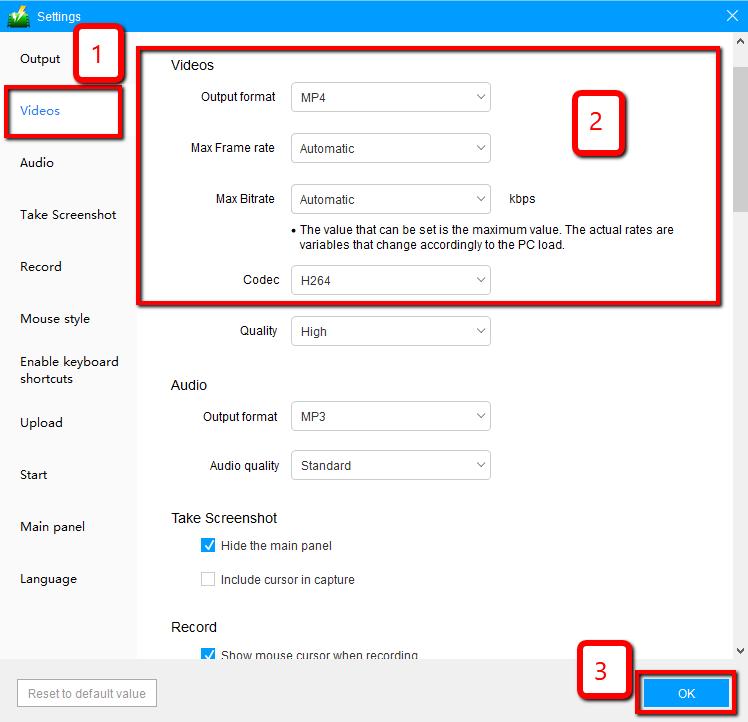
1) Click the “Video” tab on the left side of the interface.
2) You are now able to customize the Output format, Codec, Bitrate, and Frame rate of the recording video as per need.
3) Click “OK” to save settings.
Step 2: Record screen activities
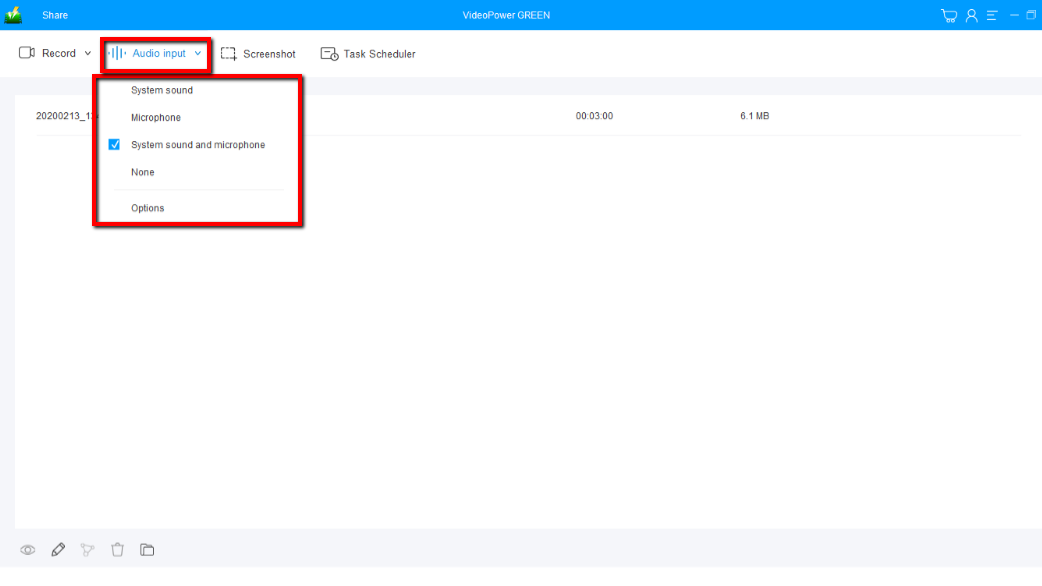
2.1 Choose a sound source
You can choose “System sound, Microphone, System sound and microphone or None.” To record streaming video, you can select “System sound”.
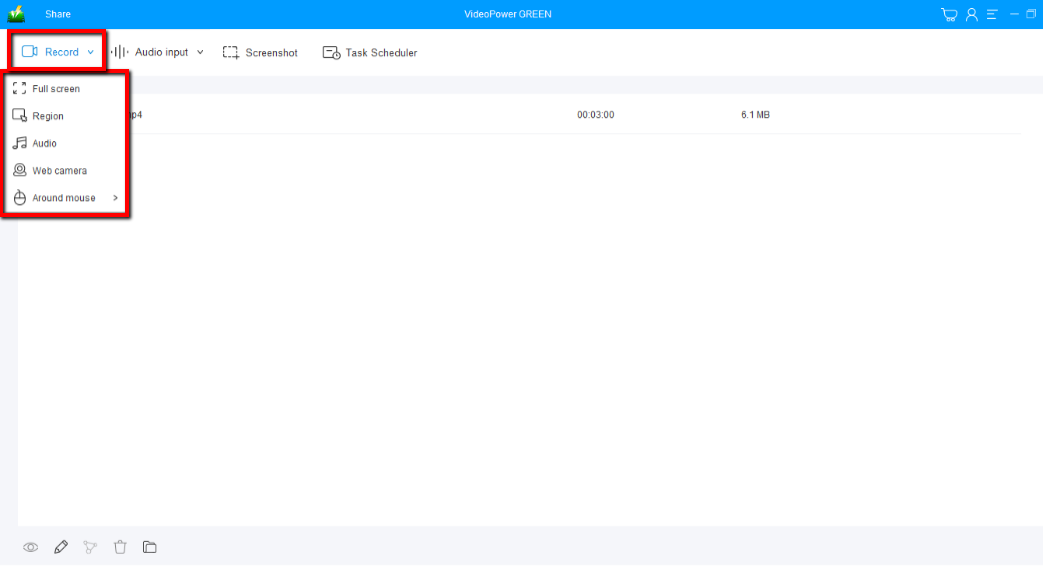
2.2 Select a recording area
Click on the “Record” button to choose the recording mode from “Full screen, Region, Audio, Web camera, Around mouse”. Select the area you are going to record.
2.3 Start to record
The pop-up window will ask whether you are ready to start recording, click “OK” to confirm when you are ready to record.
 https://test3.video-power.net/wp-admin/post-new.php#
Step 3: Manage your recorded video
After that, the recorded file is already saved in the pointed output folder.
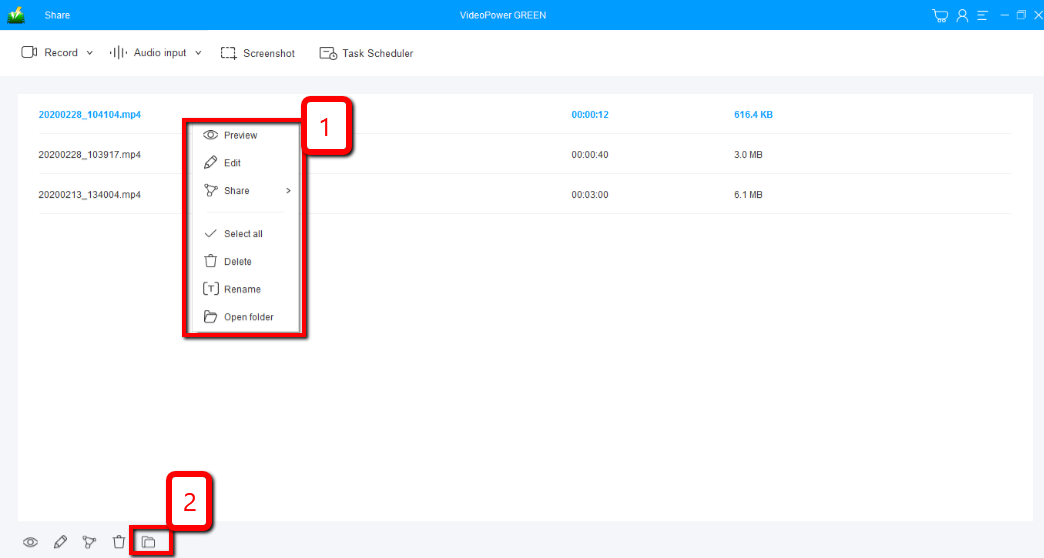
1) Your recorded file can be seen in the main interface. You can right-click the file and do more operations if you like.
2) Click the folder icon to view it in the pointed output folder.
Conclusion:
VideoPower GREEN is fast and reliable with a built-in video editor that will enable you to merge multiple videos into one single file. The video editor lets you apply watermarks, effects, and other basic video editing options such as trimming or cropping. The video editor extension can convert your files into a format that you like.
VideoPower GREEN could merge multiple files into one and save it on any format you want to.


