





Tips Index
Nowadays, many people are not contented by just recording only computer screen activity. They now wanted to record and add themselves to the recorded file. Sometimes they need to add external cameras like a webcam to show their expression comments and movements toward the screen activity. For example, Game Anchors, online-class teachers or vloggers have a great demand for screen recording.
It’s really difficult to capture and record screen and webcam simultaneously without the help of third-party tools. In this article, we will provide an easy-to-use but practical screen and webcam recorder to all of you.
VideoPower GREEN is the best desktop tool for basic video/audio recording and screen capturing. It has multiple functions but easy to use with no tech knowledge required at all. It enables you to record movies, video tutorials, games, live streams, calls, and more. It also enables you to easily and hassle-free record screen activities and webcam visual images at once at the same time.
You can try to use the software for free by downloading its trial version below.
Step 1: Record screen activities.
Run VideoPower GREEN if you have installed it on your PC.
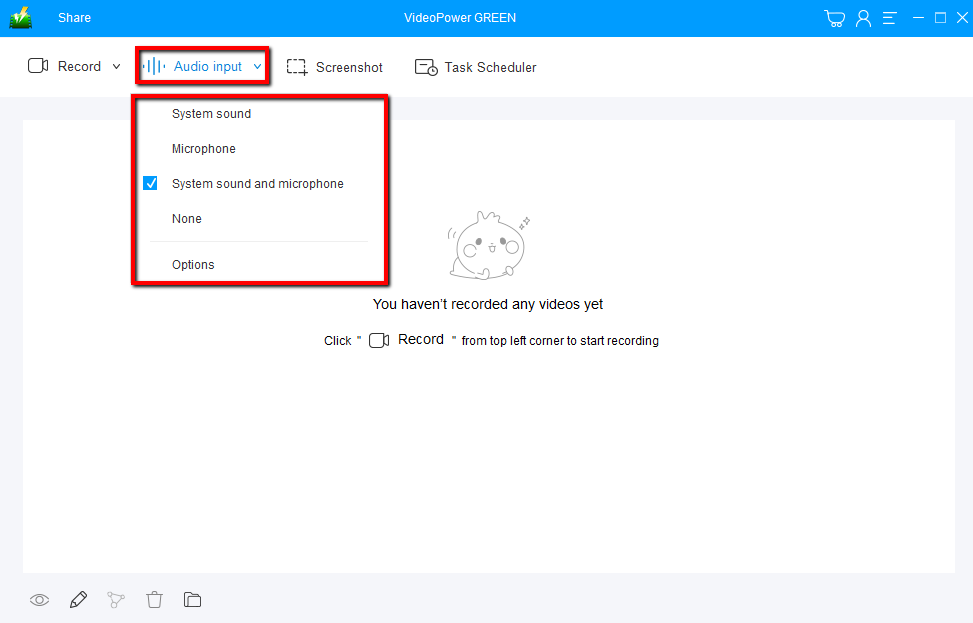
Choose a sound source.
You can choose “System sound, Microphone, System sound, and microphone or None.” To record streaming video, you can select “System sound”.
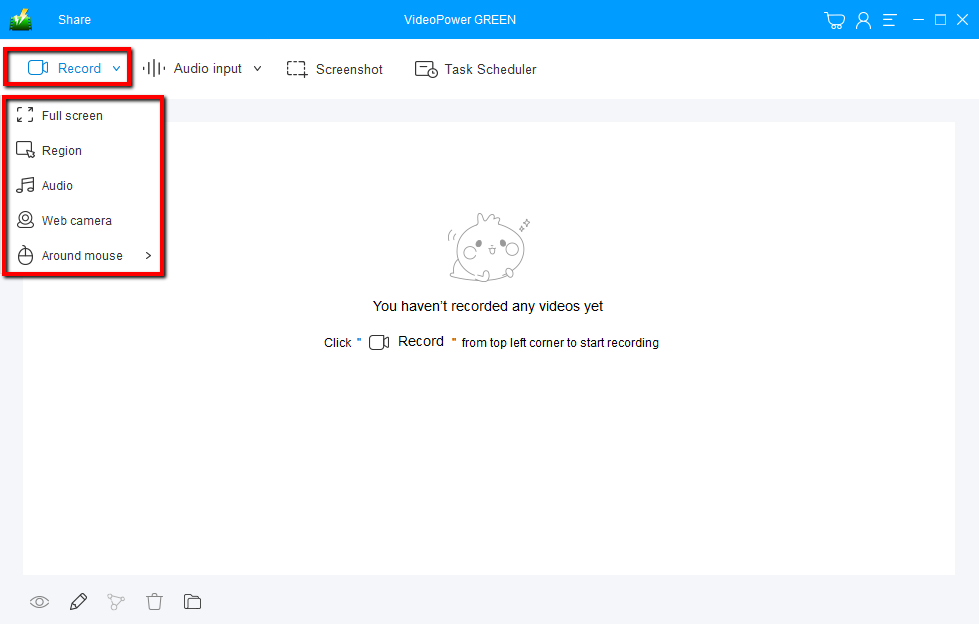
Select a recording area.
Click on the “Record” button to choose the recording mode from “Full screen, Region, Audio, Web camera, Around mouse”. If you are going to record both a webcam and screen, you need to select a screen. And then open a webcam after starting recording.
Step 2: Start to record.
The pop-up window will ask whether you are ready to start recording, click “OK” to confirm when you are ready to record.

Click the webcam icon on the toolbar to record it as well.

Step 3: End the recording.
Click the “Stop” button to end the recording.

After that, the recorded file is already saved in the pointed output folder.
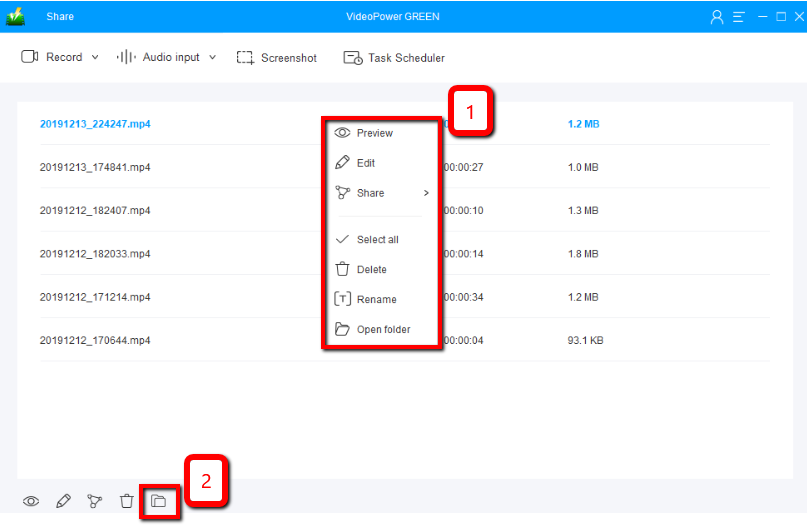
1) Your recorded file can be seen in the main interface. You can right-click the file and do more operations if you like.
2) Click the folder icon to view it in the pointed output folder.
Conclusion:
Nowadays, many people are not contented by just recording only computer screen activities alone. They now wanted to record and add themselves and external visual images to the recorded file. This happens most especially to those who make video game commentaries and online lectures.
VideoPower GREEN, an easy to access and trusted recording application software would be a great help for those who are in need of a tool in recording both screen and webcam moving visual images.


