





Tips Index
In Open Broadcaster Software or OBS studio as we all know, the capture window grants you to capture what is displayed on your screen. You can seize the footage from any window on your computer and add it to your stream broadcast.
You could use this to get and capture the details shown from a game during a live playthrough or capture some documents when you’re streaming your work or used it to capture details from your software when you stream a live tutorial for it.
OBS makes it simple to round up your window and this can all be arranged with just a few clicks. But like other software out there, sometimes OBS breaks, keeping you from capturing your window properly you can’t see what footage is being broadcast.
Posts about OBS studio game capture black screen have already repeatedly appeared in various online forums. Miserable users keep having issues on a black screen in the recording window no matter what mode of capturing they try to select. Mostly, users choose OBS to record screens because it is a well-known free app. But remember the free app is also open-source and does not actually have security and stability.
Here are some tips you might want to try:
Adjust the OBS GPU
New laptops in today’s modernized world usually come with two Graphics Processing Unit or GPU for more excellent performance and power saving. One is a joined GPU which comes with the Central Processing Unit or CPU and the other is an individual GPU.
Enable Compatibility Mode
Even now and then Windows 10 PC may have compatibility problems with what running apps you have, but luckily Windows 10 system can take care of it by setting properties.
Run as Administrator
This way is to address running OBS with full functions. You can go through it quickly.
Capture Screen or Gameplay without OBS
If the black screen problem on OBS can’t be fixed, the best possible and effective way is to replace OBS with VideoPower GREEN Screen Recording. It shines among any other Screen Recorder apps due to its powerful features and user-friendly operating interface.
And its resistance to some degree is much better than OBS and you will never encounter a black screen for no reason. It is an exceptional alternative to record live streaming videos, gameplay, or any other screen activities on Windows. It also gives you the power to record both system sound and microphone during screen recording and comes with various useful functions such as screen capture and editing.
Just click the link below to download this free VideoPower GREEN app and follow through the guide on how to resolve OBS capturing the black screen problem.
Download the software through this link and follow the instructions.
Part 1: Take Screenshot
Step 1: Manage settings
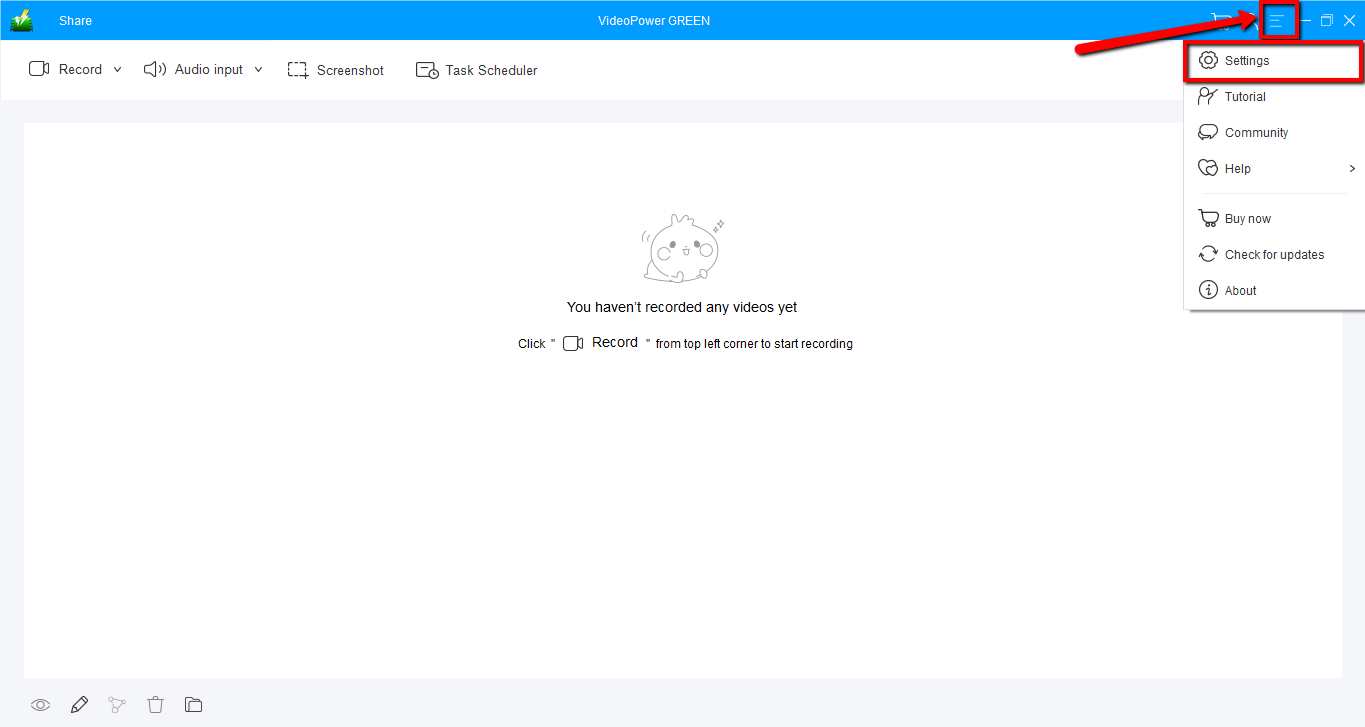
Click the menu on the upper right corner of the interface and choose “Settings” from the drop-down menu.
Step 2: Set Screenshot Setting
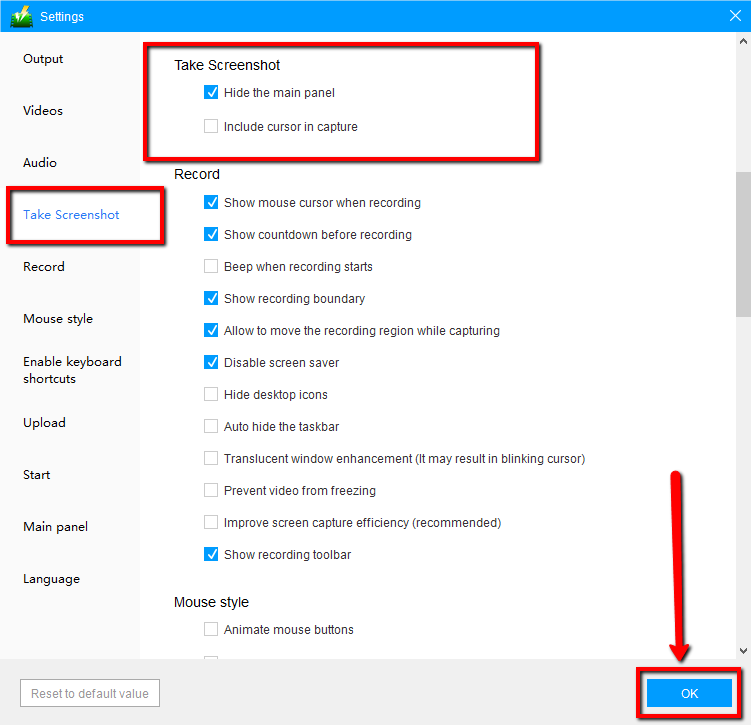
Navigate to the “Take Screenshot” section. Make changes accordingly then click “OK.”
Step 3: Take a screenshot on your PC
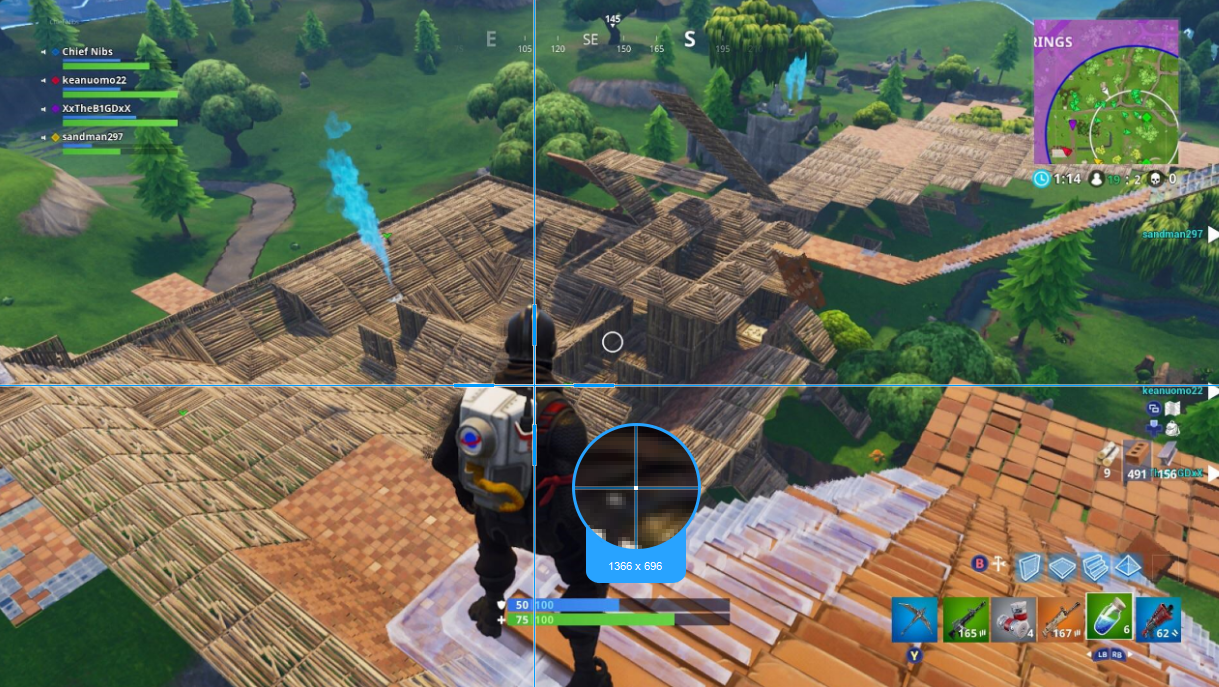
Click on the “Screenshot” tab. Select the region on the screen that you want to take a screenshot of. By moving the mouse around the screen, you’ll be able to see what types of screenshots you can do.
Step 4: Do more possible and needed operations
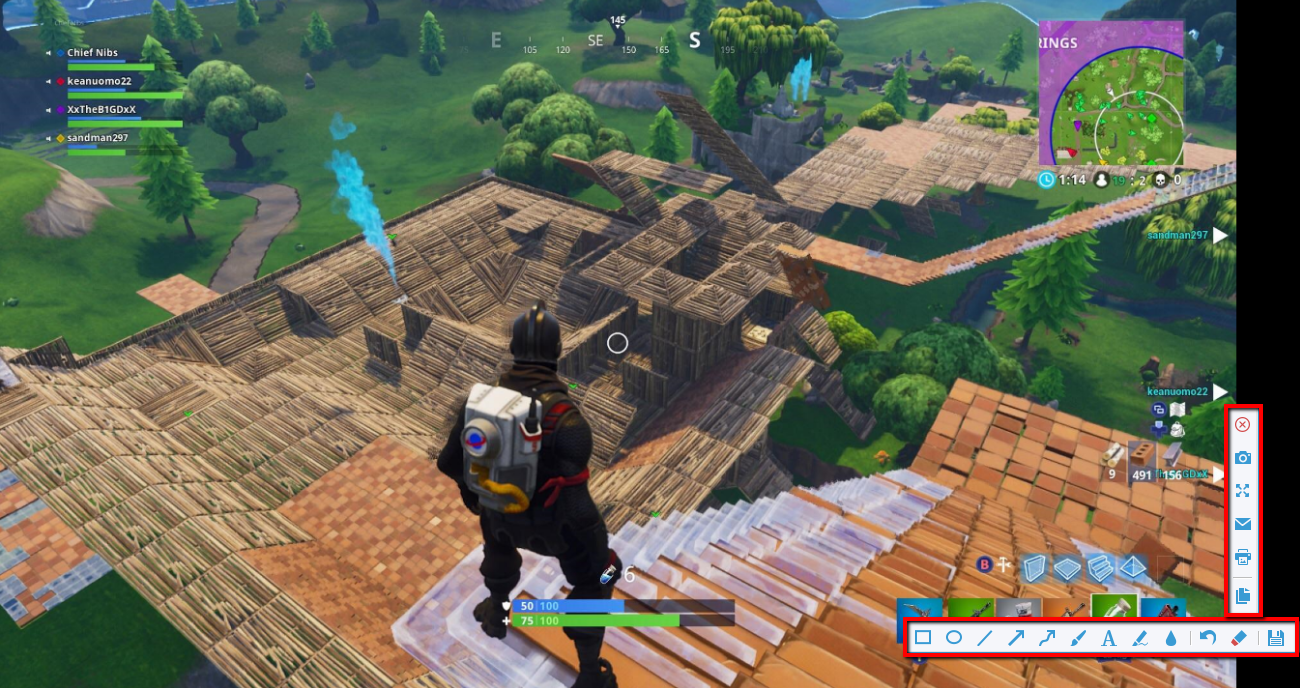
After clicking, you will get a snapshot of the selected region. You can make changes to it accordingly by exploring the menu (highlighted in red) before saving the screenshot.
Part 2: Screen Record
Step 1: Set Recording Mode
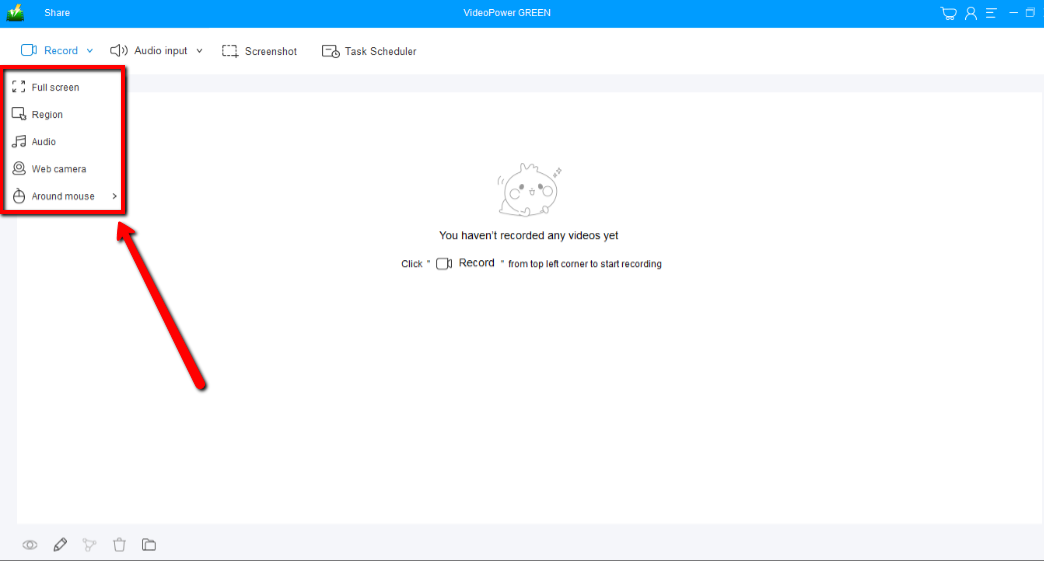
Record footage of your windows screen. Click on the “Record” tab, pick among the following recording modes; “Full screen, Region, Audio, Web camera, and Around mouse” to record your screen activities. Select the one you prefer.
Step 2: Check recorded file
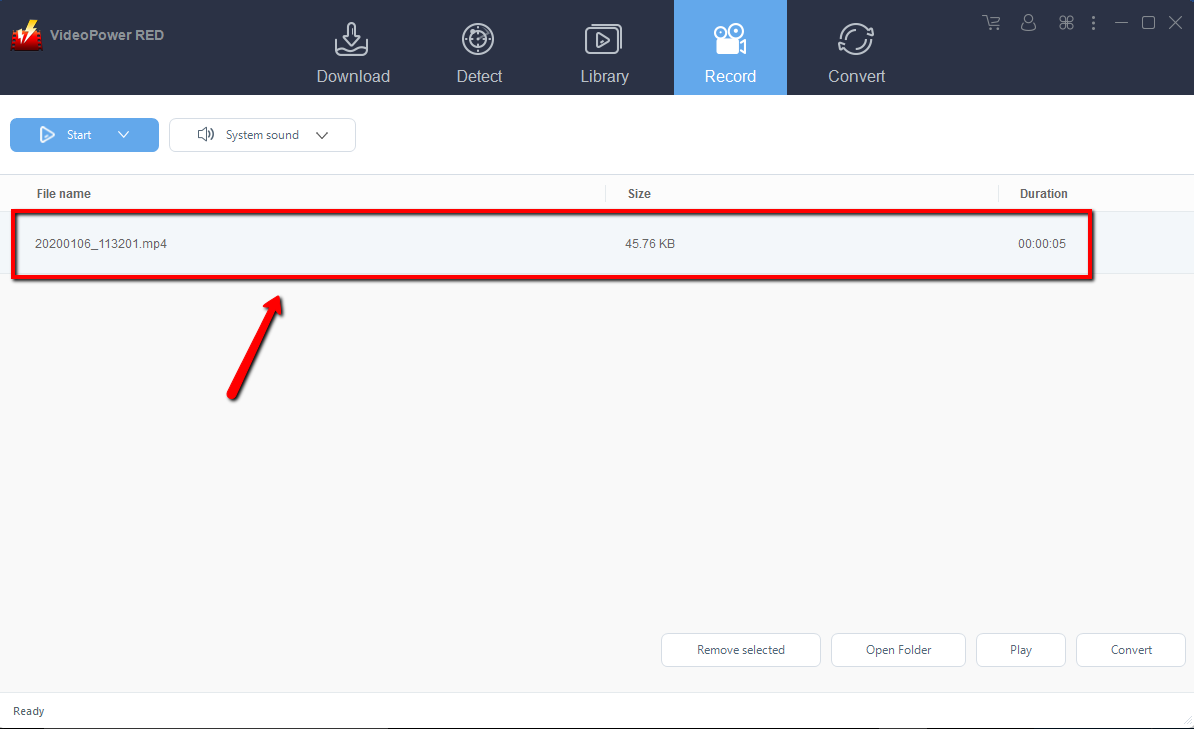
After clicking the chosen mode, the recording will automatically start. After the recording, you will be redirected to the record window and you will see the recorded file in there. Right-click to do more operations and double-click to preview.
Conclusion:
There are many different ways you can try to fix the black screen on OBS. And if you are exhausted on those OBS recording issues, the best way is to change it to VideoPower GREEN Screen Recorder, a stable, secure, versatile and powerful software, best in recording and the best bet for OBS alternative.


