





Tips Index
Recording screen activity is incredibly useful in many ways and purposes. It can help you to easily create video tutorials and instructions for work and study guides. It is also best in helping somebody who’s having technical problems with their computer by taking a video of instructions and steps to fix the problem. Screen recording can make these things easier. But the question is, what would be the best and easiest tool to capture activities on the screen?
VideoPower GREEN an easy to use and trusted recording application software records screen activity and offers a visual representation of what needs to be done more accurately with the help of its editing feature.
To do this, you must first install it on your computer. You can access the installer by clicking on the link below.
Step 1: Start recording your Laptop Screen
Run VideoPower GREEN if you have installed it on your PC.
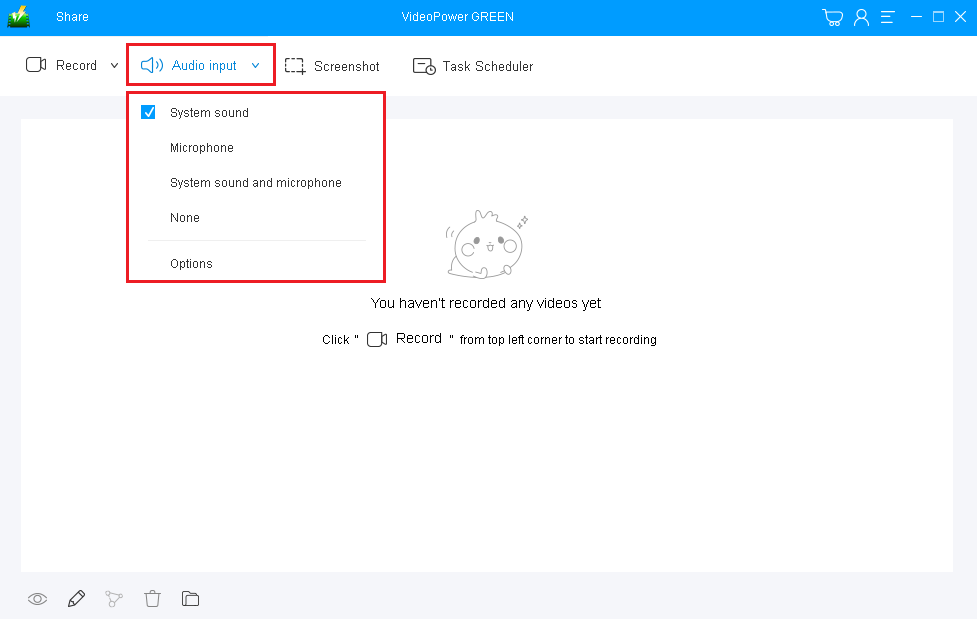
Choose a sound source.
You can choose “System sound, Microphone, System sound, and microphone or None.” To record streaming video, you can select “System sound”.
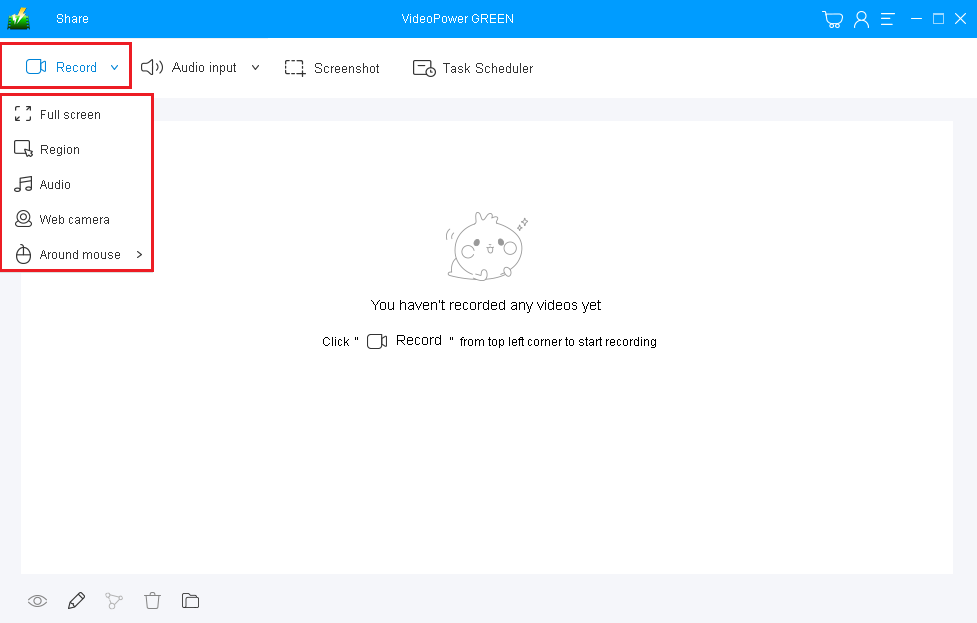
Select a recording area.
Click on the “Record” button to choose the recording mode from “Full screen, Region, Audio, Web camera, Around mouse”. Select the area you are going to record.
Step 2: Start to Record
The pop-up window will ask whether you are ready to start recording, click “OK” to confirm when you are ready to record.

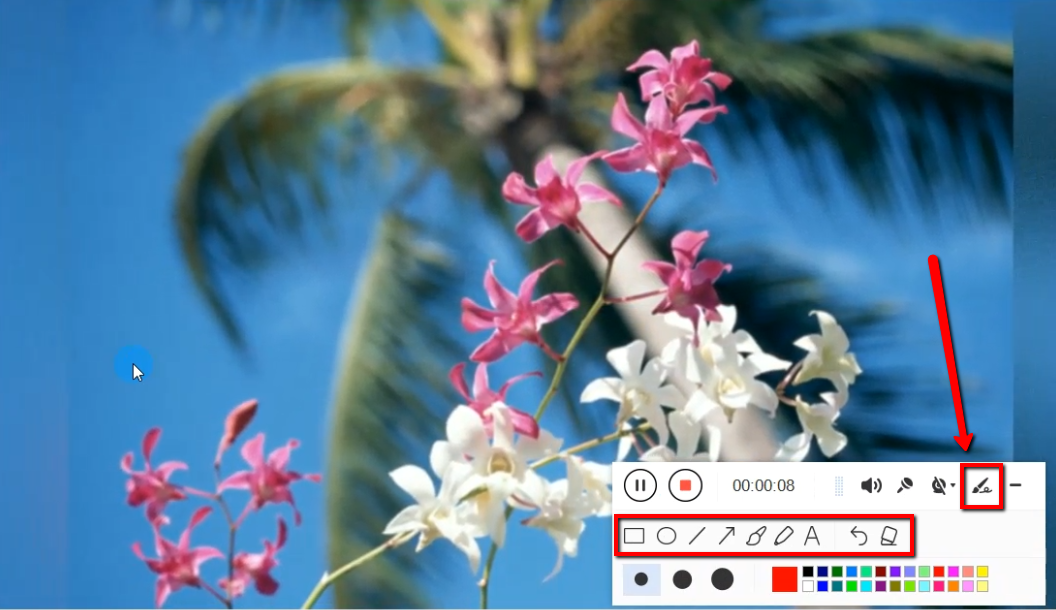
While recording you can add lines, arrows, shapes, texts, highlight, blur, etc. by clicking the edit button.
Step 3: End the screen recording
Click the “Stop” button to stop recording.

After that, the recorded file is already saved in the pointed output folder.
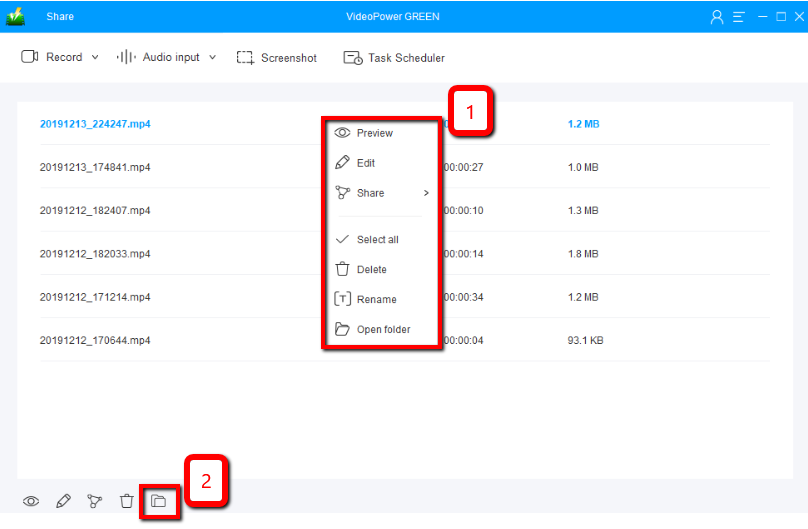
1) Your recorded file can be seen in the main interface. You can right-click the file and do more operations if you like.
2) Click the folder icon to view it in the pointed output folder.
That’s pretty much all the necessary steps you need to take to start recording screen activity using VideoPower GREEN. Hopefully, after you’ve done this you’re able to accomplish what you need to do.
Conclusion:
Sharing something that is going through your computer screen through video footage with a clear resolution is unimaginable. You can surely record everything with the use of external cameras like a digital camera or phone camera but the quality would be the very first problem. It is surely unimaginable but then it is not impossible at all.
Users only need to download and install VideoPower GREEN an easy to use, trusted and excellent recording application software that helps users to record screen activities not only easily but also with good quality.


