





Tips Index
Google Earth is a great map application that allows you to navigate satellite and aerial imagery, ocean bathymetry, and other geographic data over the internet to represent the earth as a three-dimensional globe.
It is really amazing to make a video that records movement from one location to another in a three-dimensional view. However, only paid users of Google Earth Pro and Google Earth EC can enjoy the privilege of using a movie-making function and saving the recorded video to the local hard drive.
A free desktop screen recorder may be a good alternative for free version users like you. Therefore, the best and easy to use screen recording software called VideoPower GREEN is here to help you out.
Now, you can record Google earth activities on your computer in your own way with professional results. Just click the link below to download this free app.
Step 1: Record Google Earth video.
Run VideoPower GREEN if you have installed it on your PC.
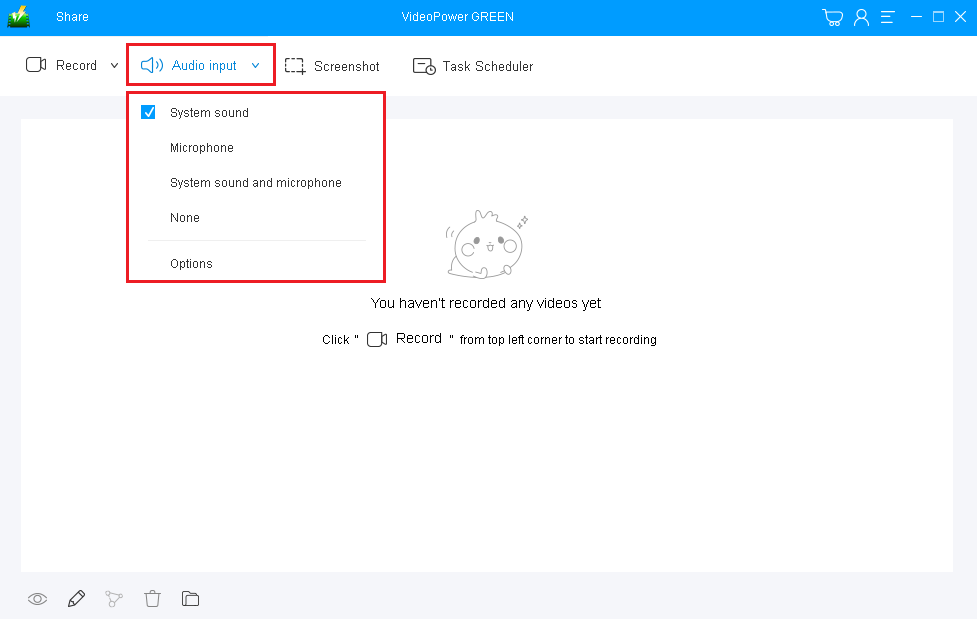
1) Choose a sound source.
You can choose “System sound, Microphone, System sound, and microphone or None.” To record Google Earth, you can use “System sound”.
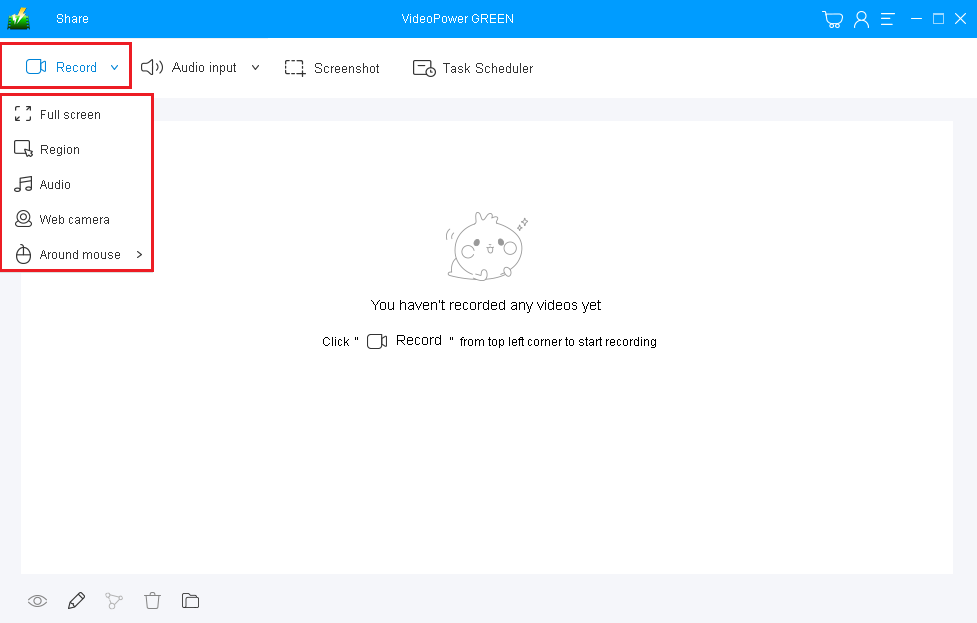
2) Select a recording area.
Click on the “Record” button to choose the recording mode from “Full screen, Region, Audio, Web camera, Around mouse”. Select the area you are going to record.
Step 2: Start recording Google Earth.
The pop-up window will ask whether you are ready to start recording, click “OK” to confirm when you are ready to record.

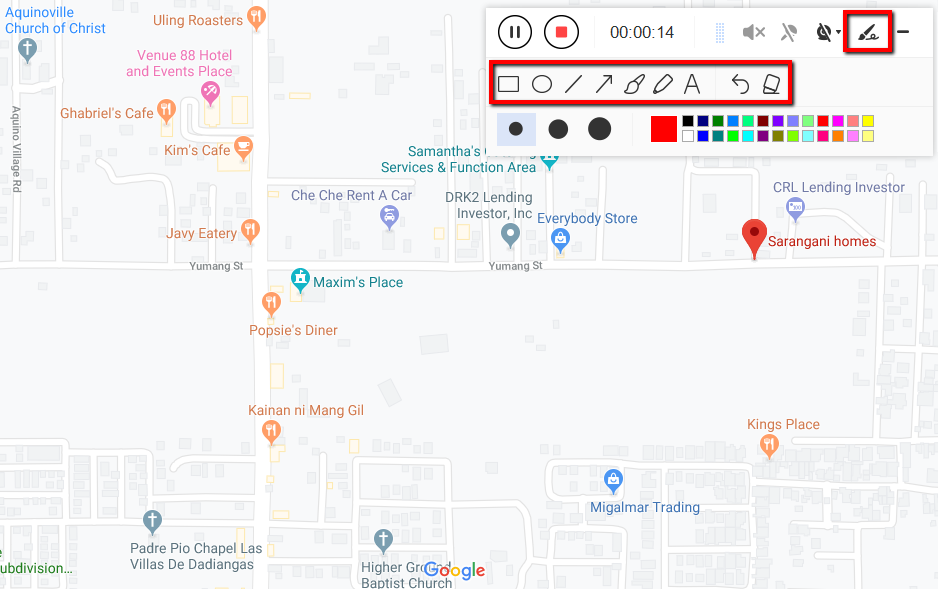
Annotate video while recording:
While recording you can add lines, arrows, shapes, texts, highlight, blur, etc. by clicking the edit button.
Step 3: End the recording.
Click the “Stop” button to stop recording.

After that, the recorded file will be saved in the output folder.
1) Your recorded file will be seen in the main interface. You can right-click the file and do more operations if you like.
2) Click the folder icon to view it in the output folder.

Conclusion:
Since the birth of technologies, the unending development and progress of devices and applications have brought us people in discovering advanced quality and capacity of technologies. One of these is Google Earth, a geo-browser that represents the earth as a three-dimensional globe. In recording Google Earth activities, there’s also an advanced, powerful, trusted and hassle-free recording application software that is useful for us, the VideoPower GREEN.


