





Tips Index
One thing you need to examine when you use a desktop screen recorder to record screen video is whether the tool can freely select the recording area like recording the whole computer screen, recording a specific window, or recording any area on the screen as you prefer.
A best free screen recorder should have a video editor and converter like it can record, edit, and convert the video at the same time. It’s not precluded that you want your video to be in other formats, or need to crop, cut, and add effects like subtitles or watermark to the video, similarly, to customize the recorded screen to make your YouTube video more special with beautiful effects.
High quality and Small file size are necessary when recording screencast videos for YouTube, After all, YouTube and many other sites, have limitations on the file size of the uploaded video, and it could be awful to watch a video with poor quality. Moreover, it takes too much time to upload or send large files.
Capturing the audio at the same time is another good feature in screen recording. This is very important especially when you are using a microphone to record your voice in capturing presentation, your gameplay, or even tutorials.
Apart from the screen recording, there are also times that you may want to record (PIP) or picture in picture videos to capture a video from both your screen and your webcam. There is a YouTube screen recorder out there that has this feature.
And low CPU cost would really be a piece of good news for you.
If your screen recorder software takes up so much CPU power which will affect your computers’ overall performance, specifically when playing games, it would be a pain in the ass.
The first to look at when using a Youtube recorder is that it shouldn’t have any default watermark. Or perhaps, you can create your own personalized watermark later.
All of these can be experienced in using this free screen recorder for PC called VideoPower GREEN. You can also easily upload the captured video on YouTube or any popular site that you want after recording.
Just click the link below to download this free screen recorder windows 10 and follow through the guide on how to Record YouTube with the Best Screen Recorder.
Try to use the software for free by downloading its trial version below.
Record Screen
Step 1: Choose a sound source
If audio is needed in recording, choose the desired sound source among “System sound, Microphone or System sound and microphone” on the “Audio Input” menu. If audio isn’t needed, just choose “None”.

Step 2: Choose a recording area
Click on the “Record” button to choose the recording mode among “Full screen, Region, Audio, Web camera, and Around mouse” and then select the area you are going to record.

Step 3: Record screen activities
After choosing a recording area, a prompt pop-up will appear. Click “Ok” to start the recording.

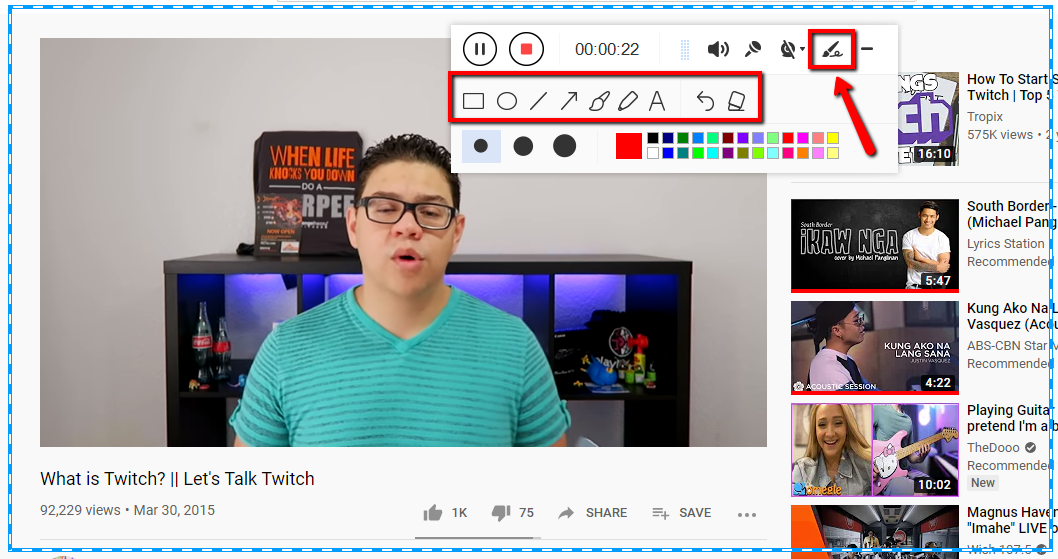
While recording, adding annotations like lines, arrows, shapes, texts, highlight, blur, etc. is possible. Just click the edit button to show the editing toolbox.
Step 4: End the recording
Click the “Stop” button to stop recording.

After recording, the screen will automatically redirect to the recorded file list on the main interface window.

Conclusion:
Some free screen recorder for pc is easy to use, however, to some terms, this best free Youtube recorder software called VideoPower GREEN is more powerful than any other YouTube screen recorder. It has a video editor, snapshot capture tool, and task scheduler where you can schedule your screen recording activities.
It is more stable and versatile with quality results. It offers the easiest solutions for you to record videos on YouTube and on windows 10 screen, so download now!


