





Tips Index
PS4 (PlayStation 4) is one of the popular consoles to enjoy for gamers all around the world. Being a PS4 gamer, you must want to record the gameplay video either to capture your favorite plot, to share your tips & tricks, or to show your achievements to your fans, family members, or friends. I’m gonna show you how to record content from PS4 straight to your PC or MAC without the use of an external or internal capture card and also without using the internal DVR that’s built into the ps4 itself. This is a great method for those who want to make tutorials, walkthroughs, let’s play, or even for those who want to share their content on youtube or any popular video streaming website with more control and options than you would get from simply streaming ps4 itself. This tutorial requires you a PS4, a PC / MAC, a mini USB Cable, and two apps.
The first app you need is PS4 Remote Play. PS4 Remote Play lets you play your PS4 games directly on your PC, switch between games, view your PS4 home screen and browse the console’s menus, on any compatible device that’s connected to your broadband network.
The second app you need is VideoPower GREEN. It lets you record your screen with multiple options. It can record your PC fullscreen, region, around the mouse, and also webcam. It can help you with your problem, with its amazing and versatile features. Just click the link below to download this free app and follow through the steps on How To Record PS4 Gameplay Straight to PC Without a Capture Card.
Part 1: Get PS4 Remote Play.
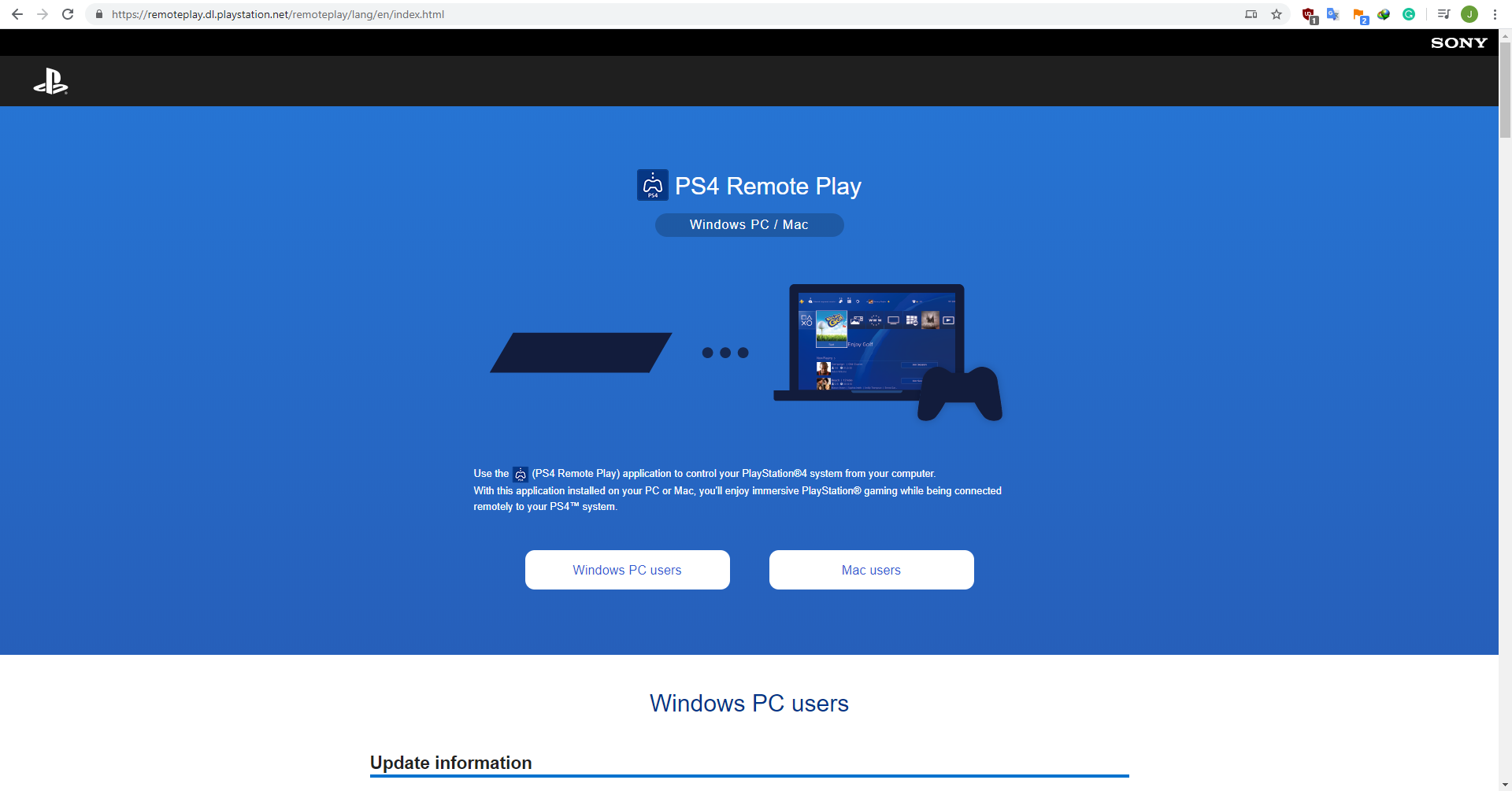
Step 1: Download and install the PS4 Remote Play.
Download PS4 through this Download Link: https://remoteplay.dl.playstation.net/remoteplay/lang/en/index.html
Step 2: Plugin PS4 into your PC
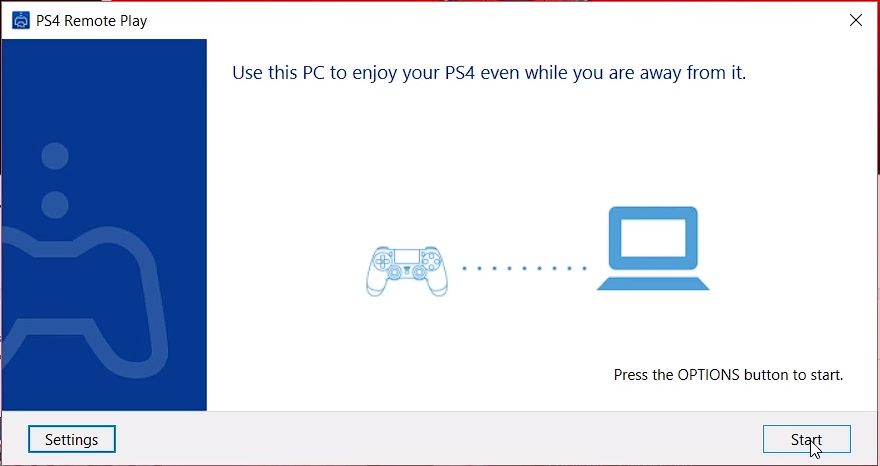
Plugin your PS4 into your PC and open PS4 Remote Play on your PC then click “Start”. Connect your PS4 into your PC using the cable, then open the PS4 Remote Play App.
Step 3: Play PS4
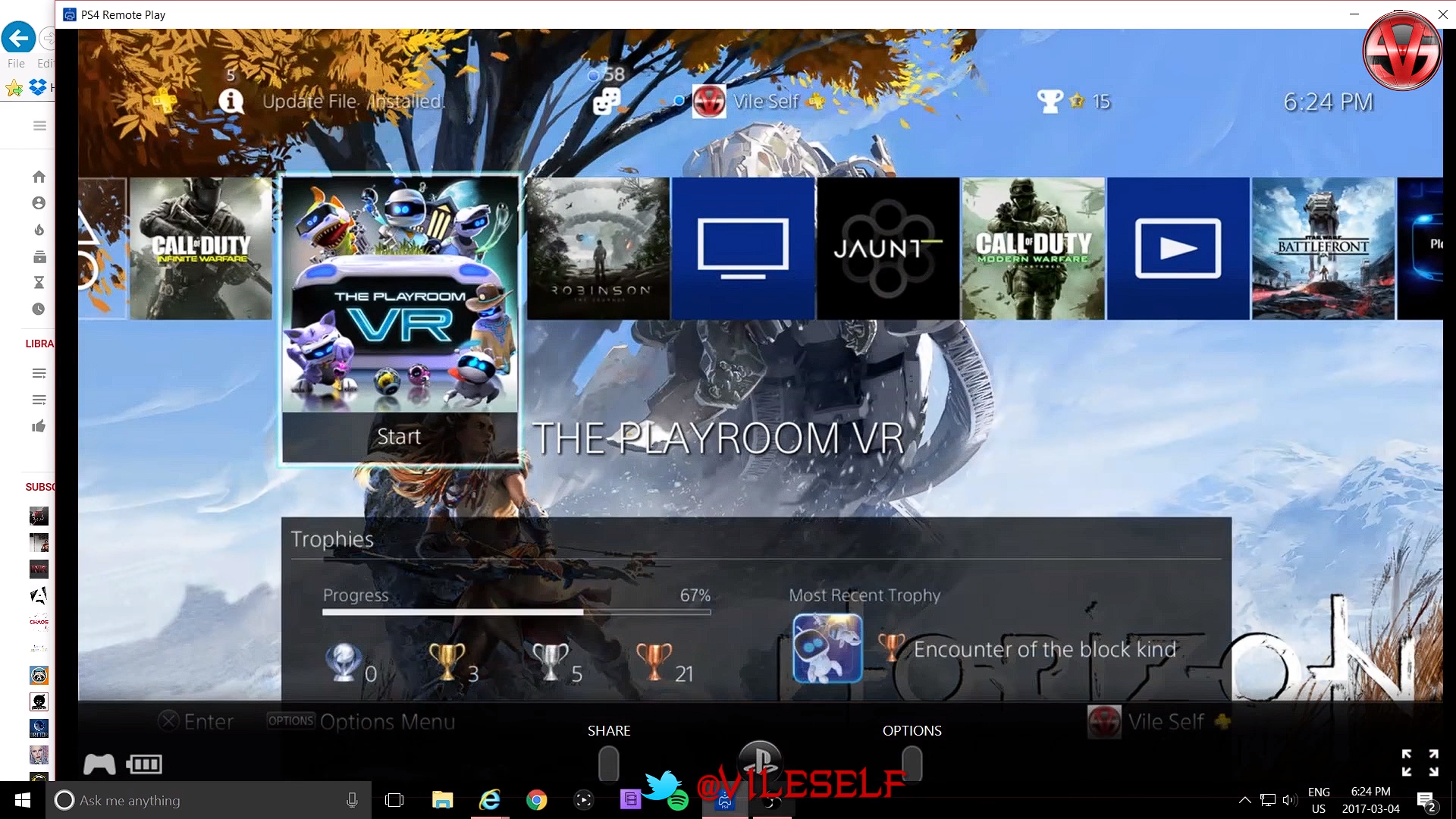
After a few seconds your PS4 screen should pop up on your computer and you would be able to start controlling it with your Dual Schock Controller.
Part 2: Screen Record PS4 Play on PC
Step 1: Set Recording Mode
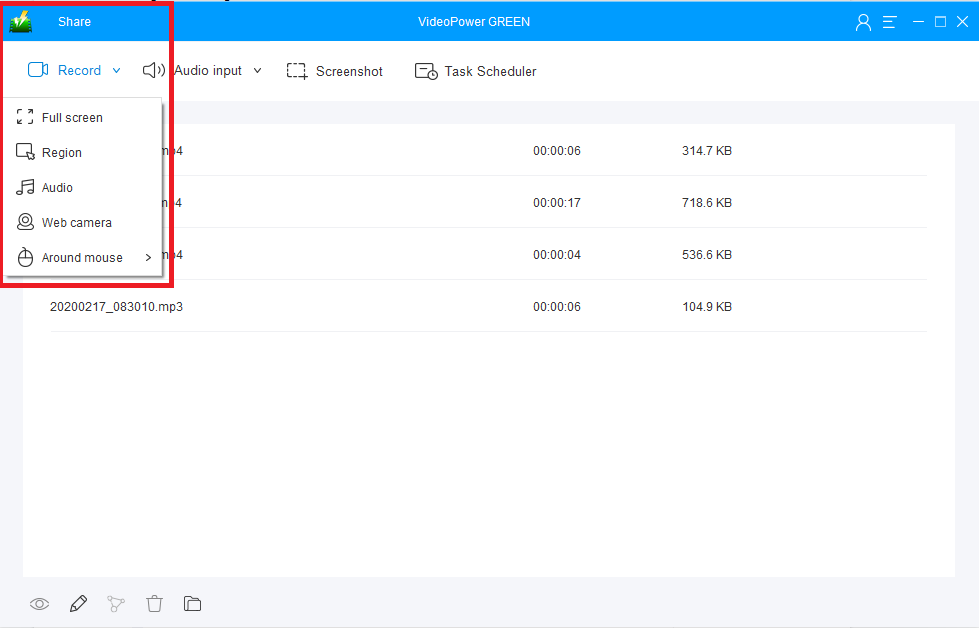
Before recording, select first a recording mode to capture perfectly your desired location or range of the screen where you play with PS4. Click the mode you preferred and the PS4 Remote Play screen recording will start.
Step 2: Annotate Recording
While recording, you can add lines, shapes, text, and etc. on your recording to modify and emphasize something. You can also stop, pause, open webcam and etc. if you want through an editing tool.
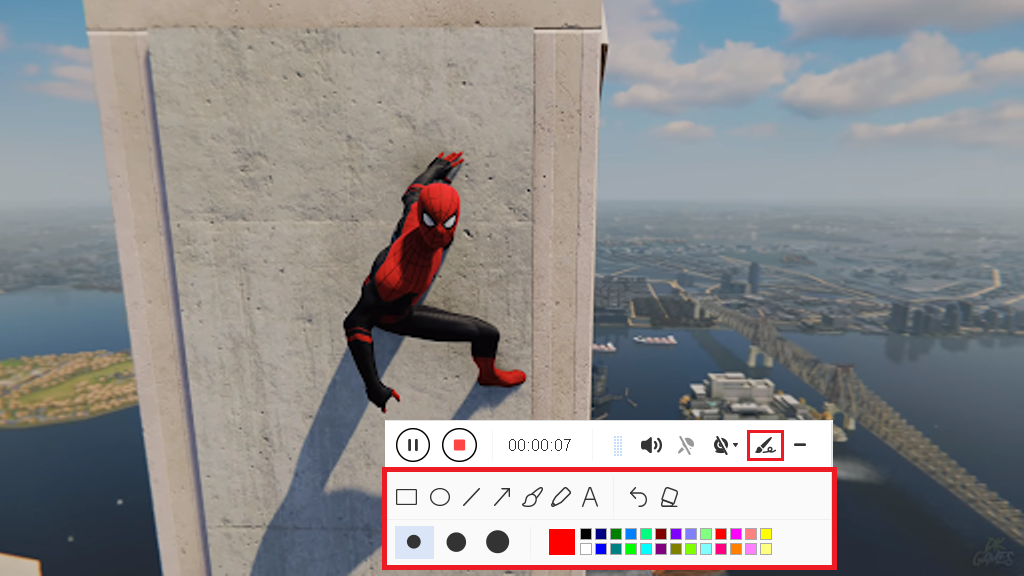
Step 3: Check Recorded File
After recording, the screen will automatically redirect to the recorded file list on the main interface window. Right-click the file and do more operations if necessary. Double click the file to play or view it.

Conclusion:
Being a committed gamer, you may find yourself very interested in sharing your experiences in gaming with your friends. While recording directly on your PS4 may reduce performance. It is now viable to record your gamings in the Computer without the capture card. You can choose any of the incredible games you are playing and record those astonishing amazing moves now. You can also edit these captured videos using VideoPower GREEN before sharing them and impress your friends online.


