





Tips Index
Computers become an indispensable part of our life as well as the Internet that has increasingly affected our work, life, and entertainment.
People like to make many kinds of videos like tutorial videos, commentary videos, gameplay videos, etc. to share with others, and lately the popular way to earn money through Youtube.
To create this kind of video, you’ll need a screen recording tool that can put their faces in the recorded video.
VideoPower GREEN can record computer screen and webcam activities at the same time. It is capable of recording various games, YouTube videos, online chat windows, PPT and so on.
The advantage of this application software lies in its low requirement for the user’s computer configuration. Some video recording software always has the problem of not synchronizing when recording, which can be avoided by using VideoPower GREEN.
Download the software with the below link and have a try.
Step 1: Record webcam and on-screen activities.
Run VideoPower GREEN if you have installed it on your PC.
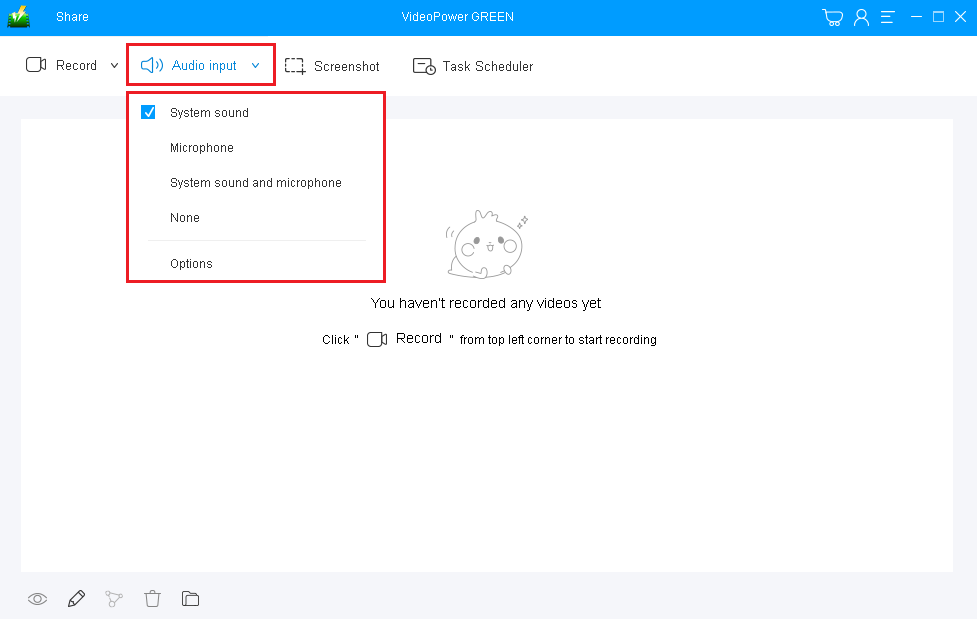
Choose a sound source.
You can choose “System sound, Microphone, System sound and microphone or None.”
Select a recording area.
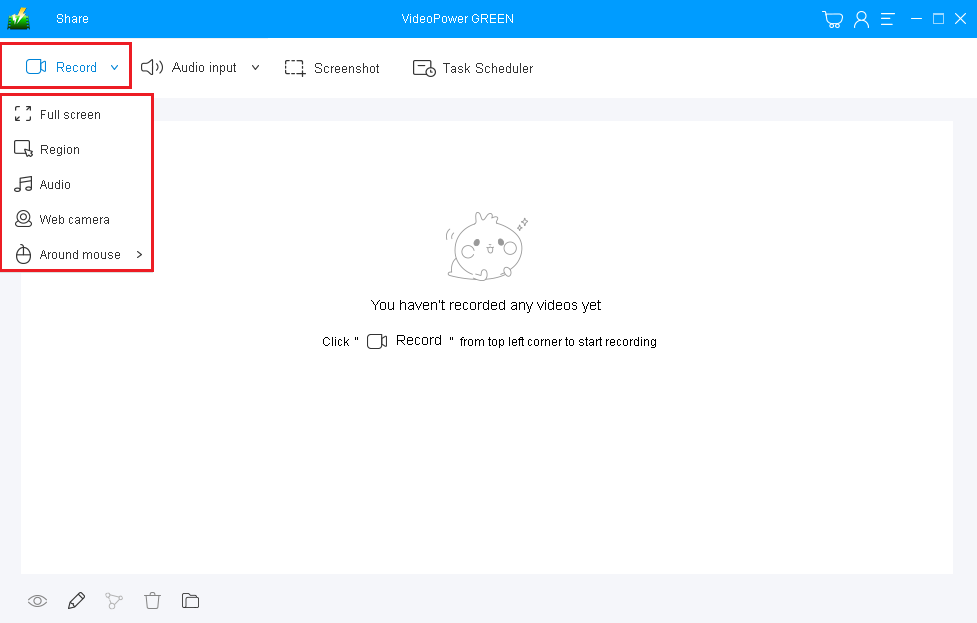
Click on the “Record” button to choose the recording mode from “Full screen, Region, Audio, Web camera, Around mouse”. Choose “Region” and select the area you are going to record.
Step 2: Start to record.
2.1 Confirm to start recording
The pop-up window will ask whether you are ready to start recording, click “OK” to confirm when you are ready to record.

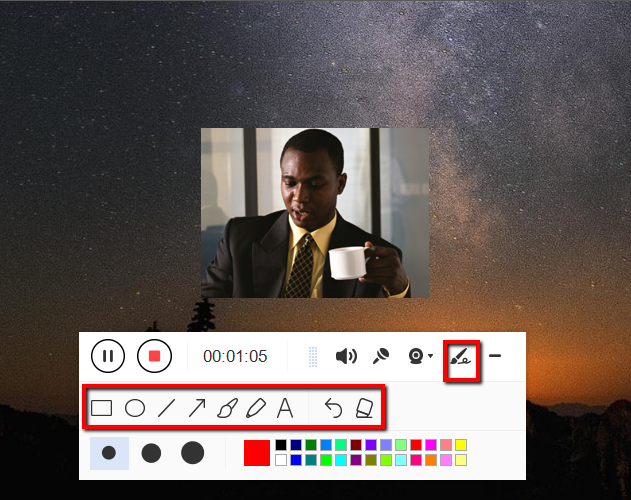
2.2 Put your face in the recording
After the record starts, you can click the webcam icon to put your face in the recording area. You can also add lines, arrows, shapes, texts, highlight, blur, etc. by clicking the edit button.
Step 3: End the recording.
Click the “Stop” button to stop recording.

After that, the recorded file is already saved in the pointed output folder.
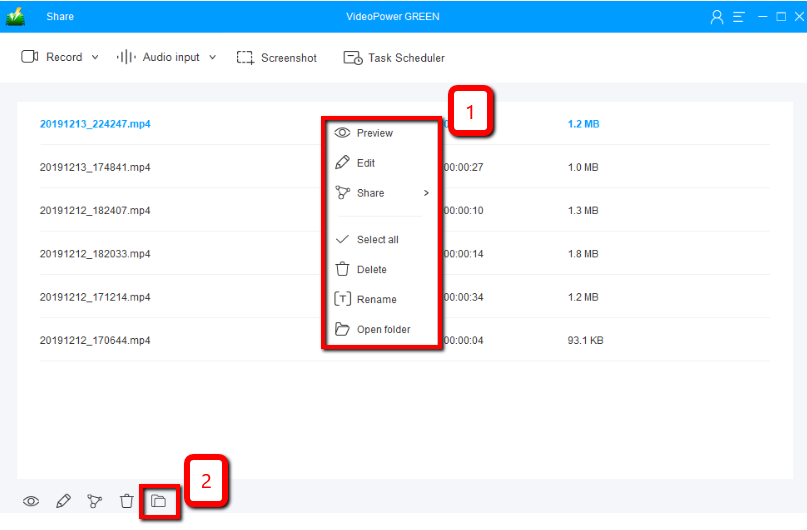
1) Your recorded file can be seen in the main interface. You can right-click the file and do more operations if you like.
2) Click the folder icon to view it in the pointed output folder.
Conclusion:
Video calling is possible when you use a webcam to capture yourself for the benefit of the one you are talking to. Communicating with other people online is a big help to connect people that are away from each other.
Sometimes they wanted to record video call activities for their own personal reasons and purposes.
VideoPower GREEN, a powerful and trusted recording application software is best suited for recording online video calls with webcam video for later viewing purposes. This product has a particular feature in capturing screen activities that can capture videos for offline viewing. Thus, online video calls would be easily recorded without any hassle.
Moreover, this product doesn’t only record screen activities for later viewing but also beautifies the recordings by using its editing feature. It can also help you save some time and effort by setting its task scheduler feature.


