





Tips Index
Minecraft is a high-level sandbox game. The world presented in this game emphasizes more on the high rate of playability and experience rather than graphics and story.
Minecraft focuses on letting players explore, interact, and change a map dynamically generated by a cubic meter block. In addition, blocks, plants, creatures and objects are also available in this game. Some of the activities in the game include collecting minerals, fighting hostile creatures, synthesizing new blocks, collecting various resources, and creating buildings.
The emergence of streaming platforms paved the way for content creators to showcase their hobbies. In the gaming community, Minecraft has become a big hit. Thus, many gamers wanted to share their great works with others.
You can record your Minecraft game with VideoPower GREEN, the best and easiest screen recording application software that fits your recording goal.
To do this, you will have to download the installer through this link here and then simply follow the instructions.
You can try to use the software for free by downloading its trial version below.
Step 1: Make settins to record minecraft gameplay
Run VideoPower GREEN if you have installed it on your PC.
Choose a sound source.
You can choose “System sound, Microphone, System sound and microphone or None.” To record streaming video, you can select “System sound”.

Select a recording area.
Click on the “Record” button to choose the recording mode from “Full screen, Region, Audio, Web camera, Around mouse”. Select the area you are going to record.

Step 2: Start to record minecraft gameplay
The pop-up window will ask whether you are ready to start recording, click “OK” to confirm when you are ready to record.

Edit video while recording:
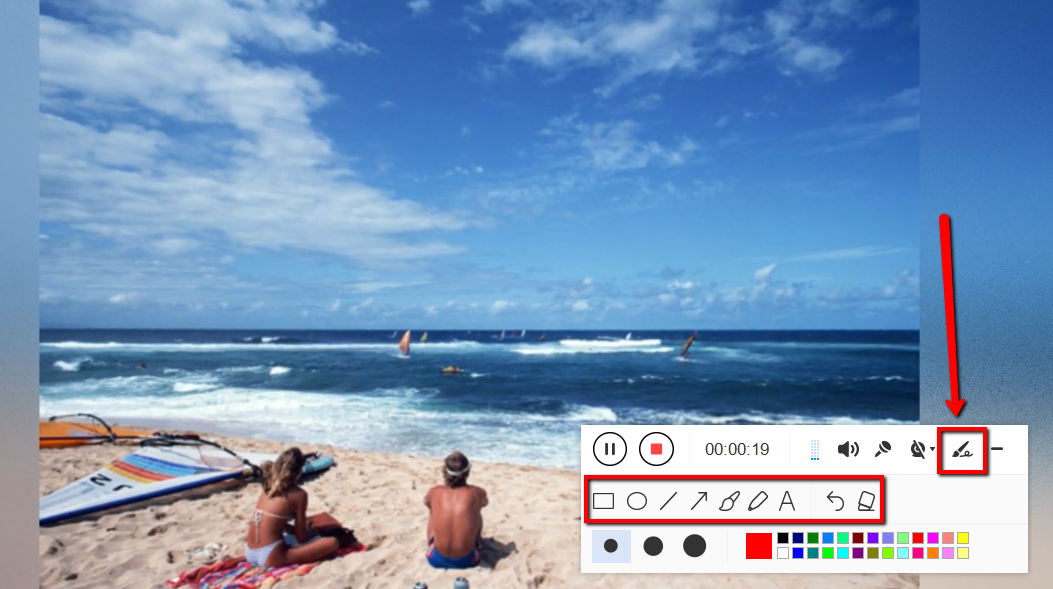
While recording you can add lines, arrows, shapes, texts, highlight, blur, etc. by clicking the edit button.
Step 3: End the recording
Click the “Stop” button to stop recording.

After that, the recorded file is already saved in the pointed output folder.
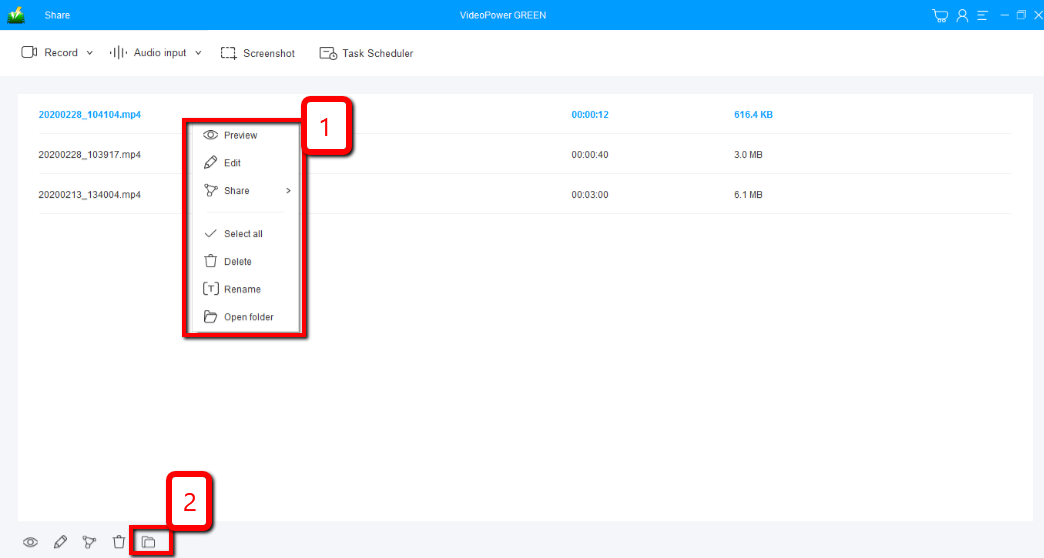
1) Your recorded file can be seen in the main interface. You can right-click the file and do more operations if you like.
2) Click the folder icon to view it in the pointed output folder.
Conclusion:
The video editor for VideoPower GREEN lets you apply watermarks, effects, and other basic video editing options such as trimming or cropping in your recorded Minecraft gameplay. Not only that, you can adjust the speed, volume, contrast, brightness and saturation of your video.
This software records your screen in great quality and takes screenshots efficiently. A task scheduler tool is helpful if you want to record your screen on a specific time and date, it will automatically record what’s going on in your screen may it be streaming videos, webinars, web cameras, etc.


