





Tips Index
Imo is a free video and messaging chat app online that allows users to communicate with other people around the world in various places using PC and internet connection. The Imo app is accessible and easy to use. Except for PCs, it is also available for both iOS and Android devices so that users can use it anyway they want, anywhere they are, and anytime they need as long as they are connected with internet sources.
Imo application on Pc is also an amazing app just like other telecommunication apps that spreads throughout the web. Despite its amazing performance and service towards users, they still ought to do more with the Imo app. Users wanted to record and save their chat locally because of many different reasons, but the problem is, Imo app can’t cater to it alone. Users may be wanted to save the recorded call for keeps, to post online to brag with others, or to earn money and fame. However, Imo doesn’t have a recorder tool to make it possible.
Therefore, the Imo Recording app is on search. Thus, an amazing and trusted third-party application software called VideoPower GREEN is recommended to supplement users’ needs on recording PC’s Imo audio, text and most especially video chats. Moreover, VPG is indeed the best Imo Video Call recorder that users are looking for because of its additional various useful and professional features. In addition, users should use “system sound and microphone” mode in recording Imo video calls in order to record both sides’ audio sources.
To know more about the product, check out the steps below to understand better. Then, just click the link below to download and install the app. Use the software for free by downloading its trial version.
Step 1: Choose a sound source
If audio is needed in recording, choose the desired sound source among:
1) System sound
2) Microphone
3) System sound and microphone
But, if audio isn’t needed, just choose “None”.
Note: In recording Imo Video Call, “System sound and microphone” audio sources are recommended.

Step 2: Select a recording area
To specify the recording mode, click on the “Record” button to choose among the following:
1) Fullscreen
2) Region
3) Audio
4) Web camera
5) Around mouse
Click the ”Region” mode as it is recommended in recording Imo Video Call. Then, start selecting the area to be recorded.

Step 3: Record Imo Video Call.
After everything is set, a pop-up window will show to confirm whether to start the recording or not. Click “OK” to start the recording.

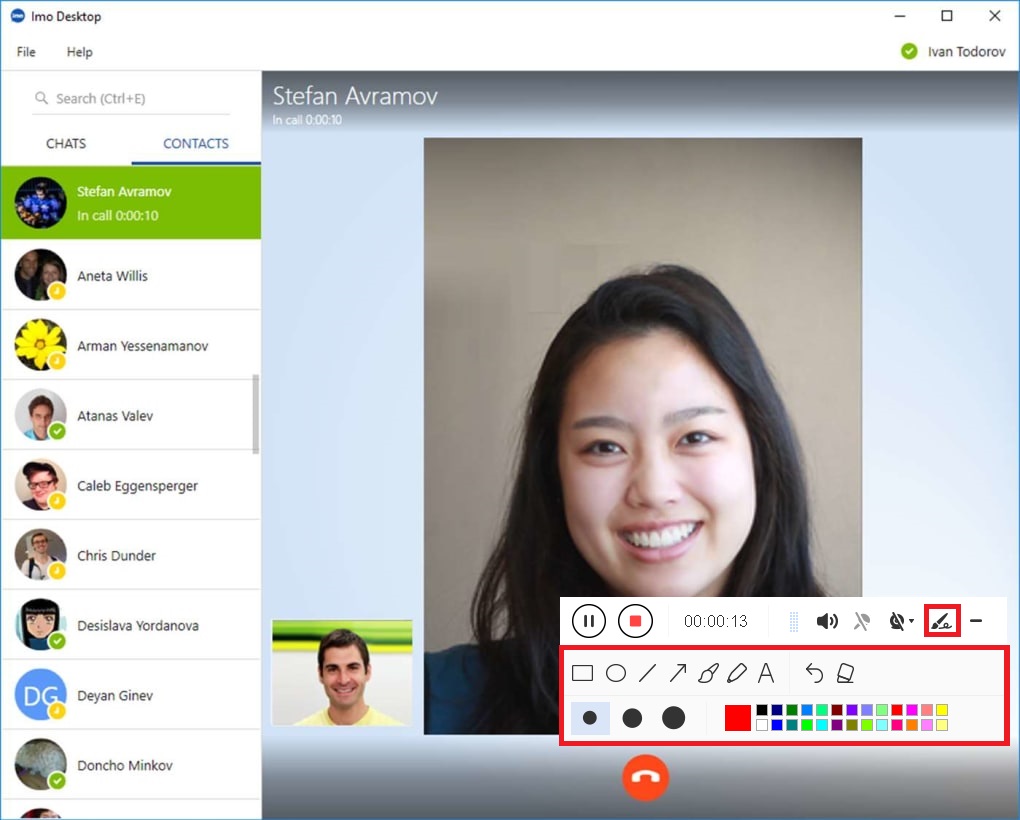
While recording, adding annotations like lines, arrows, shapes, texts, highlight, blur, etc. is possible. Just click the edit button to show the editing toolbox.
Step 4: End the recording
Click the “Stop” button to stop recording.

Step 5: Redirect to Recorded Imo Video Call File List
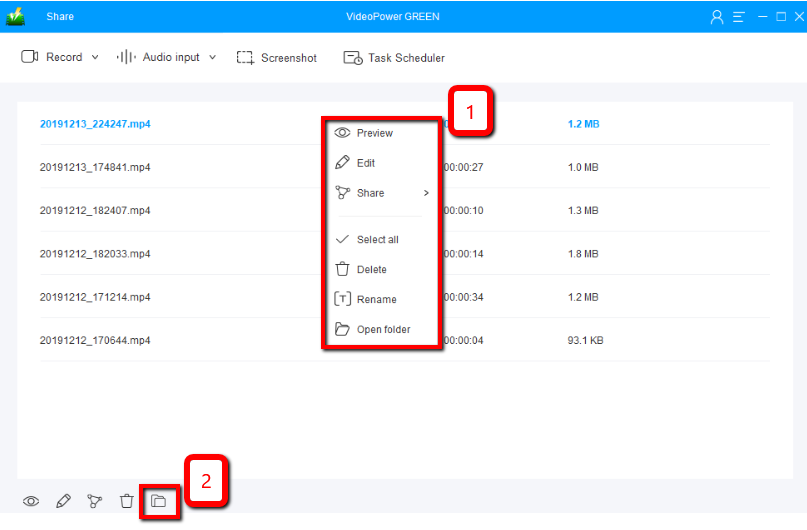
As users stop the recording, the screen will automatically redirect to the recorded file list on the main interface window. Right-click the file and do more operations if necessary. Double click the file to play or view it.
Conclusion:
Many online telecommunication apps are making their own name and becoming more and more popular nowadays. One of these is the Imo app. Like other apps, Imo also stands as a bridge and helps users to communicate with their loved ones that are living away from them or with other people around the world in various places using PC and internet connection through audio, text, and of course video chats. Imo is also accessible on mobile devices like Androids and iOS devices for more convenient use. However, except for its amazing telecommunication services, users also wanted to record the chat they made for some reason, and to make it possible, a third-party tool is needed.
Thus, an amazing and trusted recorder application software called VideoPower GREEN is best suited as PC’s Imo Video Recording App. Also, this product doesn’t only record on-screen activities but also allows users to set high-quality profile and output format they desired for their recorded video. Moreover, this app doesn’t only offer a screen recording feature but it also offers other various useful professional features such as screenshot for capturing images and task scheduler for scheduling a task to be continued most especially in the absence of users.


