





Tips Index
VLC is one of the most famous free multimedia player that is being used by users to watch movies, anime, and TV series in different kinds of format. VLC supports common audio and video format, Video CD, DVD-Video, and other streaming codes. It also helps you watch videos from your digital camera that has default formats like DV, HDV, MPEG-2, AVCHD, and H.264.
If you don’t know how to record screen with VLC or you are not satisfied by the quality output as with many users are talking about. Now if you are looking for the best VLC screen recorder alternative that is very intuitive, have a friendly user interface, a video editor and screen capture tools that you can use without prior experience in video editing, then we recommend for you to use the VideoPower GREEN.
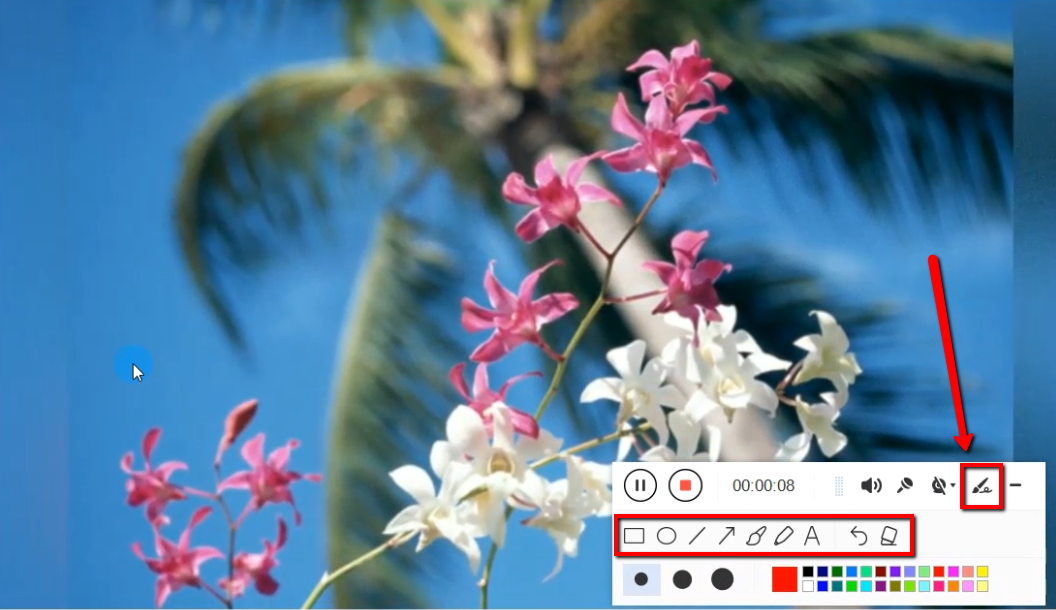
This amazing tool can record video and audio on your PC screen in HD quality. It allows you to record videos while you draw shapes, arrows, lines, and text to highlight the important part of the video.
VideoPower GREEN, unlike VLC, has a feature called Task Scheduler that allows you to make a schedule to record live stream videos online without you sitting or clicking in front of your computer.
Another good thing about this screen recorder is you can choose to record your screen in different regions like for example record your screen around the mouse. It will only capture a portion of your computer screen where your mouse cursor is pointing. This tool has very satisfying results in terms of video and audio quality and you can use it for free.
With just a few simple clicks, you can start recording your PC screen and make professional-looking videos with a very simple yet professional app. Just click the link below to download this free app and follow through the guide on how to download VLC Screen Recorder Alternative
Download the software through this link and follow the instructions.
Step 1: Choose a sound source
If audio is needed in recording, choose the desired sound source among “System sound, Microphone or System sound and microphone” on the “Audio Input” menu. If audio isn’t needed, just choose “None”.
To record streaming videos like videos on Netflix, select “System sound”.

Step 2: Choose a recording area
Click on the “Record” button to choose the recording mode among “Full screen, Region, Audio, Web camera, and Around mouse” and then select the area you are going to record.
To record Netflix movies, it’s best to set the recording mode to “Full screen”, ensuring a great, wide and uncut playback.

Step 3: Record screen activities
After choosing a recording area, a prompt pop-up will appear. Click “Ok” to start the recording.

While recording, adding annotations like lines, arrows, shapes, texts, highlight, blur, etc. is possible. Just click the edit button to show the editing toolbox.
Step 5: End the recording
Click the “Stop” button to stop recording.

After recording, the screen will automatically redirect to the recorded file list on the main interface window. Right-click the file and do more operations if necessary, like open the storage folder where the file is saved or playback the recorded video.

Conclusion:
Although the VLC player comes with various features and is free, you might want to look for a VLC alternative due to such problems as the troublesome “Rebuilding Font Cache” thing and unfriendly UI.
VideoPower GREEN can be adopted as an alternative for VLMC of VLC media player. There is no problem in recording your Pc screen while highlighting the important things while you are doing your video. Download now for free.


