





Tips Index
Nowadays, many computer users, most especially millennials and Generation Zs, are being fond of playing online games and watching streamed games. As the digital world constantly and continuously developed. Users also become interested in recording games to show others what they discovered from streamed games and to show others how skillful they are by uploading it online or by just showing their peers personally about the recorded moment they breakthrough through their games.
Also, users can upload it online to tutor other gamers and earn money. However, most of the games that users played don’t have a recorder tool to capture a trace of their played game. Therefore, gamers should download the game screen recorder for PC to have recorder software to make this matter possible.
The amazing application software called VideoPower GREEN would be suited as the best game recording software for recording streaming and played games. Moreover, it is a powerful screen recorder that can record on-screen videos, audios, and webcam activities. It is also a free game recorder before registration or during the trial period.
This product supports scheduled recording tasks that enable users to record live streaming movies, videos, shows, and games in the absence of the user. Then, it’ll automatically shut down after the task is complete if the users set it too. Check out the guide below to know more about this product.
Use the software for free by downloading its trial version below and be reminded of its trial version limitations. Before activation, the VideoPower GREEN recording range is only 3 minutes and a large watermark after recording.
Step 1: Choose a sound source
If audio is needed in recording, choose the desired sound source among “System sound, Microphone or System sound and microphone” on the “Audio Input” menu. If audio isn’t needed, just choose “None”.
Note: In recording streaming game videos, select “System sound” and in recording live gameplay, use “System sound and microphone” to include the gamer’s narration.

Step 2: Choose a recording area
Click on the “Record” button to choose the recording mode among “Full screen, Region, Audio, Web camera, and Around mouse” and then select the area you are going to record.

Step 3: Screen Record Streaming Game
After choosing a recording area, a prompt pop-up will appear. Click “Ok” to start the recording.

While recording, adding annotations like lines, arrows, shapes, texts, highlight, blur, etc. is possible. Just click the edit button to show the editing toolbox.
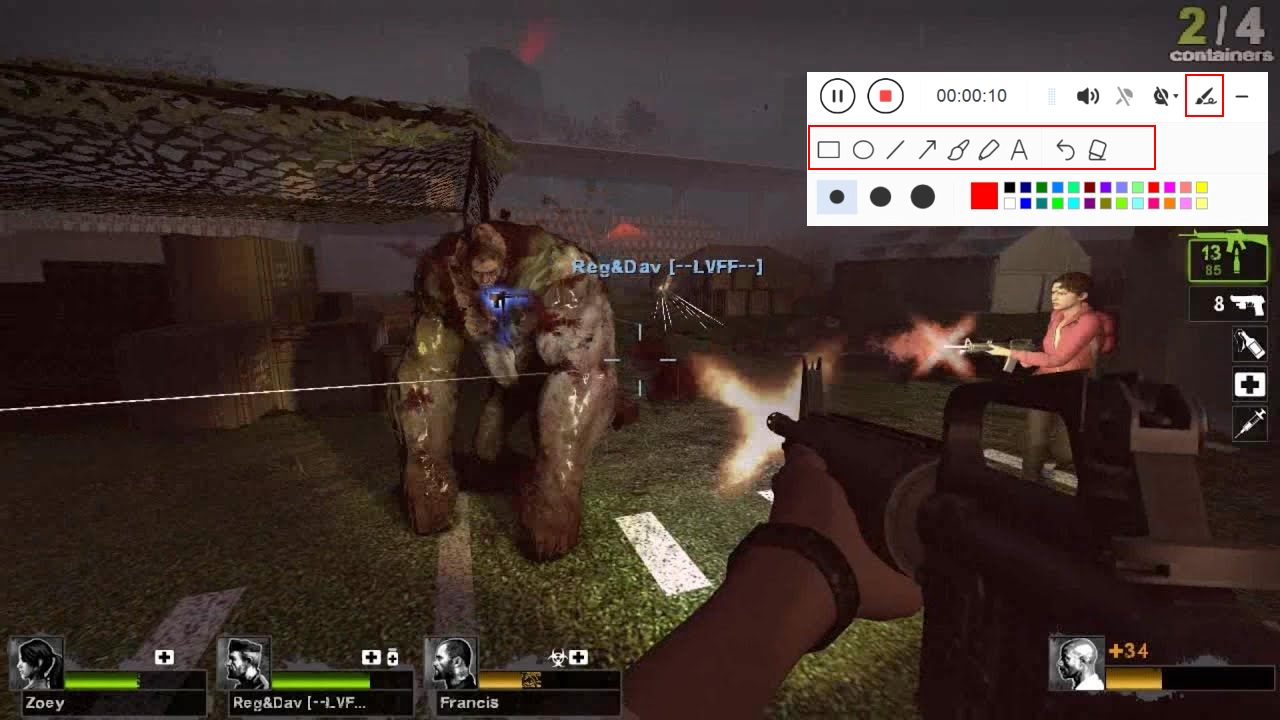
Step 4: End the recording
Click the “Stop” button to stop recording.

After recording, the screen will automatically redirect to the recorded file list on the main interface window.

Conclusion:
Entertainments are now coming from multimedia sources and mostly in the form of online games. Many users become fond of playing games as it entertains and keeps them out of worrying.
However, there are users who use games not only to entertain themselves but also to brag to others, earn money and etc. Thus, an amazing and useful third-party recorder application software called VideoPower GREEN is best suited as a game recording software. Also, this product doesn’t only record on-screen games but also allows users to set high-quality profile and output format they desired for their recorded video.
Moreover, this app doesn’t only offer a screen recording feature but it also offers other various useful professional features such as screenshot for capturing images and task scheduler for scheduling a task to be continued most especially in the absence of users.


