





Tips Index
Nowadays, storing videos locally has already a number of ways. Except for downloading, users can now record screen activities most especially protected files that cannot be downloaded. Screen recording is an act of capturing works and tasks in any area on the computer screen. Especially, in a full-screen range, the windows full-screen recorder would be a lot better.
Screen recording isn’t only applicable in recording video clips, TV series, movies, video calls but also live gameplays with the help of game full-screen recorder to store the best game acts and strategies that users wanted to remember.
Moreover, this software is best for screencasting gameplays as it often contains audio narration and system sounds. When it comes to a desktop full-screen recorder, there are lots of applications available on the internet that also provides different kinds of unique features that might make users confused about what would be the best one to choose.
To lessen the worry about choosing a compatible software, this article will lead users to the best full-screen recorder application software called VideoPower GREEN.
It is a helpful, trusted, hassle-free, and amazing screen recorder app that offers a wide and full range of recording capacity. It is recommended to supplement users’ needs about screen recording as it also comes with various useful professional features such as audio recorder, screenshot capturer, and task scheduler.
At the moment, users can use this full-screen recorder free version and be reminded of its trial version limitations. Before activation, the VideoPower GREEN recording range is only 3 minutes and shows a large watermark after recording.
Record Screen
Step 1: Choose a sound source
If audio is needed in recording, choose the desired sound source among “System sound, Microphone or System sound and microphone” on the “Audio Input” menu. If audio isn’t needed, just choose “None”.

Step 2: Choose a recording area
Click on the “Record” button to choose the recording mode among “Full screen, Region, Audio, Web camera, and Around mouse” and then select the area you are going to record.

Step 3: Record screen activities
After choosing a recording area, a prompt pop-up will appear. Click “Ok” to start the recording.

While recording, adding annotations like lines, arrows, shapes, texts, highlight, blur, etc. is possible. Just click the edit button to show the editing toolbox.
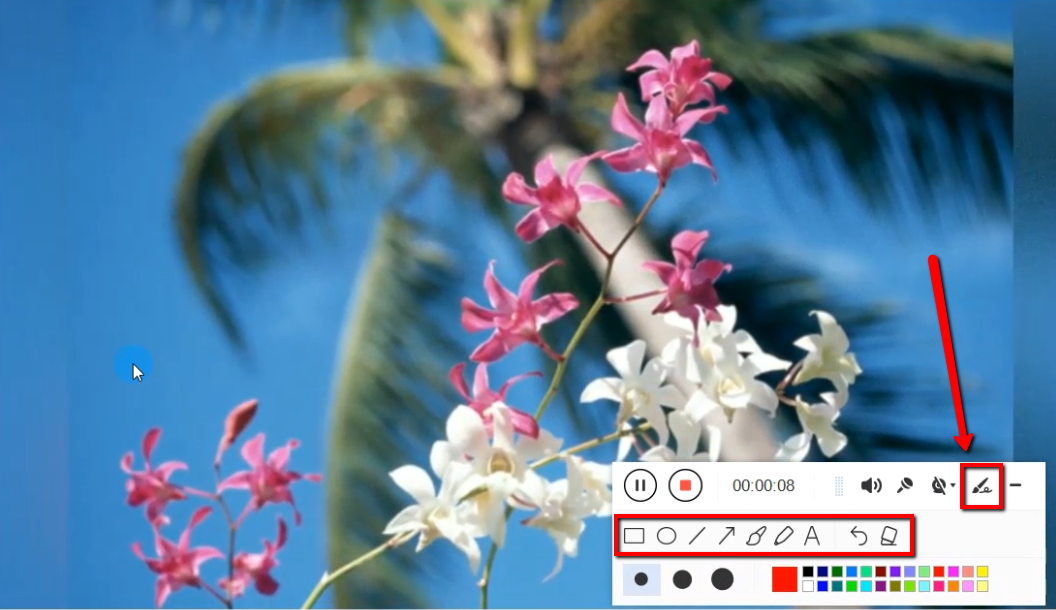
Step 4: End the recording
Click the “Stop” button to stop recording.

After recording, the screen will automatically redirect to the recorded file list on the main interface window.

Conclusion:
Nowadays, people are already smart about technologies. Most of the files online especially movies and videos are protected and not free. Thus, users thought of recording screen activities to get what they desired.
To make it possible, third-party application software called VideoPower GREEN is recommended as a screen recorder app for PC to record varied screen activities most especially that users nowadays thought of having a full-screen recorder app to record a wide and full range of the recording.
In addition, this app is really helpful for digital users as it also has a variety of useful professional features such as audio recorder, screenshot capturer, and task scheduler which can help users go through their digital task easily, smoothly, and hassle-free.


