





Tips Index
If you’re a gamer then you’ll understand that Twitch is huge. You might have broadcast or watched games on the platform. It has a growing number of users, we are not talking about thousands, but millions of users from across the world.
Twitch is really a popular streaming service that you can watch live streaming or watch older streams on an archive feature.
If you want to keep a record of your own favorite streaming game of your favorite gamer or your own streams so you can upload it to YouTube or other sites too. One of the advantages of keeping a recorded copy of your broadcasts in Twitch is you can edit it accordingly before uploading.
VideoPower GREEN is an amazing, hassle-free, and trusted screen recorder application software that is highly recommended. Using this best and easy to access a screen recording app, users can record any on-screen activities with professional results and can help users access recorded content anywhere they are and anytime they need and want.
This app is exactly what you need to record a Twitch stream on PC. Just click the link below to download this free app. Try to use the software for free by downloading its trial version below.
Step 1: Choose a sound source
If audio is needed in recording, choose the desired sound source among “System sound, Microphone or System sound and microphone” on the “Audio Input” menu. If audio isn’t needed, just choose “None”.
To record streaming videos like videos on Netflix, select “System sound”.

Step 2: Choose a recording area
Click on the “Record” button to choose the recording mode among “Full screen, Region, Audio, Web camera, and Around mouse” and then select the area you are going to record.

Step 3: Record screen activities
After choosing a recording area, a prompt pop-up will appear. Click “Ok” to start the recording.

While recording, adding annotations like lines, arrows, shapes, texts, highlight, blur, etc. is possible. Just click the edit button to show the editing toolbox.
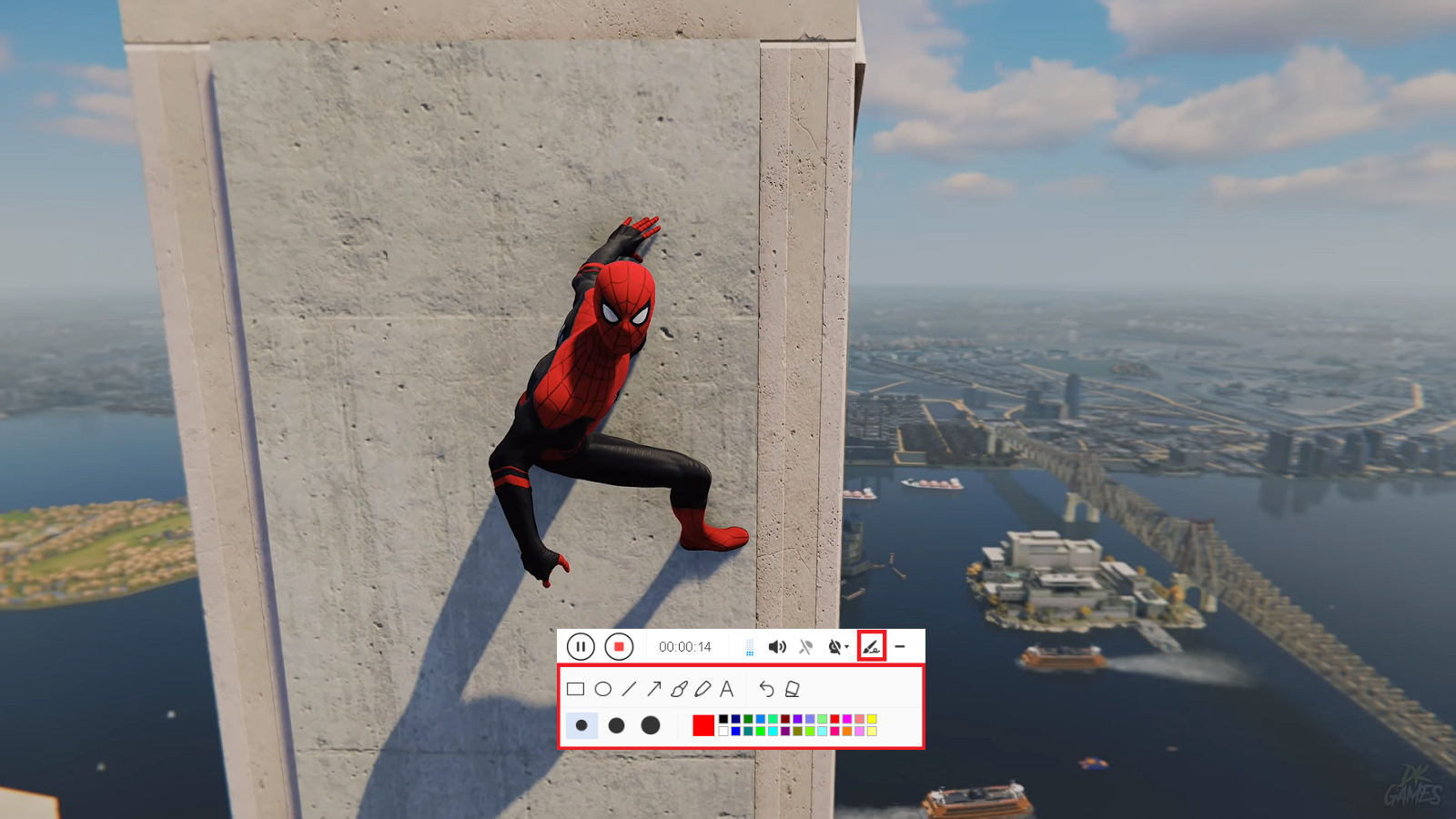
Step 4: End the recording
Click the “Stop” button to stop recording.

After recording, the screen will automatically redirect to the recorded file list on the main interface window. Right-click the file and do more operations if necessary, like open the storage folder where the file is saved or playback the recorded video.

Conclusion:
This is a wonderful software that has far advanced features compared to other streaming video recorders and screenshot tools. VideoPower GREEN, a powerful screen recording software that supports conversion to any video formats as well. It has a video editing function to trim video, adjust video size, change video effects and add watermarks.
It’s a screen recorder software, screenshot capturing tool, video editor, converter and a lot more features.


