





Tips Index
Recording screen activities is actually a basic thing in most of the human digital tasks nowadays most especially in making commentaries and tutorials. Therefore, many people wanted to make their recordings to be better and clear than normal and plain recordings. But, how would it be possible?
VideoPower GREEN, a powerful and trusted application software that is best in recording moving visual images and screen activities. It also has a particular feature in capturing mouse cursor during recording that can help recorded files content be more understandable and clear.
To experience this reliable and satisfying feature, just download VideoPower GREEN through the link below.
Step 1: Start the program and open the settings screen.
Open VideoPower YELLOW, go to the “Download” section of the app and click on “Video to MP3 Converter” located near the upper right.
Click the menu icon in the upper right of the interface. Choose “Settings” to open the setting screen.
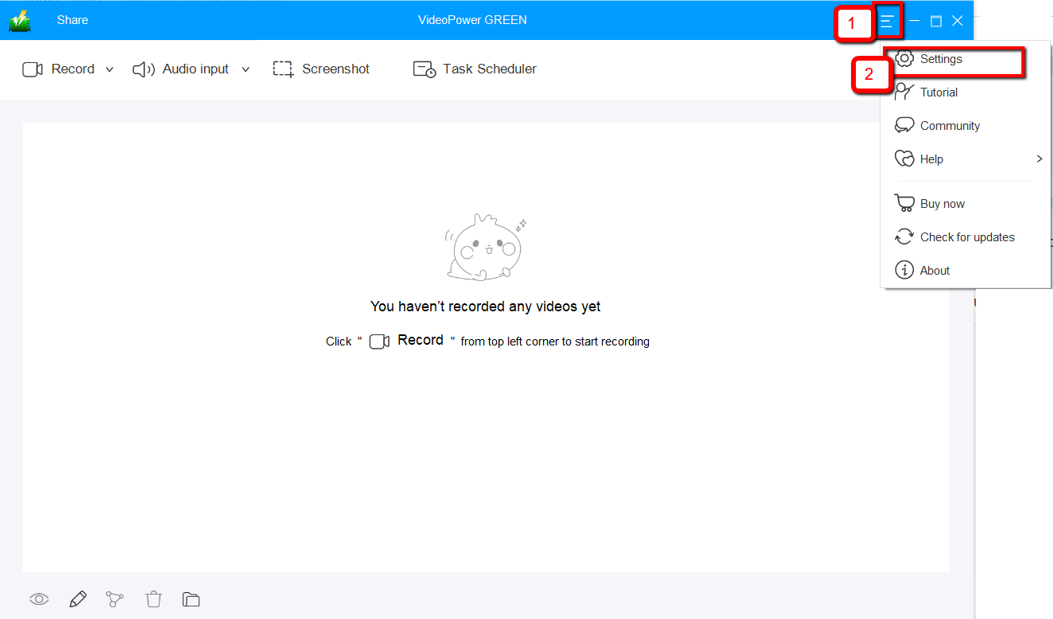
Step 2: Modify Settings
1 ) Click on the “Record” tab.
2 ) Select “Show mouse cursor when recording”.
3 ) Click “OK.”
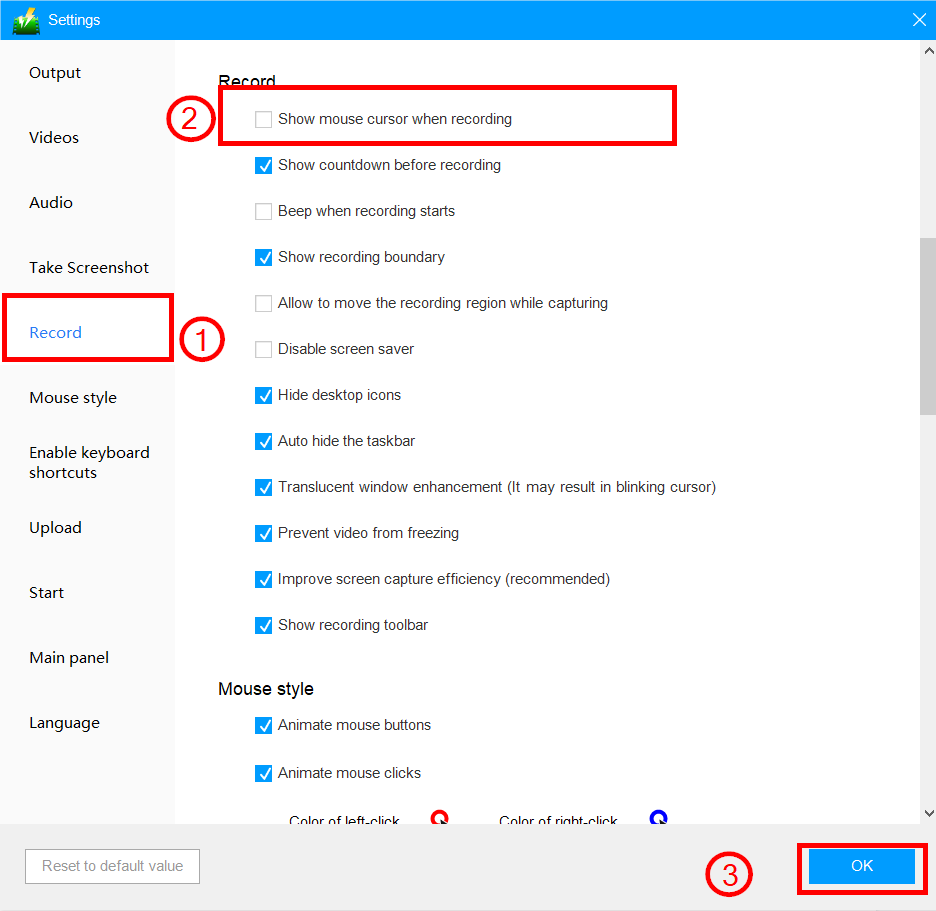
After that, the mouse cursor should now appear in the recordings.
Conclusion:
Recording something specifically recording the PC screen is now a basic thing in most of the human digital activities especially in making commentaries and tutorials. Therefore, many people wanted to make their recordings to be better and clear than normal and plain recordings.
VideoPower GREEN, a powerful and trusted recording application software is best and suited for this kind of concern. It has a particular feature in capturing mouse cursor during recording that can help recorded files content be more understandable and clear.
Moreover, this product doesn’t only cure ambiguous content and save your hassle in recording the audio and video or screen activities but also beautifies the recordings by using its editing feature. It can also help you save some time and effort by setting its task scheduler feature.


