





Tips Index
Nowadays, devices like computers make our lives much easier than before most especially with the help of the internet. The ways of learning and working have become extremely convenient and advanced with the help of these things.
Some of the time in the future, we may have the need of making visual presentations like tutorials to introduce, demonstrate and explain something to someone. In this case, a powerful and trusted software would be the best ally to produce a presentable and impressive output.
VideoPower GREEN is a powerful and trusted recording application software that would be best suited for it. With this product, we can record all the contents we desired to share and teach others as it can capture all portions of the computer screen including webcam sources in a high-quality definition. We can also clearly show and emphasize each detail through its editing feature.
With the said features, VideoPower Green can be a good and handy tutorial presentation maker. There are no complicated steps to do. Just click the link below to download the app and try it out for free.
Step 1: Record Video Tutorial
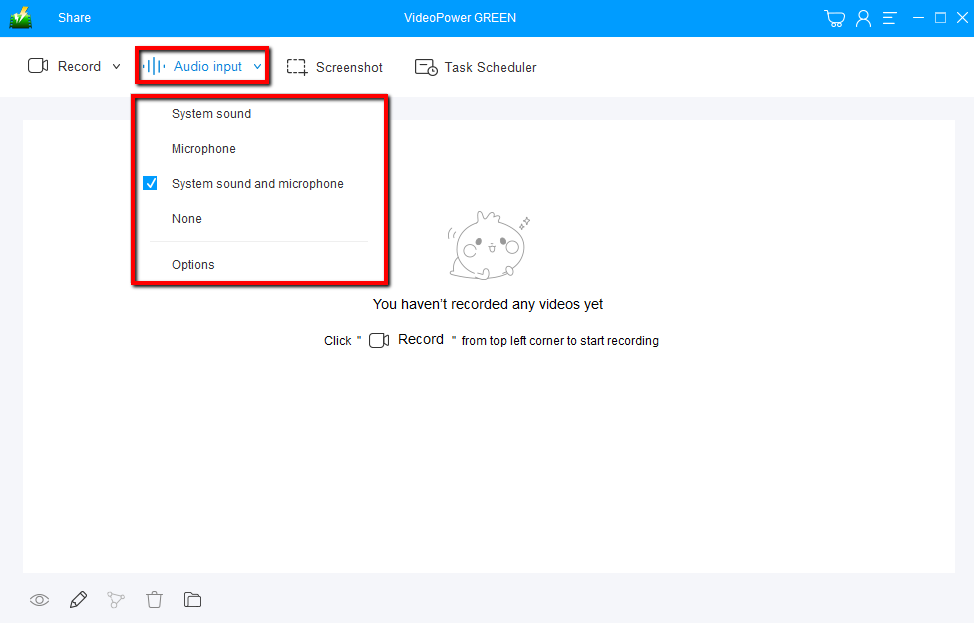
Choose a sound source
You can choose “System sound, Microphone, System sound and microphone or None.” To record streaming video, you can select “System sound”.
Select a recording area
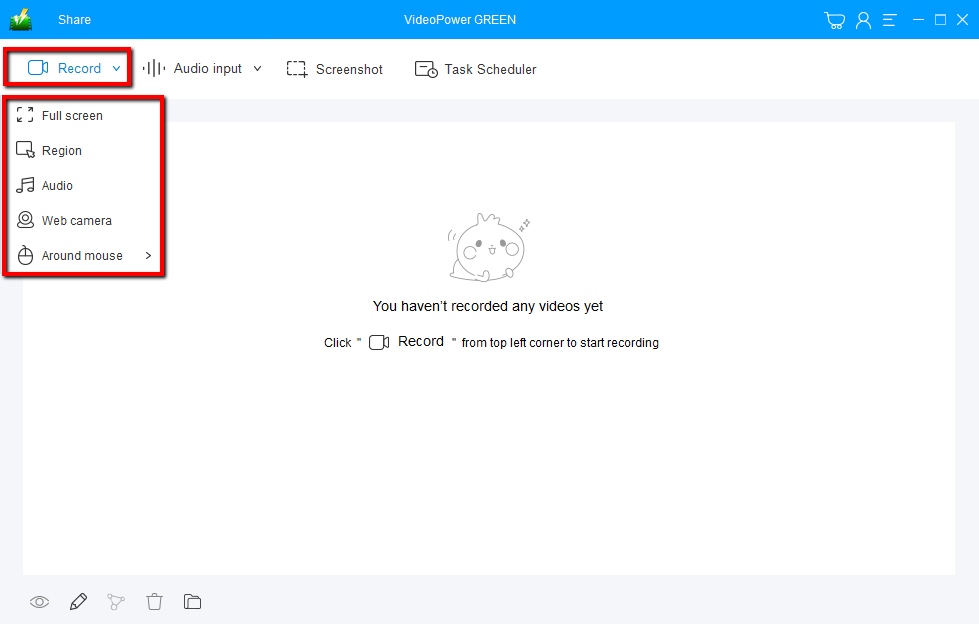
Click on the “Record” button to choose the recording mode from “Full screen, Region, Audio, Web camera, Around mouse”. Select the area you are going to record.
Step 2: Start to Record
The pop-up window will ask whether you are ready to start recording, click “OK” to confirm when you are ready to record.

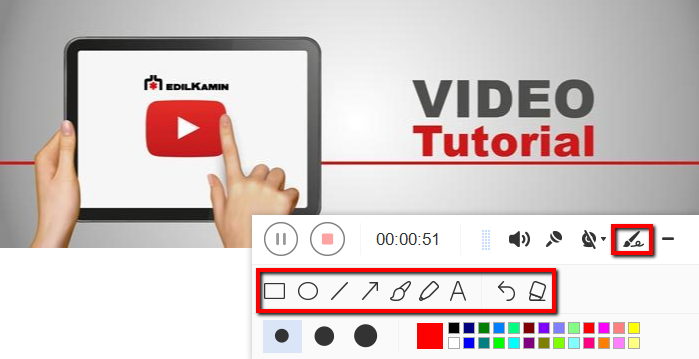
While recording you can add lines, arrows, shapes, texts, highlight, blur, etc. by clicking the edit button.
Step 3: End Recording
Click the “Stop” button to stop recording.

After that, the recorded file is already saved in the pointed output folder.
1) Your recorded file can be seen in the main interface. You can right-click the file and do more operations if you like.
2) Click the folder icon to view it in the pointed output folder.

Conclusion:
Nowadays, digital technologies and applications make humans’ life much easier than before. Computers serve as a convenient device for studying and dealing with various kinds of stuff.
Users might need to do online presentations for specific purposes like tutorials. Explaining, demonstrating, and introducing something would be easier and convenient with the use of the right software.
VideoPower GREEN, an easy to use, hassle-free and trusted recording application software would be best for it. This product is the finest choice in making tutorials as it can record screen and Webcam activities separately or simultaneously.


