





Tips Index
Standing for Audio Video Interleave, a file with the AVI file extension is a commonly used file format developed by Microsoft for storing both video and audio data in a single file.
Compared with AVI format, MOV format is more popular, which is characterized by excellent video quality. It is said that the sharpness is better, and it is very suitable for post-processing with video editing software. It is also friendly to the people who pursue high image quality. And the video size of the MOV format is also smaller than the AVI format.
However, as we all know, MOV is a type of format for QuickTime Player only, which is developed by Apple Inc. Hence, some users are looking for a way to convert MOV to AVI, a video format that is compatible with most operating systems like Windows, Linux, and Mac.
Here is a simple and easy-to-use video converter for you.
VideoPower BLUE is a powerful, multi-faceted tool that contains a lot of features such as screen recording, video editing, and conversion. This program can convert MOV to AVI with ease.
You can use the software for free by downloading its trial version below.
Step 1: Add the MOV file.
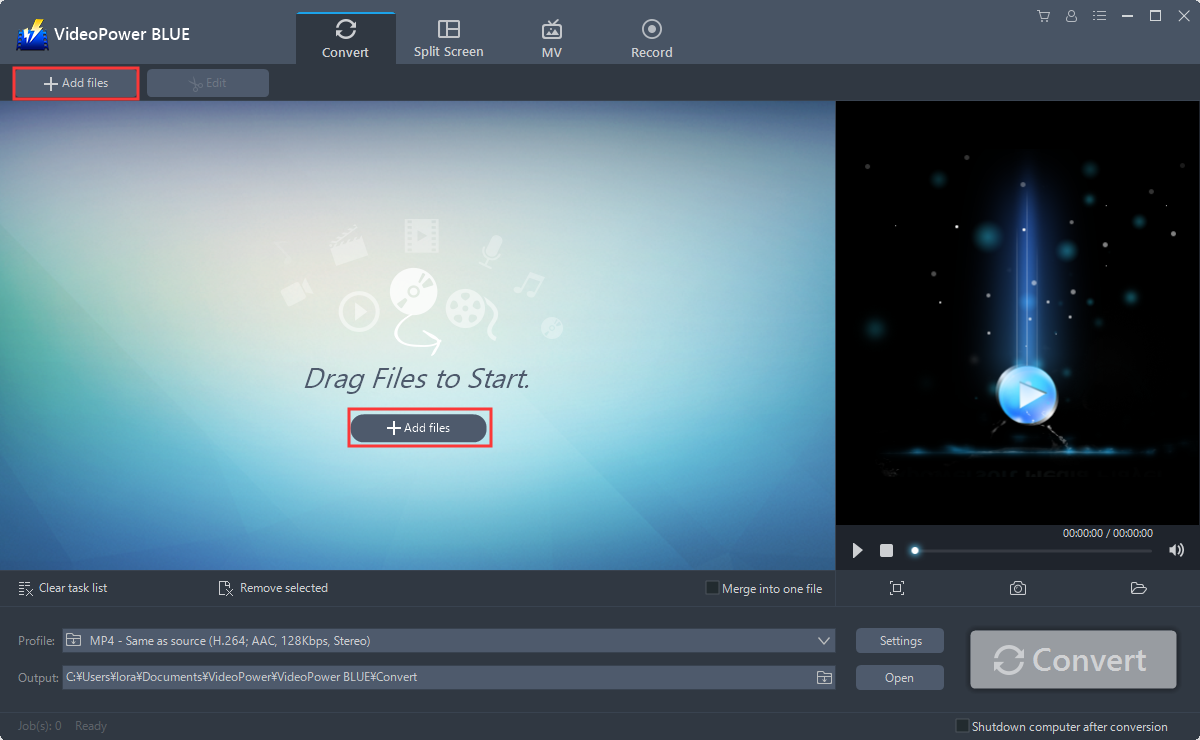
Run the program if you have installed the VideoPower BLUE successfully on your PC. You can directly import the MOV file to the program by clicking the “Add files” button or by drag-and-drop to the interface.
Step 2: Edit the MOV file.
If you want to edit the file first before converting, just follow the instructions below.
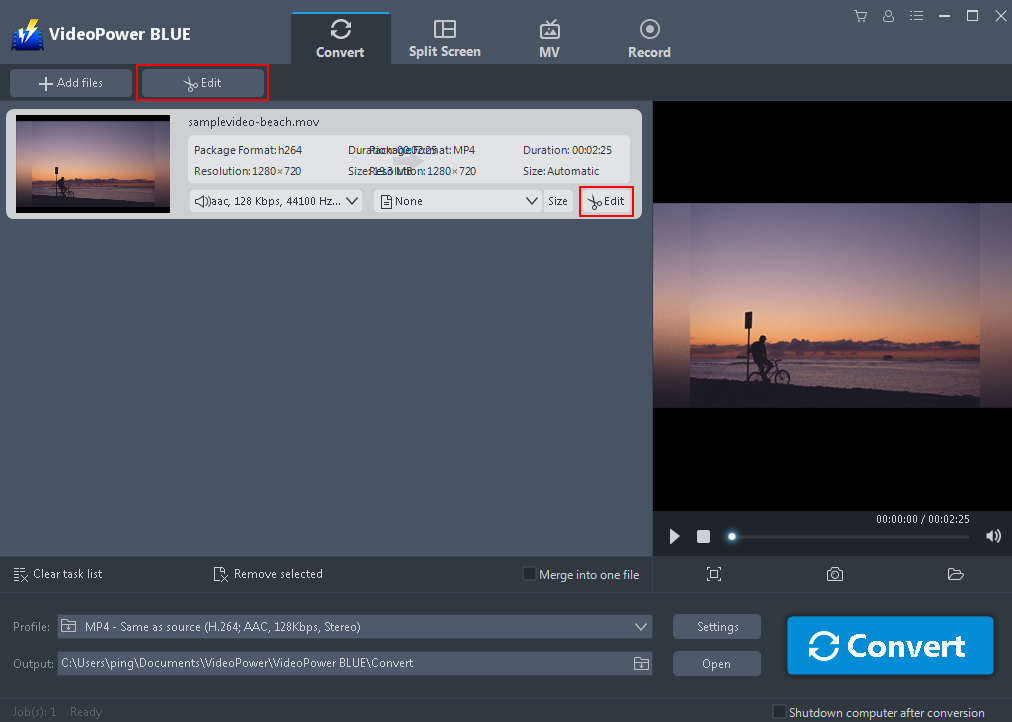
Click the “Edit” button at the right side of the added MOV file to enter the Edit window so you can design your MOV video now.
Step 3: Convert MOV video to AVI format.
3.1 Set Output Format
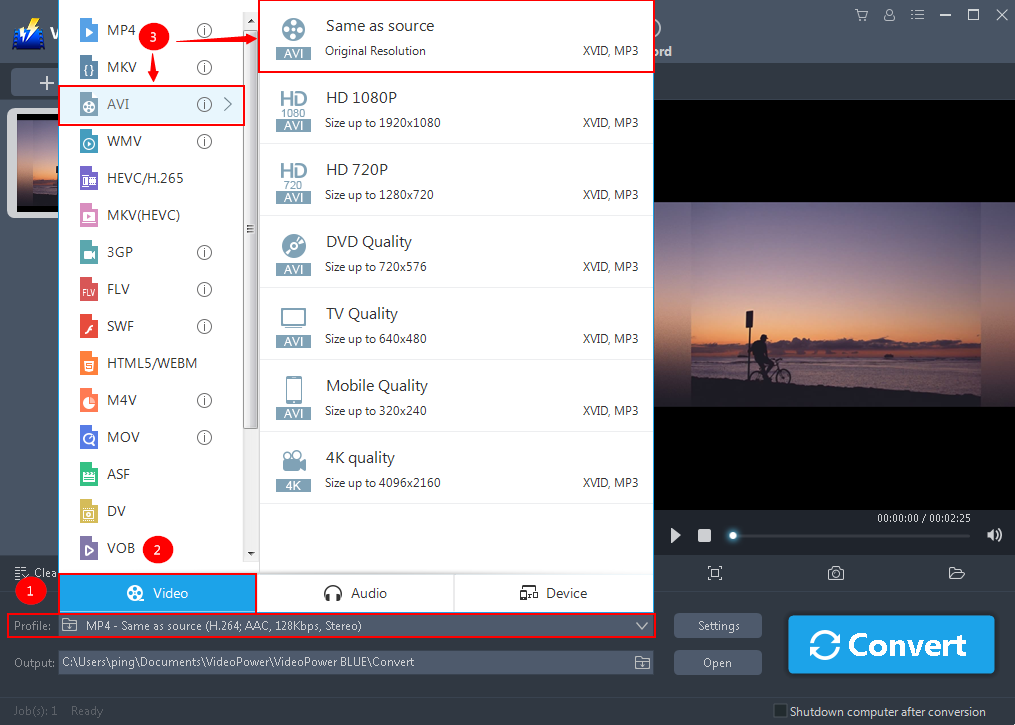
Before conversion, you should set the output format and folder first as the default output format is MP4.
1) Click the “Profile” bar
2) Choose “Video”.
3) Set the format to “AVI – Same as source”.
3.2 Set Output Location
Choose a storage location to save the converted files. Click the “Output” icon and select the destination wherever you want to store the file.

3.3 Start Conversion
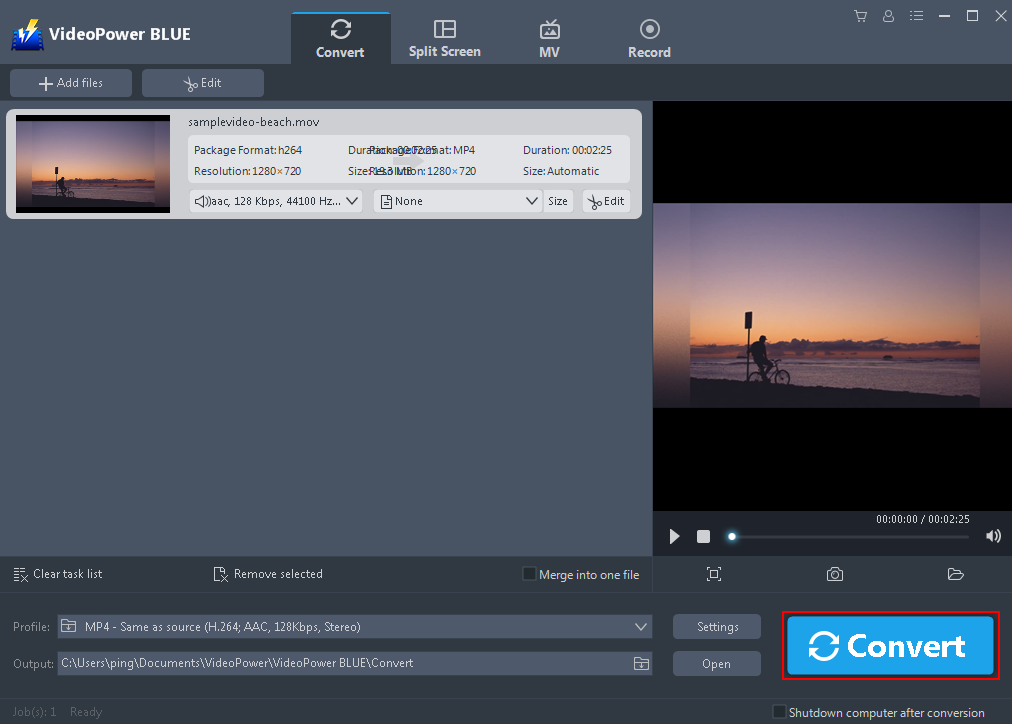
After setting the output location, click the “Convert” button, then the software will start to convert and save the edited video in AVI format.
3.4 Navigate to the Output Folder
A pop-up window from the program will appear informing you that the conversion is complete. Click “OK” to open the folder of your saved converted AVI files.

Conclusion:
VideoPower BLUE does a great job in conversion. This is the best MOV to AVI converter that has a wide array of formats to choose from. It can convert multiple files simultaneously, has an editor that allows you to edit slideshows or videos, apply watermarks, effects, and other basic video editing options such as trimming or cropping.


