





Tips Index
What is MKV format?
MKV, Matroska Multimedia Container, is an open standard free container and file format. So it is not a compression format, but a multimedia container file defined by Matroska. Its goal is to preserve common multimedia content such as movies and TV programs as a unified format.
Conceptually, Matroska is similar to other containers, such as AVI, MP4 or ASF (Advanced Streaming Format), but it is completely open in technical specifications and contains much open-source software in its implementation.
A variety of differently encoded videos and more than 16 different formats of
audio and subtitle streams in different languages can be packaged into one Matroska media file.
It’s the biggest feature is the ability to accommodate multiple different types of encoded video, audio and subtitle streams including H.265 (HEVC) and H.264.
Supported players
VLC Media Player, Final Media Player, 5Kplayer, Mplayer, and DivX Plus Player can open the MKV files without hassle.
Solution for MKV format conversion
If you have the needs of converting MKV to MP4, AVI, PS3 or even converting MKV video to MP3, VideoPower BLUE can help you achieve that.
VideoPower BLUE is a powerful tool that has a lot of functions and features such as screen recording, basic video editing, slideshow creation, and audio and video conversion. This software can convert the MKV format video to another format.
Below is a simple guide on how to use this software to convert MKV to another format.
Download and install the program on your PC with the link below to start the conversion.
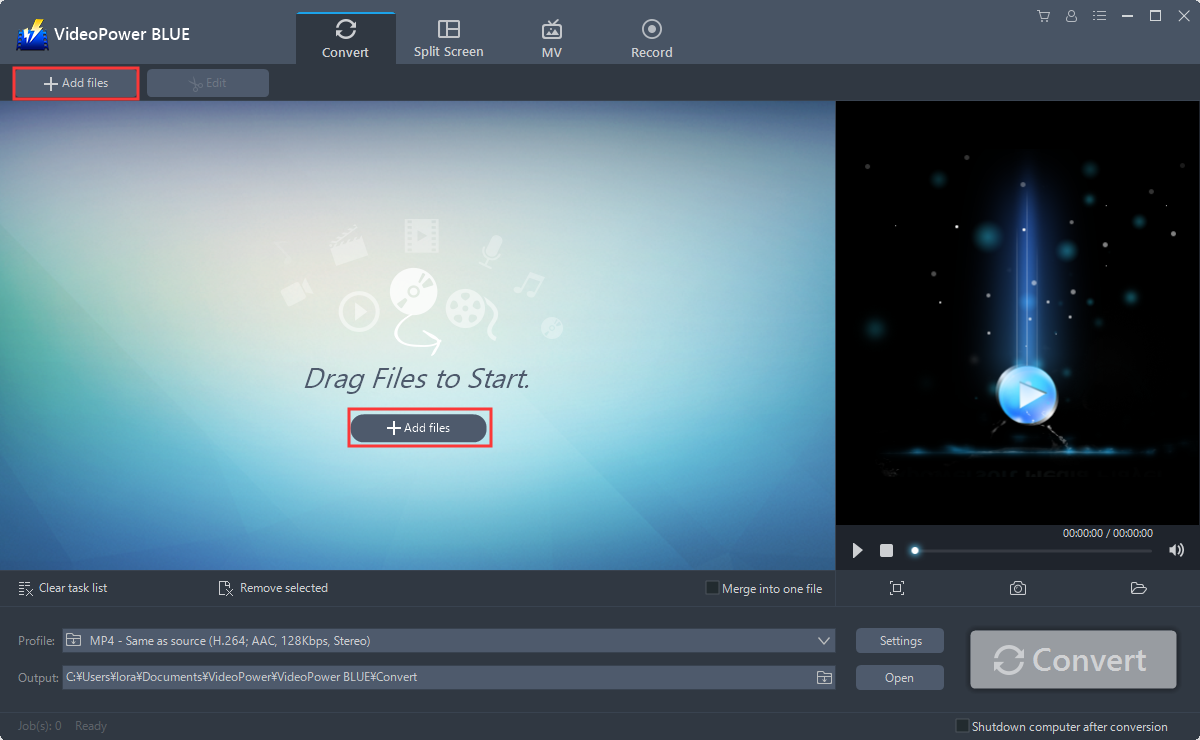
Step 1: Add the MKV file to the program.
Run the program if you have installed the video converter software – VideoPower BLUE successfully on your PC. You can directly import the file to the program by clicking the “Add files” button or by drag-and-drop the file to the interface. For this example, we will convert an MKV file to MP4.
Step 2: Edit the MKV video.
If you need to edit the video first before converting, just follow the instructions below.
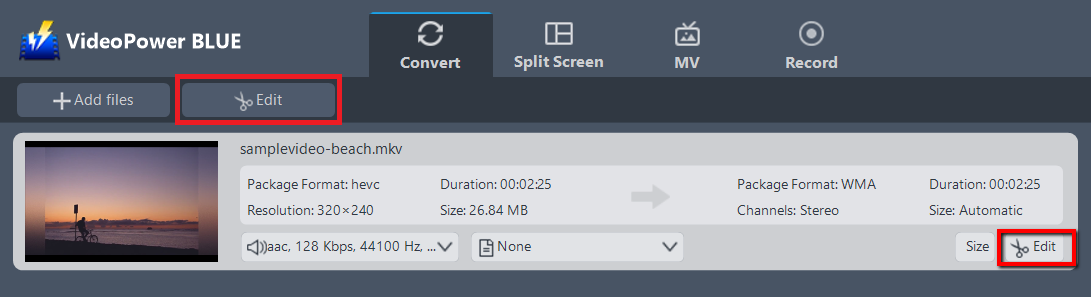
2.1 Open Editing Window
The imported MKV file is displayed in the list. Click the “Edit” button on the right side of the file.
2.2 Start Editing MKV file
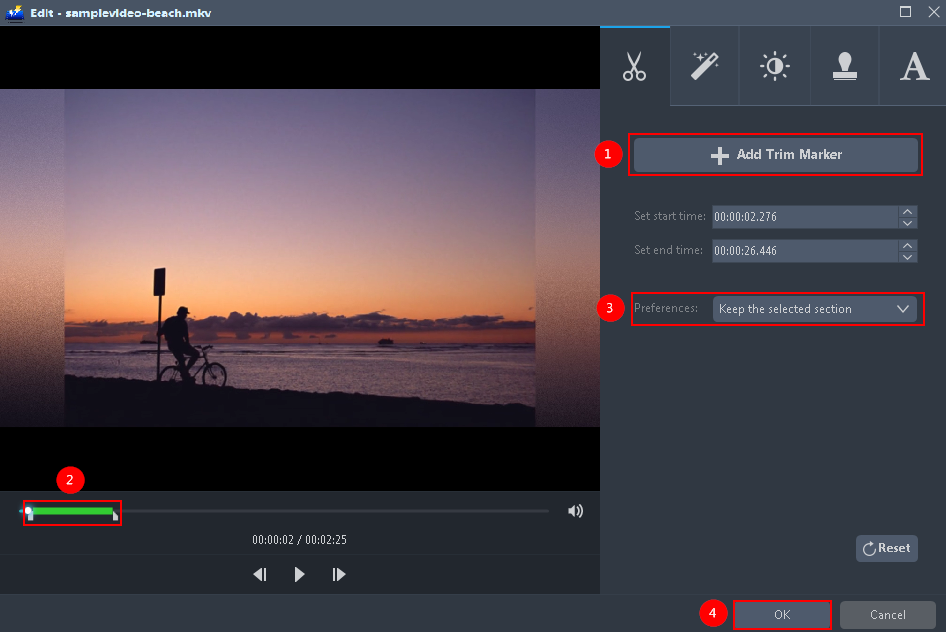
The video editor will open. Here you can make changes to the video to your liking – trim, cut, adjust the volume or brightness, etc.
For example, you can trim your video as showing below:
1) Click “Add Trim Marker”.
2) Drag the mark as shown below to select the part you want to cut. If you want to select multi-sections, please repeat 1 and 2.
3) Choose “Keep the selected section” or “Delete the selected section” from “Preferences”.
4) Click “OK” to save the setting.
Step 3: Convert MKV to MP4 format.
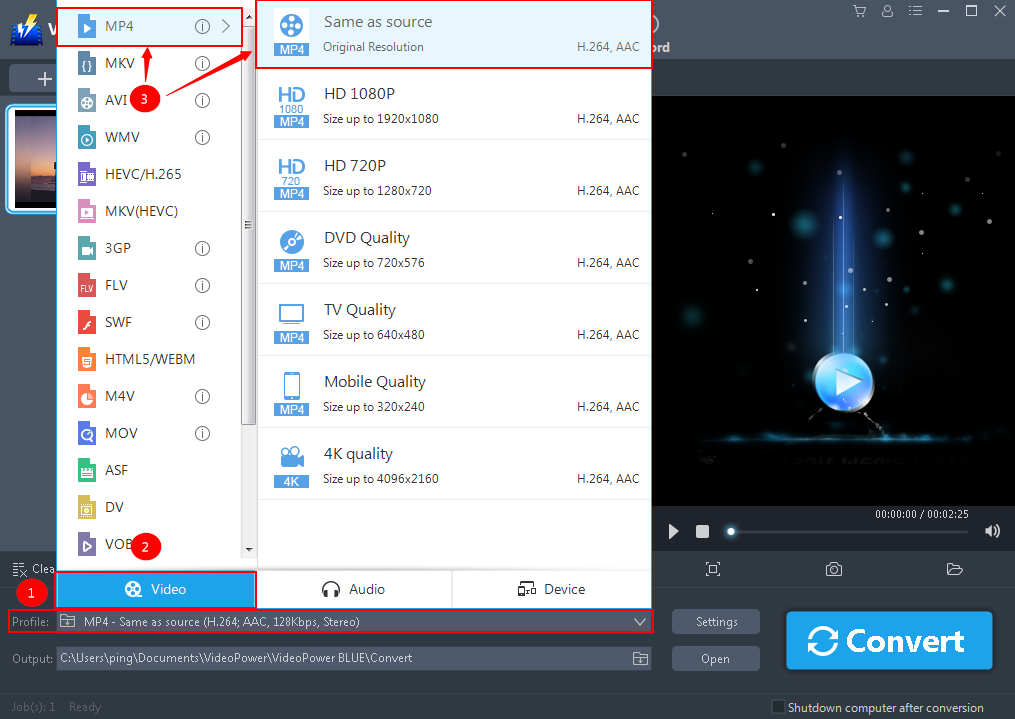
3.1 Set the output format.
1) Click to open the “Profile” drop-down menu, then choose the format you want from the profile list.
2) Here you can directly choose the MP4 format from the list.
3) You may now choose the quality you prefer.
3.2 Costumize Settings
You can also customize frame rate, bitrate, codec, etc. manually. Just click the “Settings” button to enter the “Preset editor” window, then you can change the value and click “OK” to save the settings.

3.3 Start Conversion
Return to the file list and click the “Convert” button, then the converted MP4 file will be saved in the default output folder.
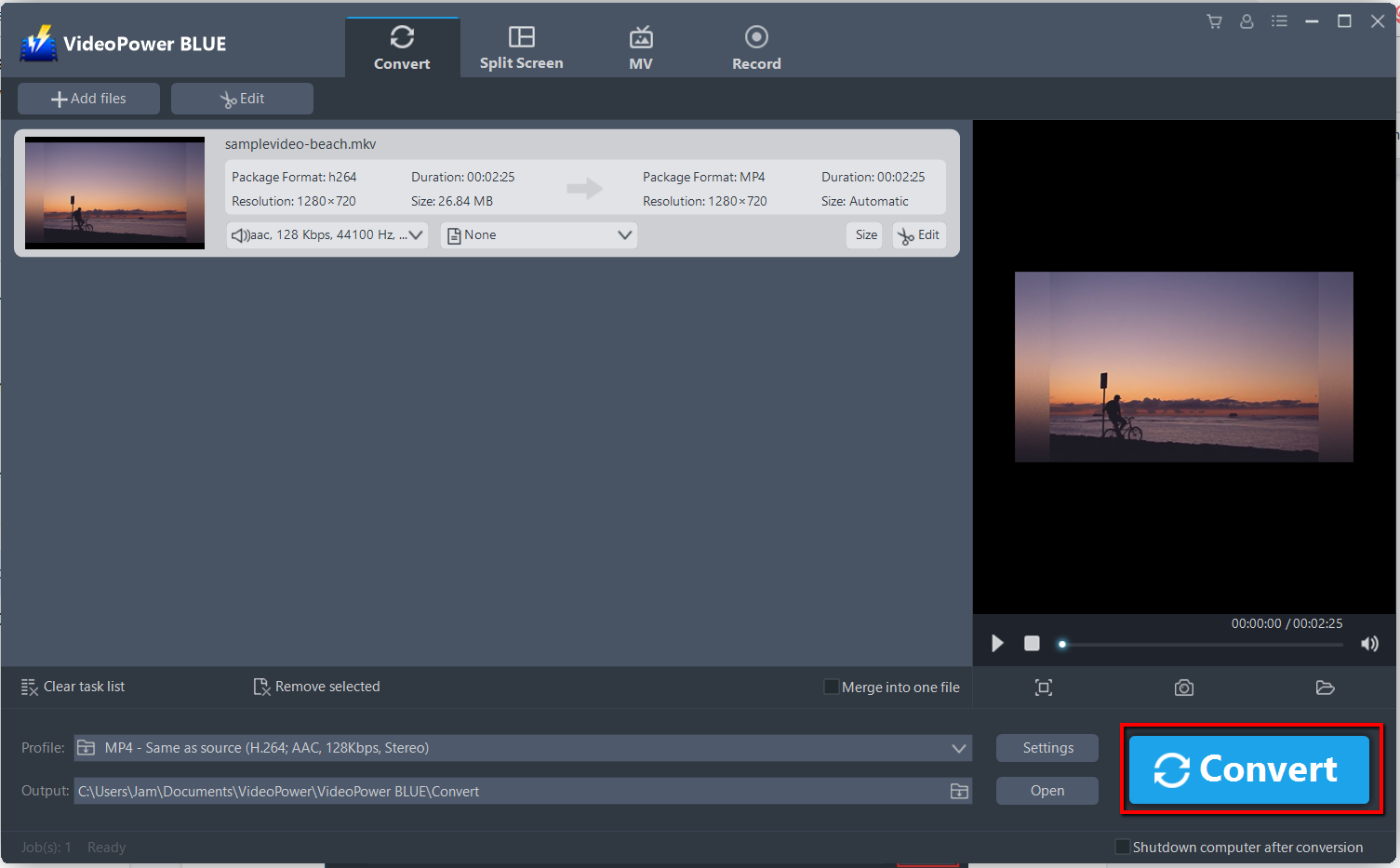
The program will pop up a window to inform you once the conversion is completed. Click “OK” to open the folder of your saved converted MP4 files or you can click the “Open” button to find the MP4 file.

Conclusion:
These are the basic knowledge about the MKV format. As you realize that MKV is not an audio or video compression codec but a container format that can store a complete movie or CD, you’ll find it not compatible with video players so you have to convert it to a much more common format.
One of the best converters that could do the conversion efficiently is VideoPower BLUE. It does not only supports the conversion of video and audio files it also features screen recording activity, basic video and audio editing such as effects, watermarks, subtitles, trimming and cropping.


