





Tips Index
To ensure that your videos are easily understood by any audience, it’s important that you include a subtitle on it. Many movies and videos have subtitles for different audiences to better understand the content, especially when you don’t know the language they are using in the video.
Listeners can sing along with a song if the music video has lyrics on it.
STR file is most commonly used for subtitling which can be created with any text editor, such as notepad.
SRT files contain subtitle information, which includes the sequential number of subtitles, start and end timecode, subtitle text.
If you have an SRT file and want to edit the SRT file or add it to your MP4 video, VideoPower BLUE will help you achieve this in just a few clicks.
In this post, we will show you how to import an SRT file to the MP4 file format using this step-by-step guide.
You can try to use the software for free by downloading its trial version below.
Step 1: Import the MP4 file to add subtitles
Run the program if you have installed the software successfully on your PC. You can directly add the file to the program by clicking the “Add files” button or by drag-and-drop to the interface.

Step 2: Edit the video to add subtitles
The imported file is displayed in the list.
Click the “Edit” button on the right side of the file.

The built-in video editor will pop up, with its help, you can make the perfect movie. Adjust speed and volume, trim, cut, crop, rotate or flip videos. Add effects, subtitles, and watermark while adjusting brightness, contrast, and saturation that will make editing conveniently easier.
For example, you can add subtitles in your video as shown below:
You can import external subtitles, or search subtitles for the corresponding subtitles from the Internet.
1) Click the Subtitle icon.
2) Click Search Box (you can either click a subtitle saved on your computer or find it online).

Step 3: Save the edited video
Set the output format.
1) Click to open the “Profile” drop-down menu, then choose the format you want from the profile list.
2) Here you can click “Video” and then “MP4”.
3) You may now choose the quality you prefer.
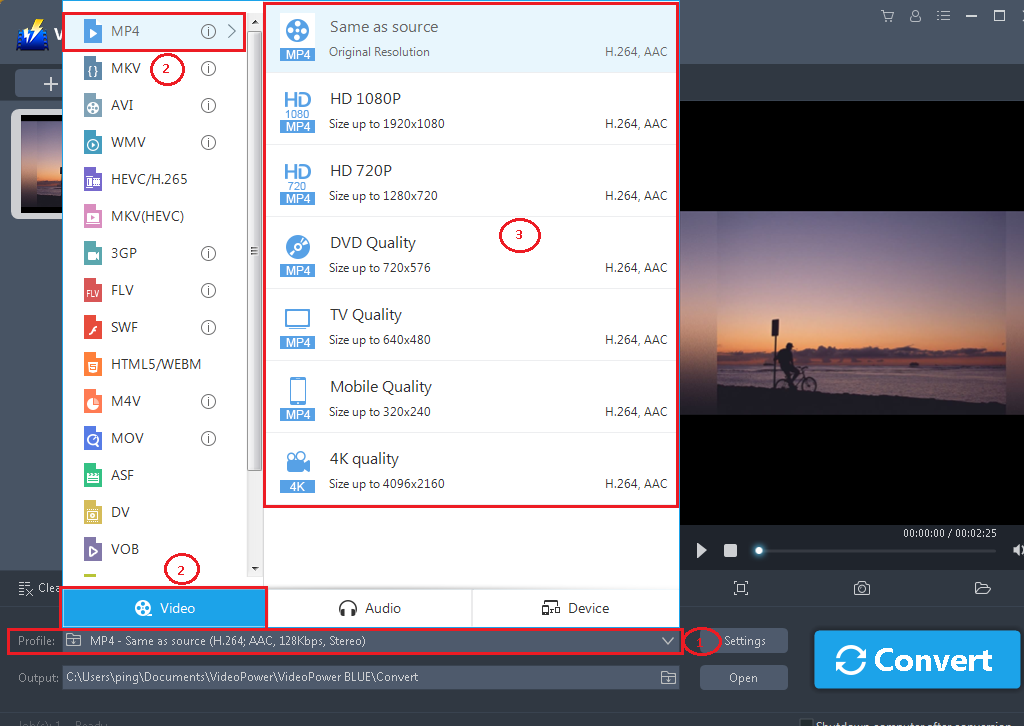
*Even if the default format is an MP4 you can still change to any format as per your needs.
Start Conversion
Return to the file list.
Click the “Convert” button, then the converted file will be saved in the default output folder.
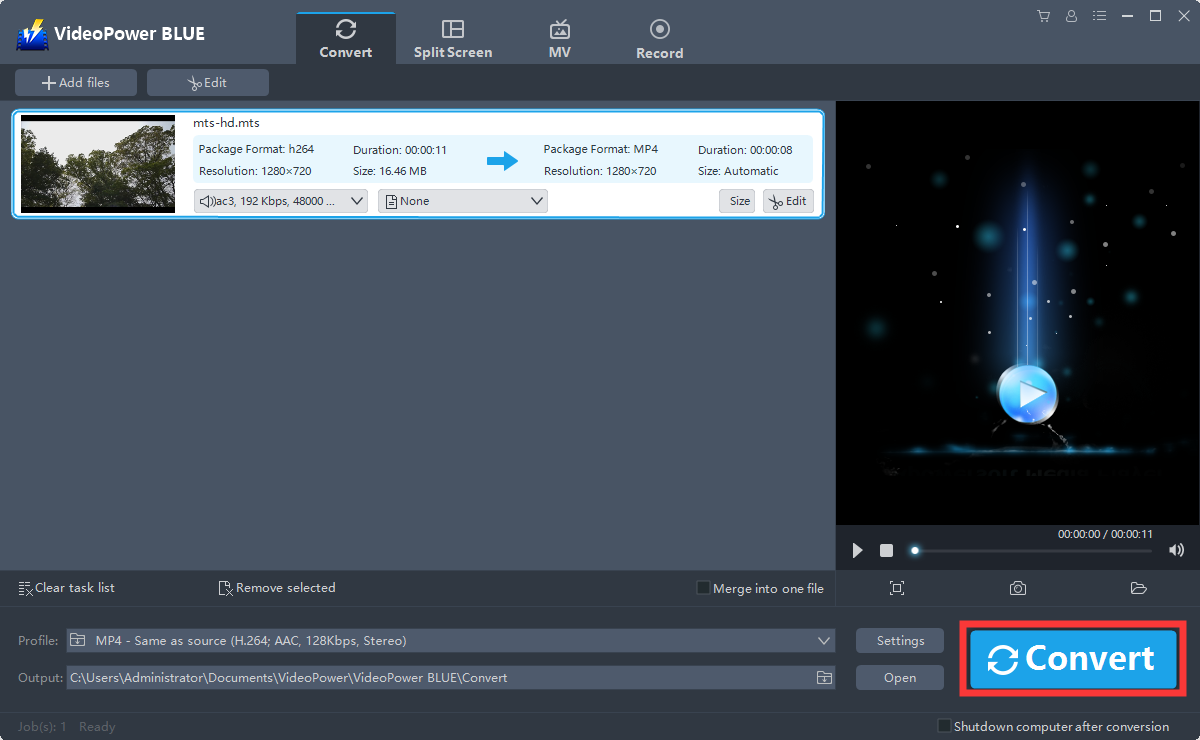
Find the Converted file
A pop-up window from the program will appear informing you that the conversion is complete. Click “OK” to open the folder of your saved converted file.

Conclusion:
This is a wonderful software that has far advanced features compared to other means of video conversion. VideoPower BLUE, a powerful converter that supports many video formats and most importantly, can import SRT subtitles to MP4. Using the built-in video editor you can also edit slideshows or videos, apply watermarks, effects, and other basic video editing options such as trimming or cropping. Moreover, it has a split-screen tool for your photos and videos and a screen recorder which allows you to capture any on-screen activity on your computer.


