





Tips Index
There are times when you encounter problems from shooting a video because of poor angle, light and so on.
So how do you brighten the dark video? Actually, it is not difficult to solve this, just find a tool with brightness adjusting function.
Here we would like to recommend that you use VideoPower BLUE, with editing tools such as adjusting brightness and darkness of a video, adjusting volume, fixing the aspect ratio, adjusting the playback speed, contrast and saturation.
It also supports various format conversion such as 4k video to 1080p and many more.
Download and install the program on your PC with the below link to start the conversion.
Step 1: Add the video file to the program
Run the program if you have installed the software successfully on your PC. You can directly import the file to the program by clicking the “Add files” button or by drag-and-drop the file to the interface.

Step 2: Edit file before conversion
If you need to edit the video file before conversion, follow the instructions below.
The imported file is displayed in the list.
Click the “Edit” button on the right side of the file.

Adjust speed and volume, trim, cut, crop, rotate or flip videos. Add effects, subtitles, and watermark while adjusting brightness, contrast, and saturation that will make editing conveniently easier.
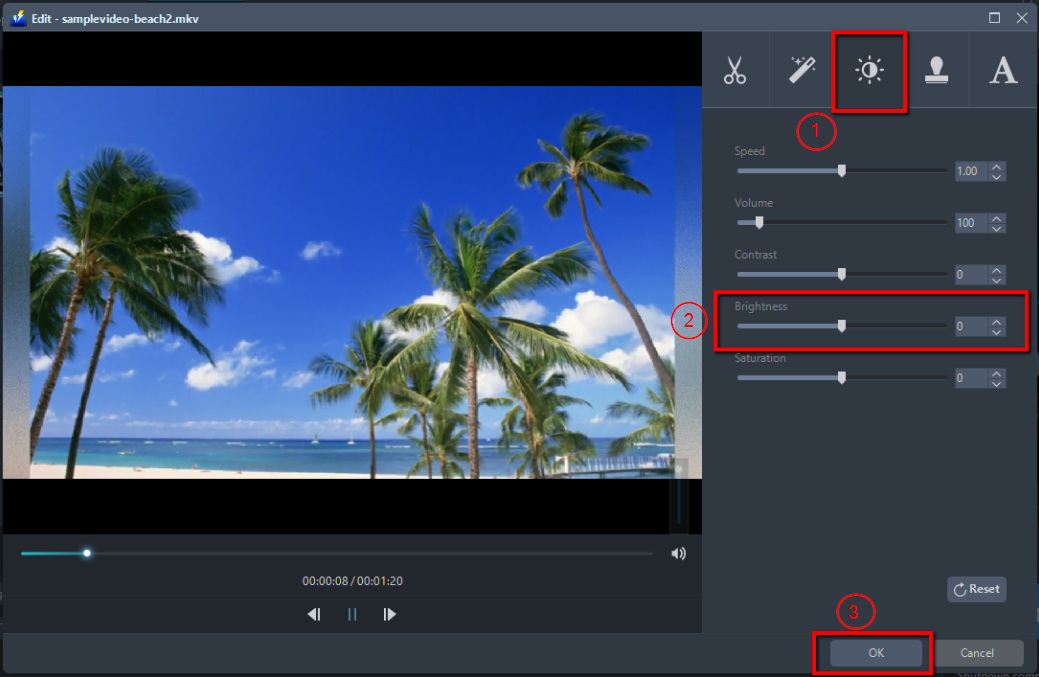
For example, you can change the brightness of your video as shown below:
1) Click the “Effect” tab.
2) Find “Brightness” and drag left/right to change the lightness or darkness of your video.
3) Click “OK” to save the setting.
Step 3: Save the edited video
3.1 Set the output format
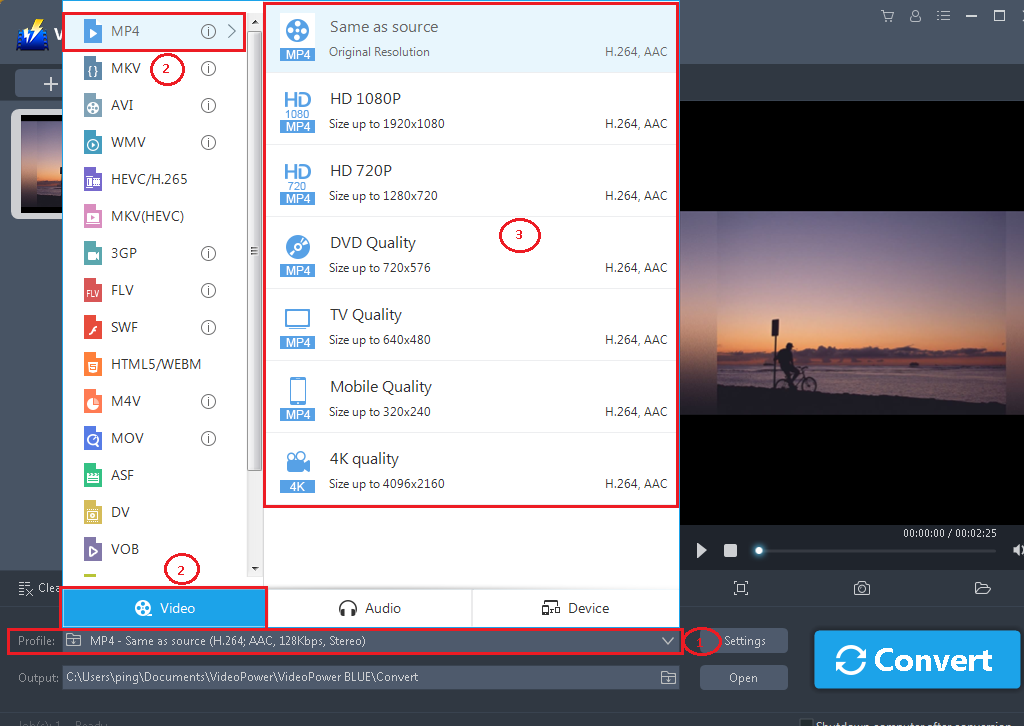
1) Click to open the “Profile” drop-down menu, then choose the format you want from the profile list.
2) Here you can click “Video” and then “MP4”.
3) You may now choose 1080P or the quality you prefer.
3.2 Start Conversion
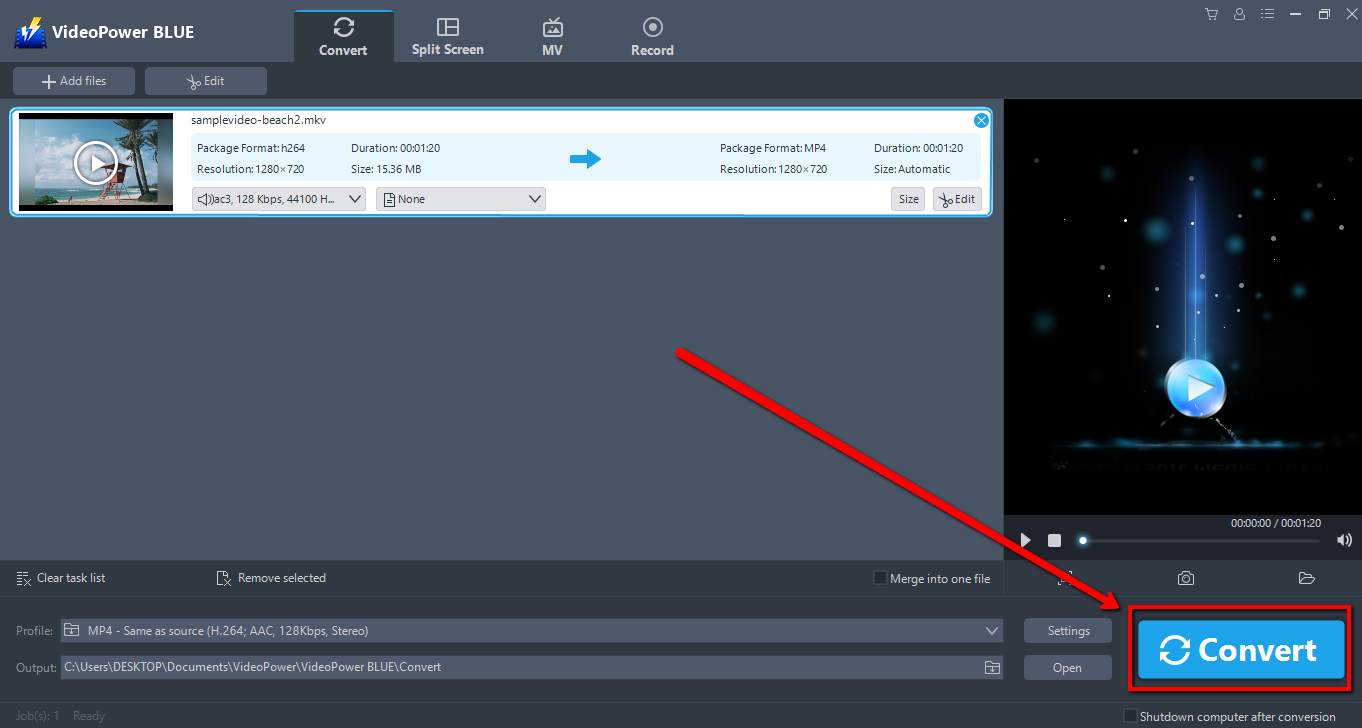
Return to the file list.
Click the “Convert” button, then the converted file will be saved in the default output folder.
3.3 Find the Converted file
The program will pop up a window to inform you once the conversion is completed. Click “OK” to open the folder of your saved converted file.

Note: The edited video will be saved as a new file, and the original file still exists without anything changed.


