Tips Index
Vocaroo is one of the most popular online recording tools that is widely used. However, this software is internet-dependent, so for people without a stable internet connection, this can be problematic, for it to be working well it depends on a good network condition.
Besides, Vocaroo can only record microphone sound, not system sound from a computer.
So if you have the need to record sounds on your computer, you have to find a different alternative.
In this article, we will introduce a one-stop Vocaroo alternative called VideoPower YELLOW, which allows users to record any sound output from the computer and input from a microphone.
Apart from that, the program also enables users to edit an audio file with its embedded Audio Editor.
You can try it for free by clicking the download button below.
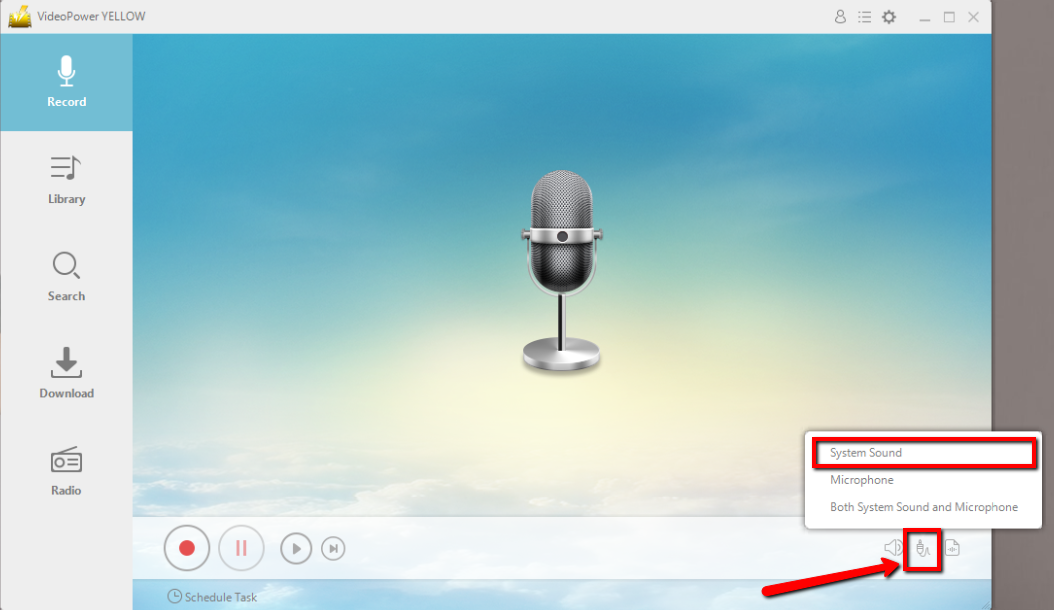
Step 1: Set the sound source.
Before recording, make sure that the sound source is set to “System sound” or whichever you deem appropriate to your need.
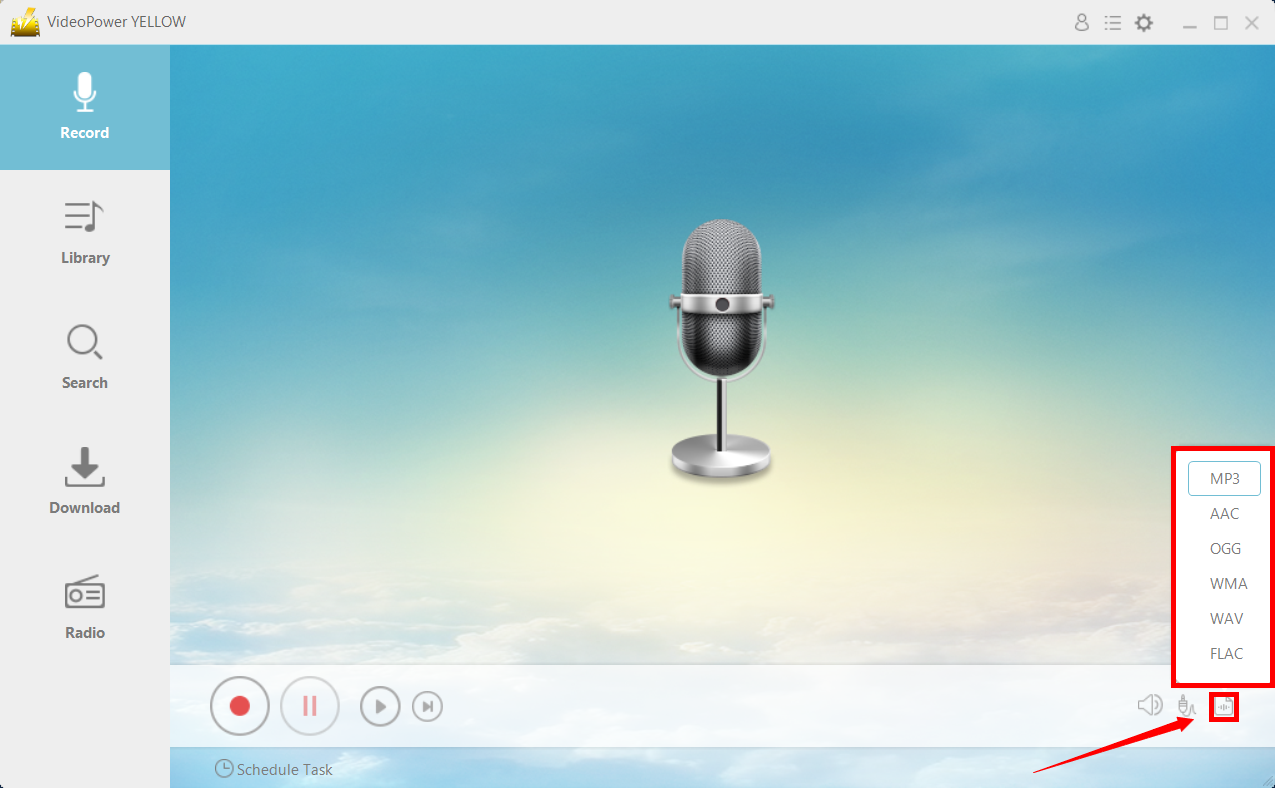
Step 2: Set the file format
Make sure that the recording is set in the format of “MP3.” – or whatever format you deem appropriate.
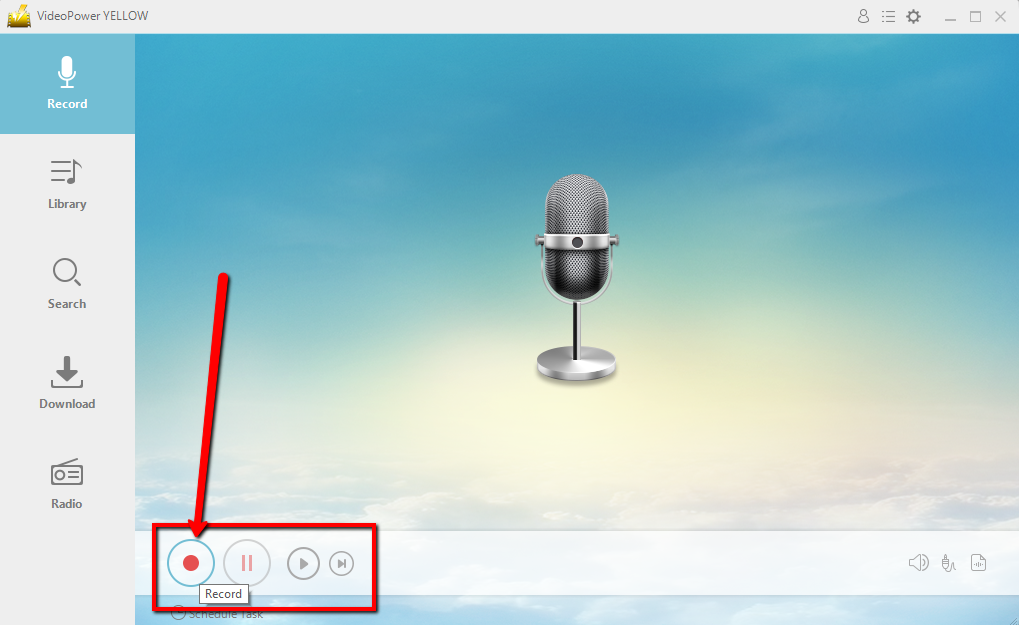
Step 3: Record
Click the “Record” button to start recording and click the same button to stop recording.
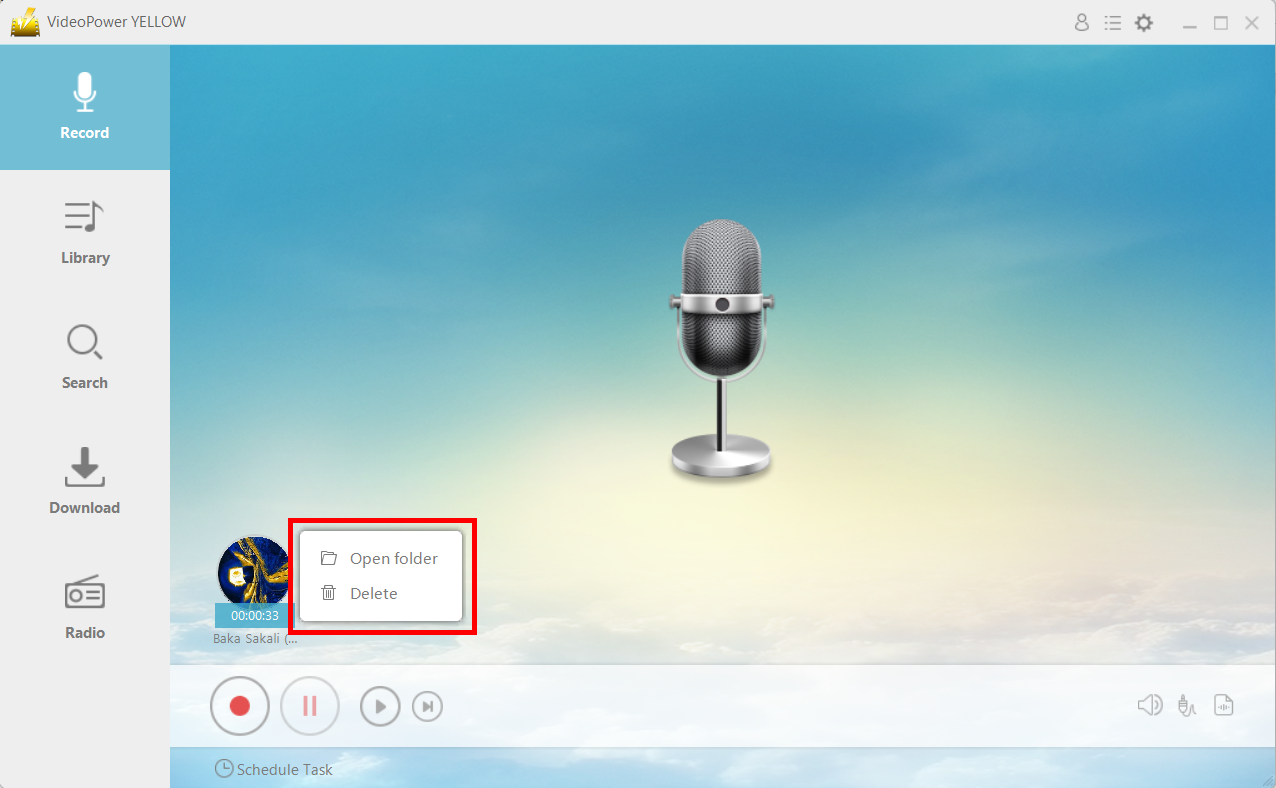
Step 4: File location
After recording, right-click the recorded track icon and click “Open folder” to open the storage location of the recorded audio file or click “Delete” if you want to delete the file and record again.
Conclusion:
If you are a student and you want to practice your accent by recording voice clips, you can use VideoPower YELLOW as a great recording tool. It has multiple recording options that would suit your need – microphone, to record microphone input, system sound, to record the computer sound or both.