Tips Index
Audacity is a free audio processing software. It is developed under Linux that follows the GNU protocol. It has a simple operation interface and professional audio processing functions.
However, this audio recording and editing software does not support Microsoft’s WMA format – the mainstream audio format for Windows operating system. With VideoPower YELLOW, an audacity alternative, you can record and edit audio easily.
With this software, you will be able to record any sound streaming on your PC including your system sound and microphone sound. Besides, it comes with an embedded converter that allows you to perform format conversion. It supports various audio formats including MP3, MP2, M4A, AAC, AC3, OGG, WMA, WAV, and FLAC, making this a great alternative for Audacity.
RECORD STEPS
This VideoPower YELLOW function enables the user to download directly from the app without opening browsers to search for music. Ever experienced downloading music but with the prelude of the video? This powerful software will fix this issue.
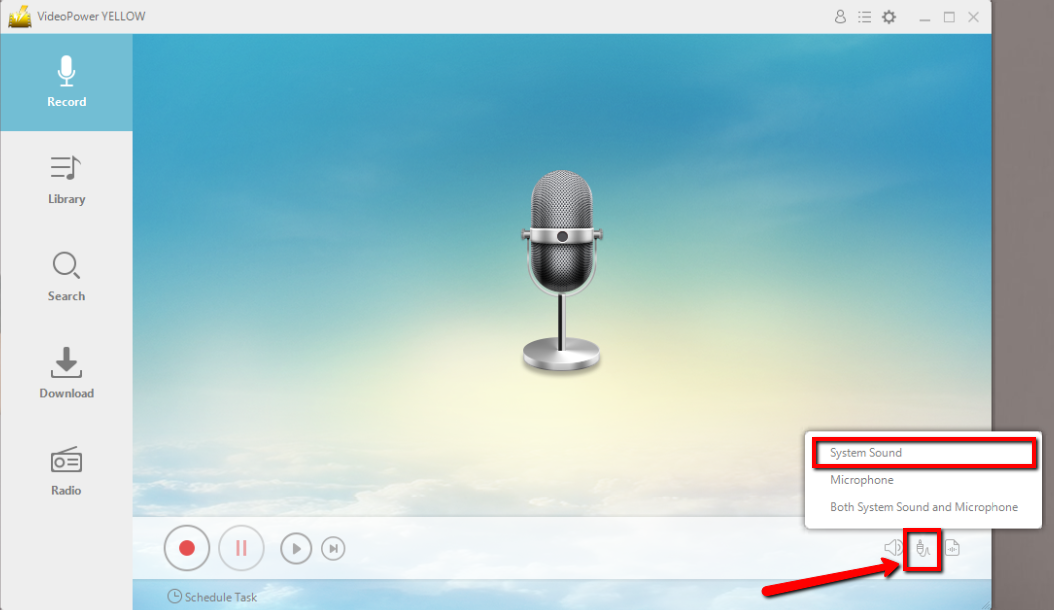
Step 1: Set the sound source
Before recording the audio, make sure that the sound source is set to “System sound.”
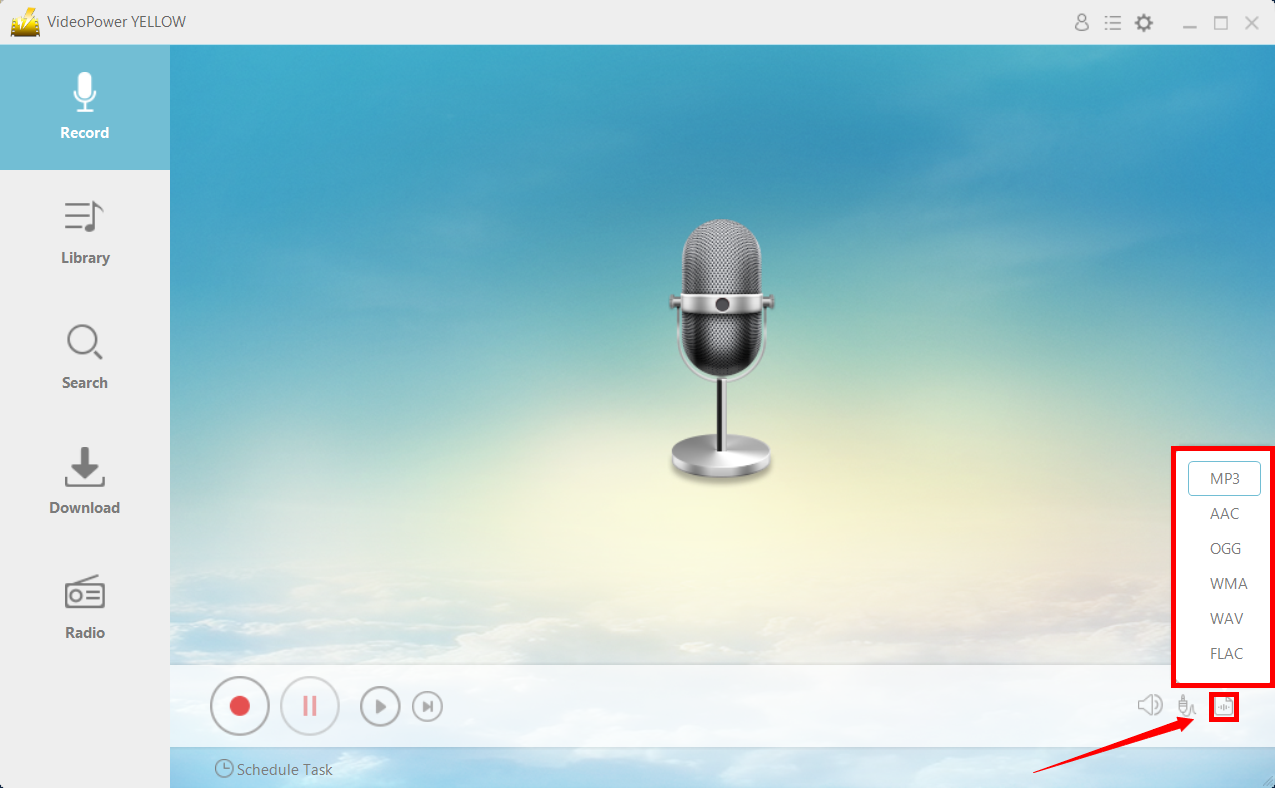
Step 2: Set the file format
Make sure that the recording is set in the format of “MP3.” – or whatever format you deem appropriate.
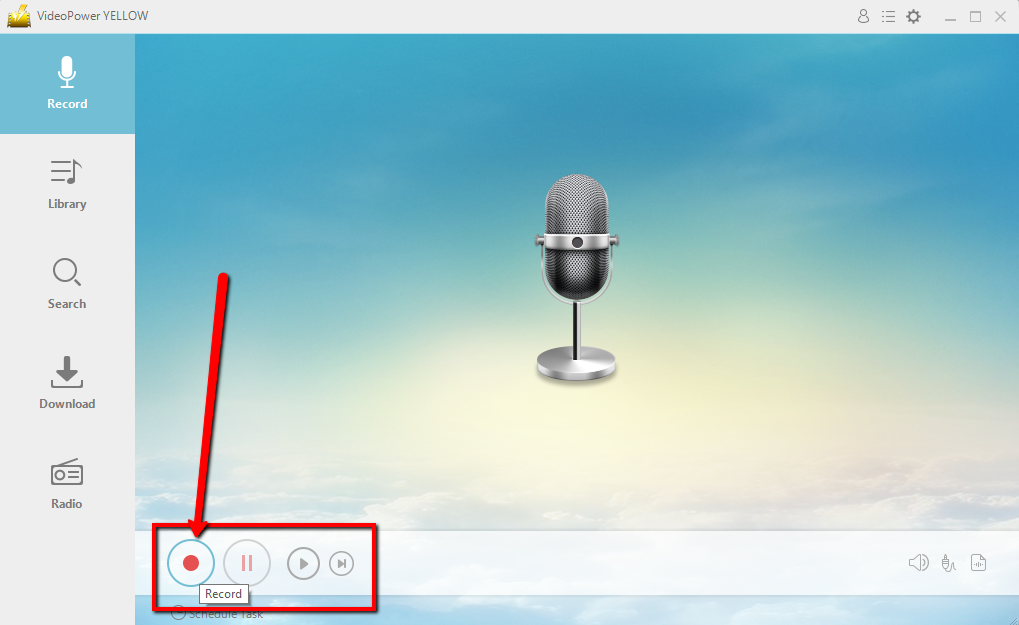
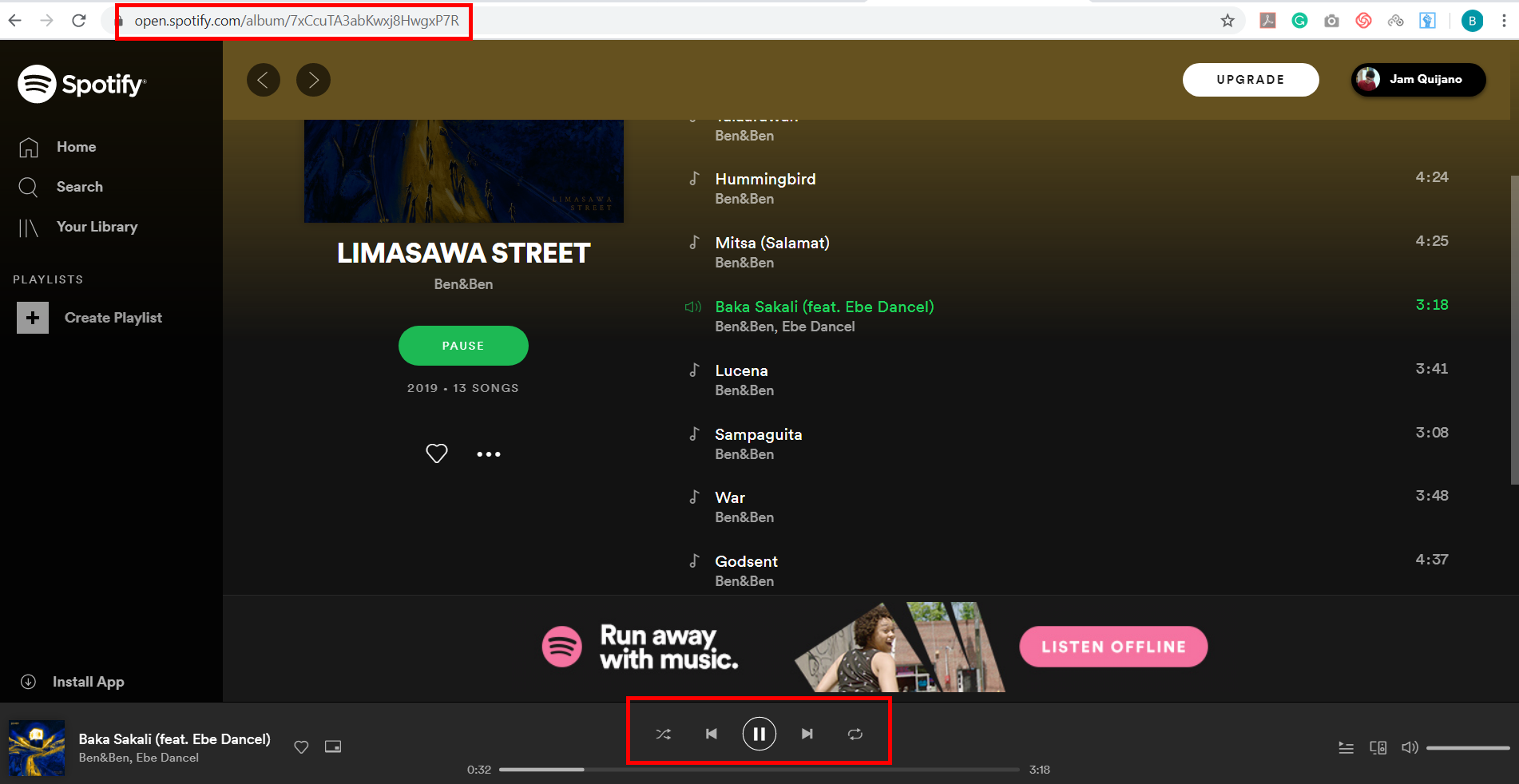
Step 3: Record
Click the “Record” button to start recording.
Play music.
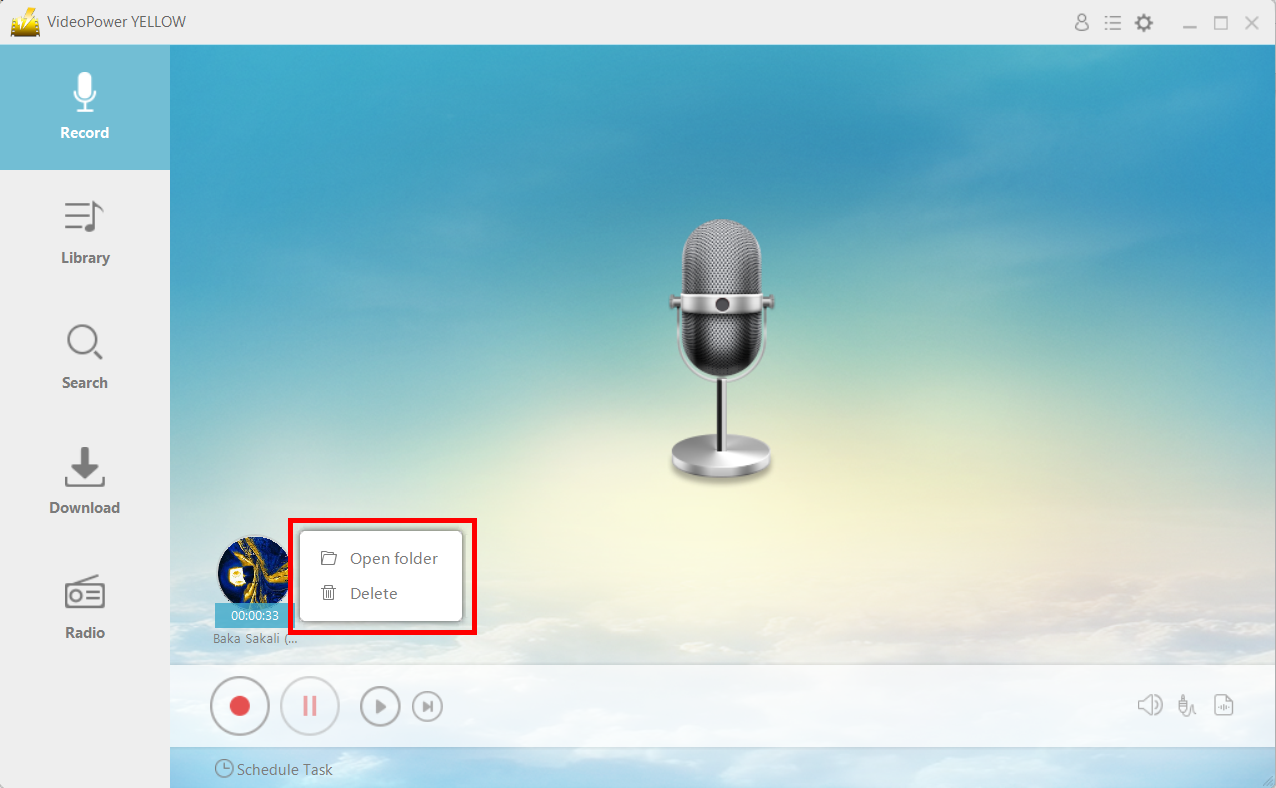
Find the file location.
After recording, right-click the recorded track icon and click “Open folder” to open the storage location of the recorded audio file or click “Delete” if you want to delete the file and record again.
Editing Steps
This feature will allow you to edit music files.
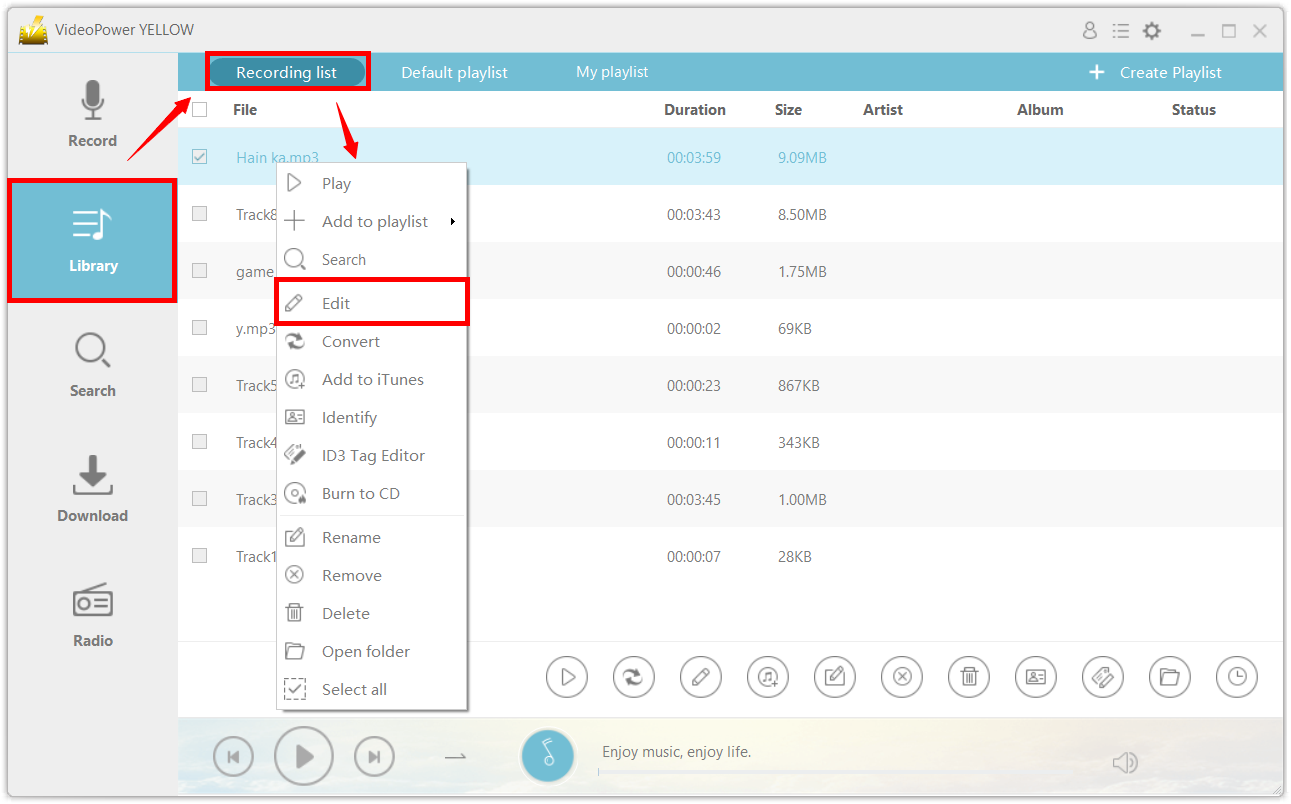
Step 1: Find the recorded audio
In the recording list, find the recorded audio that you want to edit. Right-click the audio and choose “Edit” from the menu.
Step 2: Audio editor
The audio editor will open and you can edit the file here.
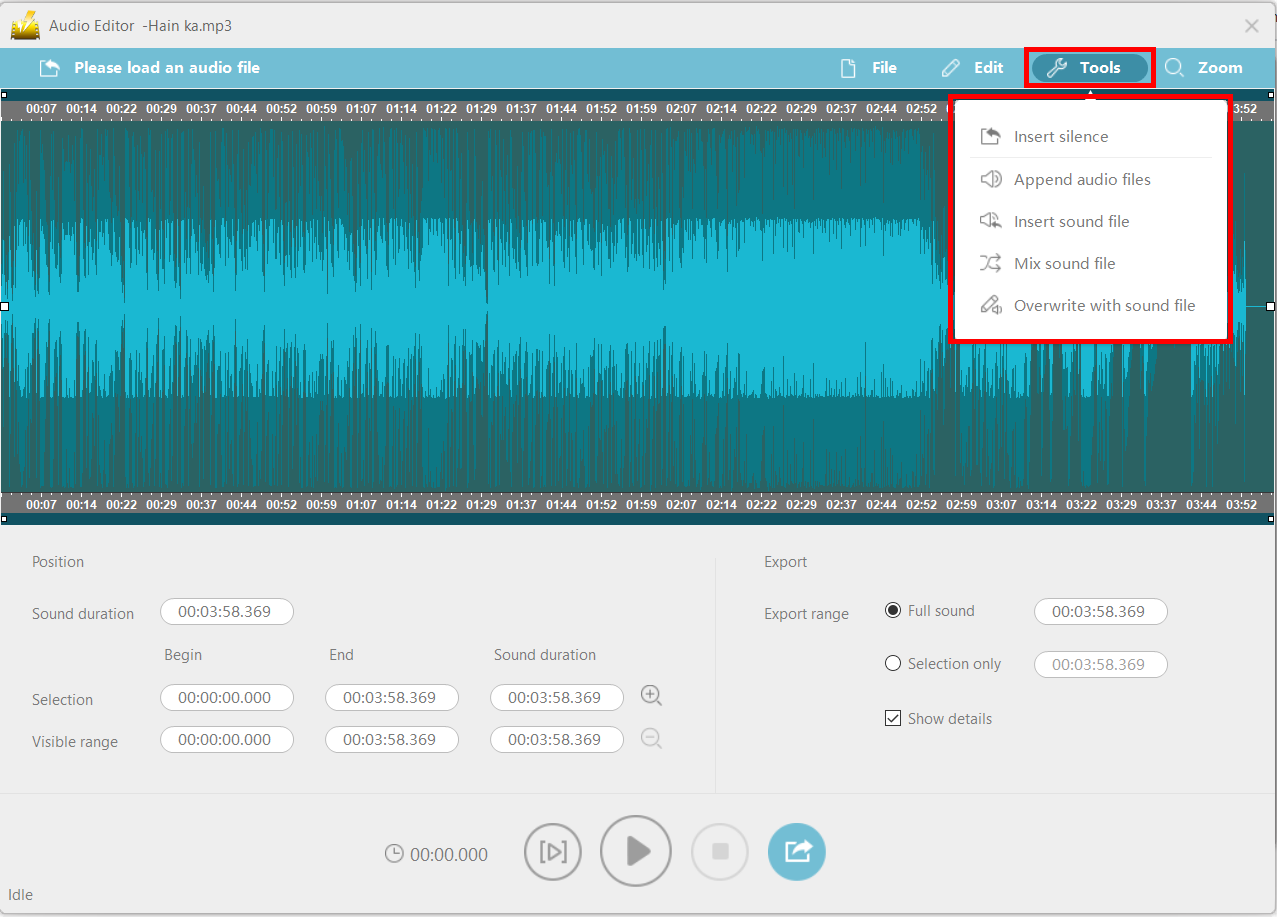
You can perform cut, copy, paste, delete from the “Edit” menu and insert silence, append sound file, insert the sound file, mix sound file, and overwrite with sound file from the “Tools” menu.
Tips:
- Insert silence: Click the place where you want to insert silence, the following yellow line will show up. After that, set the duration of silence by heading to “Tool – Insert silence” and click “OK”.
- Silence will be inserted after the yellow line.
- Append audio files: Add a new audio file to the end of the current audio file.
- Insert sound file: Insert a new audio file behind the selected location.
- Mix sound file: Click on the place where you want to mix, the following yellow line is displayed. The new audio will be added after the yellow line and mixed with the original audio file.
- Overwrite with a sound file: Replace the currently selected region with a new audio file.
Step 3: Save the edited audio file
When finished editing, click the export icon at the bottom of the window to export the edited file.
After you have made settings for format, sound quality, output directory, etc., click “OK” to start exporting audio.
Conclusion:
Because some formats are not compatible with Audacity, VideoPower YELLOW is a good alternative for audio recording and editing. It has the basic tools necessary like Audacity, and also the user-friendly interface and options.
Thus, this is a great alternative to Audacity and the best choice to record any audio online or offline. VideoPowerYELLOW is indeed best suited for this matter as this product also possesses various useful professional features that make not only recording audio but also editing and converting audio would be worthy and easy.