





Tips Index
Is it possible to extract audio from the video and how? Have you ever watched a video and really like the song or audio track? However, you don’t know the title of the music and can’t find it on the Internet. So what do you do?
If you have a video and you only need the audio, extracting the audio through file conversion is the way.
There is a brilliant way to get the soundtrack from a video without knowing any information about the soundtrack. MP4 is the most popular video format on the network Nowadays. So we are going to show you how to extract audio from MP4 video.
Here we will use VideoPower BLUE to help us do this job.
VideoPower BLUE is a great software that has multiple features and functions such as screen recording, basic video editing, and audio and video conversion. This software can extract audio from MP4 by converting the video file into an MP3 format. It is one of the most intelligent audio extractors and provides high-quality results.
You can try to use the software for free by downloading its trial version below.
Step 1: Import MP4 files to the program
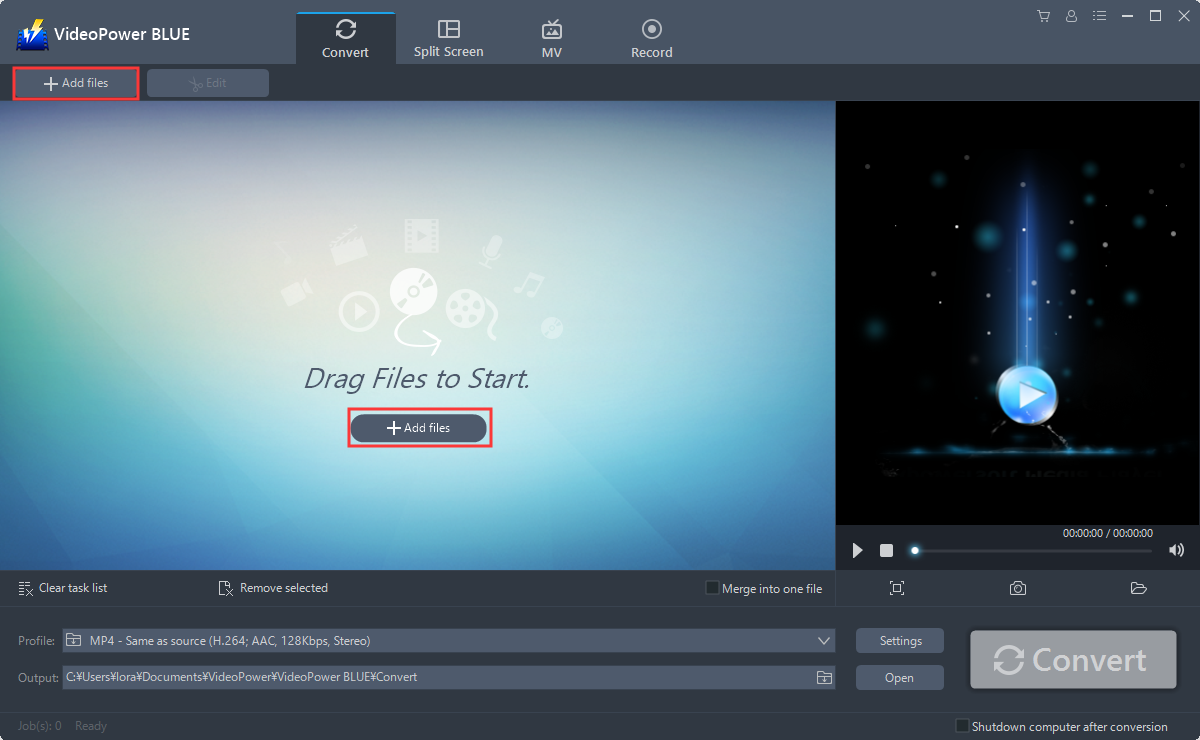
Launch VideoPower BLUE and go to “Add files” button to upload your video file to the program.
Step 2: Edit video
If you wish to trim the video before extracting the audio, then follow through this guide. If you don’t want to modify the video, proceed directly to Step 3.
2.1 Open Editor
The imported file is displayed in the list.
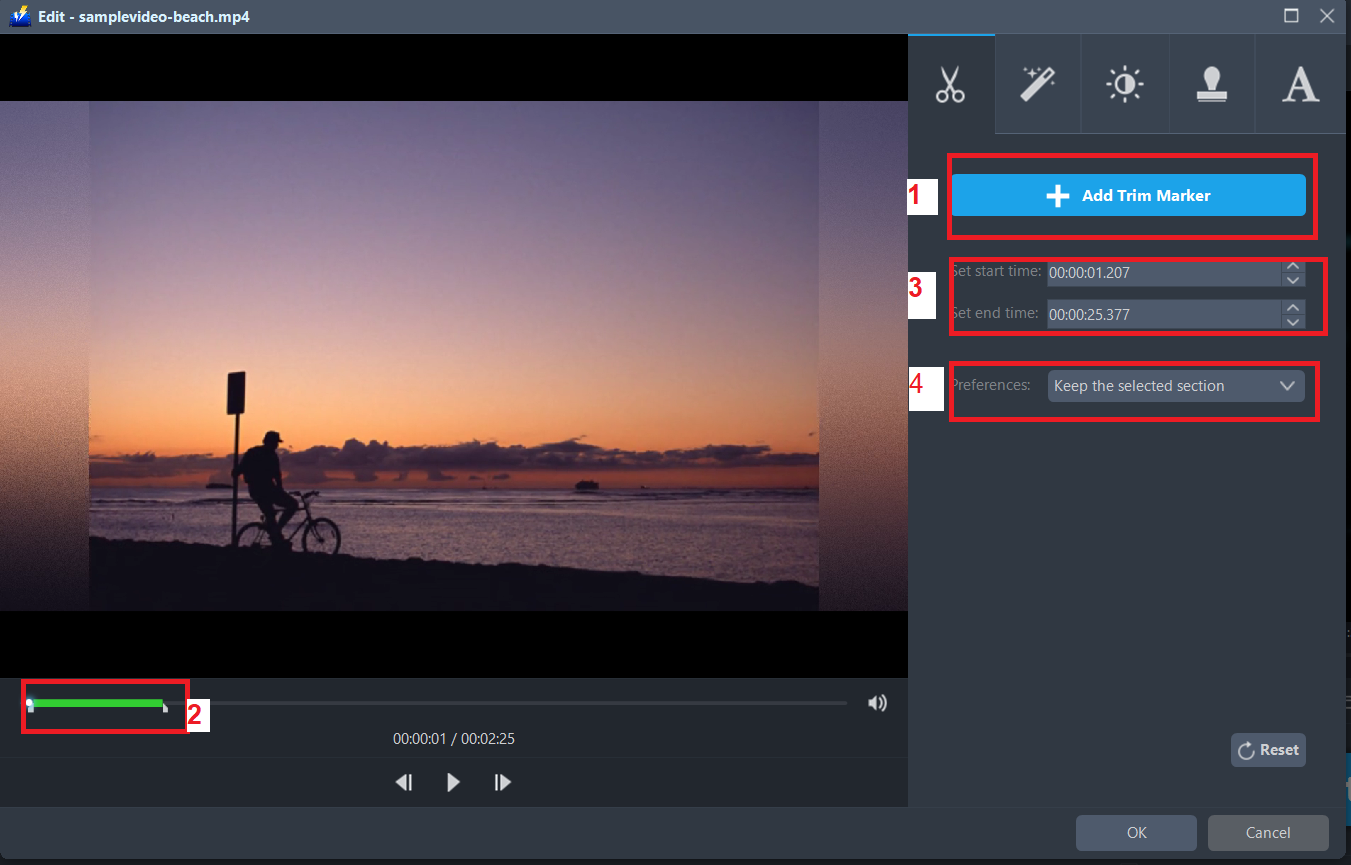
Click the “Edit” button at the right side of the added video to enter the built-in video editor where you can adjust the length of the audio you wish to extract from a video.

2.2 Trim Video
You can do the following steps to trim your video:
1) Click “Add Trim Marker” to add a trim marker to the progress bar, you can also add multiple trim markers by clicking this button multiple times.
2) Drag the slider to select the part you want to hold.
3) You can click the up or down button to set the start and end time as well.
4) Now you can choose to keep or delete the selected section.
Step 3: Convert video to an audio format
3.1 Set the output format
For this example, MP4 and MP3 are used.
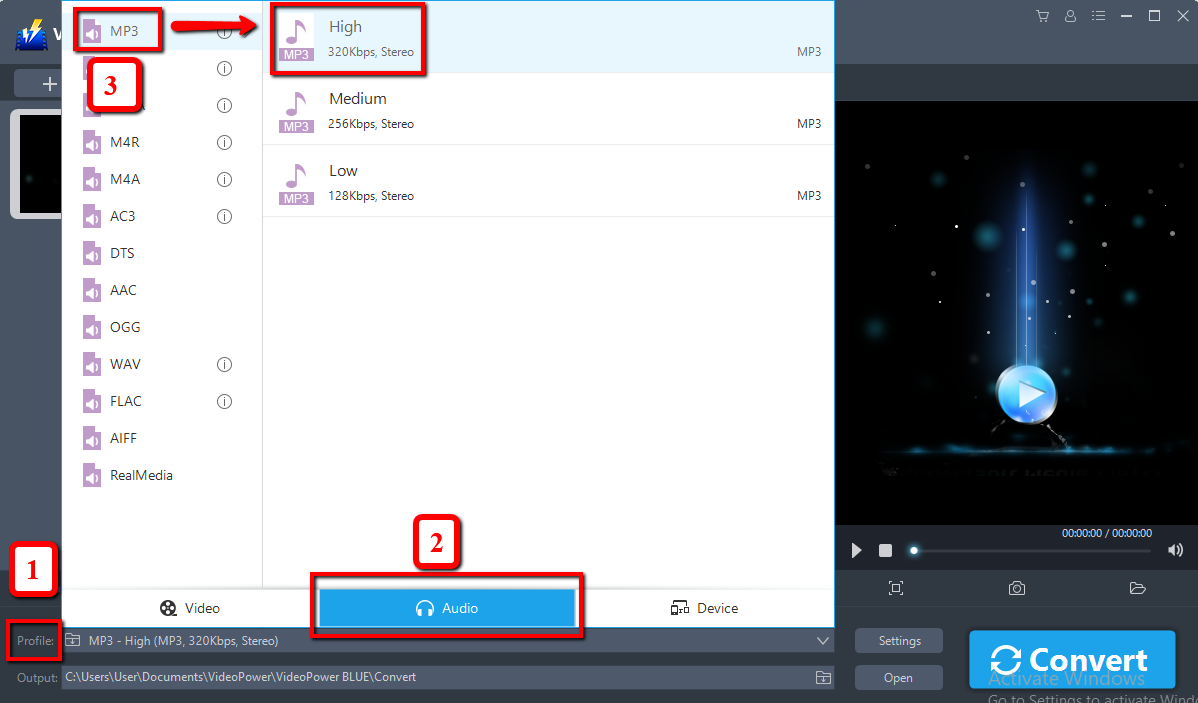
1) Click the “Profile” drop-down menu and then choose “Audio”.
2) Click on “MP3”.
3) Choose “High”.
3.2 Start Conversion
Return to the file list.
Click the “Convert” button, then the converted MP4 file will be saved in the default output folder.

3.3 Open Folder
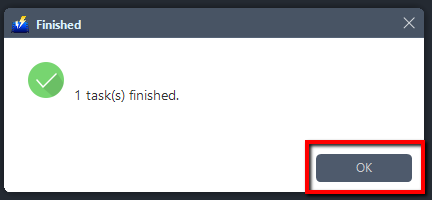
The program will pop up a window to inform you once the conversion is completed. Click “OK” to open the folder of your saved converted files.
Conclusion:
Extracting audio or soundtrack from an MP4 file is made easy by VideoPower BLUE without sacrificing the quality of your extracted file.
VideoPower BLUE is definitely perfect for you. It’s fast and flexible with a built-in video editor that will enable you to extract audio from a video file. Not only that, but you can also edit slideshows or videos, apply watermarks, effects, and other basic video editing options such as trimming or cropping. Moreover, it has a split-screen tool for your photos and videos to make a collage, merge multiple audio and video into one file and a screen recorder which allows you to capture any on-screen activity on your computer.


