





Tips Index
Video Tutorials usually require a pointer to imitate the movement of a tutor or teacher like the usual laser light, or in a more orthodox method of teaching, the board stick. This is to make the listener or viewer follow through the course of the lesson. Today, students take online courses.
Classes are more digital than ever, virtual it may seem but it is also effective just like the usual classroom setting. YouTube also holds a number of video tutorials of different subjects, and to notice some, they have an awesome tool to make their teaching conducive and creative. They can show their faces while teaching, they have mouse pointers, they can toggle the view, or even apply words and shapes on the spot. This imitates the usual classroom vibe which is kind of amazing.
Mouse Recorder has been used to redirect the attention of the viewer while the host does tasks on the screen. More than just to point out the focus areas, it travels through a screen by leaving some of the portions in an out-of-focus view.
VideoPower GREEN is a powerful software that mainly functions as a screen recording and capturing application which aids in many different ways such as recording your screen for particular purposes or even compile screenshots of your tasks. It also has a screen recorder with a mouse highlight.
Step 1: Initiate mouse recorder function
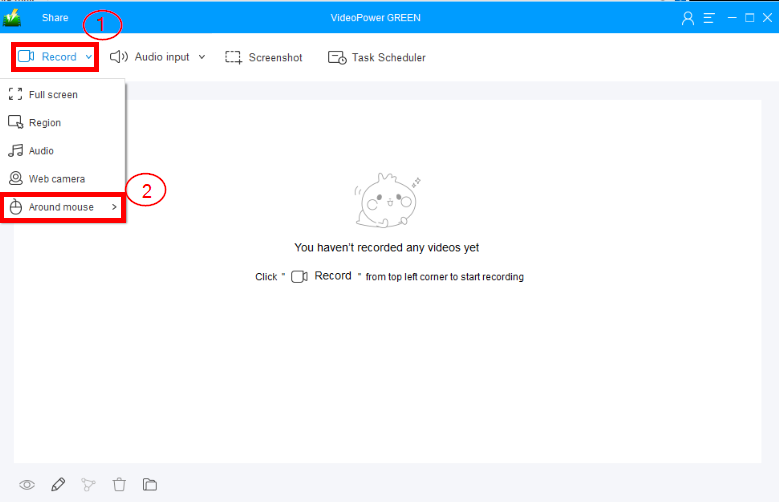
After opening the VideoPower GREEN
1) select the “Record” function.
2) click “Around Mouse”.
Step 2: Select screen resolution
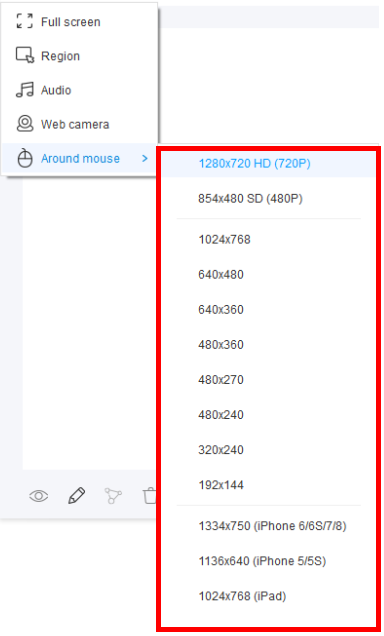
After clicking “Around Mouse” an array of resolution is available from 720P High Definition to iOS products.
Step 3: Start recording
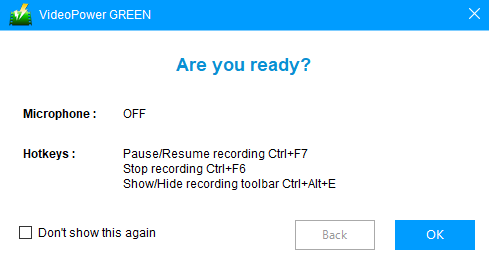
After selecting the desired resolution, a pop-up window and a film clapboard will automatically show up right before the recording will start.
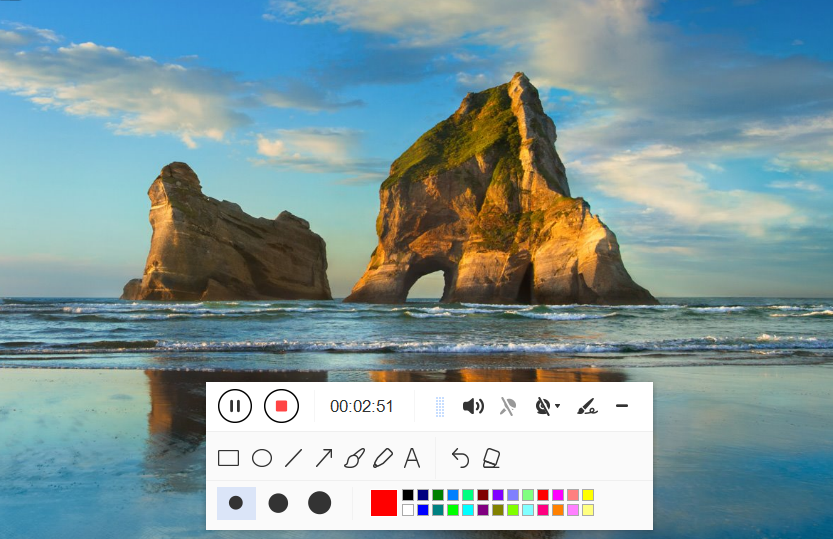
3.1 Record toolbar
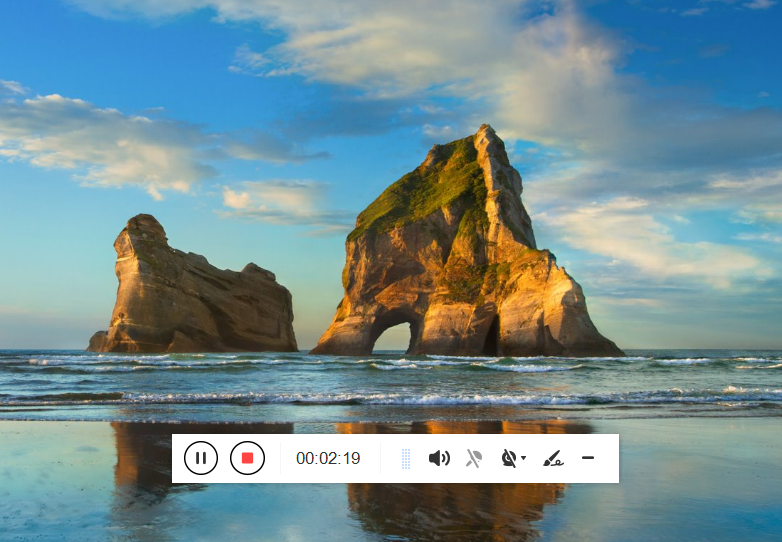
A toolbar will show up while recording is ongoing, it has “Pause” and “Stop” buttons. Switching on the webcam is also an available feature during a recording.
3.2 Highlighters and texts
You can also add highlights, shapes & texts during a recording to focus on a particular object in the display.
Step 4: Stop recording
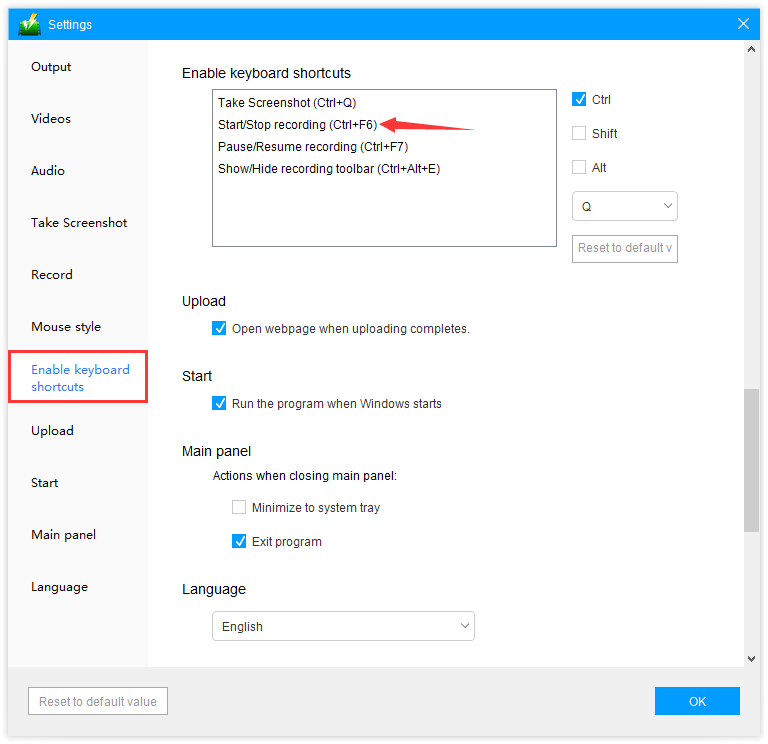
You can use the keyboard shortcut to stop the recording. Go to “Settings” – “Enable keyboard shortcuts”, check the shortcut, or customize whatever keyboard combinations you want.
Conclusion:
VideoPower GREEN is also packed with different recording amenities that could be very useful In personal, school, office, and tech purposes more than just having its screen recorder with mouse highlight. It can capture your screen and more to that, select only a particular region of the display to omit unnecessary objects. Record screen with webcam, select the audio source of the recording, and most of all edit videos. The built-in editor can also trim, adjust resolution, add themes, and can convert your recording in many different formats you wished to change. Try it now!


