





Tips Index
To choose the right free screen recorder is very important depending on what you aim to do with the footage you capture. A lot of recorders offer a range of different features, can save captures in different formats, or capture from sources such as a webcam.
Some screen capture can even give you the chance to upload to the internet directly from within the program. Some run great on average hardware, while others are difficult because of the demand. The point is that there are plenty of options to choose from.
You might want to get a clip or want to record footage in HD quality? Then take a look at our guide below for the best screen recorder for Windows PC. No matter what you record the result of the footage captured from your computer can also be edited with its built-in editor.
VideoPower GREEN Screen Recorder is very easy and intuitive. It has a very friendly user interface that even unexperienced video editors can use without a sweat. You can capture footage from your PC screen or a webcam, and record audio with system sound or microphone or even both from your PC.
Record the whole screen, select a specific area or region. VideoPower GREEN Screen Recorder also offers customizable shortcut keys for faster screen recording/capturing to make it more convenient for the user.
You can choose to include the cursor in the recording and take choose from a range of output formats including MP4, WMV, AVI, MOV, FLV, and many more. You can even highlight the important part of your video while recording.
Just click the link below to download this app and follow through the guide on how to download the best HD screen recorder.
Download the software by clicking the download button below and follow the instructions.
Step 1: Choose a sound source
If audio is needed in recording, choose the desired sound source among “System sound, Microphone or System sound and microphone” on the “Audio Input” menu. If audio isn’t needed, just choose “None”.

Step 2: Choose a recording area
Click on the “Record” button to choose the recording mode among “Full screen, Region, Audio, Web camera, and Around mouse” and then select the area you are going to record.

Step 3: Record screen activities
After choosing a recording area, a prompt pop-up will appear. Click “Ok” to start the recording.

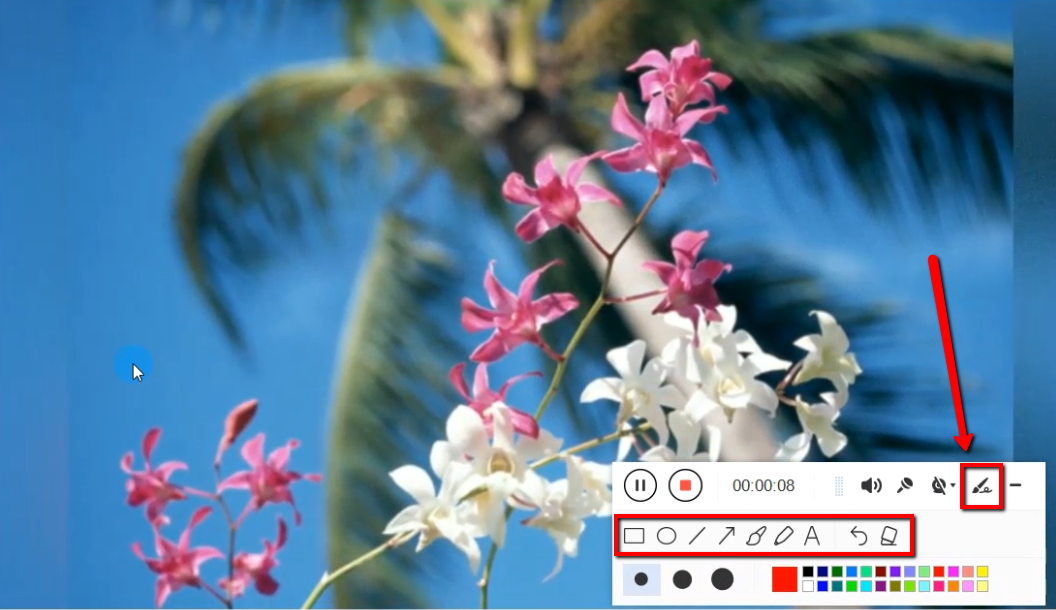
While recording, adding annotations like lines, arrows, shapes, texts, highlight, blur, etc. is possible. Just click the edit button to show the editing toolbox.
Step 4: End the recording
Click the “Stop” button to stop recording.

After recording, the screen will automatically redirect to the recorded file list on the main interface window. Right-click the file and do more operations if necessary, like open the storage folder where the file is saved or playback the recorded video.

Conclusion:
VideoPower GREEN gives you the ability to record HD footage in one go. It also comes with a built-in editor and a wide range of video and audio formats that you can choose from before recording and once you’re done, you can save the recording and upload it directly to your YouTube channel, Facebook, Twitter, Instagram, Vimeo, or send it to Google Drive or Dropbox.
So what are you waiting for? Download now.


