





Tips Index
For GIF dynamic pictures, I believe that everyone knows about it. Especially those who like to use instant messaging tools to chat with others by sending emoji.
All kinds of funny GIF chat pictures bring a lot of joy to people.
However, do you know that most of these interesting GIF images are made by intercepting the funny classic parts of a video?
Hence, it’s totally possible for you to make your own unique GIF animation.
Lucky for you, you found the best and easiest steps in converting your MP4 to GIF without any hassle and i recommend you download VideoPower BLUE, the most amazing software that converts files into GIF and many more. Just scroll down below and follow all the steps.
VideoPower BLUE is A great MP4 to GIF Converter with a variety of options and features including screen capture and recording, editing, music, and conversion.
You can try to use the software for free by downloading its trial version below.
Step 1: Add the MP4 file to VideoPower BLUE
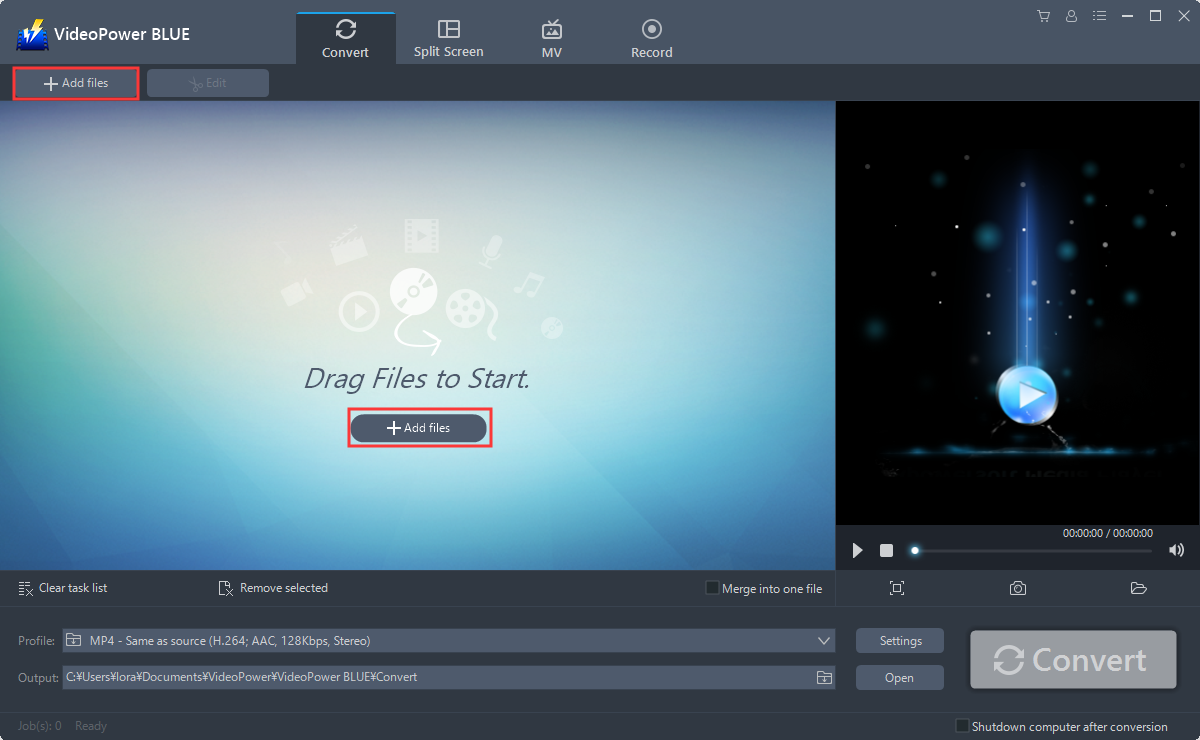
Run the program if you have installed the GIF Converter software successfully on your PC. You can directly import the MP4 file to the program by clicking the “Add files” button or by drag-and-drop the file to the interface.
Step 2: Edit file before conversion
If you need to edit the video file before conversion, follow the instructions below.
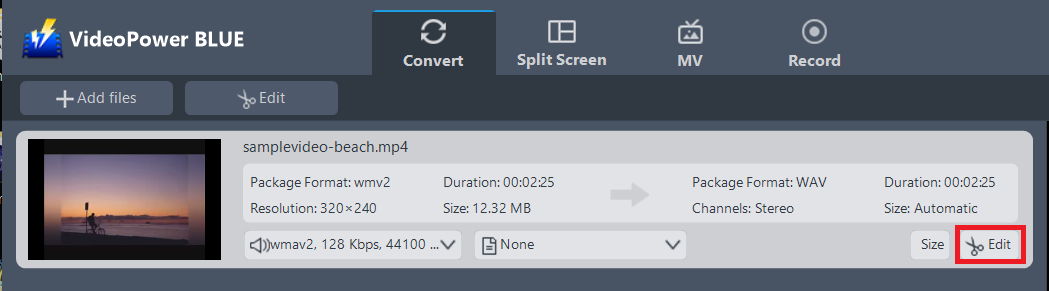
The imported file is displayed in the list.
Click the “Edit” button on the right side of the file.
The built-in video editor will pop up, with its help, you can make the perfect movie. Adjust speed and volume, trim, cut, crop, rotate or flip videos. Add effects, subtitles, and watermark while adjusting brightness, contrast, and saturation that will make editing conveniently easier.
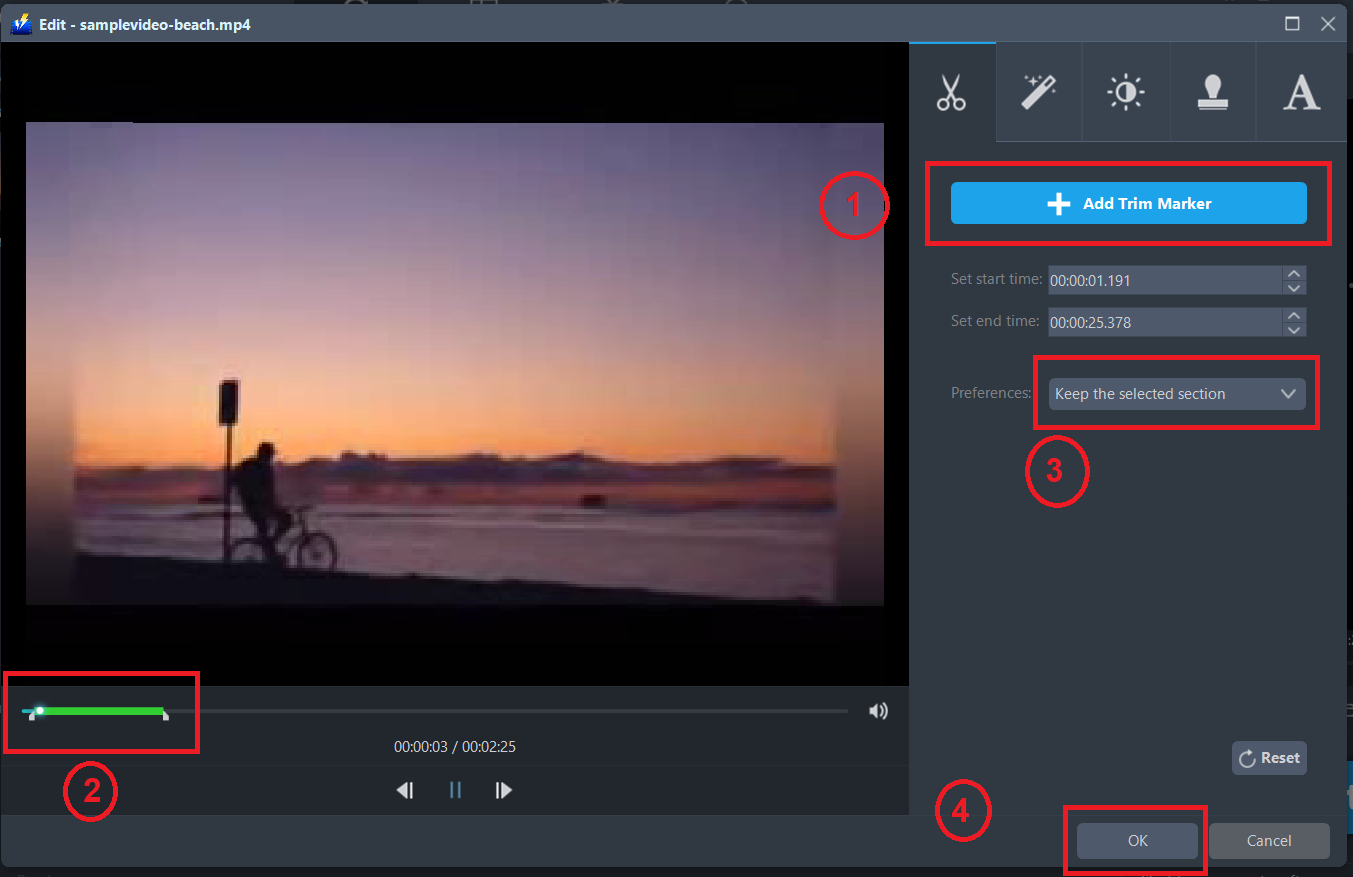
For example, you can trim your video as shown below:
1) Click “Add Trim Marker”.
2) Drag the mark as shown below to select the part you want to cut. If you want to select multi-sections, please repeat 1 and 2.
3) Choose “Keep the selected section” or “Delete the selected section” from “Preferences”.
4) Click “OK” to save the setting
Step 3: Convert MP4 to GIF format
3.1 Set the output format
1. Click to open the “Profile” drop-down menu, then choose the format you want from the profile list.
2. Here you can click “Video” and then “GIF”.
3. You may now choose the quality you prefer.

3.2 Start Conversion
Return to the file list.
Click the “Convert” button, then the converted GIF file will be saved in the default output folder.

3.3 Find the Converted file
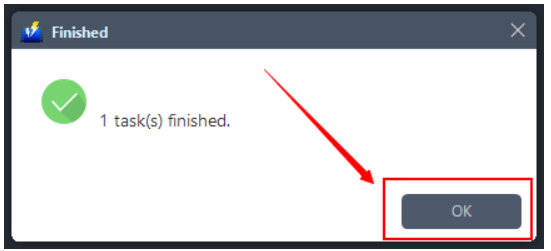
The program will pop up a window to inform you once the conversion is completed. Click “OK” to open the folder of your saved converted files.
With these steps, you can now trim and convert files from MP4 to GIF format.
Conclusion:
There a lot of software to convert MP4 to GIF but if you want to use an online program, go ahead but remember the limitations and technical glitches that one might encounter using an online converter.
If you want an easy, efficient and reliable way to convert MP4 videos into animated GIFs, use professional software like VideoPower BLUE. Aside from being a powerful file converter, the additional functionalities not seen elsewhere make it very worth the try.
VideoPower BLUE, a powerful converter that supports any video formats with video editing function, enables adding subtitles, apply watermarks, make MV and split-screen videos. More importantly, it can record screen activity in many different ways, offline and online.


