





Tips Index
HandBrake is a professional video format conversion tool. The software supports setting video size, adding filters, importing chapters and so on.
This program is being sought after due to its reputation as a good converter. This tool can also rip and convert any DVD which includes Bluray discs that are not copy-protected. As much as it is a good converter, it has issues that deemed to be frustrating not to mention. Oftentimes it crashes during the process so you need to repeat the conversion, it cannot perform an audio conversion and does not support the file format aside from MP4 and MKV format.
This article will focus on alternative software that you can use.
VideoPower BLUE is a fantastic HandBrake alternative. Using VideoPower BLUE assures that smooth and easy conversion. It has a user-friendly and satisfactory interface and fast conversion speed while preserving original quality and that is the reason why it is popular. This software has multiple functions such as screen recording, basic video editing, video and audio conversion, and slideshow making.
You can use the software for free by downloading its trial version below.
Step 1: Add the video file to the program
You can directly import the file to the program by clicking the “Add files” button or by drag-and-drop to the interface.
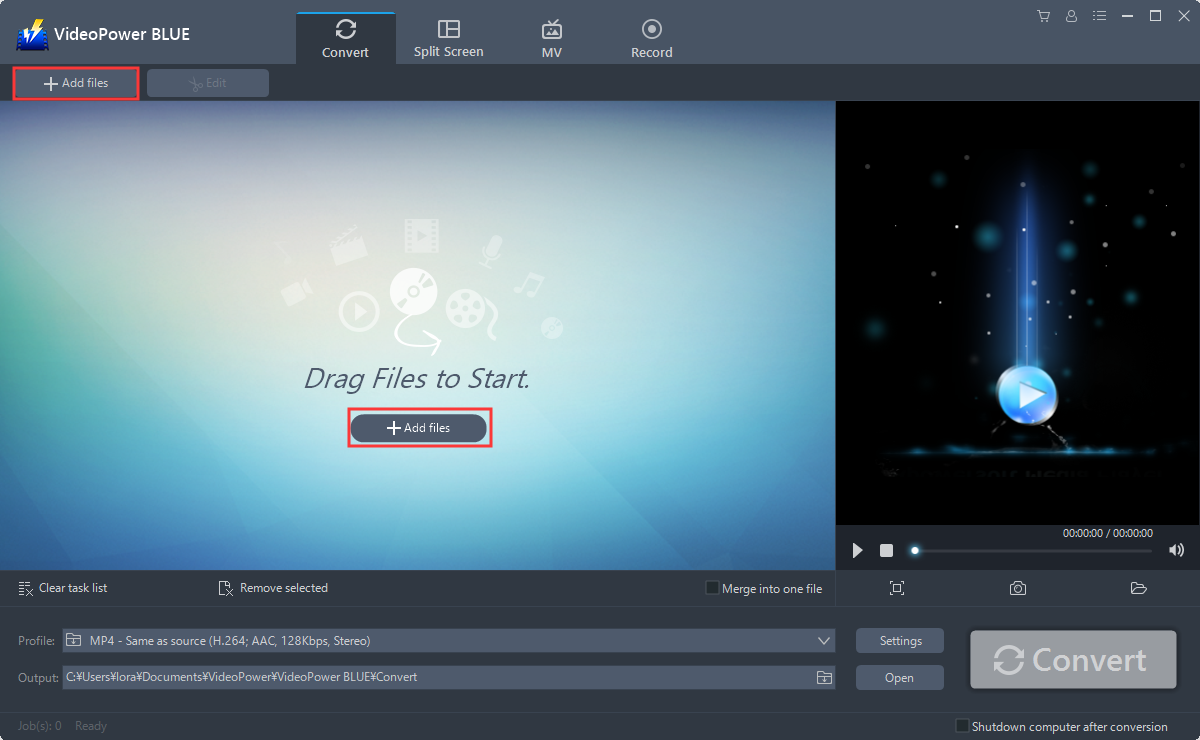
Step 2: Edit video
VideoPower BLUE is a multi-functional software indeed with its built-in editor. If you wish to edit your video or audio before conversion, then read along with this guide. But if you wish to directly convert your files, proceed directly to Step 3.
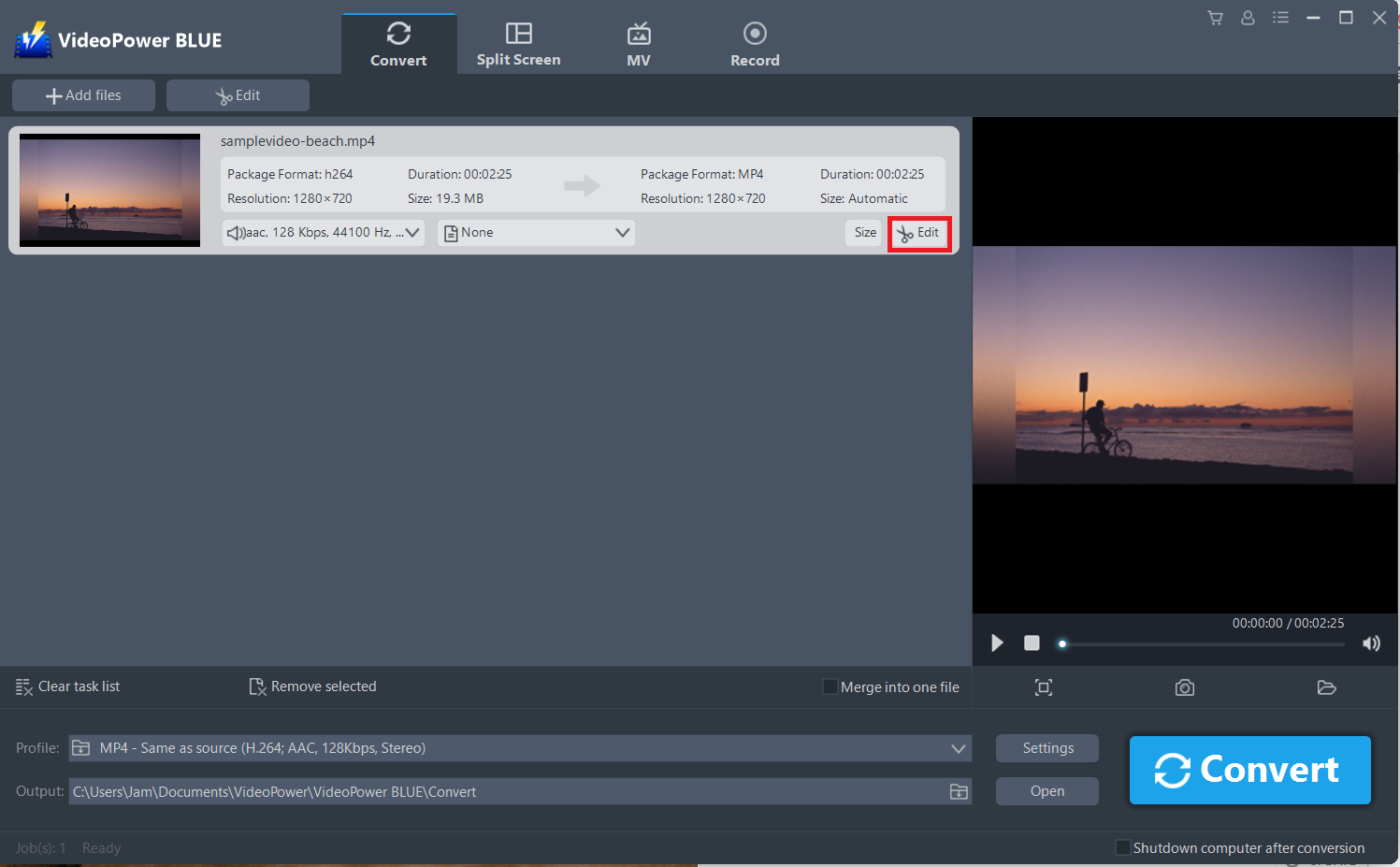
The imported file is displayed in the list.
Click the “Edit” button at the right side of the added video to enter the built-in video editor.
2.1 Trim Video
You can do the following steps to trim your video:
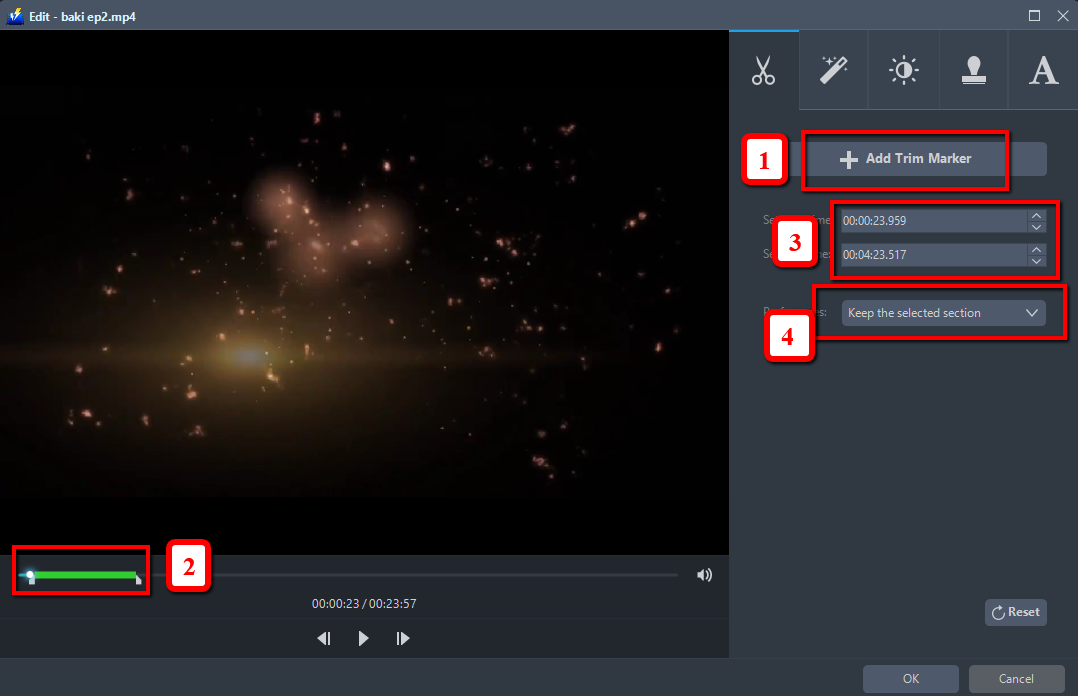
1) Click “Add Trim Marker” to add a trim marker to the progress bar, you can also add multiple trim markers by clicking this button multiple times.
2) Drag the slider to select the part you want to hold.
3) You can click the up or down button to set the start and end time as well.
4) Now you can choose to keep or delete the selected section.
2.2 Adjustments
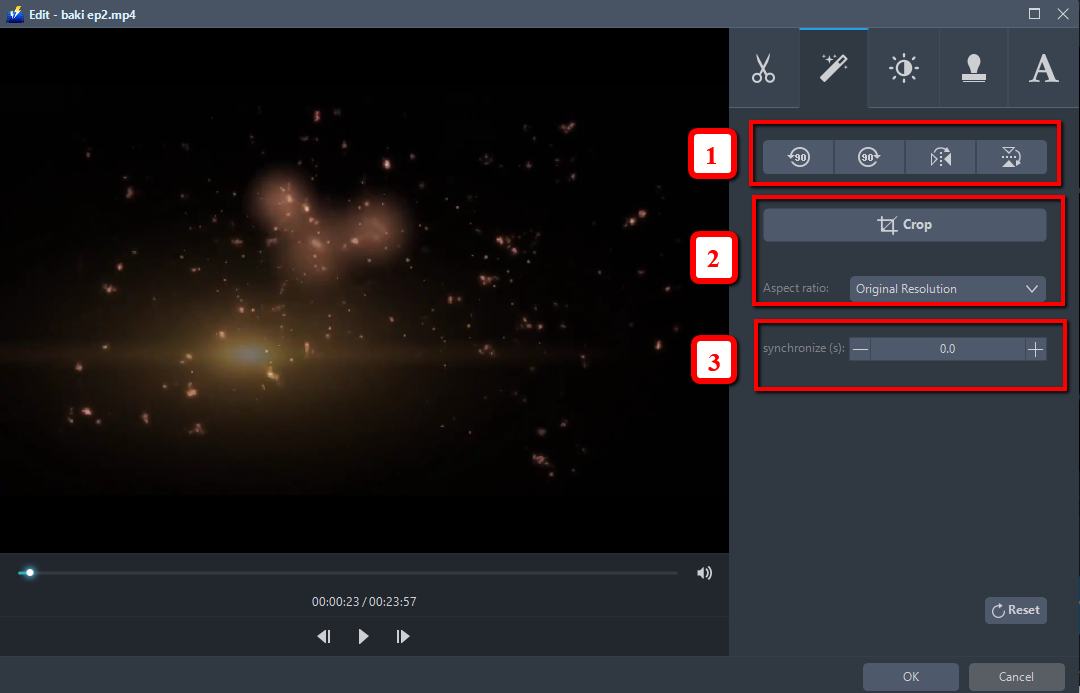
1) You can do the following steps to adjust your video:
2) Rotate your video position.
3) Crop video screen size.
4) Synchronize the video and audio.
2.3 Effects
You can do the following steps to change some EFFECTS on your video:
1) Speed – Speed up, slow down, the tempo of your video.
2) Volume – Set sound level.
3) Contrast – Change or adjust the difference in lightness, brightness and/or hue.
4) Brightness – Where you can adjust how lightness or darkness you want your video.
5) Saturation – Adjust the intensity of color in an image.

2.4 Watermark
Add a watermark on the video.
1. Click Watermark icon.
2. Add text, logo or image as a watermark.

2.5 Subtitle
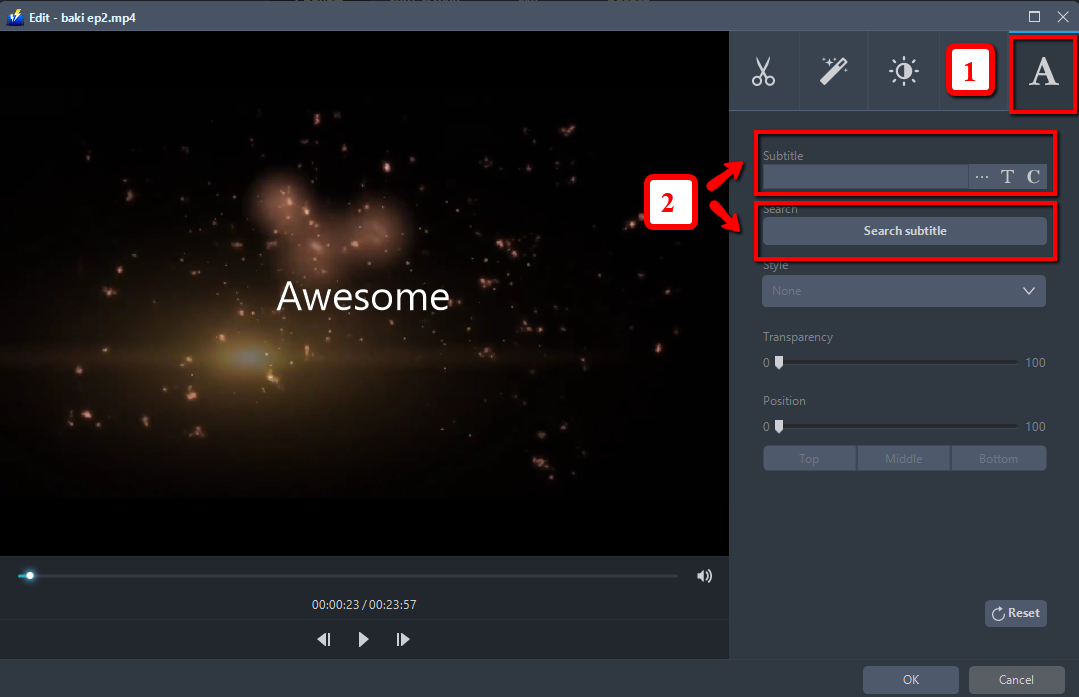
Add subtitles for the video. You can import external subtitles, or search subtitles for the corresponding subtitles from the Internet. Please refer to another tip about how to edit the subtitle file.
1) Click Subtitle icon.
2) Click Search Box (you can either click a subtitle saved on your computer or find it online).
Step 3: Conversion
3.1 Set the output format
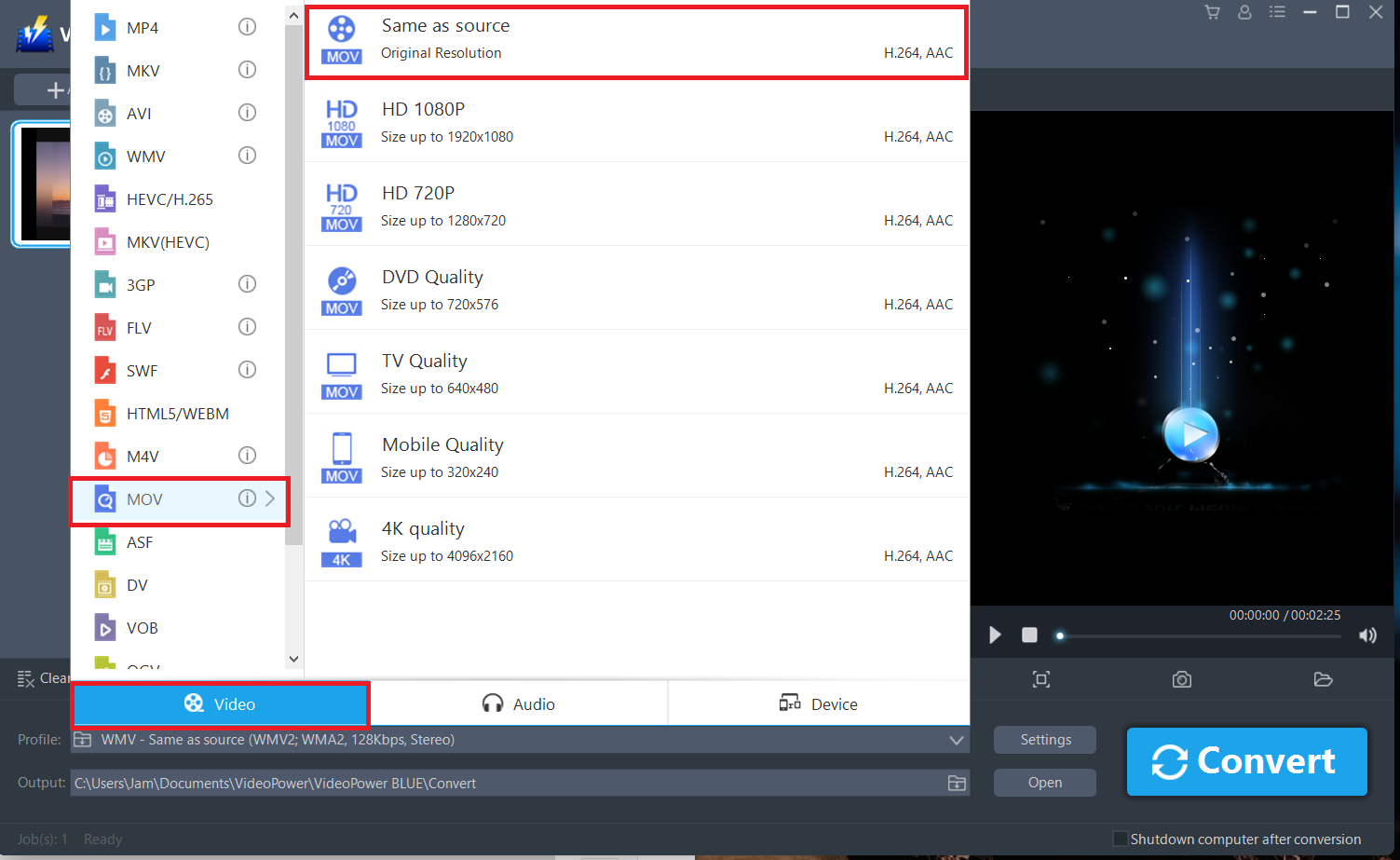
1) Click to open the “Profile” drop-down menu, then choose the format you want from the profile list.
2) Here you can click “Video” and then choose your desired format, here we choose MOV as an example.
3) You may now choose the quality you prefer.
3.2 Start Conversion
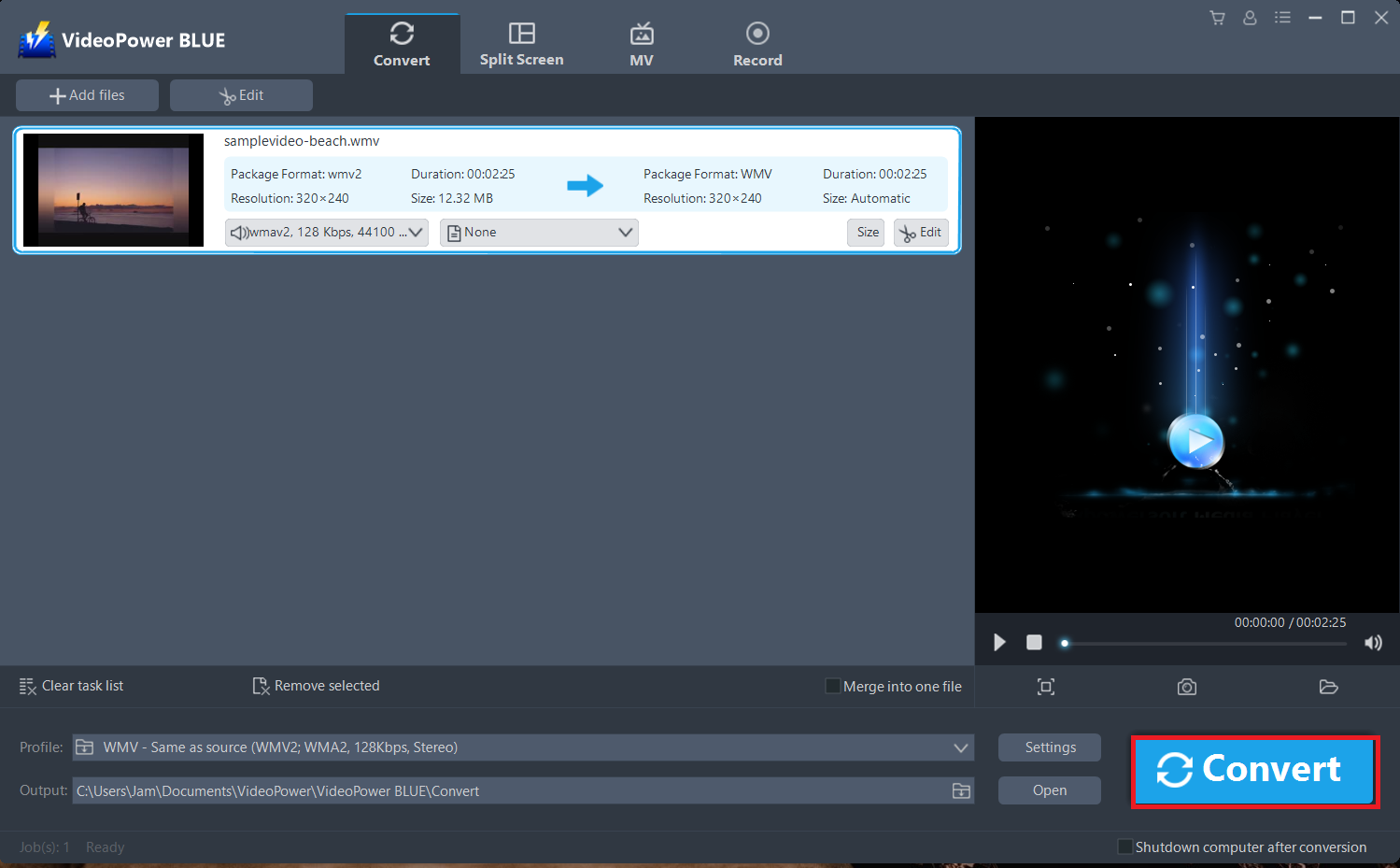
Return to the file list.
Click the “Convert” button, then the converted file will be saved in the default output folder.
3.3 Conversion Complete
The program will pop up a window to inform you once the conversion is completed. Click “OK” to open the folder of your saved converted MOV files.

Conclusion:
With VideoPower BLUE as a great Handbrake alternative, you can now convert videos to formats that work on your mobile phone, tablet, TV media player, game console, computer, or web browser.
Whatever you need it for, your converted files with this software will just perfect. It’s fast and flexible with a built-in video editor that will enable you to edit slideshows or videos, apply watermarks, effects and other basic video editing options such as trimming or cropping. It also has a split-screen tool for your photos and videos and a screen recorder which allows you to capture any on-screen activity on your computer.


