





Tips Index
For those who don’t know the M4R format, let me first popularize it. M4R is an audio format of the iPhone ringtone.
Many people use default ringtones on their mobile phones because they don’t know how to set the desired song as ringtone.
If you prefer to have something different and unique, you should make your own ringtone. I believe that everyone has their own favorite songs. Wouldn’t it be great to extract the parts of the song you like and convert it into M4R as the ringtone of your iPhone?
If so, you need a format converter to help you make it.
VideoPower BLUE is a great tool bundled with multiple functions and a variety of options. Besides screen recording, capturing, and video editing, and an excellent method to convert WAV to M4R.
You can try to use the software for free by downloading its trial version below.
Step 1: Add the WAV file to VideoPower BLUE
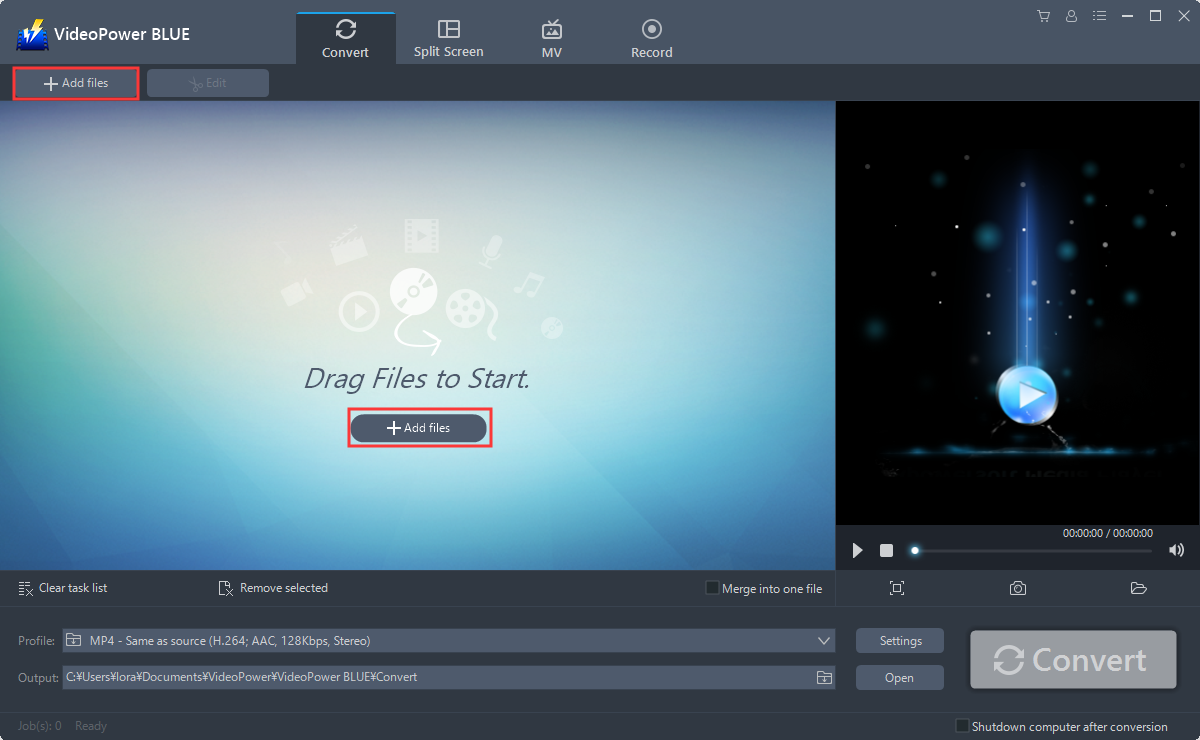
It will run automatically after the installation is finished. Import your video files into the program that you want to convert. Click the “Add files” button to select files from your PC, or directly drag-and-drop the files to the interface.
Step 2: Edit the WAV file
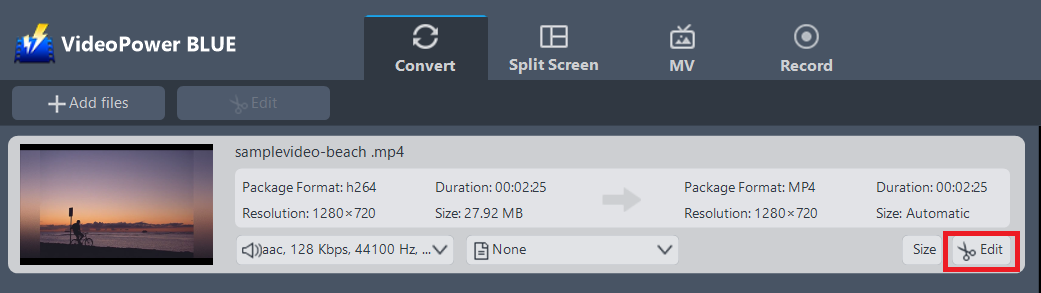
Click the “Edit” button at the right side of the added WAV file to enter the Edit window so you can design your WAV now.
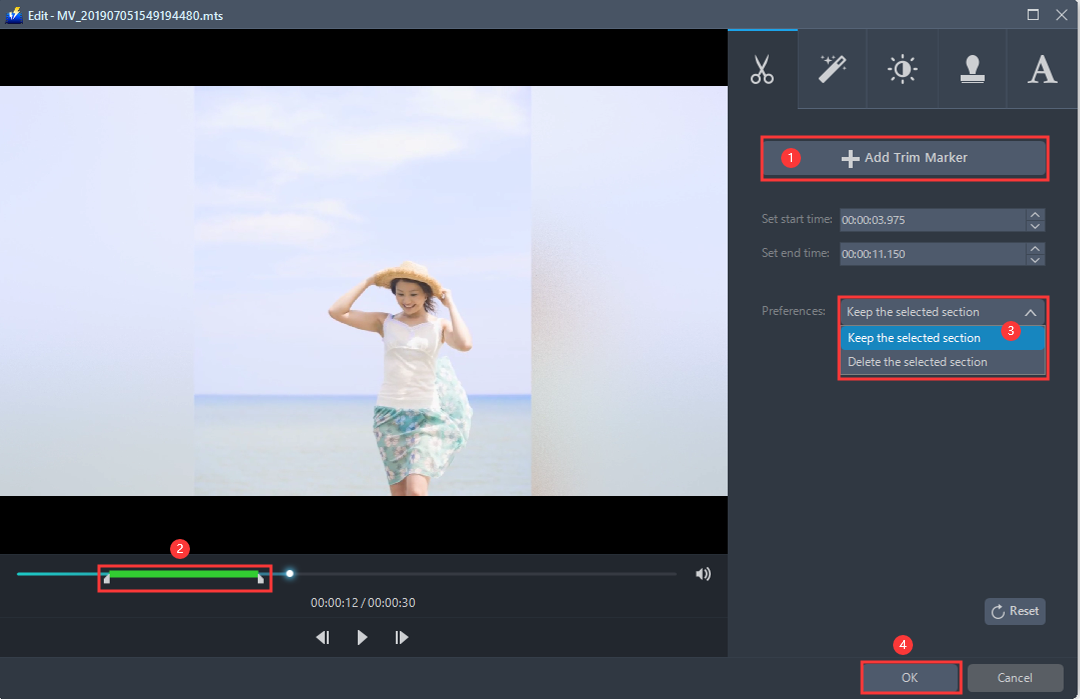
The built-in video editor will pop up. Adjust speed and volume, or add a trim.
For example, you can trim your audio as shown below:
1) Click “Add Trim Marker”.
2) Drag the mark as shown below to select the part you want to cut.
3) If you want to select multi-sections, please repeat 1 and 2.
4) Choose “Keep the selected section” or “Delete the selected section” from “Preferences”.
5) Click “OK” to save the setting.
Step 3: Convert WAV audio to M4R format
Set the output format.
1) Click to open the “Profile” drop-down menu, then choose the format you want from the profile list.
2) Here you can click “Audio” and then “M4R”.
3) Choose the quality “High, Medium or Low” as per your need.
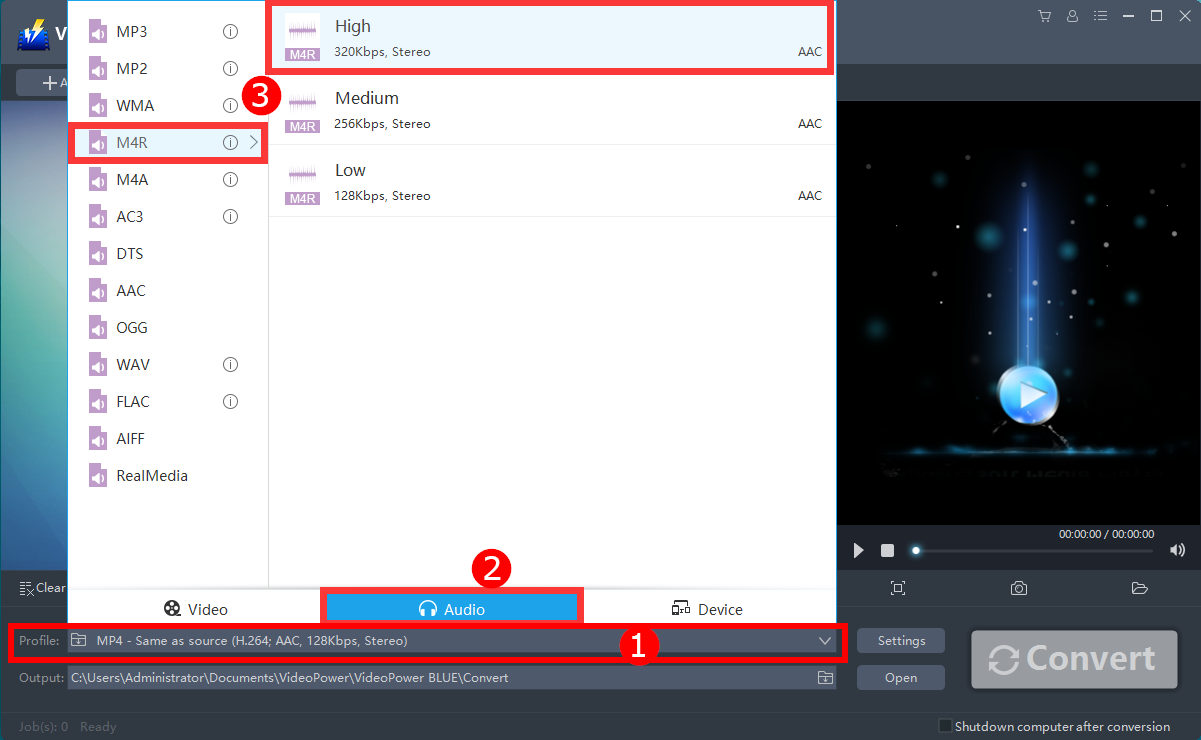
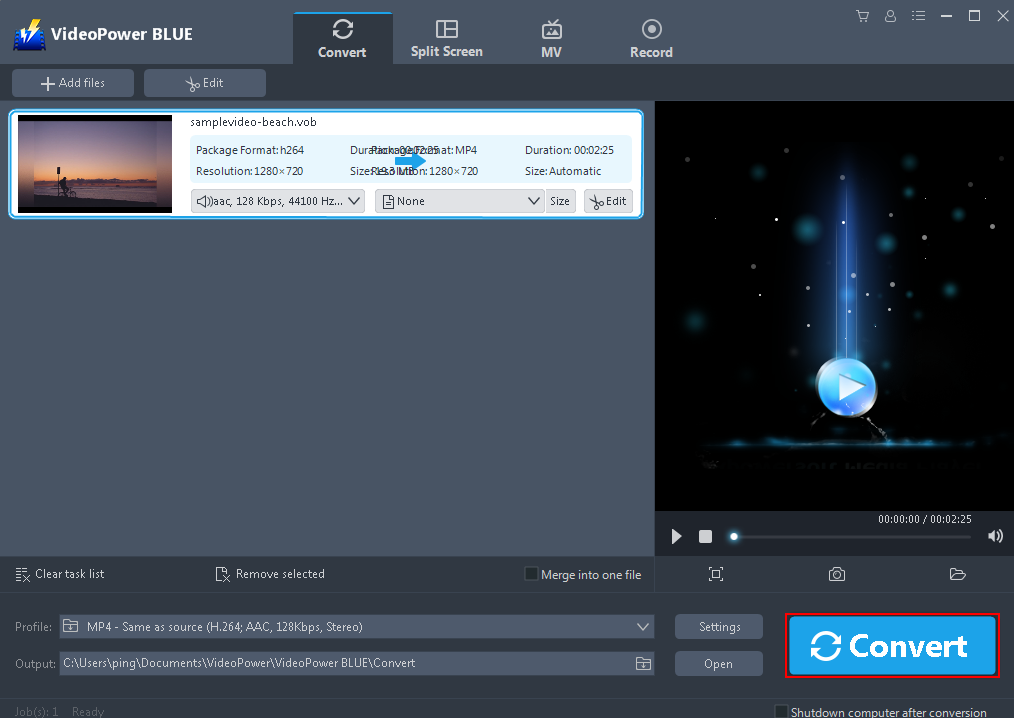
After setting the output location, click the “Convert” button, then the software will start to convert and save the edited Audio in M4R format.
Conclusion:
Converting to M4R supports auditory masking, which essentially discarding data with minimal loss of quality. To ensure this, VideoPower BLUE is perfect for you.
It can convert all video and audio files into common formats and devices easily. It’s handy and reliable that you can even convert in batches simultaneously while preserving good quality.
It has a built-in video editor that will enable you to edit slideshows or videos, apply watermarks, effects, and other basic video editing options such as trimming or cropping. Moreover, it has a split-screen tool for your photos and videos and a screen recorder which allows you to capture any on-screen activity on your computer. There’re so many advanced functions equipped in this program, which offer more options for you to convert and edit media files.


